
1. Introduction
This manual provides comprehensive instructions for the installation, operation, and maintenance of your XTRONS TE124 Car Radio GPS Tablet. Please read this manual thoroughly before using the device to ensure proper functionality and to prevent damage.
2. Safety Information
- Installation: Professional installation is recommended. Incorrect wiring can cause damage to the device or vehicle.
- Power Supply: Ensure the device is connected to a 12V DC power supply with negative grounding.
- Operation: Do not operate the device in a manner that distracts you from driving. Always prioritize road safety.
- Cleaning: Use a soft, dry cloth for cleaning. Avoid abrasive cleaners or solvents.
- Temperature: Avoid exposing the device to extreme temperatures or direct sunlight for prolonged periods.
3. Package Contents
Please check the contents of your package against the list below:
- XTRONS TE124 Head Unit
- Power Cable Harness
- RCA Cables
- GPS Antenna
- USB Cables
- Mounting Brackets and Screws
- User Manual
- Frame (if applicable)

Image: Overview of the XTRONS TE124 package contents, including the main unit, various cables (power, RCA, USB), GPS antenna, mounting hardware, and the user manual.
4. Product Overview
The XTRONS TE124 is a 10.1-inch Android 11 car radio GPS tablet designed to enhance your in-car entertainment and navigation experience. It features a high-resolution touchscreen, integrated Wi-Fi, Digital Sound Processor (DSP), and supports both Apple CarPlay and Android Auto.

Image: The XTRONS TE124 head unit displaying its main Android interface with icons for Navigation, Radio, Video, Music, Bluetooth, BT Music, AV_IN, Car Device, I Connect, and DSP.
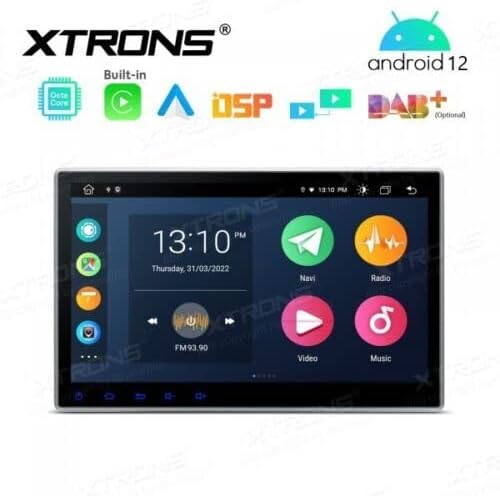
Image: The XTRONS TE124 unit showing the time and radio frequency, with XTRONS branding and icons indicating features like Android 12, Octa Core processor, DSP, and DAB+ support.
5. Setup and Installation
Proper installation is crucial for the optimal performance of your XTRONS TE124. It is highly recommended to have the unit installed by a qualified professional.
5.1 Pre-Installation Checks
- Verify all package contents are present.
- Ensure your vehicle's electrical system is compatible (12V DC, negative ground).
- Disconnect the vehicle's battery before starting installation.
5.2 Physical Installation
- Remove the existing car radio or dashboard panel.
- Connect the power harness, speaker wires, and other necessary cables (e.g., GPS antenna, USB cables, RCA cables) to the corresponding ports on the XTRONS TE124.
- Secure the unit into the dashboard using the provided mounting brackets and screws.
- Reconnect the vehicle's battery and test the unit's basic functions.

Image: Technical drawing showing the dimensions of the XTRONS TE124 head unit, with measurements in millimeters for the screen and chassis.
6. Operating Instructions
The XTRONS TE124 operates on an Android system, offering a user-friendly interface similar to a tablet. Tap icons to launch applications and swipe to navigate.
6.1 Basic Operations
- Power On/Off: Press and hold the power button (if available) or turn on the vehicle ignition.
- Volume Control: Use the physical buttons or on-screen controls to adjust volume.
- Home Screen: Tap the home icon to return to the main application screen.
6.2 Navigation (GPS)
The unit comes with a built-in GPS module. You can use pre-installed navigation apps or download others from the Google Play Store. Ensure the GPS antenna is properly installed for optimal signal reception.

Image: The XTRONS TE124 displaying a navigation map with route information and a small picture-in-picture video overlay.
6.3 Radio Function
Access the 'Radio' application to tune into FM/AM stations. You can scan for stations, save presets, and adjust settings.

Image: The XTRONS TE124 displaying its radio interface, showing the current frequency (93.40 MHz) and options for FM/AM bands and DSP settings.
6.4 Bluetooth Connectivity
Pair your smartphone via Bluetooth for hands-free calling and audio streaming.
- Go to 'Settings' > 'Bluetooth'.
- Enable Bluetooth on both the unit and your phone.
- Search for available devices on your phone and select 'XTRONS TE124'.
- Confirm the pairing code if prompted.
6.5 Apple CarPlay
Connect your iPhone to the unit via USB to use Apple CarPlay. This allows you to access iPhone apps like Maps, Music, Messages, and Phone directly on the unit's screen.

Image: The XTRONS TE124 displaying the Apple CarPlay interface, showing icons for Phone, Music, Maps, Messages, Now Playing, Car, Podcasts, and Audiobooks.
6.6 Android Auto
Connect your Android phone via USB to use Android Auto. This integrates your phone's essential features for navigation, communication, and entertainment onto the unit's display.

Image: The XTRONS TE124 displaying the Android Auto interface, showing icons for Maps, Podcasts, Phone, Exit, Calendar, Settings, and SmartThings.
6.7 Wi-Fi and Internet
Connect to a Wi-Fi hotspot (e.g., from your smartphone) to access online features, download apps, and browse the internet.
- Go to 'Settings' > 'Network & Internet' > 'Wi-Fi'.
- Turn on Wi-Fi and select your desired network.
- Enter the password if required.
6.8 DSP (Digital Sound Processor)
The integrated DSP allows for advanced audio customization. Access the DSP settings to adjust equalizer, time alignment, and other sound parameters to optimize your listening experience.
7. Maintenance
- Screen Cleaning: Use a soft, lint-free cloth to gently wipe the screen. For stubborn marks, slightly dampen the cloth with water or a screen cleaner designed for electronics.
- Software Updates: Periodically check for software updates through the unit's settings or the XTRONS official website to ensure optimal performance and access to new features.
- General Care: Avoid placing heavy objects on the unit or exposing it to excessive moisture.
8. Troubleshooting
| Problem | Possible Cause | Solution |
|---|---|---|
| Unit does not power on | Incorrect wiring, blown fuse, vehicle battery issue | Check power connections, inspect fuses, verify vehicle battery voltage. Consult a professional. |
| No sound | Volume too low, speaker wires disconnected, incorrect audio settings | Increase volume, check speaker connections, verify audio output settings. |
| GPS signal lost or inaccurate | GPS antenna not properly installed or obstructed | Ensure GPS antenna has a clear view of the sky and is securely connected. |
| Bluetooth pairing fails | Bluetooth not enabled, device not discoverable, interference | Ensure Bluetooth is on for both devices, make the phone discoverable, try pairing in a different location. |
| Touchscreen unresponsive | Software glitch, screen damage | Restart the unit. If the problem persists, contact support. |
9. Specifications
| Feature | Detail |
|---|---|
| Brand | XTRONS |
| Model | TE124 |
| Screen Size | 10.1 Inches |
| Operating System | Android 11 (or newer, as per updates) |
| Connectivity Technology | Bluetooth, USB, Wi-Fi |
| Special Features | Android Auto, Apple CarPlay, Bluetooth, DAB, DSP |
| Display Type | LED, Touchscreen |
| Compatible Devices | Tablet (referring to its form factor) |
| Vehicle Service Type | Car |
| Batteries Included | No |
10. Warranty and Support
For warranty information, please refer to the warranty card included with your product or visit the official XTRONS website. If you encounter any issues not covered in this manual or require further assistance, please contact XTRONS customer support through their official channels.
Online Resources: For the latest software updates, FAQs, and additional support, please visit the XTRONS official website.

