
TP-Link EAP613
TP-Link EAP613 AX1800 Wireless Access Point User Manual
Model: EAP613
1. Introduction
This manual provides detailed instructions for the installation, configuration, and operation of your TP-Link EAP613 AX1800 Wireless Access Point. The EAP613 is designed to deliver high-speed Wi-Fi 6 connectivity, integrating seamlessly into the Omada Software Defined Networking (SDN) platform for centralized management.

Figure 1: TP-Link EAP613 AX1800 Wireless Access Point
2. Key Features
- Ultra-Fast Wi-Fi 6 Speeds: The EAP613 supports dual-band Wi-Fi 6 (802.11ax) technology, offering speeds up to 1800 Mbps (1201 Mbps on 5 GHz and 574 Mbps on 2.4 GHz). This is achieved through technologies like 1024-QAM and Long OFDM Symbol, enhancing throughput for multiple users.
- Ultra-Slim Design: Its compact and elegant design allows for discreet installation in various environments such as offices, hotels, classrooms, or cafes.
- Integrated into Omada SDN: The device is part of the Omada Software Defined Networking (SDN) platform, enabling centralized management of access points, switches, and gateways. Control options include Omada Hardware Controller, Software Controller, or Cloud-based Controller. Standalone mode is also supported.
- Cloud Access & Omada Compatibility: Remote cloud access and the Omada app facilitate centralized network management from any location, at any time.
- Advanced Wireless Technologies: Features include Mesh Wi-Fi, Seamless Roaming (requires Omada SDN controllers), WPA3 encryption for enhanced security, Band Steering, Load Balancing, Airtime Fairness, and Beamforming.
- PoE+ for Easy Installation: Supports 802.3at PoE+ and 48V/0.5A Passive PoE (e.g., TP-Link TL-PoE4824G) for flexible deployment without the need for a separate DC power adapter (DC adapter not included). A 12V/1A DC power supply option is also available.

Figure 2: Wi-Fi 6 Speed Capabilities of EAP613

Figure 3: Seamless Roaming Functionality
3. Package Contents
Verify that your package contains the following items:
- EAP613 Wireless Access Point
- Ceiling/Wall Mounting Kits
- Installation Guide
Note: A DC power adapter is not included in the package. The EAP613 is primarily designed for Power over Ethernet (PoE+) deployment.
4. Setup and Installation
4.1 Powering the Device
The EAP613 can be powered using one of the following methods:
- 802.3at PoE+ Switch: Connect an Ethernet cable from an 802.3at compliant PoE+ switch to the EAP613's Ethernet port. This method provides both power and data connectivity.
- 48V/0.5A Passive PoE Adapter: Use a compatible passive PoE adapter (e.g., TP-Link TL-PoE4824G) to supply power through the Ethernet cable.
- 12V/1A DC Power Adapter: If PoE is not available, a 12V/1A DC power adapter (not included) can be connected to the DC power input port.

Figure 4: EAP613 Power and Port Overview
4.2 Mounting the Access Point
The EAP613 is designed for ceiling or wall mounting. Refer to the included Installation Guide for detailed steps on using the mounting kits.
- Choose a suitable location for optimal Wi-Fi coverage.
- Use the mounting bracket as a template to mark drill holes on the ceiling or wall.
- Install the anchors and screws, then attach the mounting bracket.
- Connect the Ethernet cable (and DC power if not using PoE) to the EAP613.
- Align the EAP613 with the mounting bracket and twist to secure it in place.

Figure 5: Deployment with PoE+ or Mesh
5. Operation
5.1 Omada SDN Integration
The EAP613 can be managed as part of the Omada SDN ecosystem. This allows for centralized control of your network devices.
- Omada Hardware Controller: A dedicated hardware device for managing your Omada network.
- Omada Software Controller: Software that can be installed on a PC or server for network management.
- Omada Cloud-Based Controller: A cloud service for remote management (contact TP-Link for details on compatible models and availability).
- Standalone Mode: The EAP613 can also operate independently without an Omada controller for basic functionality.

Figure 6: Omada SDN Platform Overview
5.2 Remote Management via Omada App
The Omada app provides convenient remote management of your network. Download the app from your device's app store.
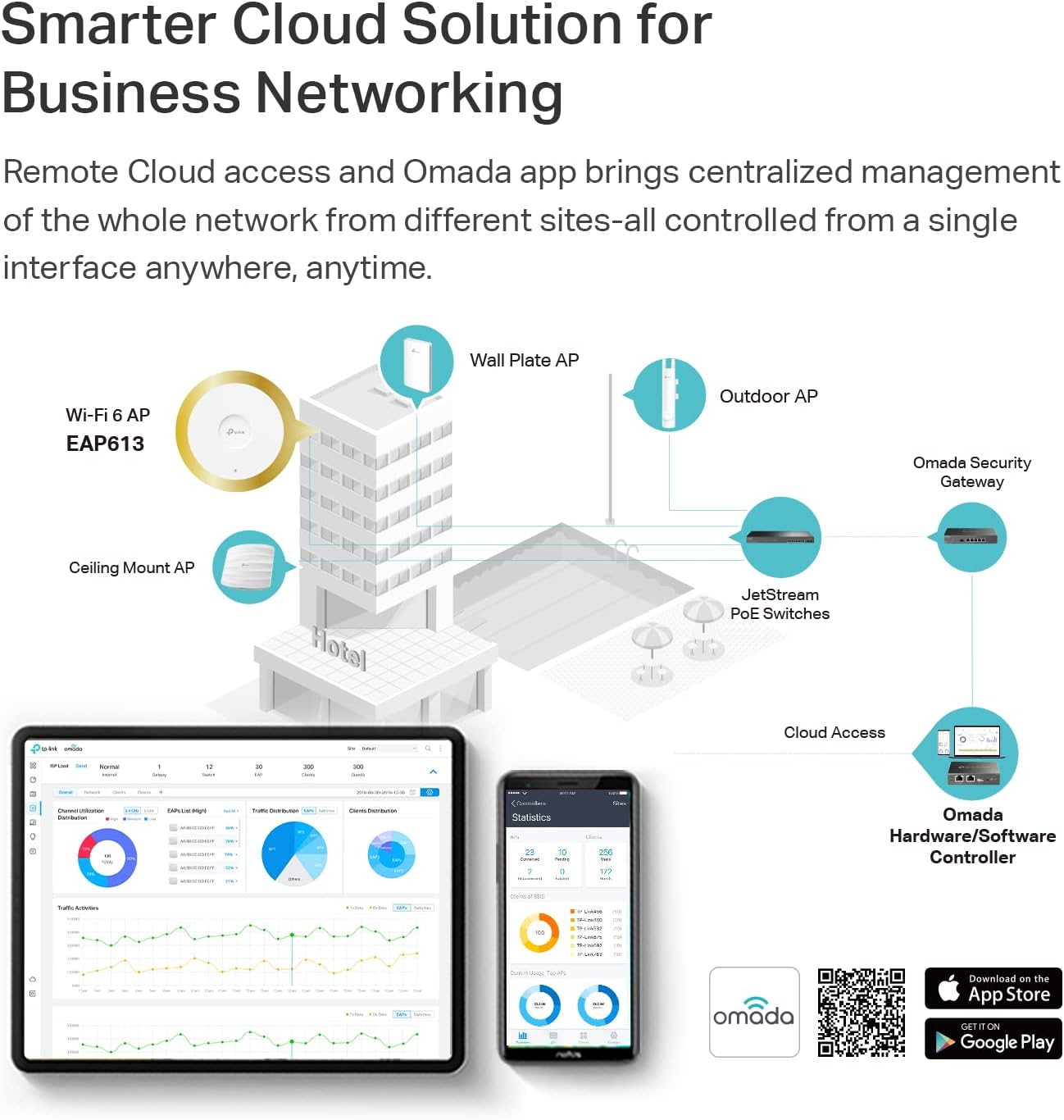
Figure 7: Omada Cloud Solution and App Management
Download the Omada app: tp-link.com/common/app/omada/qrcode.php
5.3 Network Configuration Example
The EAP613 can be deployed in various network configurations, including structured wiring setups for homes or businesses.

Figure 8: Example Omada Structured Wiring Network
6. Maintenance
- Firmware Updates: Regularly check the TP-Link website for the latest firmware updates to ensure optimal performance and security.
- Cleaning: Keep the device clean and free from dust. Use a soft, dry cloth for cleaning.
- Environmental Conditions: Ensure the device is operated within its specified temperature and humidity ranges to prevent damage.
- Security: Use strong, unique passwords for your Wi-Fi networks and Omada controller. Enable WPA3 encryption for enhanced security.
7. Troubleshooting
7.1 Common Issues and Solutions
- No Power:
- Ensure the Ethernet cable is securely connected to a PoE+ source or a compatible DC power adapter is used.
- Verify the PoE+ switch or power adapter is functioning correctly.
- No Wi-Fi Signal:
- Check if the EAP613 is powered on and its LED indicator is active.
- Confirm that the EAP613 is properly configured via the Omada controller or in standalone mode.
- Ensure your client devices are within range and have the correct Wi-Fi password.
- Slow Wi-Fi Speed:
- Check for interference from other wireless devices or obstacles.
- Ensure the EAP613 is connected to a gigabit Ethernet port.
- Update the EAP613 firmware to the latest version.
- Consider adjusting channel settings or enabling features like Band Steering.
- Cannot Access Omada Controller:
- Verify network connectivity between the EAP613 and the controller.
- Ensure the controller software/hardware is running and accessible.
- Check firewall settings on the controller host.
8. Specifications
| Model | EAP613 |
| Wireless Standards | IEEE 802.11ax/ac/n/g/b/a |
| Frequency | 2.4 GHz and 5 GHz (Dual-Band) |
| Wireless Speeds | 1201 Mbps (5 GHz), 574 Mbps (2.4 GHz) - Total 1775 Mbps (AX1800) |
| Ethernet Port | 1x Gigabit Ethernet Port (RJ-45) |
| Power Supply | 802.3at PoE+ or 48V/0.5A Passive PoE or 12V/1A DC (DC adapter not included) |
| Dimensions (W x D x H) | 6.3 x 6.3 x 1.32 inches (160 x 160 x 33.6 mm) |
| Mounting | Ceiling/Wall Mounting (Kits Included) |
| Wireless Features | Mesh Wi-Fi, Seamless Roaming, WPA3, Band Steering, Load Balancing, Airtime Fairness, Beamforming, MU-MIMO, OFDMA |
| Management | Omada App, Cloud Access, Omada Hardware Controller, Omada Software Controller, Standalone Mode |
9. Warranty and Support
The TP-Link EAP613 AX1800 Wireless Access Point is backed by a 5-year warranty.
For technical support, warranty claims, and additional product information, please visit the official TP-Link website: www.tp-link.com. You can also find FAQs, firmware updates, and community forums there.
Legal Disclaimer
1. Maximum wireless transmission rates are the physical rates derived from IEEE Standard 802.11 specifications. Range and coverage specifications are based upon test results under normal usage conditions. Actual wireless transmission rate and wireless coverage are not guaranteed and will vary as a result of 1) environmental factors, including building materials, physical objects and obstacles, 2) network conditions, including local interference, volume and density of traffic, product location, network complexity, and network overhead and 3) client limitations, including rated performance, location, connection quality, and client condition.
2. Actual network speed may be limited by the rate of the product's Ethernet WAN or LAN port, the rate supported by the network cable, Internet service provider factors and other environmental conditions.
Related documentsEAP613


Ask a question about this manual
Ask about setup, troubleshooting, compatibility, parts, safety, or missing instructions. Manuals+ will review the question and use this page’s manual context to help answer it.