
Leopold FC750RBT
Leopold FC750RBT Mechanical Keyboard
User Manual
1. Introduction
Welcome to the user manual for your new Leopold FC750RBT Purple/Grey TKL Bluetooth PD Double Shot PBT Mechanical Keyboard. This keyboard is designed for serious typists, offering both wired USB-C and wireless Bluetooth 5.1 connectivity. It features high-quality Double Shot PBT keycaps and authentic Cherry MX Brown switches for a superior typing experience. This manual provides essential information on setup, operation, maintenance, and troubleshooting to help you get the most out of your keyboard.
2. Package Contents
Please verify that all items are present in your package:
- Leopold FC750RBT Mechanical Keyboard
- USB-C to USB-A Cable
- 2 x AAA Batteries
3. Product Overview

Figure 3.1: Top-down view of the Leopold FC750RBT keyboard, highlighting the layout and keycap colors.

Figure 3.2: Front view of the keyboard, emphasizing its tenkeyless (TKL) form factor.
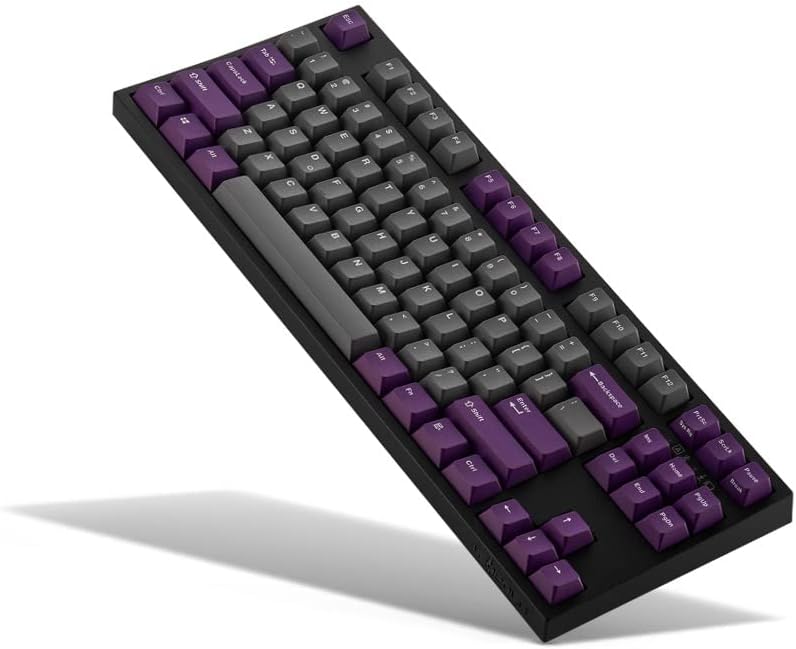
Figure 3.3: Angled view of the keyboard, providing a perspective on the keycap profile and overall design.
4. Setup
4.1. Battery Installation
- Locate the battery compartment on the underside of the keyboard.
- Open the battery compartment cover.
- Insert the two included AAA batteries, ensuring correct polarity (+/-).
- Close the battery compartment cover securely.
4.2. Wired Connection
For a wired connection, use the provided USB-C to USB-A cable:
- Connect the USB-C end of the cable to the port on the keyboard.
- Connect the USB-A end of the cable to an available USB port on your computer or device.
- The keyboard will be automatically recognized and ready for use.
4.3. Bluetooth Connection
The FC750RBT supports Bluetooth 5.1 for wireless connectivity. Ensure batteries are installed before proceeding.
- Turn on the Bluetooth switch located on the underside of the keyboard.
- On your device (computer, tablet, smartphone), navigate to Bluetooth settings.
- Search for available Bluetooth devices. The keyboard should appear as "Leopold FC750RBT" or similar.
- Select the keyboard to initiate pairing. Follow any on-screen prompts to complete the pairing process.
- Once paired, the keyboard's Bluetooth indicator light will confirm connection.
5. Operating Instructions
5.1. Switching Between Wired and Bluetooth Modes
The keyboard automatically detects the connection type. If the USB cable is connected, it will prioritize the wired connection. To use Bluetooth, ensure the cable is disconnected and the Bluetooth switch on the underside is ON.
5.2. Dip Switch Functions
The FC750RBT features DIP switches on the underside of the keyboard, allowing for customization of certain key functions without software. Refer to the diagram on the keyboard's underside for specific switch positions and their corresponding functions. Common functions include:
- Changing the position of the Left Ctrl and Caps Lock keys.
- Swapping the Alt and Windows/Meta keys.
- Disabling the Windows/Meta key.
Note: Always power off the keyboard or disconnect it before changing DIP switch settings to prevent potential issues.
6. Maintenance
6.1. Cleaning the Keyboard
- Disconnect the keyboard from your device before cleaning.
- Use a soft, lint-free cloth slightly dampened with water or a mild cleaning solution to wipe the keycaps and casing.
- For dust and debris between keys, use compressed air.
- Avoid using harsh chemicals, abrasives, or solvents, as these can damage the keycaps and finish.
6.2. Keycap Removal (Optional)
If you need to clean under the keycaps or replace them, use a keycap puller. Gently pull the keycap straight up to remove it. When reattaching, align the keycap with the switch stem and press down firmly until it clicks into place.
7. Troubleshooting
| Problem | Possible Cause | Solution |
|---|---|---|
| Keyboard not responding (wired) | Loose cable connection; faulty USB port; driver issue. | Ensure USB-C cable is securely connected. Try a different USB port. Restart your computer. |
| Keyboard not connecting via Bluetooth | Bluetooth switch off; low batteries; not in pairing mode; interference. | Ensure Bluetooth switch is ON. Replace AAA batteries. Re-initiate pairing mode on keyboard and device. Move closer to device. |
| Keys not registering or double-typing | Dust/debris under keycap; faulty switch. | Use compressed air to clean under keycaps. If problem persists, contact support. |
| DIP switch settings not applying | DIP switches changed while keyboard was on. | Disconnect keyboard or power off, then change DIP switch settings, and reconnect/power on. |
8. Specifications
| Feature | Detail |
|---|---|
| Model | FC750RBT |
| Brand | Leopold |
| Connectivity | Wired (USB-C), Bluetooth 5.1 |
| Switch Type | Cherry MX Brown |
| Keycaps | Double Shot PBT, 1.5mm thick |
| Layout | Tenkeyless (TKL), 87 keys |
| Power Source | 2 x AAA Batteries (for Bluetooth) |
| Compatible Devices | Laptop, PC, Tablet, Smartphone |
| Color | Purple/Grey |
9. Warranty and Support
Leopold products are manufactured to high-quality standards. For information regarding warranty coverage, please refer to the warranty card included with your product or visit the official Leopold website. For technical support, troubleshooting assistance, or service inquiries, please contact Leopold customer support through their official channels.
Please retain your proof of purchase for warranty claims.
Related documentsFC750RBT


Ask a question about this manual
Ask about setup, troubleshooting, compatibility, parts, safety, or missing instructions. Manuals+ will review the question and use this page’s manual context to help answer it.