
1. Introduction
This manual provides essential information for the setup, operation, maintenance, and troubleshooting of your Dell Latitude 7490 Business Laptop. Please read this guide thoroughly to ensure proper use and to maximize the lifespan of your device. The Dell Latitude 7490 is designed for business professionals, offering a balance of performance, portability, and durability.
2. What's in the Box
Verify that all items are present before proceeding with setup.
- Dell Latitude 7490 Business Laptop
- AC Adapter

Image: The included AC adapter for charging the Dell Latitude 7490 laptop.
3. Product Overview
Familiarize yourself with the physical components and ports of your Dell Latitude 7490 laptop.
3.1 Front View

Image: Front view of the Dell Latitude 7490 laptop with the screen open, displaying a vibrant desktop background.
The front of the laptop features the 14-inch Full HD display, keyboard, and touchpad. The display offers a clear visual experience for various tasks.
3.2 Side Views and Ports

Image: Left side view of the Dell Latitude 7490, showing various ports including USB, HDMI, and power input.

Image: Right side view of the Dell Latitude 7490, featuring additional ports such as USB and an SD card reader.
The Dell Latitude 7490 is equipped with a range of ports for connectivity. These include USB 3.0 ports, an HDMI port for external displays, an Ethernet port for wired network connections, an SD card reader, and a headphone/microphone combo jack. Specific port configurations may vary slightly.
3.3 Bottom View
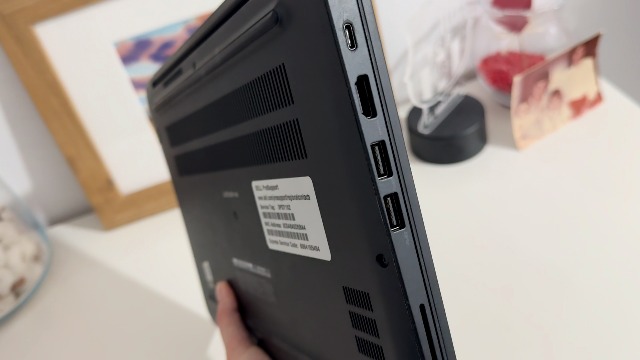
Image: Bottom view of the Dell Latitude 7490, showing ventilation grilles and product labels.
The bottom of the laptop contains ventilation grilles to ensure proper airflow and prevent overheating. It also features product labels with important information such as the service tag and regulatory details.
4. Setup
4.1 Initial Power On
- Connect the AC adapter to the laptop's power input port and then to a power outlet.
- Open the laptop lid.
- Press the power button, typically located on the top-right of the keyboard deck.
- Follow the on-screen instructions to complete the Windows 10 Pro setup, including language selection, network connection, and user account creation.

Image: The Dell Latitude 7490 laptop powered on, displaying the Windows desktop, ready for initial setup or use.
4.2 Connecting Peripherals
You can connect external devices such as a mouse, keyboard, or external monitor to the available USB and HDMI ports as described in the Product Overview section.
5. Operating the Laptop
5.1 Keyboard and Touchpad
The laptop features a full-sized keyboard and a precision touchpad. Use the touchpad for navigation and gestures. The keyboard includes function keys (F1-F12) that can be used in combination with the Fn key for various shortcuts, such as adjusting screen brightness or volume.
5.2 Windows 10 Pro Operating System
Your Dell Latitude 7490 comes with Windows 10 Pro pre-installed. For detailed information on using Windows 10 Pro, refer to the official Microsoft documentation or support resources. Key features include the Start Menu, Taskbar, File Explorer, and various pre-installed applications.
6. Maintenance
6.1 Cleaning Your Laptop
- Screen: Use a soft, lint-free cloth lightly dampened with water or a screen cleaner. Avoid harsh chemicals.
- Keyboard and Chassis: Use a soft cloth to wipe surfaces. For dust in crevices, use compressed air.
- Ports: Ensure ports are free of dust and debris to maintain connectivity.
6.2 Software Updates
Regularly update your operating system and drivers to ensure optimal performance and security. Windows Update can be accessed through the Settings menu. Dell also provides driver updates through their official support website.
7. Troubleshooting
This section addresses common issues you might encounter with your Dell Latitude 7490.
| Problem | Possible Solution |
|---|---|
| Laptop does not power on. | Ensure the AC adapter is securely connected to both the laptop and a working power outlet. Check if the power outlet is functional. Try a different power outlet if available. |
| Screen is blank or black. | Press the Fn + F2 (or corresponding brightness key) to increase brightness. Connect an external monitor to check if the display output works. Restart the laptop. |
| Wi-Fi connection issues. | Check if Wi-Fi is enabled (often Fn + PrtSc or similar key). Restart your router and modem. Ensure drivers are updated. |
| Slow performance. | Close unnecessary applications. Check for background processes using Task Manager. Ensure sufficient free storage space. Run a malware scan. |
| Battery not charging. | Verify the AC adapter connection. Ensure the adapter is the correct one for your laptop. Check for any physical damage to the charging port or adapter. |
8. Specifications
Below are the key technical specifications for the Dell Latitude 7490 Business Laptop (Intel Core i5-8350U, 16GB DDR4 RAM, 512GB SSD variant).
- Processor: Intel Core i5-8350U (1.7 GHz)
- RAM: 16 GB DDR4 SDRAM
- Storage: 512 GB SSD (Solid State Drive)
- Display: 14-inch FHD (1920 x 1080) Anti-Glare, Non-Touch
- Graphics: Integrated Intel Graphics
- Operating System: Windows 10 Pro (Multi-language support)
- Wireless Connectivity: Bluetooth
- Ports: 2x USB 3.0, HDMI, Ethernet, SD Card Reader, Headphone/Microphone Combo Jack (specific configuration may vary)
- Dimensions (LxWxH): Approximately 14 x 9.3 x 0.6 inches
- Weight: Approximately 4.25 pounds
9. Warranty and Support
9.1 Warranty Information
This renewed product typically comes with a 90-day warranty. Please refer to your purchase documentation or contact the seller for specific warranty terms and conditions. The warranty covers defects in materials and workmanship under normal use.
9.2 Technical Support
For technical assistance, driver downloads, or further support, visit the official Dell ProSupport website: www.dell.com/prosupport. You may need your Service Tag, which is located on a label on the bottom of your laptop, for support inquiries.


