
Leopold FC750RBT Navy Blue
Leopold FC750RBT Mechanical Keyboard User Manual
Model: FC750RBT Navy Blue
Introduction
The Leopold FC750RBT is a Tenkeyless (TKL) mechanical keyboard designed for both wired and wireless operation. It features high-quality Double Shot PBT keycaps and authentic Cherry MX Brown switches, providing a durable and tactile typing experience.
This keyboard supports dual connectivity: via the included USB-C to USB-A cable for wired use, or wirelessly through Bluetooth 5.1 for seamless connection to compatible devices.
Package Contents
- Leopold FC750RBT Mechanical Keyboard
- USB-C to USB-A Cable
- 2 x AAA Batteries
Setup
Battery Installation
The Leopold FC750RBT keyboard requires two AAA batteries for wireless operation.
- Locate the battery compartment on the underside of the keyboard.
- Open the battery compartment cover.
- Insert the two AAA batteries, ensuring correct polarity (+/-) as indicated inside the compartment.
- Close the battery compartment cover securely.
Connecting the Keyboard
Wired Connection (USB-C)
For a wired connection, use the provided USB-C to USB-A cable.
- Connect the USB-C end of the cable to the USB-C port on the keyboard.
- Connect the USB-A end of the cable to an available USB port on your computer or device.
- The keyboard will be automatically recognized and ready for use.
Wireless Connection (Bluetooth 5.1)
The keyboard can connect wirelessly via Bluetooth 5.1 to compatible devices such as laptops, PCs, tablets, and smartphones.
- Ensure the keyboard has fresh AAA batteries installed.
- Turn on the Bluetooth function on your device.
- On the keyboard, press and hold the Fn key and one of the Bluetooth profile keys (F10, F11, or F12) for approximately 3 seconds until the indicator light flashes, indicating pairing mode.
- On your device, search for Bluetooth devices. The keyboard should appear as "Leopold FC750RBT" or similar.
- Select the keyboard from the list to pair. Follow any on-screen prompts if a passkey is required (usually 0000 or 1234, or as displayed on your screen).
- Once paired, the indicator light on the keyboard will stop flashing and remain solid or turn off, depending on the model.
- To switch between paired Bluetooth devices, press Fn + F10, Fn + F11, or Fn + F12 to select the desired profile.
Operating Instructions
Basic Keyboard Functions
The Leopold FC750RBT functions as a standard QWERTY keyboard. All keys perform their labeled functions by default.
Function Key Combinations (Fn Key)
The Fn key (Function key) is used in combination with other keys to access secondary functions.
- Fn + F10/F11/F12: Switch between Bluetooth profiles (as described in Wireless Connection).
- Fn + Other Keys: Refer to the keycap legends for additional multimedia or system control functions if present.
Dip Switch Customization
The keyboard features DIP switches on the underside that allow for hardware-level customization of certain key functions.
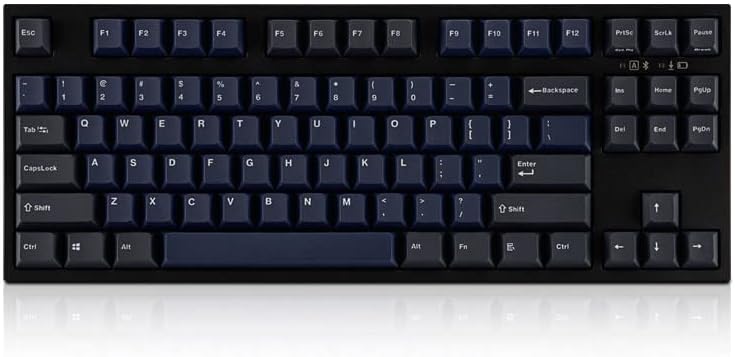
Image: Top-down view of the Leopold FC750RBT keyboard. This image illustrates the standard key layout and overall design.
Caution: Always disconnect the keyboard from power (both USB and remove batteries) before changing DIP switch settings to prevent potential damage or unexpected behavior.
Refer to the specific DIP switch diagram usually found on the keyboard's underside or in the included quick start guide for detailed functions of each switch. Common customizations include:
- Swapping Caps Lock and Left Ctrl.
- Swapping Alt and Windows/Meta keys.
- Disabling the Windows/Meta key.
After changing DIP switch settings, reconnect the keyboard to apply the new configuration.
Maintenance
Cleaning the Keyboard
Regular cleaning helps maintain the keyboard's performance and appearance.
- Disconnect the keyboard from your computer and remove batteries if using wirelessly.
- Use a can of compressed air to blow away dust and debris from between the keycaps.
- Wipe the keycaps and keyboard surface with a soft, lint-free cloth lightly dampened with water or a mild, non-abrasive cleaning solution. Avoid excessive moisture.
- Do not spray cleaning solutions directly onto the keyboard.
- Allow the keyboard to dry completely before reconnecting.
Keycap Care
The keyboard features durable Double Shot PBT keycaps. These are resistant to shine and wear. If removing keycaps for deeper cleaning or customization, use a proper keycap puller to avoid damaging the keycaps or switches.
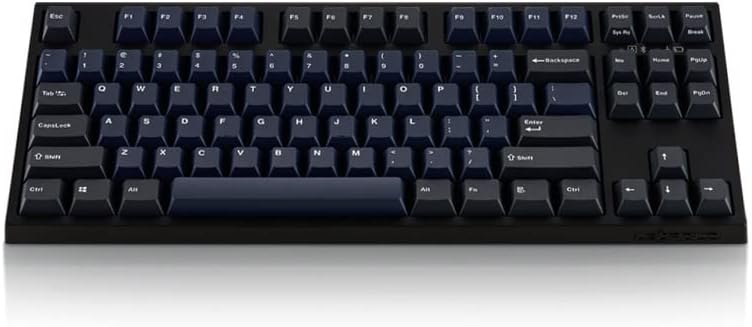
Image: Angled front view of the Leopold FC750RBT keyboard. This view emphasizes the ergonomic profile and keycap texture.
Troubleshooting
Keyboard Not Responding (Wired)
- Ensure the USB cable is securely connected to both the keyboard and the computer.
- Try connecting the keyboard to a different USB port on your computer.
- Test the keyboard on another computer to rule out a computer-specific issue.
- Check if the cable is damaged. Try using a different USB-C cable if available.
Keyboard Not Connecting (Bluetooth)
- Ensure the keyboard has fresh AAA batteries installed.
- Verify that Bluetooth is enabled on your device.
- Make sure the keyboard is in pairing mode (indicator light flashing after pressing Fn + F10/F11/F12).
- If the keyboard was previously paired, try removing it from your device's Bluetooth list and re-pairing it.
- Move the keyboard closer to your device to ensure it's within Bluetooth range.
- Restart your device and try pairing again.
Keys Not Registering or Double Typing
- Check for any debris or foreign objects under the affected keycap. Use compressed air to clear it.
- If the issue persists, it may indicate a switch malfunction. Contact customer support for assistance.
Specifications
| Feature | Detail |
|---|---|
| Model Number | FC750RBT Navy Blue |
| Brand | Leopold |
| Keyboard Type | Mechanical (TKL) |
| Switch Type | Cherry MX Brown |
| Keycap Material | Double Shot PBT (1.5mm thick) |
| Number of Keys | 87 |
| Connectivity | USB-C (Wired), Bluetooth 5.1 (Wireless) |
| Power Source | 2 x AAA Batteries (for wireless) |
| Compatible Devices | Laptop, PC, Tablet, Smartphone |
| Country of Origin | Taiwan |

Image: Angled top view of the Leopold FC750RBT keyboard. This perspective highlights the build quality and keycap texture.
Warranty and Support
For warranty information and technical support, please refer to the documentation included with your product or visit the official Leopold website.
Visit the Leopold Store on Amazon for more product information.
Ask a question about this manual
Ask about setup, troubleshooting, compatibility, parts, safety, or missing instructions. Manuals+ will review the question and use this page’s manual context to help answer it.