
Introduction
This user manual provides comprehensive instructions for the setup, operation, maintenance, and troubleshooting of your Leopold FC750RBT Navy Blue TKL Bluetooth PD Double Shot PBT Mechanical Keyboard. Please read this manual carefully before using the product to ensure optimal performance and longevity.
What's in the Box
- Leopold FC750RBT Mechanical Keyboard
- USB-C to USB-A Cable
- 2 x AAA Batteries
Setup
1. Battery Installation
The Leopold FC750RBT keyboard requires 2 AAA batteries for wireless operation. The batteries are included in the package.
- Locate the battery compartment on the underside of the keyboard.
- Open the battery compartment cover.
- Insert the 2 AAA batteries, ensuring correct polarity (+ and -).
- Close the battery compartment cover securely.
2. Wired Connection
For a stable, direct connection, use the included USB-C to USB-A cable.
- Connect the USB-C end of the cable to the port on the keyboard.
- Connect the USB-A end of the cable to an available USB port on your computer or device.
- The keyboard will be automatically recognized and ready for use.
3. Bluetooth Wireless Connection
The keyboard supports Bluetooth 5.1/5.2 for wireless connectivity.
- Ensure the keyboard has fresh batteries installed.
- Locate the Bluetooth switch on the keyboard (usually on the underside or side) and switch it to the "ON" or "Bluetooth" position.
- On your device (computer, tablet, smartphone), navigate to the Bluetooth settings.
- Enable Bluetooth and search for new devices.
- Select "Leopold FC750RBT" or a similar name from the list of available devices.
- Follow any on-screen prompts to complete the pairing process. A passkey may be required, which will be displayed on your device.
- Once paired, the keyboard's Bluetooth indicator light will typically stop blinking and remain solid.
Operating Instructions
Switching Between Wired and Wireless Modes
The FC750RBT can seamlessly switch between wired and wireless modes. When the USB-C cable is connected, the keyboard will prioritize the wired connection. To use Bluetooth, disconnect the cable and ensure the Bluetooth switch is enabled.
Key Functions and Layout
The FC750RBT features a Tenkeyless (TKL) layout with 87 keys. It includes standard alphanumeric keys, function keys (F1-F12), navigation keys, and modifier keys. The keyboard uses Cherry MX Brown switches for a tactile typing experience.
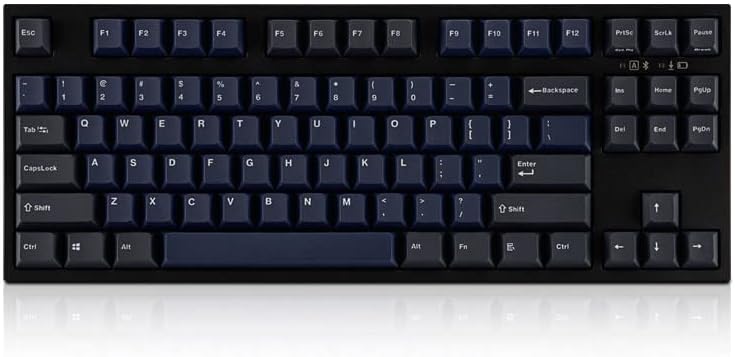
Figure 1: Top-down view of the Leopold FC750RBT mechanical keyboard, showcasing its TKL layout and keycap colors.
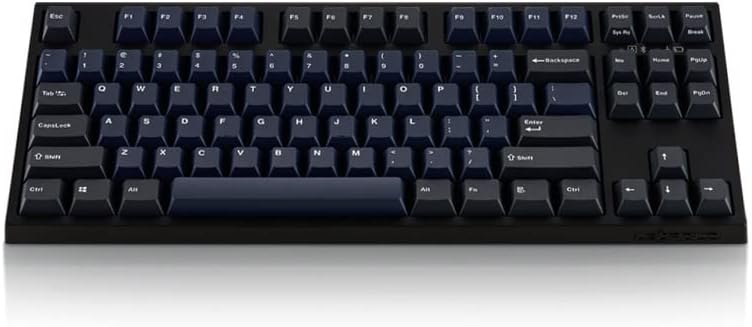
Figure 2: Another top-down perspective of the Leopold FC750RBT keyboard, highlighting the keycap texture and layout.

Figure 3: Angled view of the Leopold FC750RBT mechanical keyboard, showing the profile of the keycaps and the overall design.
Dip Switches
The keyboard features DIP switches on its underside, allowing for customization of certain key functions without the need for software. Refer to the markings near the DIP switches for specific functions (e.g., swapping Caps Lock and Ctrl, or changing the position of the Fn key).
Maintenance
To ensure the longevity and optimal performance of your Leopold FC750RBT keyboard, follow these maintenance guidelines:
- Cleaning: Regularly clean the keycaps and keyboard surface with a soft, lint-free cloth. For deeper cleaning, you may use a small brush or compressed air to remove dust and debris from between the keys. Avoid using harsh chemicals or abrasive materials.
- Keycap Removal: If you need to remove keycaps for cleaning or replacement, use a keycap puller to avoid damaging the keycaps or switches. Pull straight up with even pressure.
- Storage: When not in use for extended periods, store the keyboard in a dry, dust-free environment.
- Battery Replacement: Replace AAA batteries when the keyboard's wireless performance degrades or the low battery indicator (if present) illuminates.
Troubleshooting
If you encounter issues with your Leopold FC750RBT keyboard, refer to the following common troubleshooting steps:
- Keyboard Not Responding (Wired):
- Ensure the USB-C cable is securely connected to both the keyboard and your computer.
- Try connecting the cable to a different USB port on your computer.
- Test the keyboard on another computer to rule out a device-specific issue.
- Keyboard Not Responding (Bluetooth):
- Check if the batteries are properly installed and have sufficient charge. Replace them if necessary.
- Ensure the Bluetooth switch on the keyboard is in the "ON" position.
- Verify that Bluetooth is enabled on your device and that the keyboard is paired.
- Try unpairing and re-pairing the keyboard with your device.
- Ensure the keyboard is within the effective range of your device's Bluetooth signal.
- Check for any interference from other wireless devices.
- Keys Not Registering or Double-Typing:
- Clean the affected key(s) to remove any debris that might be obstructing the switch.
- Ensure the keycap is properly seated on the switch stem.
Specifications
| Feature | Detail |
|---|---|
| Brand | Leopold |
| Model Number | FC750RBT Navy Blue |
| Connectivity Technology | USB-C, Bluetooth 5.1/5.2 |
| Keyboard Description | Mechanical |
| Switch Type | Cherry MX Brown |
| Keycaps | 1.5mm thick PBT Double Shot |
| Number of Keys | 87 (Tenkeyless TKL) |
| Power Source | 2 x AAA Batteries (included) |
| Compatible Devices | Laptop, PC, Tablet, Smartphone |
| Color | Navy Blue (Cherry MX Brown variant) |
| Material | Polybutylene Terephthalate (PBT) |
Warranty and Support
For warranty information or technical support, please refer to the documentation provided with your purchase or visit the official Leopold website. You may also contact the seller, Mechanical Keyboards Inc, for assistance.
Seller: Mechanical Keyboards Inc
