Product Overview
The Zgrmbo F500 Digital Wall Clock is designed for clear and easy time display with its large 4-inch digits. It features automatic dimming, support for standard and military time formats, and a power failure memory function. This clock is suitable for various environments including living rooms, classrooms, and bedrooms.

Image: Front view of the Zgrmbo F500 Digital Clock displaying the time.
Key features include:
- Large, clear 4-inch digits for easy readability from a distance.
- Accurate electric-powered digital timekeeping.
- Automatic dimming mode adjusts brightness based on time of day.
- Support for switching between standard (12-hour) and military (24-hour) time formats.
- Hidden cable winder bracket for neat installation.
- Power failure memory function with CR2302 battery backup (battery does not power the clock, only saves settings).

Image: Overview of the clock's dimensions (10.25 inches L x 5.25 inches W) and key features like 4" LED numbers, time/week/date display, DST function, custom/auto brightness, alarm clock, time memory, and 12/24H format.
What's in the Box
Upon opening the package, please ensure all the following items are present:
- 1 x Zgrmbo F500 Digital Wall Clock
- 1 x CR2302 Battery (for memory backup only)
- 1 x USB Power Cable
- 1 x User Manual (this document)

Image: The Zgrmbo F500 Digital Clock, USB power cable, and CR2302 battery, illustrating the contents of the package.
Setup
Initial Power-Up and Battery Installation
-
Install Backup Battery (Optional but Recommended): Locate the battery compartment on the back of the clock. Insert the provided CR2302 coin cell battery. This battery does not power the clock but retains time settings during power outages.

Image: Close-up showing the battery compartment on the back of the clock.
- Connect the Power Cord (Required): Plug the USB power cable into the clock's power port and connect the other end to a USB power source (e.g., USB adapter, laptop, power bank). The clock requires continuous power to operate.
- Set the Time (Required): Once powered on, the clock will display a default time. Refer to the "Operating Instructions" section for detailed steps on setting the correct time and date.
Mounting and Placement Options
The Zgrmbo F500 Digital Clock offers versatile placement options:
- Wall Mount: The clock features double wall-hung holes on the back for secure wall mounting.
- Tabletop/Desk Placement: Utilize the two hidden standing brackets on the back of the clock. Simply open them to position the clock upright on any flat surface.
The clock also includes a hidden cable winder bracket to manage excess power cable, ensuring a tidy appearance whether mounted or placed on a surface.
Image: Rear view of the clock highlighting the double wall-hung holes, stable standing brackets, battery compartment, and wire winding channel.

Image: The Zgrmbo F500 Digital Clock mounted on a wall in a living room, demonstrating its wall-mounted use.
Operating Instructions
Setting Time and Date
To set the time and date:
- Press the "SET" button to enter time setting mode.
- Use the "+" and "-" buttons to adjust the hour, then press "SET" to confirm and move to minutes.
- Repeat for minutes, year, month, and day.
- Press "SET" one last time to exit setting mode.
Switching Time Format (Standard/Military)
The clock supports both 12-hour (Standard) and 24-hour (Military) time formats.
- To switch between formats, simply press the "+" or "-" button. The display will instantly change to the selected format.
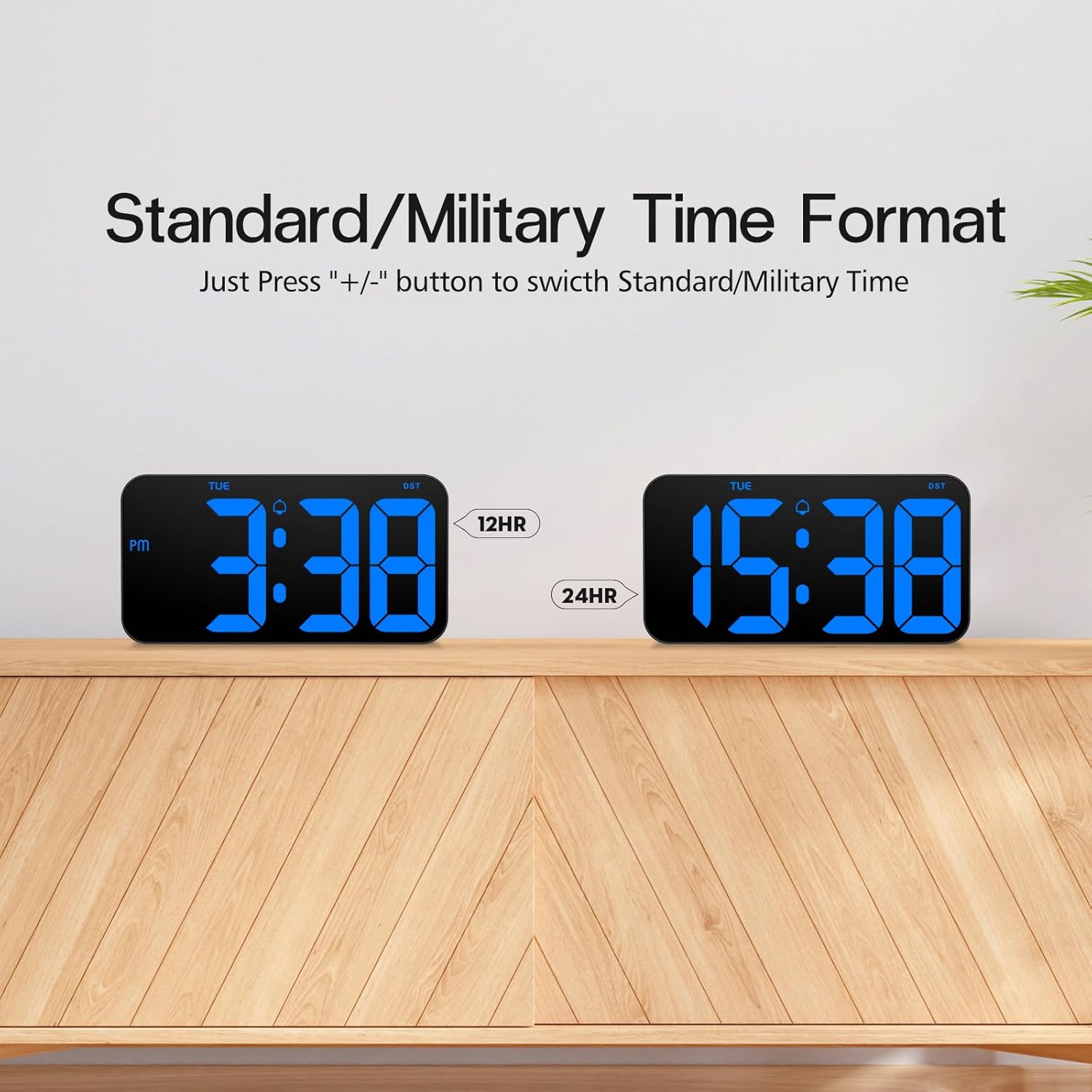
Image: Comparison of the clock displaying time in 12-hour (3:38 PM) and 24-hour (15:38) formats.
Auto Dimming Mode and Brightness Adjustment
The clock features an auto-dimming mode to adjust brightness automatically, ensuring optimal visibility day and night without being too bright in dark environments.
- To activate auto-dimming mode, press and hold the "LIGHT" button.
- In auto-dimming mode, the brightness levels are pre-set as follows:
- 07:00 - 19:00: 100% brightness
- 19:00 - 23:00: 60% brightness
- 23:00 - 07:00: 25% brightness
- You can also manually adjust brightness by repeatedly pressing the "LIGHT" button to cycle through different brightness levels if auto-dimming is off.

Image: Illustration of custom brightness levels (100%, 80%, 60%, 20%, 0%) and the auto-brightness mode with its time-based adjustments.

Image: The clock displaying time at night, demonstrating the reduced brightness for comfortable viewing in dark environments.
Daylight Saving Time (DST) Function
The clock supports Daylight Saving Time adjustments.
- To enable or disable DST, press the "DST" button. The "DST" indicator on the display will illuminate when active.
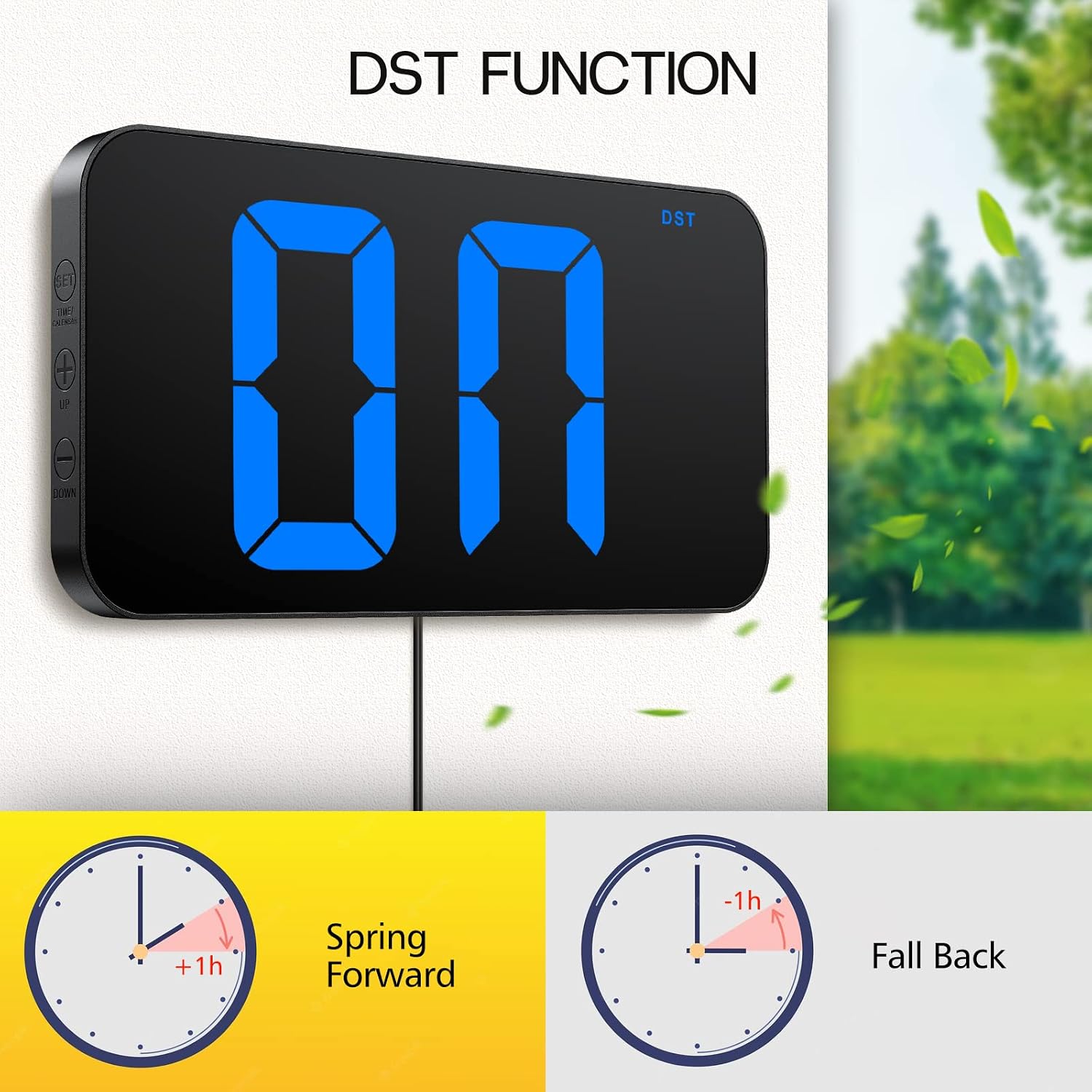
Image: The clock displaying "DST" and illustrations of "Spring Forward" (+1h) and "Fall Back" (-1h) for Daylight Saving Time.
Additional Display Functions
- Center Dots Blinking: Long press the "+" button to turn on/off the blinking of the two center dots separating hours and minutes.
- Time and Date Alternating Display: Long press the "-" button to turn on/off the alternating display of time and date.

Image: The clock displaying the date (e.g., 1-5, 1-6, 1-7), demonstrating the alternating time and date function.
Power Failure Memory
The built-in CR2302 coin cell battery ensures that your time settings are retained even during a power outage, eliminating the need to reset the clock when power is restored.

Image: A sequence showing the clock operating normally, during a power outage (blank display), and powering on after an hour with the correct time retained.
Maintenance
To ensure the longevity and optimal performance of your Zgrmbo F500 Digital Clock, follow these simple maintenance guidelines:
- Cleaning: Gently wipe the clock's surface with a soft, dry, or slightly damp cloth. Avoid using abrasive cleaners, solvents, or strong chemicals, as these can damage the display or casing.
- Power Source: Always use the provided USB power cable or a compatible USB adapter. Ensure the power source is stable to prevent damage to the clock.
- Battery Replacement: The CR2302 backup battery typically lasts for a long time. If you notice that the time settings are not retained during power outages, it may be time to replace the CR2302 battery.
- Environment: Place the clock in a dry environment, away from direct sunlight, extreme temperatures, and high humidity, which can affect its electronic components.
Troubleshooting
If you encounter any issues with your Zgrmbo F500 Digital Clock, please refer to the following common problems and their solutions:
| Problem | Possible Cause | Solution |
|---|---|---|
| Clock does not turn on. | No power, loose connection, faulty cable/adapter. | Ensure the USB power cable is securely connected to both the clock and a working USB power source. Try a different USB port or adapter. |
| Time settings are lost after power outage. | Backup battery is dead or not installed. | Install a new CR2302 battery or replace the existing one. Ensure it is inserted correctly. |
| Display is too bright or too dim. | Incorrect brightness setting or auto-dimming not enabled/disabled. | Press the "LIGHT" button to cycle through brightness levels. Press and hold "LIGHT" to enable/disable auto-dimming mode. |
| Time format is incorrect (12H/24H). | Wrong time format selected. | Press the "+" or "-" button to switch between 12-hour and 24-hour formats. |
| Clock is not displaying date. | Alternating display mode is off. | Long press the "-" button to turn on the alternating time and date display. |
If the problem persists after trying these solutions, please contact Zgrmbo customer support for further assistance.
Specifications
| Feature | Detail |
|---|---|
| Brand | Zgrmbo |
| Model Number | F500 |
| Display Type | Digital |
| Product Dimensions | 10.25"W x 5.3"H |
| Power Source | Corded Electric |
| Backup Battery | CR2302 (for memory retention only) |
| Special Features | Adjustable Brightness, Auto Dimmable, Corded, Daylight Saving, Large Display with 4" Huge Clear Digits, Hidden Cable Winder |
| Mounting Type | Wall Mount or Tabletop |
| Material | Acrylonitrile Butadiene Styrene (ABS), Plastic |
| Item Weight | 0.43 Kilograms (15.2 ounces) |
Warranty
Zgrmbo provides an 18-month warranty for the F500 Digital Wall Clock from the date of purchase. This warranty covers manufacturing defects and issues arising from normal use.
Additionally, a 45-day return policy is offered, allowing for returns or exchanges within 45 days of purchase if you are not satisfied with the product.
Please retain your proof of purchase for warranty claims.
Customer Support
For any questions, concerns, or assistance with your Zgrmbo F500 Digital Clock, please do not hesitate to contact our customer support team.
You can reach us through the Amazon messaging system by visiting the product page or your order history on Amazon. We are committed to providing prompt and helpful support.
We appreciate your purchase and hope you enjoy your Zgrmbo Digital Clock!


