
1. Product Overview
This Bewinner DVD drive is designed as a replacement part for the Nintendo Wii console, specifically compatible with the D2E model. It is engineered for accurate fit and performance, aiming to effectively prevent corrosion and wear. The package includes the DVD Rom Drive Disk and an opening tool for installation.
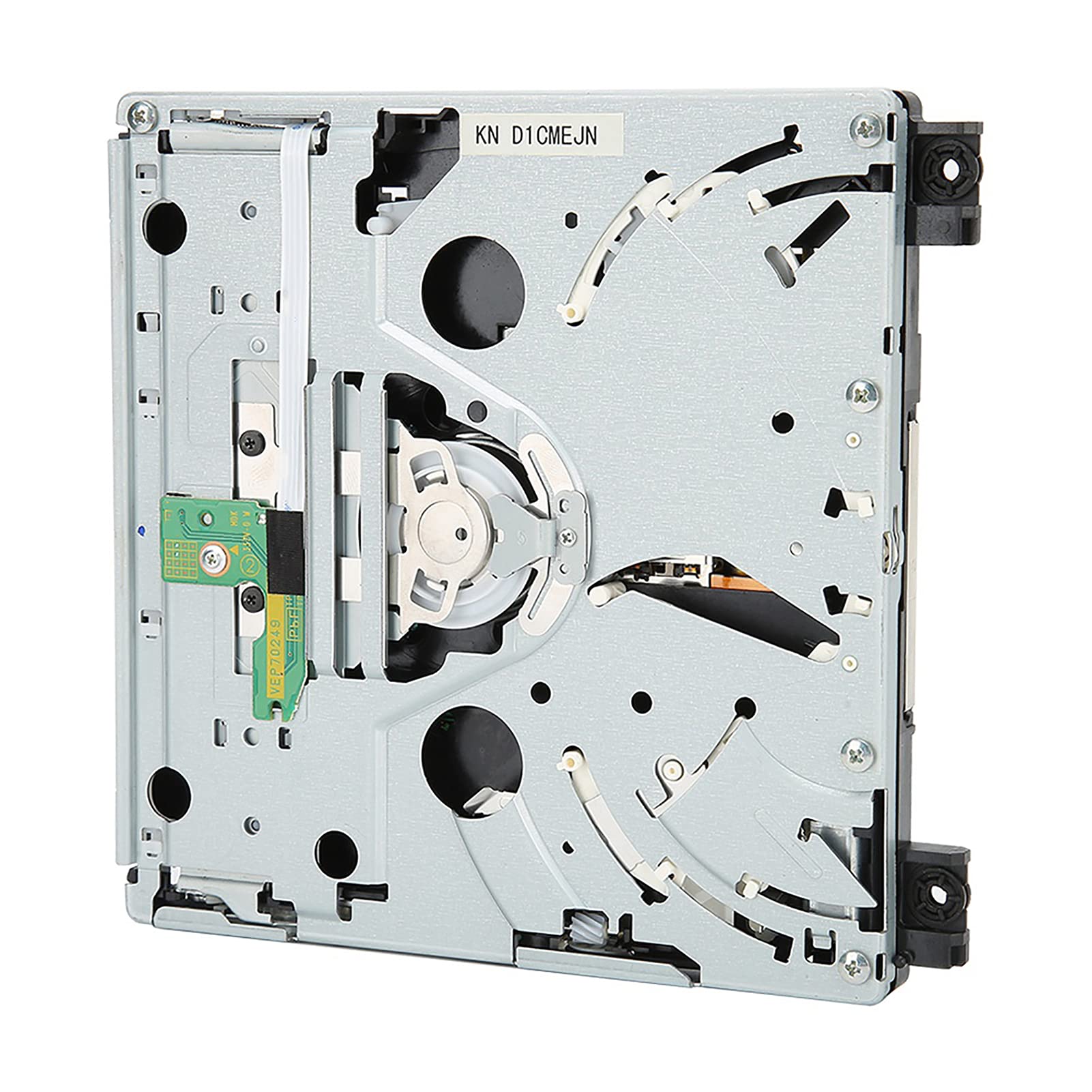
Image 1.1: The Bewinner DVD drive replacement part shown alongside a screwdriver and a Nintendo Wii console, illustrating its intended use.
Please note that due to manufacturing variations, you may receive either a new type or an old type of this product. Both types are compatible with the specified model.

Image 1.2: A visual comparison between the new and old types of the Bewinner DVD drive replacement, highlighting their similar form factors.
2. Specifications
| Feature | Detail |
|---|---|
| Condition | 100% Brand New |
| Item Type | DVD Rom Drive Disk |
| Material | Metal + ABS |
| Color | As Picture Shown |
| Weight | Approx. 351g / 12.4oz |
| Product Dimensions (L x W x H) | 14.5 x 14 x 2cm / 5.7 x 5.5 x 0.8inch |
| Applicable Model | For Nintendo Wii D2E |
| Hardware Interface | IDE |
| Cache Size | 2 MB |
| Model Number | Bewinnerk6dt2nue8h |

Image 2.1: The physical dimensions of the DVD drive replacement, showing length, width, and height measurements.
3. Package Contents
The product package typically includes the following items:
- 1 x DVD Rom Drive Disk
- 1 x Opening Tool (for installation assistance)
4. Setup and Installation
Installation of the Bewinner DVD drive replacement requires careful handling and basic technical knowledge. It is recommended to consult a professional or refer to detailed online guides specific to your Nintendo Wii console model for precise disassembly and reassembly instructions. The drive features precise incisions and interfaces for a suitable fit.

Image 4.1: The internal components and circuit board of the DVD drive, illustrating the connection points for installation.
General Installation Steps (Consult specific Wii repair guides):
- Power Off and Disconnect: Ensure your Nintendo Wii console is completely powered off and all cables (power, AV, etc.) are disconnected.
- Access Console Interior: Carefully open the Wii console casing. This typically involves removing screws and clips. Use the provided opening tool if applicable.
- Locate and Disconnect Old Drive: Identify the existing DVD drive. Disconnect any ribbon cables and power connectors attached to it.
- Remove Old Drive: Unscrew and remove the old DVD drive from its housing.
- Install New Drive: Position the Bewinner DVD drive replacement into the console's drive bay. Ensure it aligns correctly.
- Connect New Drive: Reconnect all ribbon cables and power connectors to the new DVD drive. Ensure connections are secure and properly seated.
- Reassemble Console: Carefully close the console casing, ensuring all screws and clips are re-secured.
- Test Functionality: Reconnect the Wii console to power and your display. Insert a game disc to verify the new DVD drive is functioning correctly.
Important Note: Attempting repairs without proper knowledge can damage your console. Proceed with caution or seek professional assistance.
5. Operating Instructions
Once the Bewinner DVD drive replacement is successfully installed, its operation is identical to the original Wii console DVD drive.
- Inserting a Disc: Gently slide a compatible Nintendo Wii game disc or DVD into the disc slot until it is pulled in by the drive mechanism.
- Ejecting a Disc: Press the Eject button on the Wii console to release the disc.
- Disc Compatibility: The drive supports standard Nintendo Wii game discs and compatible DVD video discs, depending on your console's region and firmware.
6. Maintenance
To ensure the longevity and optimal performance of your DVD drive replacement, consider the following maintenance tips:
- Keep Discs Clean: Always use clean, scratch-free discs. Dust and smudges on discs can affect read performance and potentially damage the drive's laser lens.
- Avoid Dust Accumulation: Keep your Wii console in a clean, dust-free environment. Dust can accumulate inside the drive and interfere with its operation.
- Gentle Handling: Avoid forcing discs into or out of the drive.
- No Liquid Cleaners: Do not use liquid cleaners or sprays directly on the drive or inside the console.
7. Troubleshooting
If you encounter issues after installing the DVD drive replacement, refer to the following common troubleshooting steps:
- Disc Not Reading:
- Ensure the disc is clean and free of scratches.
- Verify the disc is inserted correctly.
- Check if the console's region matches the disc's region.
- Restart the Wii console.
- Disc Ejection Issues:
- Ensure no foreign objects are obstructing the disc slot.
- Try pressing the Eject button multiple times.
- If the disc is stuck, power off the console and gently attempt to remove it (consult a specific guide for manual ejection if available).
- Installation Problems:
- Double-check all cable connections (ribbon cables, power connectors) to ensure they are securely seated.
- Verify that the drive is correctly positioned in the console.
- Ensure you have the correct drive type for your specific Wii model (D2E).
- No Power to Drive:
- Confirm the console itself is receiving power and functioning otherwise.
- Recheck the power cable connection to the DVD drive.
If problems persist after attempting these steps, it may indicate a more complex issue with the drive or console, or an incorrect installation. Consider seeking professional repair or contacting customer support.
8. Warranty and Support
For warranty information, technical support, or further assistance, please contact Bewinner customer service directly. Refer to the product packaging or the Bewinner official website for contact details.
Manufacturer: Bewinner
Model Number: Bewinnerk6dt2nue8h