1. Introduction
Thank you for purchasing the Depusheng FG8 Professional 8-Channel Audio Mixer. This mixer is designed for versatile audio applications, offering a comprehensive set of features including 3-band EQ on all channels, a built-in USB audio interface, and 24 DSP effects. This manual provides detailed instructions for setting up, operating, and maintaining your FG8 mixer to ensure optimal performance and longevity.
2. Safety Information
Please read and understand all safety instructions before operating the device. Keep this manual for future reference.
- Power Source: Use only the provided power adapter. Ensure the voltage matches the requirements specified on the device.
- Water and Moisture: Do not expose the mixer to water, rain, or excessive moisture. Do not place objects filled with liquids on the mixer.
- Ventilation: Ensure proper ventilation. Do not block any ventilation openings.
- Heat: Keep the mixer away from heat sources such as radiators, heat registers, stoves, or other apparatus (including amplifiers) that produce heat.
- Cleaning: Clean only with a dry cloth.
- Servicing: Do not attempt to service this product yourself. Refer all servicing to qualified service personnel.
- Cables: Protect the power cord from being walked on or pinched, particularly at plugs, convenience receptacles, and the point where they exit from the apparatus.
3. Product Overview
The Depusheng FG8 is an 8-channel professional audio mixer designed for various audio applications, from home recording to live sound. It features a compact and robust design with intuitive controls.
3.1 Front Panel Controls and Connections

Figure 3.1: Front view of the Depusheng FG8 Audio Mixer, showing all channels, faders, and main controls.
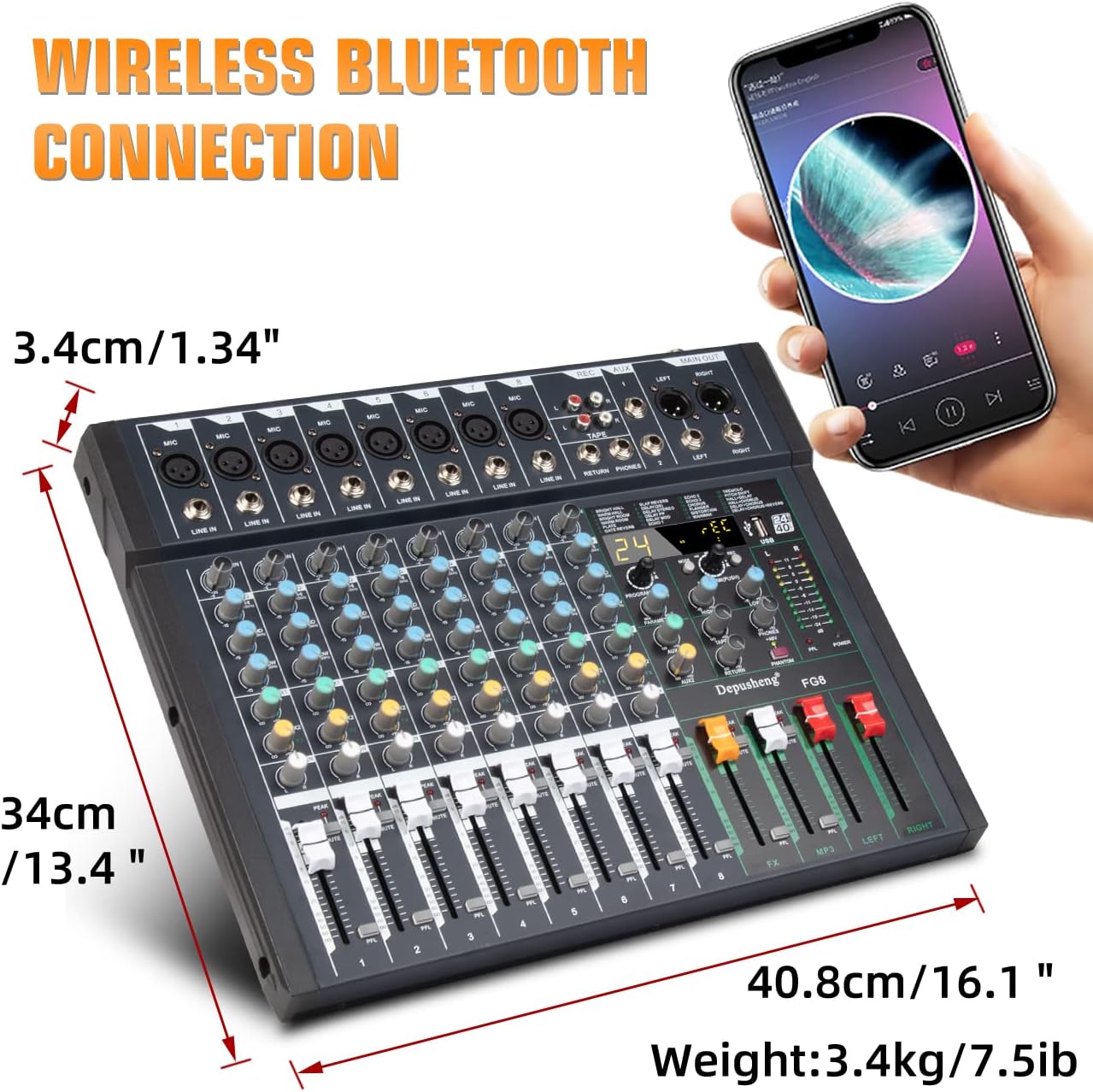
Figure 3.2: Detailed view of the Depusheng FG8 Audio Mixer with key controls and connections labeled for easy identification.
- MIC/LINE Inputs (Channels 1-8): XLR and 6.35mm (1/4 inch) jack inputs for microphones and line-level instruments.
- GAIN Controller: Adjusts the input sensitivity for each channel.
- EQ (HIGH, MID, LOW): 3-band equalizer for adjusting treble, midrange, and bass frequencies on each channel.
- AUX1/AUX2 Controller: Sends signal to external effects processors or monitor mixes.
- EFF Controller: Adjusts the amount of internal effect applied to the channel.
- PAN Controller: Adjusts the stereo position (left/right) of the channel.
- MUTE Button: Mutes the corresponding channel.
- Volume Fader: Controls the output level of each channel.
- PFL (Pre-Fader Listen) Button: Routes the channel signal to the headphones for monitoring before the fader.
- +48V PHANTOM Button: Activates phantom power for condenser microphones (globally for all XLR inputs).
- LCD Display: Shows current DSP effect number and other status information.
- PROGRAM (PUSH) Knob: Selects and confirms DSP effects.
- PARAMETER Knob: Adjusts parameters of the selected DSP effect.
- USB Interface: For connecting to a computer as an audio interface or for USB media playback.
- MP3 Display and Buttons: Controls for USB media playback.
- LED Light Level Indicators: Visual display of output levels.
- MAIN OUT (LEFT/RIGHT): XLR and 6.35mm (1/4 inch) jack outputs for connecting to main speakers or amplifiers.
- REC OUT (L/R): RCA outputs for recording.
- AUX OUT 1/2: Outputs for auxiliary sends.
- RETURN PHONES: 6.35mm (1/4 inch) headphone output.
- TAPE IN/OUT: RCA inputs/outputs for connecting tape decks or other stereo sources.
3.2 Core Functions

Figure 3.3: Diagram illustrating the core functions of the FG8 mixer, including Reverberation, 48V Phantom Power, 24 DSP effects, USB connectivity, LCD display, Noise Reduction, and Phone (Bluetooth) connectivity.
- 24 DSP Effects: The mixer includes 24 built-in digital signal processing effects, such as reverb, delay, chorus, and more, to enhance your audio.
- USB Audio Interface: Connect the mixer directly to your computer (Mac or PC) via USB to use it as an external sound card for recording or playback.
- Bluetooth Connectivity: Allows wireless audio streaming from Bluetooth-enabled devices.
- 48V Phantom Power: Essential for powering condenser microphones.
4. Setup
4.1 Power Connection
- Ensure the mixer's power switch (located on the rear panel) is in the OFF position.
- Connect the provided power adapter to the 'External Power Input Socket' on the rear of the mixer.
- Plug the power adapter into a suitable electrical outlet.
- Turn the 'Power Switch' to the ON position. The power indicator light will illuminate.
4.2 Input Connections
Connect your microphones, instruments, or other audio sources to the appropriate input channels.
- Microphones: Connect XLR cables from your microphones to the 'MIC' inputs (XLR jacks) on channels 1-8. If using condenser microphones, activate the +48V PHANTOM power.
- Line-Level Instruments/Devices: Connect 6.35mm (1/4 inch) cables from instruments (e.g., keyboards, guitars with preamps) or other line-level devices to the 'LINE IN' inputs on channels 1-8.
- Tape/External Playback: Use the 'TAPE IN' RCA inputs for connecting stereo playback devices.
4.3 Output Connections
Connect the mixer's outputs to your amplification system, recording device, or headphones.
- Main Speakers/Amplifier: Connect XLR or 6.35mm (1/4 inch) cables from the 'MAIN OUT' (LEFT/RIGHT) to your main speakers or power amplifier.
- Headphones: Connect your headphones to the 'PHONES' 6.35mm (1/4 inch) jack.
- Recording Device: Connect RCA cables from the 'REC OUT' (L/R) to the input of your recording device.
4.4 USB Connection to Computer
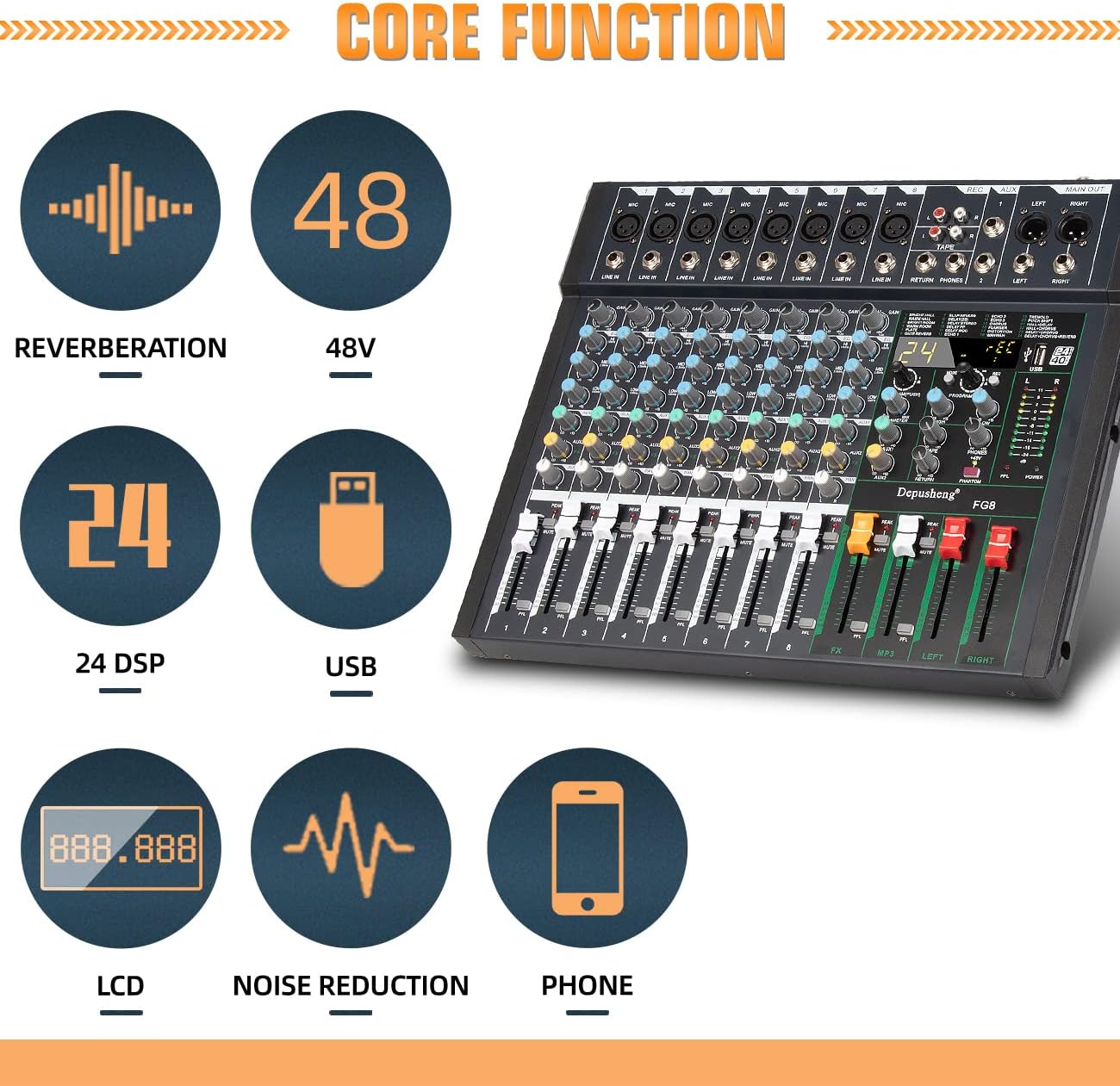
Figure 4.1: The Depusheng FG8 mixer connected to a computer via USB, enabling plug-and-play audio interface functionality.
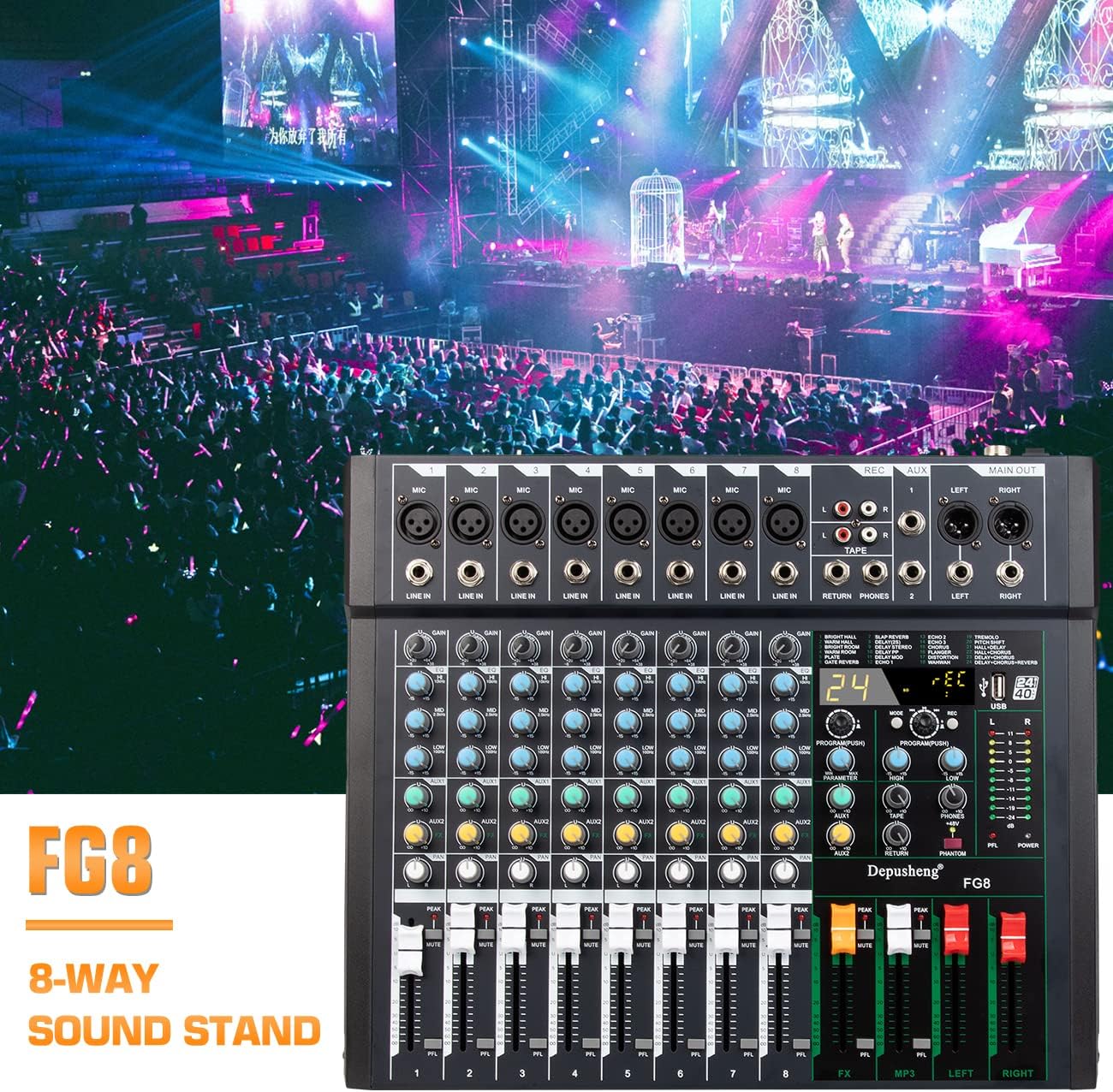
Figure 4.2: The USB port on the Depusheng FG8 mixer, highlighting its compatibility for connecting external USB devices or a computer PC.
The FG8 mixer features a built-in USB sound card for direct connection to a computer.
- Connect a USB A-to-B cable (typically included) from the USB port on the mixer to an available USB port on your computer.
- Your computer should automatically recognize the mixer as an audio device. No special drivers are usually required for basic functionality.
- In your computer's sound settings or DAW (Digital Audio Workstation) software, select the Depusheng FG8 as your input and output audio device.
4.5 Wireless Bluetooth Connection

Figure 4.3: The Depusheng FG8 mixer demonstrating wireless Bluetooth connection with a smartphone, allowing audio streaming.
To connect a Bluetooth device:
- Press the 'MODE' button near the USB/MP3 section until 'Bluetooth' mode is selected (usually indicated on the LCD display).
- On your Bluetooth-enabled device (e.g., smartphone, tablet), search for available Bluetooth devices.
- Select 'Depusheng FG8' (or similar name) from the list to pair.
- Once paired, audio from your device will play through the mixer's MP3/USB channel.
5. Operating Instructions
5.1 Basic Mixing
- Set Gain: For each input channel, adjust the 'GAIN' knob. Speak or play into the microphone/instrument while observing the 'PEAK' LED. Turn the gain up until the 'PEAK' LED flashes occasionally, then back it off slightly. This ensures a strong signal without clipping.
- Adjust EQ: Use the 'HIGH', 'MID', and 'LOW' knobs to shape the tone of each channel. Turn clockwise to boost frequencies, counter-clockwise to cut.
- Set Pan: Use the 'PAN' knob to position the sound of each channel in the stereo field (left to right).
- Adjust Channel Volume: Use the channel's volume fader to set the individual level of each input in the mix.
- Adjust Main Output: Use the 'MAIN OUT' faders (LEFT/RIGHT) to control the overall volume of the mix.
5.2 Using DSP Effects

Figure 5.1: Close-up of the Depusheng FG8 mixer's DSP effects section, highlighting the 24 available effects and their controls.
The FG8 features 24 built-in DSP effects. The list of effects is typically printed on the mixer's panel.
- Select Effect: Rotate the 'PROGRAM (PUSH)' knob to scroll through the 24 effects. The selected effect number will be shown on the LCD display. Press the knob to confirm your selection.
- Adjust Effect Parameter: Use the 'PARAMETER' knob to adjust a specific characteristic of the selected effect (e.g., decay time for reverb, delay time for echo).
- Apply Effect to Channel: Use the 'EFF' knob on each individual channel to send a portion of that channel's signal to the internal effects processor.
- Adjust Effect Return: Use the 'FX' fader to control the overall volume of the returned effect signal into the main mix.
5.3 USB Audio Playback/Recording
When connected to a computer via USB, the mixer acts as an external sound card.
- Playback: Audio played from your computer will be routed through the mixer's USB channel. Adjust the 'USB' volume control on the mixer to control its level in the mix.
- Recording: The main stereo mix from the mixer will be sent to your computer via USB. Open your recording software (DAW) and select the FG8 as your input device to record the mix.
For direct USB media playback (e.g., from a USB flash drive):
- Insert a USB flash drive into the USB port.
- Use the 'MP3 Display and Buttons' to navigate and play audio files.
- Adjust the 'MP3' fader to control the playback volume.
6. Maintenance
Proper maintenance will extend the life of your Depusheng FG8 mixer.
- Cleaning: Disconnect power before cleaning. Use a soft, dry, lint-free cloth to wipe the surface of the mixer. Do not use liquid cleaners, abrasive cleaners, or sprays.
- Storage: When not in use for extended periods, store the mixer in a cool, dry place, away from direct sunlight and extreme temperatures. Cover the mixer to protect it from dust.
- Knobs and Faders: Avoid excessive force when operating knobs and faders. Sealed rotary potentiometers are designed to resist dust, but gentle handling is always recommended.
7. Troubleshooting
If you encounter issues with your FG8 mixer, refer to the following common problems and solutions:
- No Power:
- Check if the power adapter is securely connected to both the mixer and the power outlet.
- Ensure the power switch on the rear panel is in the ON position.
- Try a different power outlet.
- No Sound Output:
- Verify that all input sources are properly connected and functioning.
- Check the 'GAIN' knob for each channel and ensure it is set appropriately.
- Ensure channel volume faders are raised.
- Check that the 'MUTE' button is not engaged on any channels or the main output.
- Ensure the 'MAIN OUT' faders are raised.
- Check connections to your amplifier/speakers and ensure they are powered on and functioning.
- If using headphones, ensure the 'PHONES' volume is up.
- Distorted Sound:
- Reduce the 'GAIN' on the input channel if the 'PEAK' LED is constantly lit.
- Lower the channel volume fader or the 'MAIN OUT' faders.
- Check for faulty cables or connections.
- No USB Audio to Computer:
- Ensure the USB cable is securely connected to both the mixer and the computer.
- In your computer's sound settings (or DAW), verify that the Depusheng FG8 is selected as the input/output device.
- Try a different USB port on your computer.
- Restart your computer and the mixer.
- No Bluetooth Connection:
- Ensure the mixer is in Bluetooth mode.
- Make sure Bluetooth is enabled on your device and it is discoverable.
- Move your device closer to the mixer.
- Forget the device on your phone/tablet and try pairing again.
8. Specifications
| Feature | Specification |
|---|---|
| Model Number | FG8 |
| Number of Channels | 8 |
| Dimensions (Package) | 46.4 x 43.2 x 11 cm (18.27 x 17.01 x 4.33 inches) |
| Item Weight | 4.44 Kilograms (9.79 lbs) |
| Power Source | Cable electric |
| Voltage | 48 Volts (Phantom Power) |
| Connectivity Technology | Bluetooth, USB |
| Output Connector Type | RCA, USB, XLR, 6.35mm (1/4 inch) |
| Audio Input | USB Audio, MIC (XLR), LINE IN (6.35mm) |
9. Support
If you have any questions about your Depusheng FG8 mixer or require further assistance, please do not hesitate to contact our professional support team. We are committed to providing excellent service and support for our products.
Please refer to your purchase documentation or the Depusheng official website for specific contact information.


