
1. Introduction
This manual provides comprehensive instructions for the setup, operation, maintenance, and troubleshooting of your HP Color LaserJet Pro 4201dn Printer. This printer is designed for small teams, offering fast color printing, automatic two-sided printing, and robust security features. It connects via Ethernet and USB, and does not support wireless connectivity.
2. Product Overview
The HP Color LaserJet Pro 4201dn is a high-performance color laser printer built for efficiency and security in office environments. Key features include:
- Fast Color Printing: Up to 35 pages per minute.
- Automatic Two-Sided Printing: For efficient paper usage.
- Advanced Security: HP Wolf Pro Security protects your data and network.
- Mobile Printing: Print from various devices including PCs, tablets, and smartphones via supported applications.
- Wired Connectivity: Ethernet and USB ports for reliable connections.
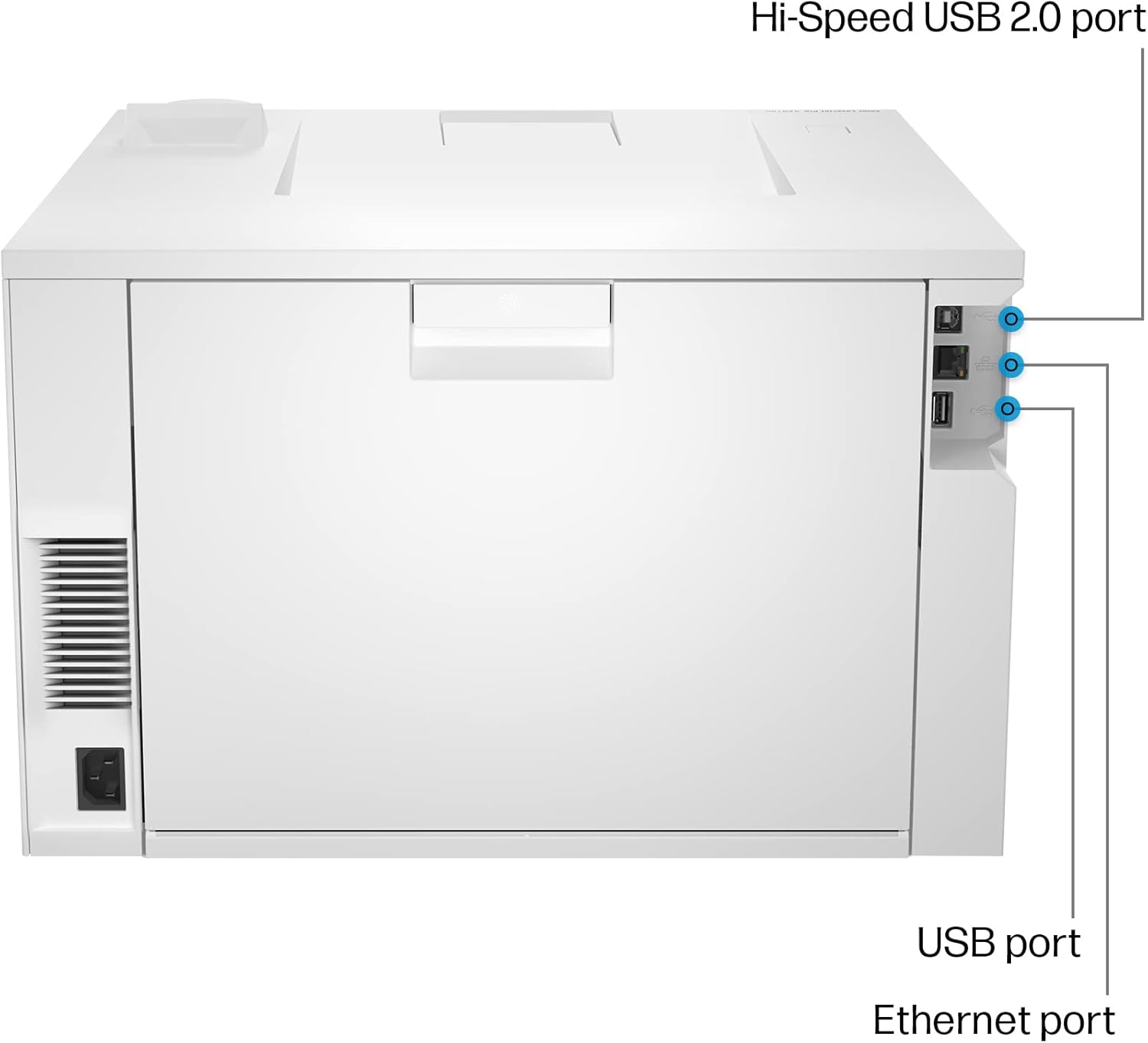
2.1 Printer Components


3. Setup
3.1 Unpacking and Initial Inspection
Carefully remove the printer from its packaging. Ensure all packing materials and tapes are removed from the exterior and interior of the printer. Verify that the following items are included:
- HP Color LaserJet Pro 4201dn Printer
- Pre-installed Black, Cyan, Magenta, and Yellow introductory toner cartridges
- Power cord
- Setup card and documentation

3.2 Power Connection
- Connect the power cord to the printer's power input.
- Plug the other end of the power cord into a grounded electrical outlet.
- Press the power button, located on the top right of the front panel, to turn on the printer.
3.3 Loading Paper
Load paper into the main 250-sheet paper tray or the 50-sheet multipurpose tray. Adjust the paper guides to fit the paper size.
3.4 Connectivity
The HP Color LaserJet Pro 4201dn supports Ethernet and USB connections. It does not have wireless capabilities.
- Ethernet Connection: Connect an Ethernet cable from your network router or switch to the Ethernet port on the back of the printer.
- USB Connection: Connect a USB cable from your computer to the USB port on the back of the printer.
3.5 Driver Installation
After connecting the printer, install the necessary drivers on your computer. Visit the official HP support website and search for "HP Color LaserJet Pro 4201dn" to download the latest drivers and software for your operating system (Windows, macOS, Linux).
4. Operating Instructions
4.1 Basic Printing
To print a document:
- Open the document or image you wish to print on your computer.
- Select Print from the application's menu (e.g., File > Print).
- Choose the "HP Color LaserJet Pro 4201dn" from the list of available printers.
- Adjust print settings such as number of copies, paper size, color/monochrome, and duplex printing (automatic two-sided printing is supported).
- Click Print.
4.2 Mobile Printing
The printer supports mobile printing from various devices. Ensure your mobile device is connected to the same network as the printer (via Ethernet for the printer). Use compatible applications like HP Smart App, Apple AirPrint, or Mopria Print Service for Android devices.
4.3 Advanced Security (HP Wolf Pro Security)
Your printer is equipped with HP Wolf Pro Security to protect against cyber threats. This includes customizable settings to secure your printer and network information. Regularly update printer firmware to maintain security effectiveness.

5. Maintenance
5.1 Toner Cartridge Replacement
The printer uses HP 210A toner cartridges (Black, Cyan, Magenta, Yellow). When a cartridge runs low, the printer's control panel will display a notification. To replace a cartridge:
- Open the front access door to the toner cartridges.
- Pull out the old cartridge by its handle.
- Unpack the new HP 210A toner cartridge and gently shake it to distribute the toner.
- Insert the new cartridge into its corresponding slot until it clicks into place.
- Close the front access door.
Note: This printer is designed to work only with cartridges that have a new or reused HP chip. Firmware updates may block cartridges using non-HP chips.
5.2 Paper Handling
Use recommended paper types and sizes for optimal print quality. Avoid overfilling paper trays. The printer supports various media, including plain paper, glossy photo paper, and envelopes, with a maximum media size of 8.5 x 14 inches.
5.3 Cleaning
Periodically clean the exterior of the printer with a soft, lint-free cloth. Refer to the full user guide on the HP support website for detailed internal cleaning procedures.
6. Troubleshooting
This section addresses common issues you might encounter. For more detailed troubleshooting, consult the HP support website.
- Printer Not Responding:
- Check power connections and ensure the printer is turned on.
- Verify network cable (Ethernet) or USB cable connections.
- Restart the printer and your computer.
- Ensure printer drivers are correctly installed and updated.
- Print Quality Issues:
- Check toner levels and replace any low cartridges.
- Ensure you are using appropriate paper for your print job.
- Perform a print quality diagnostic from the printer's control panel or software.
- Paper Jams:
- Follow the instructions on the printer's control panel to clear paper jams.
- Ensure paper is loaded correctly and not creased or damaged.
- Do not force jammed paper; gently pull it in the direction of the paper path.
7. Specifications
| Feature | Detail |
|---|---|
| Model Name | HP Color LaserJet Pro 4201dn |
| Product Dimensions (D x W x H) | 16.6" x 11.3" x 16.8" |
| Item Weight | 36 pounds |
| Printing Technology | Laser |
| Printer Output | Color |
| Max Print Speed (Color) | 33 ppm |
| Max Print Speed (Monochrome) | 35 ppm |
| Maximum Color Print Resolution | 601 x 600 DPI |
| Maximum Black and White Print Resolution | 600 x 600 DPI |
| Duplex Printing | Automatic |
| Connectivity Technology | Ethernet, USB |
| Max Input Sheet Capacity | 300 sheets (2 trays) |
| Output Sheet Capacity | 150 sheets |
| Maximum Media Size | 8.5 x 14 inch |
| Power Consumption | 580 watts |
| Included Components | Printer, toner cartridges, documentation, power cord, setup card |

8. Warranty and Support
8.1 Warranty Information
Your HP Color LaserJet Pro 4201dn Printer comes with a Standard Warranty. For specific terms and conditions, please refer to the warranty documentation included with your product or visit the official HP website.
It is recommended to register your product online with HP to activate and manage your warranty.
8.2 Customer Support
For technical assistance, driver downloads, or further troubleshooting, please visit the official HP support website or contact HP customer service. Have your printer's serial number and model information ready when contacting support.