
1. Introduction
This manual provides comprehensive instructions for the setup, operation, maintenance, and troubleshooting of your HDWR typerCLAW-BC130 Wireless Keyboard with Touchpad. Please read this manual carefully before using the product to ensure optimal performance and longevity.
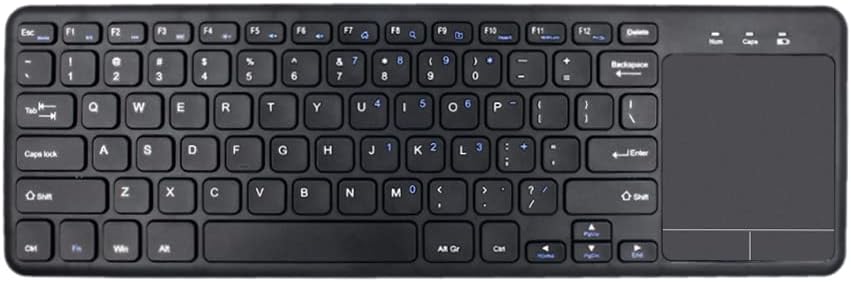
Image 1.1: Top-down view of the HDWR typerCLAW-BC130 Wireless Keyboard with integrated touchpad.
2. Package Contents
Ensure all items are present in the package:
- HDWR typerCLAW-BC130 Wireless Keyboard
- USB Receiver (quantity: 3, typically one is used for connection)
- User Manual (this document)
3. Product Features
- Wireless Operation: The keyboard operates wirelessly via a USB receiver, providing a cable-free connection within a 10-meter range. This allows for flexible placement and use.
- Power Saving: Powered by two AAA batteries, the keyboard can operate continuously for over 60 hours. An energy-saving mode automatically puts the keyboard to sleep after 10 minutes of inactivity to extend battery life.
- Ergonomic and Portable Design: The TyperCLAW BC130 is less than 2 cm thick and weighs under 300g, making it suitable for mobile use and saving workspace. Its slim profile contributes to comfortable typing.
- Integrated Touchpad: The convenient touchpad provides precise control, effectively replacing a traditional computer mouse. It supports multi-touch gestures for enhanced navigation.
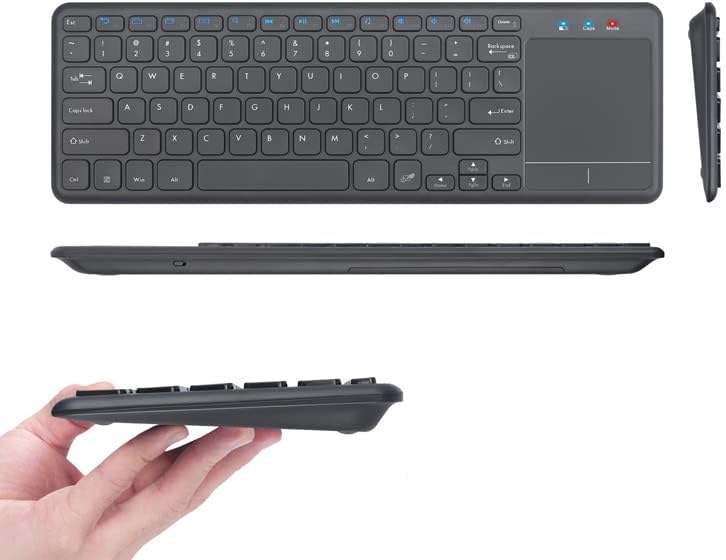
Image 3.1: Various views highlighting the slim and portable design of the keyboard.

Image 3.2: A hand demonstrating interaction with the integrated touchpad.
4. Setup
4.1. Battery Installation
- Locate the battery compartment on the underside of the keyboard.
- Open the battery compartment cover.
- Insert two AAA batteries, ensuring correct polarity (+/-).
- Close the battery compartment cover securely.
4.2. USB Receiver Connection
- Take one of the provided USB receivers from the package.
- Plug the USB receiver into an available USB port on your computer or laptop.
- The operating system should automatically detect and install the necessary drivers. This may take a few moments.
4.3. Powering On
- Locate the power switch on the keyboard (usually on the side or top edge).
- Slide the switch to the 'ON' position.
- The keyboard should now be connected and ready for use.
5. Operating Instructions
5.1. Basic Typing
Use the keys as you would with any standard keyboard. The layout is designed for familiar and efficient typing.
5.2. Touchpad Usage
- Single Finger Tap: Functions as a left-click.
- Two Finger Tap: Functions as a right-click.
- Single Finger Drag: Moves the cursor.
- Two Finger Scroll: Drag two fingers up or down to scroll vertically.
5.3. Power Saving Mode
The keyboard automatically enters power-saving mode after 10 minutes of inactivity. To wake it up, simply press any key or move the touchpad. This feature helps conserve battery life.
6. Maintenance
6.1. Cleaning
- Turn off the keyboard before cleaning.
- Use a soft, lint-free cloth slightly dampened with water or a mild cleaning solution.
- Avoid using harsh chemicals, abrasives, or solvents.
- For dust and debris between keys, use compressed air.
6.2. Battery Replacement
When the keyboard's performance degrades or it stops responding, it may be time to replace the AAA batteries. Follow the battery installation steps in Section 4.1.
6.3. Storage
If storing the keyboard for an extended period, remove the batteries to prevent leakage and potential damage. Store in a cool, dry place away from direct sunlight.
7. Troubleshooting
- Keyboard not responding:
- Ensure the keyboard is powered on.
- Check if the batteries are correctly installed and have sufficient charge. Replace if necessary.
- Ensure the USB receiver is securely plugged into a working USB port on your computer. Try a different USB port.
- Move the keyboard closer to the USB receiver to ensure it's within the 10-meter operating range.
- Restart your computer.
- Touchpad not working:
- Ensure the keyboard is powered on and connected.
- Clean the touchpad surface to remove any dirt or obstructions.
- Check if there's a function key (Fn + Fx) that disables/enables the touchpad. Refer to the keyboard's key legends.
- Intermittent connection:
- Ensure there are no large metallic objects or other wireless devices interfering with the signal between the keyboard and the receiver.
- Try using a different USB receiver if available.
8. Specifications
| Feature | Detail |
|---|---|
| Brand | HDWR |
| Model Number | typerCLAW-BC130 |
| Color | Black |
| Connectivity Technology | Wireless (USB Receiver), Micro USB (for charging/data if applicable) |
| Compatible Devices | Laptop, PC |
| Operating System Compatibility | Windows 10 (and likely other modern OS versions) |
| Special Features | Ergonomic, Integrated Touchpad, Power Saving Mode |
| Power Source | 2 x AAA Batteries |
| Battery Life | Over 60 hours continuous operation |
| Material | Plastic |
| Country of Origin | Poland |
9. Warranty Information
The HDWR typerCLAW-BC130 Wireless Keyboard comes with a 1-year manufacturer warranty. Please retain your proof of purchase for warranty claims. For specific terms and conditions, refer to the warranty card included with your product or contact HDWR customer support.
10. Support
For further assistance, technical support, or warranty inquiries, please contact HDWR customer service through their official website or the contact information provided on your product packaging.


