
1. Introduction
This manual provides detailed instructions for the installation, operation, and maintenance of your Vikye 1080P WiFi Security Camera. Please read this manual thoroughly before using the product to ensure proper function and safety. Keep this manual for future reference.
2. Package Contents
Verify that all items listed below are included in your package:
- 1 x Vikye 1080P WiFi Security Camera
- 1 x USB Charging Cable
- 1 x User Manual
- 2 x Mounting Screws
- 2 x Expansion Tubes
- 1 x Card Pin (for reset)
3. Product Overview
Familiarize yourself with the various components of your security camera:

This diagram provides a detailed overview of the camera's physical components, including the reset button, memory card slot, antennas, charging port, microphone, various night vision lights, HD lens, speaker, and anti-light sensitivity sensor.
- Reset Button: Used to restore factory settings.
- Memory Card Slot: For local storage (supports up to 128GB, card not included).
- Antenna: For WiFi connectivity.
- Charging Port: USB port for power input.
- Microphone: For two-way audio communication.
- Full Color Night Viewing Light: Provides illumination for color night vision.
- Infrared Night Viewing Light: Provides illumination for infrared night vision.
- HD Lens: Captures 1080P video footage.
- Speaker: For two-way audio communication and alerts.
- Anti Light Sensitivity: Sensor for automatic light adjustment.
4. Setup
4.1 Power Connection
Connect the camera to a power source using the provided USB cable. A standard 5V/1A USB power adapter (not included) is required. Ensure the power source is stable.
4.2 App Installation
Download the dedicated mobile application from your smartphone's app store. Search for the app name provided in the quick start guide or on the product packaging. Follow the on-screen instructions to create an account.
4.3 WiFi Connection
The camera supports 2.4GHz WiFi networks only. It does not support 5.0GHz WiFi. Ensure your mobile device is connected to a 2.4GHz network during the setup process. Follow the in-app instructions to add your camera and connect it to your home WiFi network.
4.4 Mounting the Camera
The camera can be mounted on a wall or ceiling. Choose a location that provides the desired viewing angle and is within range of your WiFi signal. Use the included screws and expansion tubes to secure the camera's base to a stable surface.

This image displays two common mounting configurations for the camera: upright on a vertical surface like a wall, and inverted for ceiling installation, showcasing its versatile placement capabilities.
5. Operating Instructions
5.1 Smart Motion Tracking
The camera features intelligent motion tracking. When movement is detected within its field of view, the camera will automatically track the subject and send real-time alerts to your mobile device via the app. You can adjust motion detection sensitivity in the app settings.
5.2 360° View Control
Utilize the mobile app to remotely control the camera's pan (360° horizontal rotation) and tilt (90° vertical rotation). This allows for comprehensive real-time viewing of your monitored area.
5.3 Two-Way Audio
The integrated microphone and speaker enable two-way audio communication. Through the app, you can listen to the camera's surroundings and speak to individuals near the camera, such as visitors or delivery personnel.
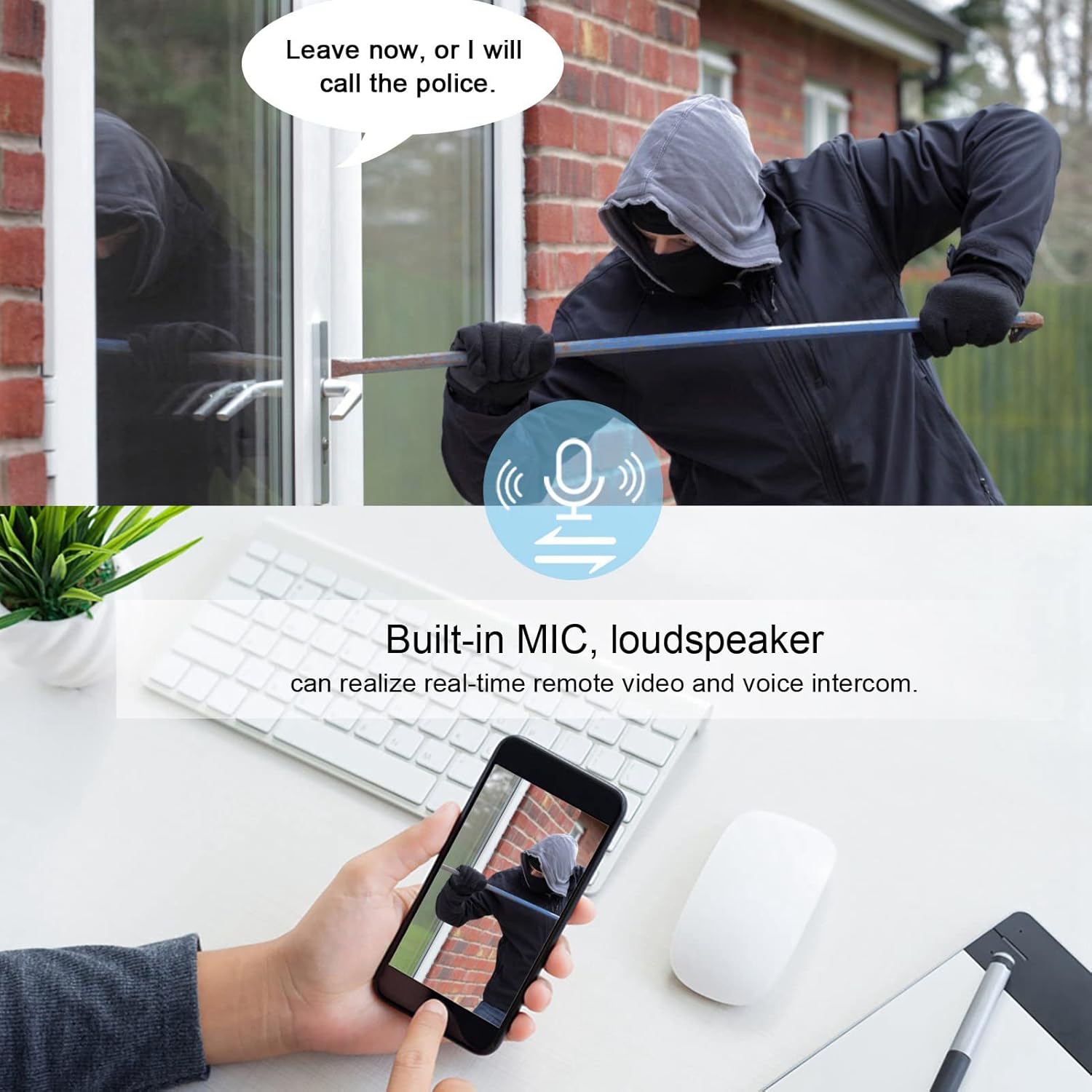
This image illustrates the two-way audio functionality, allowing users to speak through the camera's built-in microphone and loudspeaker to deter intruders or communicate with visitors remotely via their mobile device.
5.4 Spotlight and Night Vision
The camera supports multiple night vision modes: infrared (IR), full-color, and smart automatic. The built-in bright spotlight function activates in low-light conditions to provide clear, full-color images when needed.

This image highlights the camera's effective night vision, where a red light beam from the camera illuminates a dark hallway, making an intruder visible and demonstrating its low-light surveillance capabilities.
5.5 24/7 Recording and Storage
The camera is designed for continuous 24/7 recording. Footage can be stored locally on a memory card (up to 128GB, not included) or uploaded to a cloud storage service (subscription may be required). Manage recording settings and view playback through the mobile app.
6. Maintenance
6.1 Cleaning
Gently wipe the camera lens and body with a soft, dry, lint-free cloth. Do not use liquid cleaners, solvents, or abrasive materials, as these can damage the camera's components.
6.2 Firmware Updates
Regularly check the mobile application for available firmware updates. Keeping your camera's firmware up-to-date ensures optimal performance, security, and access to new features.
7. Troubleshooting
If you encounter issues with your camera, please refer to the following common solutions:
- Camera Not Powering On: Ensure the USB cable is securely connected to the camera and a functional power adapter. Try a different USB cable or power adapter if available.
- WiFi Connection Issues:
- Verify your WiFi network is 2.4GHz. The camera does not support 5.0GHz.
- Ensure the camera is within effective range of your WiFi router.
- Restart your router and the camera, then attempt to reconnect via the app.
- If connection fails, try resetting the camera using the reset button (refer to Product Overview).
- No Image or Distorted Image: Check the camera's power supply and network connection. If the issue persists, try resetting the camera. Ensure the lens is clean and free from obstructions.
- No Audio or Poor Audio Quality: Ensure the microphone and speaker are not obstructed. Check audio settings within the mobile app.
- Motion Detection Not Working: Verify motion detection settings are enabled and configured correctly in the app. Adjust sensitivity levels as needed.
- SD Card Not Recording: Ensure the memory card is inserted correctly and is not full. Format the SD card through the app if necessary.
8. Specifications
| Model Number | Vikye5ki79xbw32 |
| Clarity | 3MP (1080P) |
| Storage Options | Cloud storage, Local storage (up to 128GB memory card, not included) |
| Horizontal Adjustment Angle | 360° |
| Vertical Adjustment Angle | 90° |
| Night Vision | Infrared, Full-Color, Smart Automatic |
| Motion Detection | Supported |
| Wireless Connection | 2.4GHz WiFi (5.0GHz not supported) |
| Material | ABS Plastic |
| Voltage | 24 Volts (Input for adapter) |
| Power Consumption | 3 Watts |
| Effective Video Resolution | 1080 Pixels |
| Viewing Angle | 360 Degrees (Pan) |
| Special Features | Motion Detector, Night Vision, Two-Way Audio |
| Indoor/Outdoor Use | Outdoor |
| Connectivity Technology | Wired (Power), Wireless (Data) |
| Mounting Type | Wall Mount |
| Approximate Dimensions (Package) | 12.5 x 9.9 x 8.9 cm; 240 grams |
9. Warranty and Support
For detailed warranty information, product registration, and technical support, please refer to the documentation included with your purchase or visit the official Vikye website. Our customer service team is available to assist you with any questions or concerns regarding your security camera.