
Nokia 101S0609H001
Nokia G22 Smartphone User Manual
Model: 101S0609H001
Introduction
This manual provides essential information for the safe and efficient use of your Nokia G22 smartphone. Please read this guide thoroughly before operating the device to ensure proper functionality and to understand its features.
The Nokia G22 is a 4G/LTE smartphone designed for reliable communication and multimedia experiences. It features a durable design and runs on the Android operating system, offering a user-friendly interface and access to a wide range of applications.
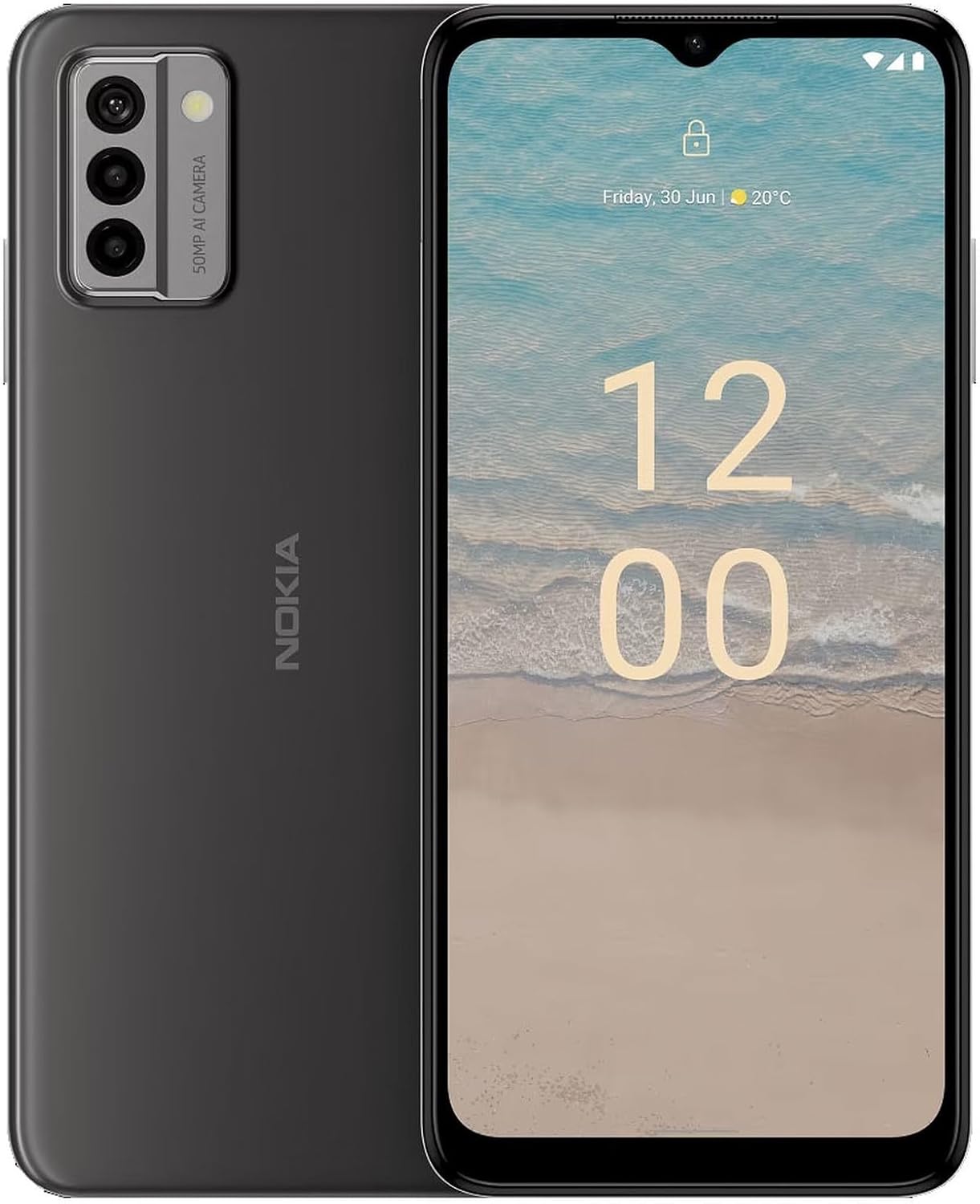
Image: Front and back view of the Nokia G22 smartphone, highlighting its sleek design and rear camera setup.
Setup
1. Inserting the SIM Card and Memory Card
The Nokia G22 supports Dual-SIM functionality. To insert the SIM card(s) and an optional microSD memory card:
- Locate the SIM tray on the side of the device.
- Use the SIM ejector tool (if provided) to open the tray.
- Place the Nano-SIM card(s) into the designated slots with the gold contacts facing down. Ensure the card is correctly oriented according to the tray's diagram.
- If using a memory card, insert it into the dedicated slot.
- Gently push the tray back into the device until it clicks into place.
2. Charging the Battery
Before first use, it is recommended to fully charge the device battery.
- Connect the USB cable to the charging port on the phone.
- Connect the other end of the USB cable to the power adapter.
- Plug the power adapter into a wall outlet.
- The battery indicator on the screen will show the charging status.
Note: Only use chargers and cables approved by Nokia for this device.
3. Powering On/Off
- To power on: Press and hold the Power button until the Nokia logo appears.
- To power off: Press and hold the Power button, then select "Power off" from the options on the screen.
Operating Instructions
Making Calls
To make a call, open the Phone app, enter the number using the dial pad, and tap the call icon. To call a contact, open the Contacts app, select the desired contact, and tap the call icon.
Sending Messages
Open the Messages app, tap the "Start chat" or "New message" icon, enter the recipient's number or select from contacts, type your message, and tap the send icon.
Using the Camera
The Nokia G22 features a high-resolution camera. To take photos or videos:
- Open the Camera app.
- Frame your shot on the screen.
- Tap the shutter button to take a photo or the record button to start/stop video recording.
- Switch between front and rear cameras using the camera switch icon.

Image: Rear view of the Nokia G22, highlighting the 50MP AI Camera module.
Internet Connectivity
Connect to the internet via Wi-Fi or mobile data (4G/LTE).
- Wi-Fi: Go to Settings > Network & internet > Internet, then select a Wi-Fi network and enter the password if required.
- Mobile Data: Ensure your SIM card has an active data plan. Go to Settings > Network & internet > SIMs, and enable Mobile data.
Maintenance
Cleaning the Device
Use a soft, lint-free cloth to clean the screen and body of the phone. Avoid using abrasive materials or harsh chemicals, which can damage the surface.
Software Updates
Regularly check for and install software updates to ensure your device has the latest features, security patches, and performance improvements. Go to Settings > System > System update.
Battery Care
To prolong battery life, avoid exposing the device to extreme temperatures. It is recommended to keep the battery charge between 20% and 80% for optimal longevity.
Troubleshooting
| Problem | Possible Solution |
|---|---|
| Device does not power on | Ensure the battery is charged. Connect the charger and wait a few minutes before attempting to power on again. If unresponsive, perform a forced restart by holding the Power button for 10-15 seconds. |
| Cannot connect to Wi-Fi | Check if Wi-Fi is enabled in settings. Restart your Wi-Fi router. Forget the network and reconnect. Ensure you are within range. |
| Poor call quality | Check network signal strength. Move to an area with better reception. Ensure nothing is blocking the microphone or speaker. |
| Apps are crashing or freezing | Close and reopen the app. Clear the app's cache (Settings > Apps > [App Name] > Storage & cache > Clear cache). Restart the phone. Ensure the phone's software is up to date. |
| Battery drains quickly | Reduce screen brightness. Close unused apps running in the background. Disable unnecessary features like Bluetooth or GPS when not in use. Check battery usage in settings to identify power-hungry apps. |
Specifications
| Model Number | 101S0609H001 |
| Operating System | Android |
| RAM | 4 GB |
| Internal Storage (ROM) | 64 GB (as per product title) |
| Display Size | 6.52 Inches |
| Resolution | 720 x 1600 |
| Camera Features | Front Camera, 50MP AI Camera (Rear) |
| Connectivity | Wi-Fi, Cellular (4G/LTE) |
| Audio Jack | 3.5 mm |
| Special Features | Fast Charging Support |
| Battery | 1 Lithium Polymer (included), 36 Hours Talk Time |
| Dimensions (L x W x H) | 5.76 x 4.38 x 4.54 inches |
| Weight | 6.9 ounces (196.2 Grams) |
| Color | Meteor Grey |
| Included in Box | Power Adapter, USB Cable |
Warranty and Support
Your Nokia G22 smartphone comes with a manufacturer's warranty. Please refer to the warranty card included in your product packaging for specific terms and conditions, including warranty period and coverage details.
For technical support, troubleshooting assistance beyond this manual, or warranty claims, please visit the official Nokia support website or contact their customer service. Keep your proof of purchase for warranty validation.
Note: Unauthorized repairs or modifications may void your warranty.
Related documents101S0609H001


Ask a question about this manual
Ask about setup, troubleshooting, compatibility, parts, safety, or missing instructions. Manuals+ will review the question and use this page’s manual context to help answer it.