
Introduction
Thank you for choosing the ODK Computer Desk. This manual provides detailed instructions for the assembly, operation, maintenance, and troubleshooting of your new desk. Please read this manual thoroughly before beginning assembly or use to ensure proper setup and to maximize the lifespan of your product.
The ODK Computer Desk is designed to provide a functional and ergonomic workspace for your home or office. It features a spacious desktop, a convenient pull-out keyboard tray, two fabric storage drawers, and an elevated monitor stand to enhance your computing experience.
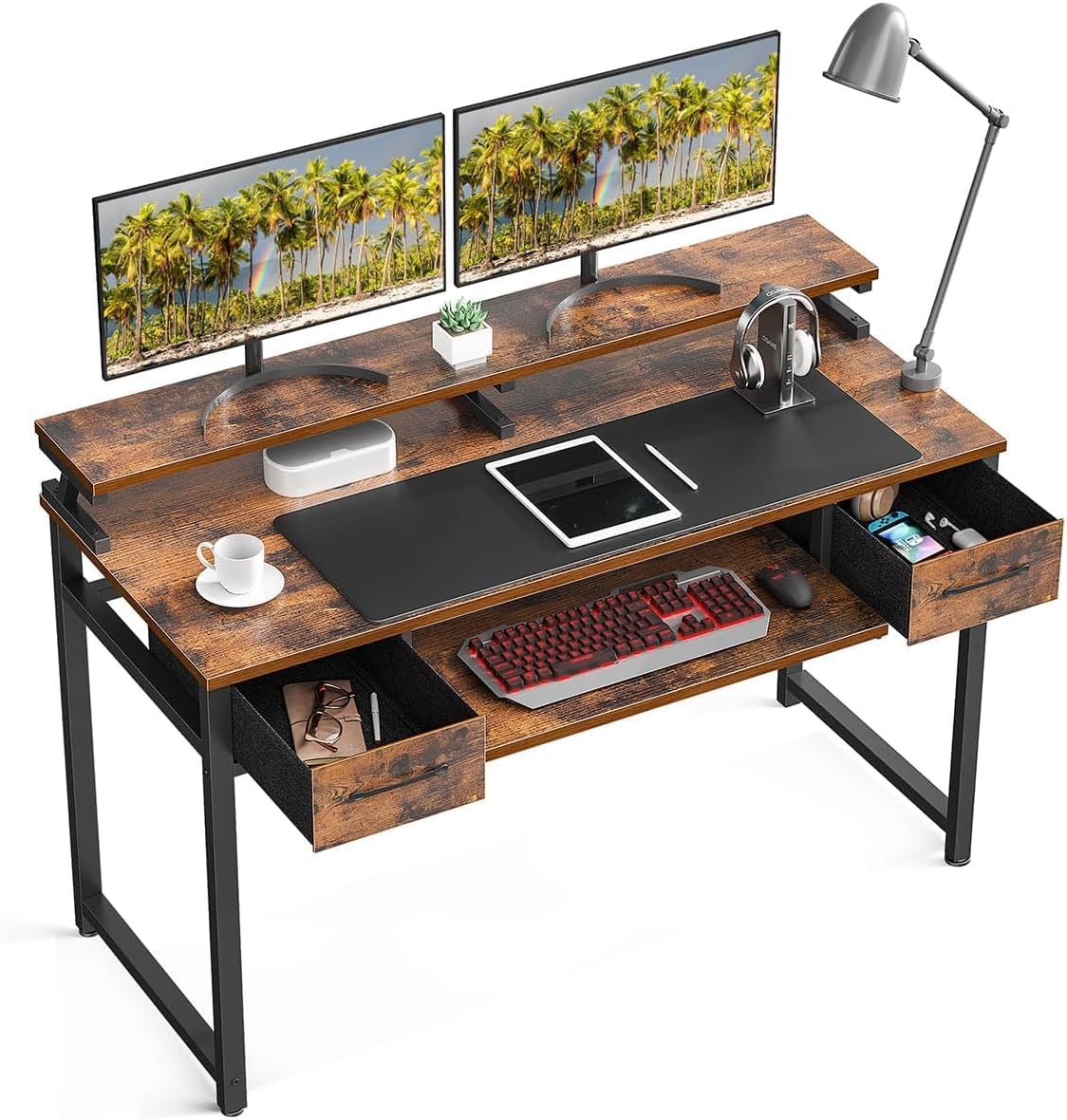
Image: The ODK Computer Desk, showcasing its dual monitor stand, keyboard tray, and two fabric drawers, set up with computer peripherals and office accessories.
Safety Information
Please observe the following safety precautions to prevent injury or damage to the product:
- Keep all small parts and packaging materials away from children and pets.
- Assemble the desk on a clean, flat, and soft surface to prevent scratches.
- Ensure all screws and fasteners are securely tightened before use. Periodically check and re-tighten as needed.
- Do not overload the desk or drawers. The maximum weight capacity for each fabric drawer is 5 kg (11 lbs).
- Avoid placing hot items directly on the desk surface without protection.
- Do not stand or sit on the desk.
Package Contents
Before assembly, please verify that all components listed below are present and undamaged. If any parts are missing or damaged, please contact customer support.
- Desktop Panel (1)
- Monitor Stand (1)
- Keyboard Tray (1)
- Metal Frame Legs (2)
- Crossbars/Support Beams (various)
- Fabric Drawers (2)
- Hard Bottom Panels for Drawers (2)
- Assembly Hardware (screws, Allen wrench, etc.)
- Instruction Manual (this document)
Assembly Instructions
Assembly of the ODK Computer Desk is designed to be straightforward. Please follow these steps carefully.

Image: Detailed dimension diagram of the ODK Computer Desk, including overall height, width, depth, and specific measurements for the monitor stand, keyboard tray, and drawers.
- Step 1: Assemble the Metal Frame. Lay out the metal frame components. Attach the crossbars to the leg frames using the provided screws and Allen wrench. Do not fully tighten screws until all components are aligned.
- Step 2: Attach the Desktop Panel. Carefully place the desktop panel onto the assembled metal frame. Align the pre-drilled holes on the desktop with the holes on the frame. Secure the desktop to the frame using the appropriate screws. Now, fully tighten all screws from Step 1 and Step 2.
- Step 3: Install the Keyboard Tray. Slide the keyboard tray rails into the designated slots under the desktop. Ensure the tray slides smoothly. Secure the rails with the provided screws.
- Step 4: Set up the Monitor Stand. Place the monitor stand on the top surface of the desk. The stand is designed to be adjustable or free-standing, allowing you to position it for optimal viewing.
- Step 5: Prepare the Fabric Drawers. Unfold each fabric drawer. Insert the hard bottom panel into the bottom of each drawer to provide stability and shape. Place the assembled drawers into their respective compartments on the desk.
Your ODK Computer Desk is now assembled and ready for use.
Operating Instructions
Using the Keyboard Tray
The desk features a 60 cm wide pull-out keyboard tray, suitable for full-size keyboards and a mouse. To use, simply pull the tray outwards. When not in use, push it back under the desktop to save space and protect your keyboard from dust.

Image: A close-up view of the desk's pull-out keyboard tray, showing a keyboard and mouse in use, and one of the fabric drawers containing small items.
Utilizing the Fabric Drawers
The two fabric drawers provide convenient storage for office supplies, documents, or personal items. These drawers do not require complex assembly; simply unfold them and insert the hard bottom panel. They can be easily pulled out and pushed in for access.

Image: A detailed view of one of the desk's fabric drawers, open and filled with various small electronic devices and accessories.
Adjustable Monitor Stand
The elevated monitor stand is designed to raise your screen to an ergonomic viewing height (11 cm lift), helping to reduce neck strain and promote better posture. Its 19.8 cm width can accommodate one or two monitors, or provide additional storage space for desk accessories.

Image: An illustrative diagram demonstrating the correct ergonomic posture when using the ODK Computer Desk, highlighting the benefits of the elevated monitor stand for eye level.
Maintenance
To keep your ODK Computer Desk in optimal condition, follow these simple maintenance guidelines:
- Cleaning: Wipe the desk surfaces with a soft, damp cloth. Avoid harsh chemicals or abrasive cleaners, which can damage the finish.
- Spills: Immediately wipe up any spills to prevent water damage or staining.
- Fasteners: Periodically check all screws and bolts to ensure they remain tight. Re-tighten if necessary to maintain stability.
- Fabric Drawers: The fabric drawers can be spot cleaned with a mild detergent and damp cloth. Allow to air dry completely.
Troubleshooting
If you encounter any issues with your ODK Computer Desk, please refer to the common problems and solutions below:
| Problem | Possible Cause | Solution |
|---|---|---|
| Desk is wobbly/unstable. | Screws are loose; uneven floor. | Ensure all assembly screws are fully tightened. Adjust desk feet if available, or place shims under legs on uneven surfaces. |
| Keyboard tray does not slide smoothly. | Rails are misaligned or obstructed. | Check that the keyboard tray rails are correctly installed and free of debris. Ensure screws are not overtightened, which can cause binding. |
| Fabric drawers do not fit or collapse. | Bottom panel not inserted; drawer not fully unfolded. | Ensure the fabric drawers are fully unfolded and the hard bottom panel is securely inserted at the base of each drawer. |
| Missing parts during assembly. | Packaging error. | Carefully check all packaging materials. If parts are genuinely missing, contact ODK customer support immediately. |
Specifications
| Feature | Detail |
|---|---|
| Brand | ODK |
| Model Number | JPCTFZ |
| Color | Brown |
| Dimensions (L x W x H) | 120 x 48 x 87 cm (including monitor stand height) |
| Weight | 23.5 Kilograms |
| Materials | Engineered Wood, Metal, Fabric |
| Keyboard Tray Width | 60 cm |
| Monitor Stand Height | 11 cm (above desktop) |
| Monitor Stand Width | 19.8 cm |
| Fabric Drawer Weight Capacity | 5 kg (each) |
Warranty and Support
ODK is committed to providing high-quality products and customer satisfaction. If you encounter any product issues, such as damaged parts or assembly difficulties, please do not hesitate to contact our customer support team.
We guarantee a response and solution within 24 hours. Please have your product model number (JPCTFZ) and purchase details ready when contacting support to expedite the process.
For support, please refer to the contact information provided at the point of purchase or on the official ODK website.


