
Introduction
This manual provides comprehensive instructions for the BoxWave SlimKeys Bluetooth Keyboard with Trackpad. This device is designed to enhance productivity by offering a full-featured keyboard and trackpad experience for compatible devices. It is compatible with PRITOM Android 10 Phone Tablet M10 (10.1 in) and other Android, Windows, and iOS devices.
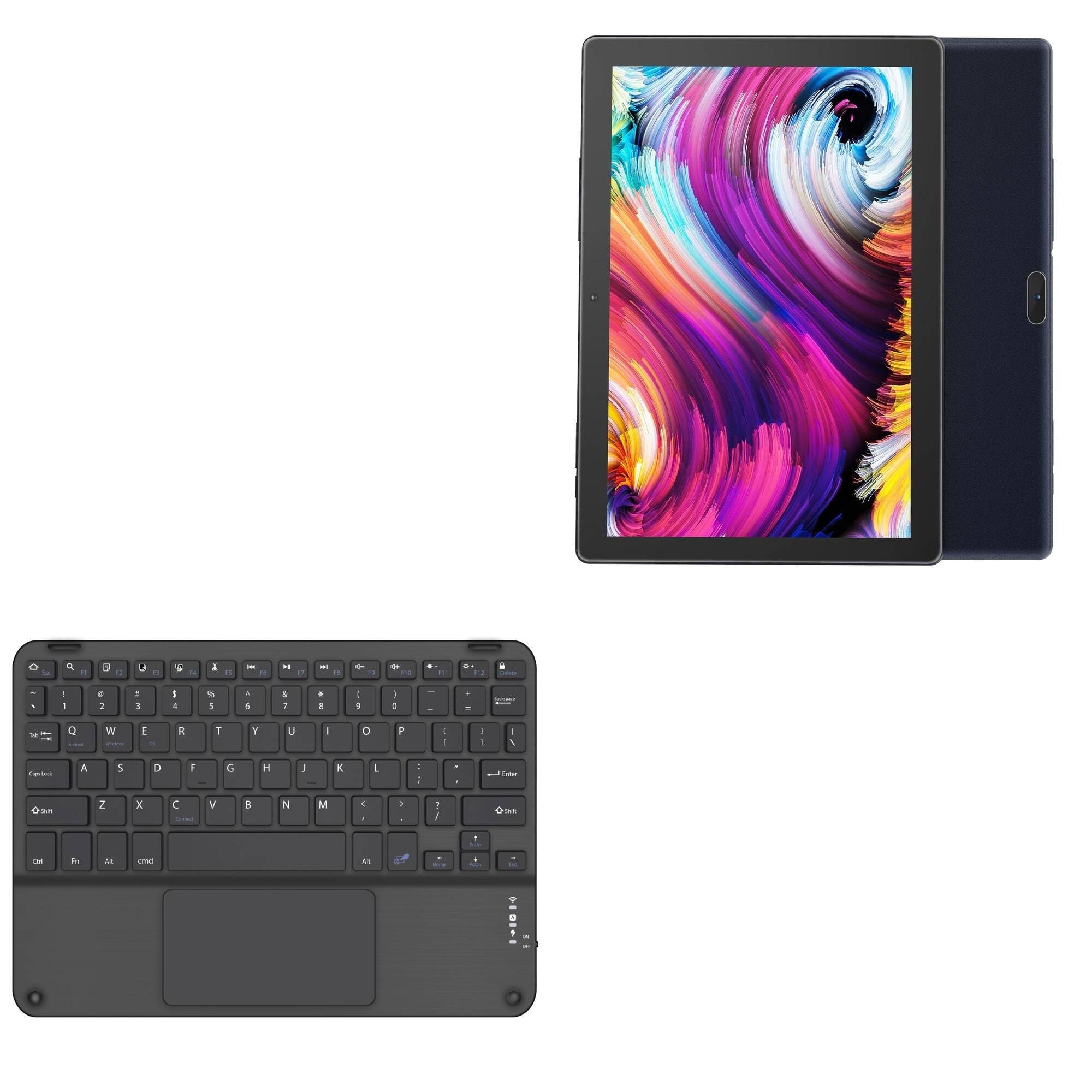
Image: Overall view of the BoxWave SlimKeys Bluetooth Keyboard with Trackpad, showcasing its compact design and integrated trackpad.
Product Features
- Integrated Trackpad: Provides precise navigation and control, eliminating the need for an external mouse.
- Chiclet-Style Keys: Low-profile keys designed for comfortable and quiet typing.
- Ultra-Slim and Lightweight Design: With a thickness of approximately 3/16 inch (0.5 cm) and weighing 10.9 ounces, the keyboard is highly portable.
- Bluetooth 3.0 Connectivity: Ensures efficient and stable wireless connection with compatible devices.
- Long-Lasting Battery: Features an on/off switch to conserve battery power, offering up to 30 days of usage and 6 months of standby time.
- Multi-Platform Compatibility: Works with Android, Windows, and iOS operating systems.
- Specialized Function Keys: Dedicated keys for quick access to common functions like media control, volume, and screen brightness.
Setup
1. Powering On/Off
Locate the ON/OFF switch on the side of the keyboard. Slide the switch to the 'ON' position to power on the keyboard. Slide it to 'OFF' when not in use to conserve battery life.
2. Bluetooth Pairing
- Ensure the keyboard is powered on.
- Press the Connect button on the keyboard. The Bluetooth indicator light will begin to flash, indicating it is in pairing mode.
- On your device (tablet, phone, or computer), navigate to the Bluetooth settings.
- Enable Bluetooth and search for available devices.
- Select "SlimKeys Keyboard" from the list of found devices.
- If prompted, enter the pairing code displayed on your device screen using the SlimKeys keyboard and press Enter.
- Once paired, the Bluetooth indicator light on the keyboard will stop flashing and remain solid or turn off, depending on the model.

Image: Detailed top-down view of the keyboard, highlighting the power switch and Bluetooth connection button for setup.
Operating Instructions
1. Keyboard Layout
The SlimKeys Bluetooth Keyboard features a standard QWERTY layout with additional function keys. Familiarize yourself with the key placement for efficient typing.
2. Trackpad Usage
The integrated trackpad allows for precise cursor control. Use single-finger gestures for basic navigation, tapping for clicks, and two-finger gestures for scrolling (if supported by your device's operating system).

Image: A hand demonstrating the use of the integrated trackpad for navigation.
3. Specialized Function Keys
The top row of keys (F1-F12) includes specialized functions. These functions are typically accessed by pressing the Fn key simultaneously with the desired function key.
| Key Combination | Function |
|---|---|
| Fn + Esc (Home) | Return to Home screen |
| Fn + F1 (Search) | Open Search function |
| Fn + F2 (Select All) | Select all content |
| Fn + F3 (Copy) | Copy selected content |
| Fn + F4 (Paste) | Paste content |
| Fn + F5 (Cut) | Cut selected content |
| Fn + F6 (Skip Back) | Skip to previous track/media |
| Fn + F7 (Play/Pause) | Play or pause media |
| Fn + F8 (Skip Forward) | Skip to next track/media |
| Fn + F9 (Volume Down) | Decrease volume |
| Fn + F10 (Volume Up) | Increase volume |
| Fn + F11 (Brightness Down) | Decrease screen brightness |
| Fn + F12 (Brightness Up) | Increase screen brightness |
| Fn + Delete (Lock) | Lock the device screen |

Image: A visual guide to the specialized function keys and their corresponding actions.
Charging and Battery
The SlimKeys Bluetooth Keyboard is equipped with a rechargeable battery. To charge the keyboard, connect the included charging cable to the keyboard's charging port and to a compatible USB power source. The battery indicator light will show charging status. A full charge provides up to 30 days of active use or 6 months of standby time when powered off.

Image: The keyboard connected to a charging cable, illustrating the charging process.
Maintenance
- Cleaning: Use a soft, dry, lint-free cloth to clean the keyboard surface. For stubborn dirt, slightly dampen the cloth with water. Avoid harsh chemicals or abrasive materials.
- Storage: Store the keyboard in a cool, dry place away from direct sunlight and extreme temperatures.
- Liquid Exposure: Avoid exposing the keyboard to liquids. In case of accidental spills, power off the keyboard immediately and allow it to dry completely before use.
Troubleshooting
- Keyboard not pairing:
- Ensure the keyboard is powered on and fully charged.
- Verify that Bluetooth is enabled on your device.
- Make sure the keyboard is in pairing mode (Bluetooth indicator flashing).
- Try unpairing and re-pairing the keyboard from your device's Bluetooth settings.
- Keys not responding:
- Check the battery level and recharge if necessary.
- Ensure the keyboard is properly connected via Bluetooth.
- Restart both the keyboard and your connected device.
- Trackpad not working:
- Confirm the keyboard is connected.
- Ensure there is no debris or obstruction on the trackpad surface.
- Check your device's settings for any trackpad-related configurations.
Specifications
| Feature | Detail |
|---|---|
| Model Number | bw-1977-36929-11782 |
| Item Weight | 10.9 ounces |
| Dimensions (L x W x H) | 9.5 in (23.2 cm) x 7.0 in (17.8 cm) x 0.2 in (0.5 cm) |
| Bluetooth Version | 3.0 |
| Manufacturer | BoxWave |

Image: Visual representation of the keyboard's ultra-slim profile and dimensions.
Warranty and Support
For warranty information or technical support, please contact BoxWave Corporation directly. Refer to the product packaging or the official BoxWave website for the most current contact details and warranty terms.