
TP-Link Deco X25
TP-Link Deco X25 AX1800 Whole Home Mesh Wi-Fi 6 System User Manual
Model: Deco X25
Introduction
The TP-Link Deco X25 AX1800 Dual-Band Whole Home Mesh Wi-Fi 6 System is designed to provide seamless, high-speed Wi-Fi coverage throughout your entire home. This system eliminates Wi-Fi dead zones, ensuring a strong and stable connection for all your devices. With Wi-Fi 6 technology, it offers faster speeds and increased capacity, making it ideal for homes with numerous connected devices and demanding online activities.
Key features include built-in antivirus for network security, parental controls to manage online access, and advanced Quality of Service (QoS) to prioritize device traffic. The system is capable of connecting over 150 devices and provides Wi-Fi speeds up to 1.8 gigabits per second across a range of up to 5800 square feet.
Package Contents
Your TP-Link Deco X25 AX1800 system includes the following components:
- 3 x TP-Link Deco X25 Units
- 3 x Power Adapters
- 1 x Ethernet Cable
- 1 x Quick Installation Guide

Image: The three Deco X25 units included in the package, showcasing their compact and modern design.
Setup Instructions
Setting up your Deco X25 Mesh Wi-Fi system is a straightforward process primarily guided by the Deco app. Follow these steps for a successful installation:
- Download the Deco App: Search for "TP-Link Deco" in your mobile device's app store (iOS or Android) and download the application.
- Prepare Your Modem: Turn off your existing modem and router (if separate) and disconnect any Ethernet cables.
- Connect the Main Deco Unit:
- Connect one of the Deco X25 units to your modem using the provided Ethernet cable. Plug one end into any Ethernet port on the Deco unit and the other end into your modem's LAN port.
- Connect the power adapter to this main Deco unit and plug it into a power outlet.

Image: Rear view of a Deco X25 unit, highlighting the two Gigabit Ethernet ports and the power input. One of these Ethernet ports will connect to your modem.
- Power On and Launch App: Power on your modem. Once the modem is fully online, power on the main Deco unit. Open the Deco app on your mobile device and follow the on-screen instructions to complete the setup. The app will guide you through creating your Wi-Fi network name and password.
- Place Additional Deco Units: Once the main unit is configured, place the remaining Deco units in strategic locations throughout your home to extend Wi-Fi coverage. These units will automatically connect to the main Deco unit and form a seamless mesh network. For optimal coverage, place them in areas experiencing weak signals, such as basements or outdoor areas like a back deck, ensuring they are within range of another Deco unit.
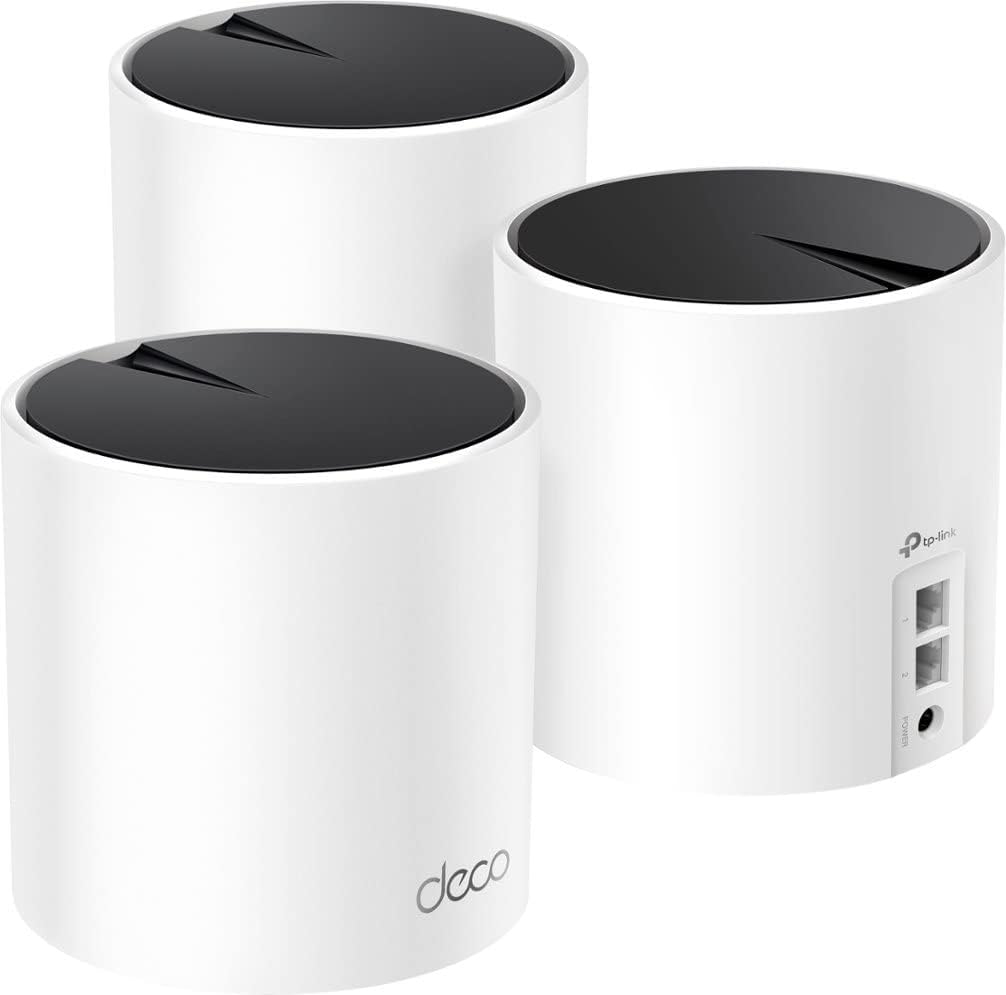
Image: A view of the three Deco X25 units, illustrating how they might be positioned to extend network coverage. Note the ports on the rear of one unit.
The Deco app simplifies the entire setup process, allowing for easy management and monitoring of your mesh network.
Operating Your Mesh System
Once set up, your TP-Link Deco X25 system operates as a single, unified Wi-Fi network, providing a consistent and strong signal as you move throughout your home. Devices will automatically connect to the Deco unit with the strongest signal, ensuring optimal performance.
- Seamless Roaming: Enjoy uninterrupted streaming and browsing as your devices seamlessly switch between Deco units without dropping connection.
- High Capacity: The AX1800 Wi-Fi 6 technology supports a large number of devices (over 150) simultaneously, making it suitable for smart homes.
- Network Security: Benefit from built-in antivirus protection that safeguards your network and connected devices from online threats.
- Parental Controls: Utilize the Deco app to set up parental controls, manage internet access times, and filter content for family members.
- Quality of Service (QoS): Prioritize bandwidth for specific devices or activities (e.g., gaming, streaming) to ensure smooth performance.
- Guest Network: Easily create a separate guest network for visitors, keeping your main network secure.
Maintenance
To ensure the longevity and optimal performance of your Deco X25 system, consider the following maintenance tips:
- Firmware Updates: Regularly check for and install firmware updates via the Deco app. Updates often include performance improvements, security patches, and new features.
- Regular Reboots: Periodically reboot your Deco units (e.g., once a month) by unplugging them from power for 10 seconds and then plugging them back in. This can help clear temporary glitches and refresh network performance.
- Physical Placement: Ensure Deco units are placed in well-ventilated areas to prevent overheating. Avoid placing them near large metal objects or appliances that could interfere with Wi-Fi signals.
- Cleaning: Keep the units clean and free of dust. Use a soft, dry cloth to wipe down the exterior.
Troubleshooting
If you encounter issues with your Deco X25 system, try the following troubleshooting steps:
- No Internet Connection:
- Check the status light on your main Deco unit. Refer to the Quick Installation Guide for light status meanings.
- Ensure all cables are securely connected to the modem and the main Deco unit.
- Reboot your modem and then your main Deco unit.
- Weak Wi-Fi Signal:
- Relocate Deco units closer to each other or to the areas experiencing weak signals.
- Ensure there are no major obstructions (e.g., thick walls, large appliances) between Deco units or between your device and the nearest Deco unit.
- Device Not Connecting:
- Verify that the Wi-Fi password entered on your device is correct.
- Try rebooting the problematic device.
- Check the Deco app to see if the device has been paused or blocked.
- App Issues:
- Ensure your Deco app is updated to the latest version.
- Try force-closing and reopening the app.
- Clear the app's cache or reinstall it if problems persist.
For more detailed troubleshooting or advanced configurations, consult the comprehensive user manual available through the Deco app or on the TP-Link support website.
Specifications
| Feature | Detail |
|---|---|
| Brand | TP-Link |
| Model Name | Deco X25 |
| Item Model Number | Deco X25 |
| Connectivity Technology | Wi-Fi |
| Wireless Communication Standard | 802.11ax (Wi-Fi 6) |
| Frequency Band Class | Dual-Band |
| Frequency | 5 GHz |
| Wi-Fi Speed | Up to 1.8 Gbps (1800 Mbps) |
| Wi-Fi Range | Up to 5800 square feet (3-pack) |
| Compatible Devices | Personal Computer, various Wi-Fi enabled devices |
| Special Features | QoS, WPS, Built-in Antivirus, Parental Controls |
| Product Dimensions | 13 x 5 x 12 inches |
| Item Weight | 3.8 pounds |
| Included Components | 3 x Deco X25 Units, 3 x Power Adapters, 1 x Ethernet Cable |
Warranty and Support
For detailed warranty information and technical support, please refer to the official TP-Link website or the documentation included with your product. The TP-Link Deco app also provides access to support resources and FAQs.
You can also visit the TP-Link Support Page for Deco X25 for the latest drivers, firmware, and support documents.
Related documentsDeco X25


Ask a question about this manual
Ask about setup, troubleshooting, compatibility, parts, safety, or missing instructions. Manuals+ will review the question and use this page’s manual context to help answer it.