
1. Introduction
The Ulefone uSmart C01 Digital Microscope is designed to provide high-magnification viewing and recording capabilities when connected to compatible Ulefone Armor Series smartphones via the uSmart Expansion Connector. It features 50x to 1000x magnification, an HD camera, and integrated LED lighting for detailed observation of various objects.
2. Safety Information
- Do not disassemble or modify the microscope. Unauthorized modifications may void the warranty and pose safety risks.
- Avoid direct exposure of the microscope lens to strong light sources, as this may damage the sensor.
- Keep the device away from water, moisture, and extreme temperatures.
- Use only with compatible Ulefone Armor Series devices as specified.
- Ensure the microscope is securely attached to the smartphone or stand during use to prevent accidental drops.
3. Package Contents
Verify that all items are present in the package:
- Ulefone uSmart C01 Digital Microscope Unit
- Adjustable Stand
- Micrometer Calibration Ruler
- Software/Driver CD
- User Manual (this document)
4. Product Overview
The uSmart C01 Digital Microscope is an accessory designed for detailed visual inspection. Key features include:
- Magnification: Adjustable from 50x to 1000x.
- Camera: 1 million HD pixels for clear image and video capture.
- Lighting: 8 built-in dimmable LED lights for optimal illumination.
- Controls: Physical SNAP button for image/video capture and ZOOM button for magnification adjustment.
- Compatibility: Designed for Ulefone Armor Series phones with the uSmart Expansion Connector.

Figure 4.1: Microscope unit with magnification dial (50x-1000x).

Figure 4.2: The 8 dimmable LED lights surrounding the microscope lens.
5. Setup
- Install Software: Insert the provided CD into a computer to install any necessary drivers or software for your Ulefone Armor Series smartphone, if prompted. Alternatively, check the official Ulefone website for the latest application.
- Connect Microscope: Locate the uSmart Expansion Connector on your compatible Ulefone Armor Series smartphone. Align the microscope's connector with the phone's port and gently push to establish a secure connection. The microscope is designed for plug-and-play operation.
- Attach to Stand (Optional): For stable observation, attach the microscope unit to the adjustable stand. The stand allows for angle adjustments to suit various inspection needs.

Figure 5.1: Microscope connected to a compatible Ulefone smartphone.
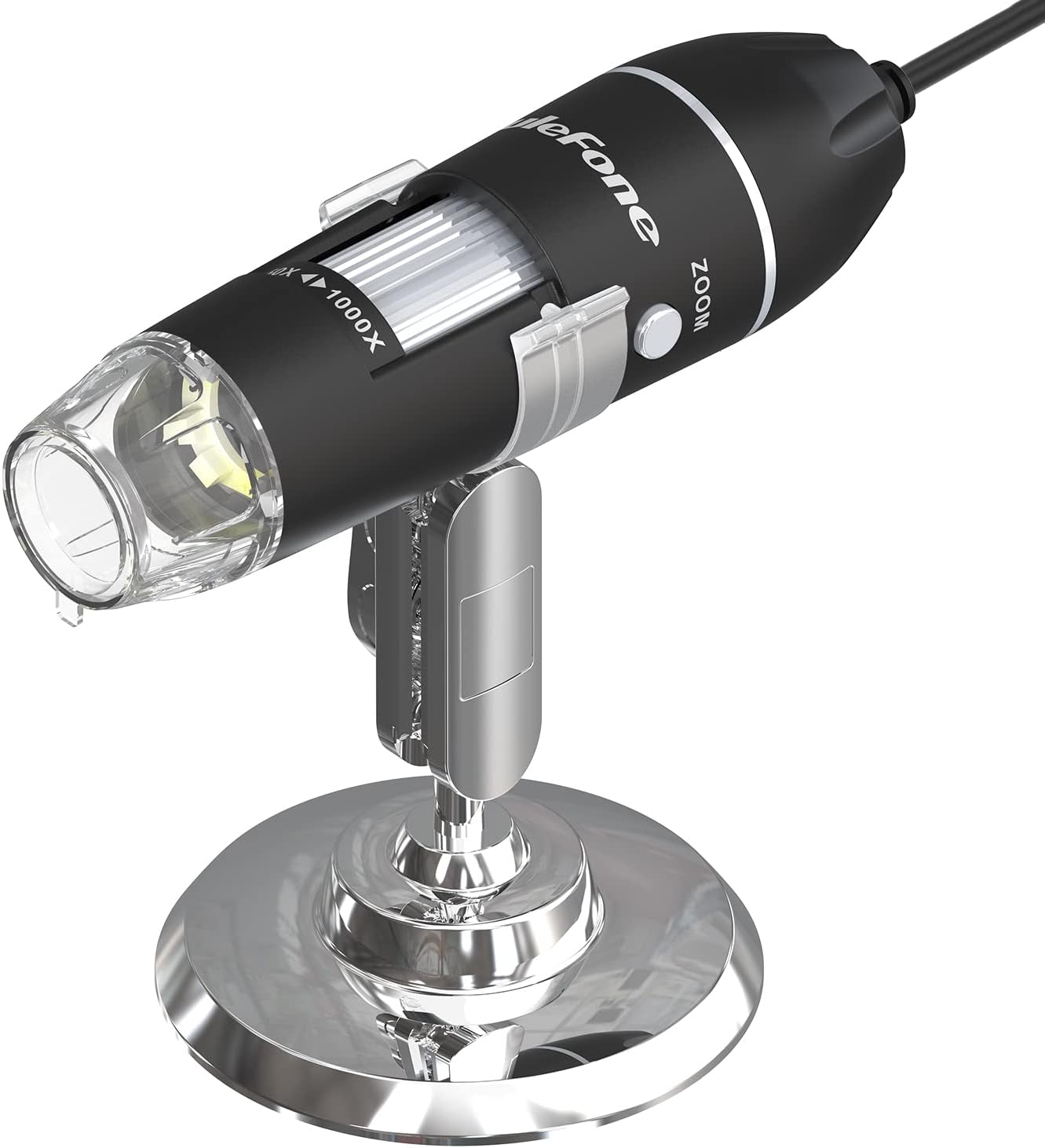
Figure 5.2: Microscope on its adjustable stand for stable viewing.
6. Operating Instructions
- Launch Application: Once connected, open the dedicated microscope application on your Ulefone smartphone. The application should automatically detect the microscope.
- Adjust Magnification: Rotate the focusing tube on the microscope unit to adjust the magnification from 50x to 1000x. Fine-tune the focus for a clear image on your phone screen.
- Control LED Lights: Use the LED gear on the cable to adjust the brightness of the 8 built-in LED lights. This allows for optimal illumination of the subject and can be turned off if not needed.
- Capture Images/Videos:
- Press the SNAP button on the microscope unit to capture still images or record videos directly.
- Use the ZOOM button for quick magnification adjustments (e.g., 1.3X, 2X, 3X) during live viewing.
- Using the Micrometer Calibration Ruler: The included micrometer calibration ruler can be used to accurately measure objects under magnification. Place the ruler next to or on the object being observed and use the on-screen display to estimate dimensions.
Video 6.1: Demonstration of the Ulefone uSmart C01 Digital Microscope in use, showing connection, magnification, and image capture.

Figure 6.1: Micrometer Calibration Ruler for precise measurements.
7. Maintenance
- Cleaning the Lens: Use a soft, lint-free cloth specifically designed for optical lenses to clean the microscope lens. Avoid abrasive materials or harsh chemicals.
- General Cleaning: Wipe the body of the microscope with a dry or slightly damp cloth. Do not immerse the device in water.
- Storage: Store the microscope in a clean, dry place away from direct sunlight and extreme temperatures when not in use.
8. Troubleshooting
| Problem | Possible Cause | Solution |
|---|---|---|
| No image on phone screen | Microscope not properly connected; Application not launched; Software/drivers not installed. | Ensure the microscope is securely connected to the uSmart port. Launch the microscope application. Install necessary software/drivers from the provided CD or Ulefone website. |
| Image is blurry | Incorrect focus; Object too far/close to the lens. | Rotate the focusing tube to adjust the focus. Adjust the distance between the microscope lens and the object. |
| LED lights not working | LED brightness set to minimum; Device malfunction. | Adjust the LED gear on the cable to increase brightness. If the issue persists, contact customer support. |
| Physical buttons (SNAP/ZOOM) unresponsive | Application not active; Device malfunction. | Ensure the microscope application is running and active. If buttons remain unresponsive, contact customer support. |
9. Specifications
| Feature | Detail |
|---|---|
| Model Name | Ulefone uSmart C01 |
| Magnification Maximum | 1000x |
| Image Sensor | 1 Million HD Pixels |
| Light Source Type | 8 Dimmable LEDs |
| Real Angle of View | 60 Degrees |
| Objective Lens Description | Achromatic |
| Compatible Devices | Ulefone Armor Series Smartphones (e.g., Armor 30/29/28/27/26/24/21/18/16/Pad Series) |
| Power Source | Powered via uSmart Expansion Connector (from smartphone) |
| Voltage | 5 Volts |
| Material | Glass, Metal |
| Color | Black |
| Manufacturer Part Number | us-c01-bk |
10. Warranty and Support
The Ulefone uSmart C01 Digital Microscope comes with a 1-year warranty from the date of purchase. This warranty covers manufacturing defects and malfunctions under normal use.
For technical support, warranty claims, or further assistance, please contact Ulefone customer service through their official website or the retailer where the product was purchased. Please have your proof of purchase and product model number (uSmart C01) ready when contacting support.