
1. Introduction
The Mobile Pixels Glance Portable Monitor is a 16-inch Full HD (1080P) display designed to enhance productivity and provide an extended screen experience on the go. This ultrathin and ultralight monitor features dual speakers, tilt adjustment, and non-slip design, making it a versatile companion for laptops, PCs, and gaming consoles. Its plug-and-play functionality ensures ease of use without requiring complex driver installations.

Image: Mobile Pixels Glance Portable Monitor, 16-inch FHD 1080P display, shown next to a laptop.
2. What's in the Box
Upon opening your Mobile Pixels Glance Portable Monitor package, please ensure all the following items are present:
- 16 Inch Monitor
- Mini HDMI Cable
- USB-C Data Cable
- USB-C Power Cable
- Charge (Power Adapter)
- Quick Start Guide
3. Product Features
3.1. Design and Display
- Ultrathin & Ultralight: Weighing 2.1 lbs and only 0.2 inches thick at its thinnest point, the monitor is highly portable.
- 16-inch FHD 1080P IPS Display: Provides a full high-definition experience with vibrant colors and wide viewing angles.
- Adjustable Viewing Angle: Features 180-degree tilt adjustment for optimal comfort and flexibility.
- Non-slip Design: Equipped with rubber paddings on the bottom for enhanced stability on various surfaces.
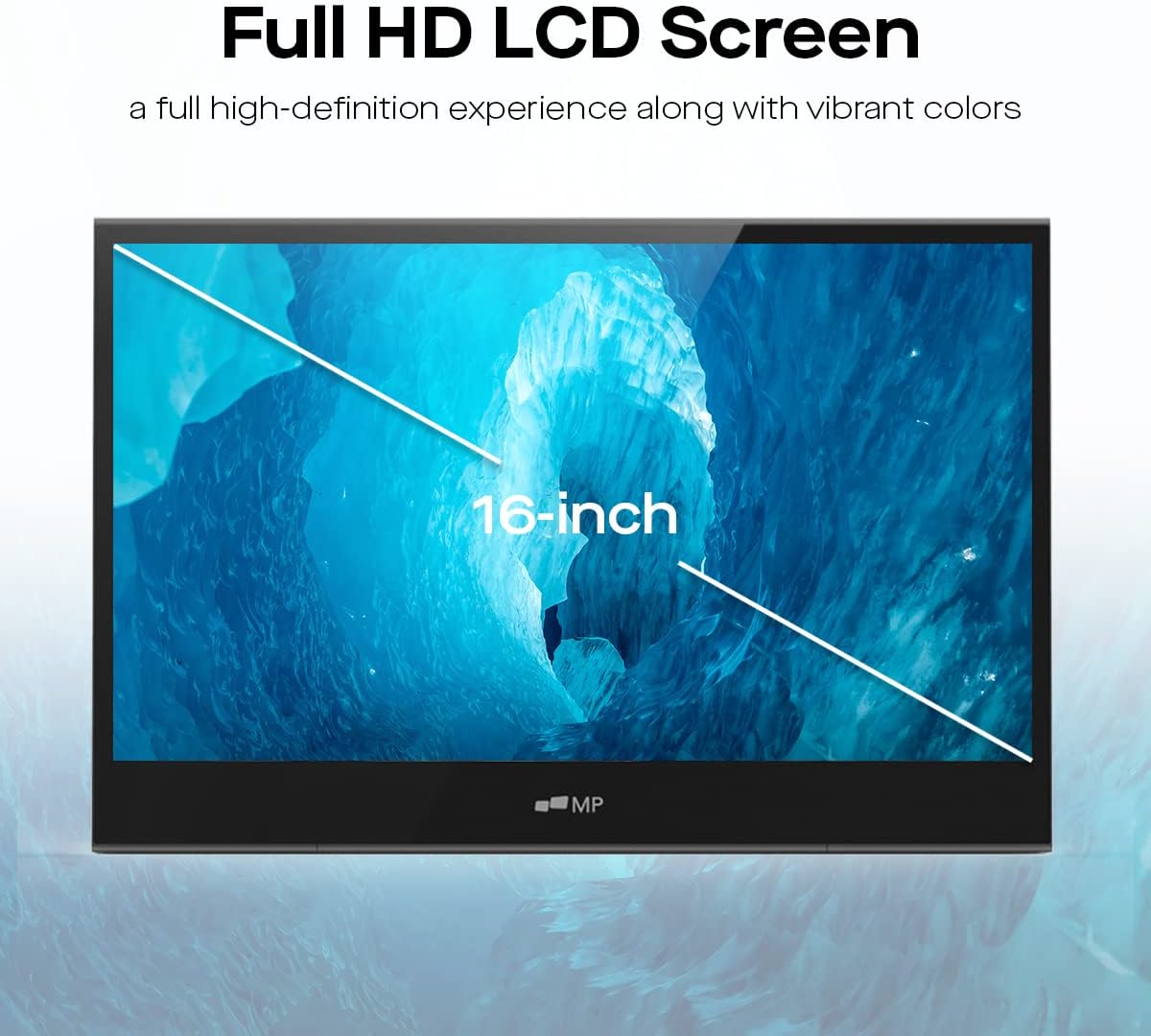
Image: The 16-inch Full HD LCD screen provides a high-definition visual experience with vibrant colors.

Image: The ultra-slim and lightweight design of the monitor, weighing 2.1 lbs and 0.2 inches thick, emphasizing its portability.
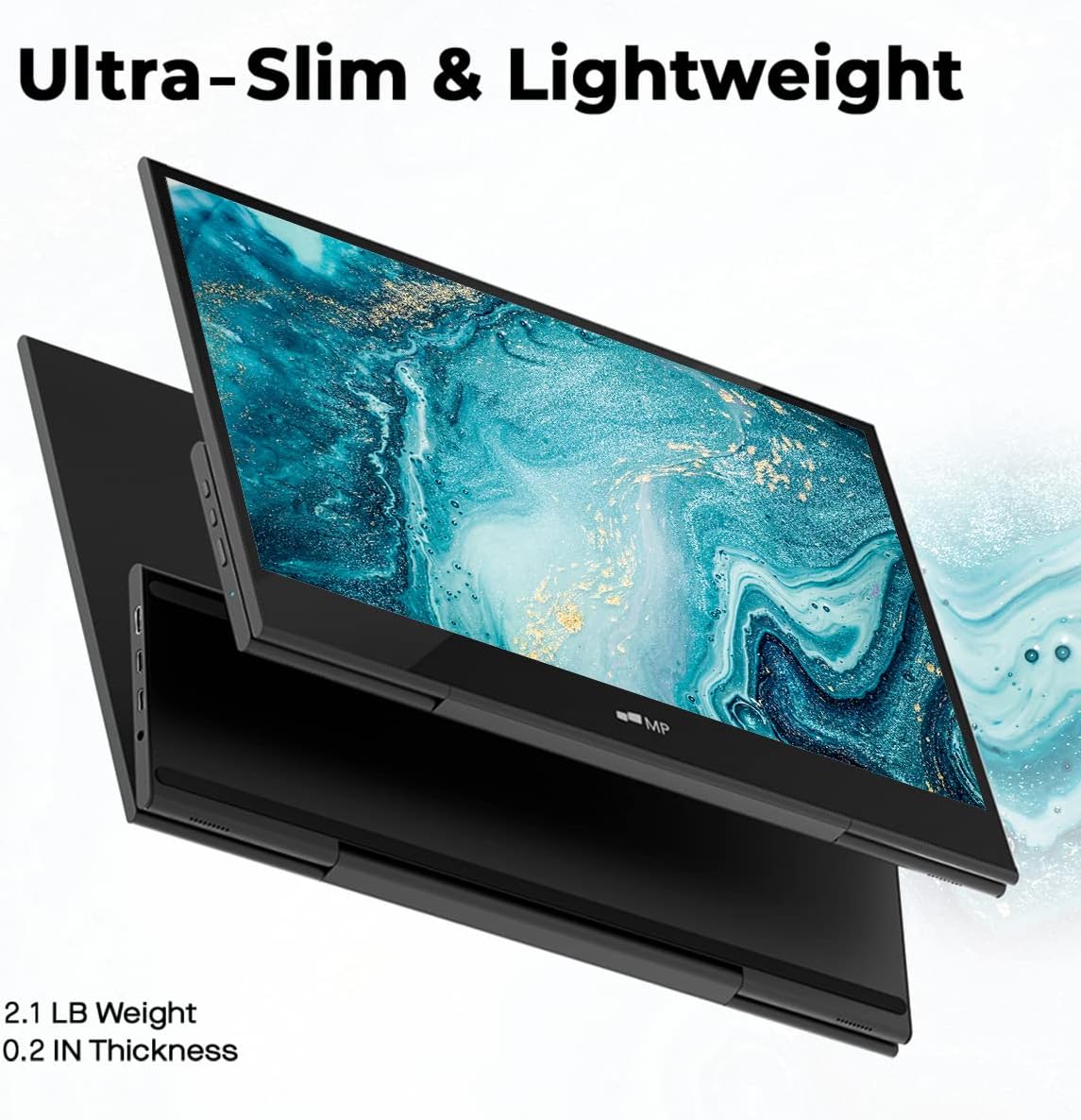
Image: The monitor's adjustable stand allows for up to 180 degrees of tilt, enabling comfortable viewing angles.

Image: Close-up of the non-slip rubber paddings on the bottom of the monitor, ensuring stability on any surface.
3.2. Connectivity and Audio
- Hybrid Connectivity: Equipped with both USB-C and Mini-HDMI ports for broad compatibility.
- Dual Speakers: Integrated dual speakers provide enhanced audio for multimedia consumption and online meetings.
- Audio Jack: A 3.5mm audio jack allows connection to external headphones or speakers.
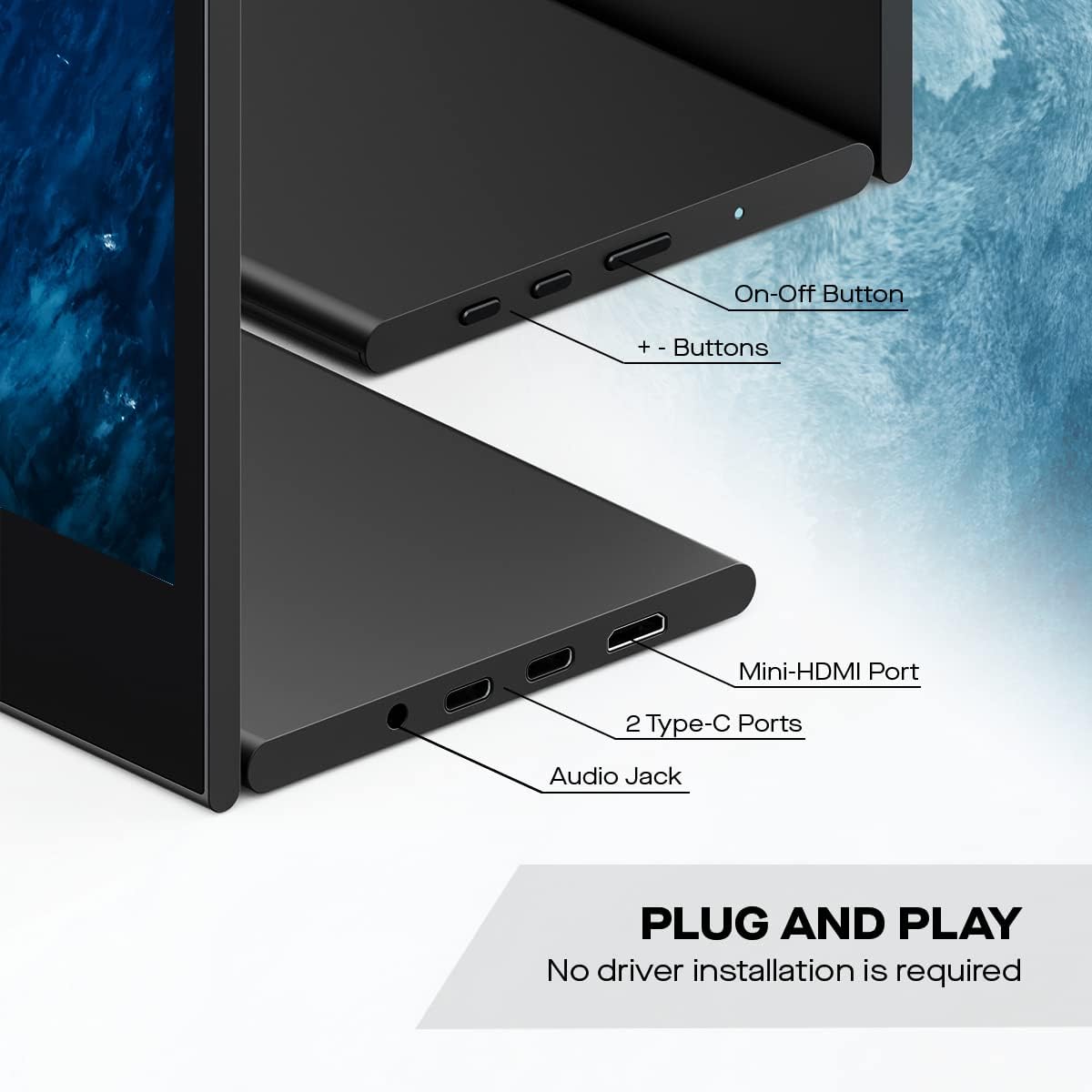
Image: Side view of the monitor highlighting the Mini-HDMI port, two Type-C ports, and an audio jack for easy plug-and-play connectivity.
4. Setup Guide
The Mobile Pixels Glance Portable Monitor is designed for truly convenient plug-and-play operation, requiring no driver installation for most modern operating systems.
4.1. Connecting to Your Device
- Power Connection: Connect the provided USB-C Power Cable from the monitor to a power source (e.g., wall adapter or a powered USB port on your laptop).
- Video/Data Connection: Choose one of the following methods based on your device's available ports:
- USB-C (Full Function): If your laptop or device has a full-function USB-C port (supporting DisplayPort Alternate Mode and Power Delivery), connect the provided USB-C Data Cable directly from your device to one of the monitor's USB-C ports. This single cable can provide both video signal and power.
- HDMI + USB-C (Power): If your device has an HDMI port, connect the provided Mini HDMI Cable from your device to the monitor's Mini-HDMI port. Additionally, connect the USB-C Power Cable to one of the monitor's USB-C ports and a power source to supply power to the monitor.
- Audio (Optional): If you wish to use external headphones or speakers, connect them to the 3.5mm audio jack on the monitor.

Image: The monitor connected to various devices like laptops, Macs, and Nintendo Switch, demonstrating its wide compatibility.
4.2. Initial Display Configuration
Once connected, your operating system should automatically detect the new display. You may need to adjust display settings:
- Windows: Right-click on the desktop, select 'Display settings'. You can arrange displays, change resolution, and set display mode (Duplicate, Extend, Second screen only).
- macOS: Go to 'System Settings' > 'Displays'. You can arrange displays, set resolution, and choose between 'Mirror Displays' (Duplicate) or 'Use as separate display' (Extend).
5. Operating Instructions
5.1. Power On/Off
Locate the On-Off button on the side of the monitor. Press and hold for a few seconds to power the monitor on or off.
5.2. Adjusting Settings
Use the '+' and '-' buttons located near the On-Off button to navigate the On-Screen Display (OSD) menu and adjust settings such as brightness, contrast, and audio volume.
5.3. Display Modes
The portable monitor supports three primary display modes, configurable through your computer's display settings:
- Copy (Duplicate): The portable monitor mirrors the content of your primary display. Useful for presentations or sharing your screen.
- Extension: The portable monitor acts as an additional screen, extending your desktop workspace. This mode is ideal for multitasking and increasing productivity.
- Second Screen Only: Only the portable monitor displays content, while your primary display remains off.
5.4. Tilt Adjustment
The integrated stand allows for flexible tilt adjustment up to 180 degrees. Gently adjust the monitor to your preferred viewing angle for ergonomic comfort.
6. Maintenance
To ensure the longevity and optimal performance of your Mobile Pixels Glance Portable Monitor, follow these maintenance guidelines:
- Cleaning the Screen: Use a soft, lint-free cloth specifically designed for electronics. For stubborn smudges, lightly dampen the cloth with water or a screen-cleaning solution. Avoid harsh chemicals, abrasive materials, or spraying liquid directly onto the screen.
- Cleaning the Body: Wipe the monitor's casing with a soft, dry cloth.
- Storage: When not in use, store the monitor in a cool, dry place, away from direct sunlight and extreme temperatures. Use the original packaging or a protective sleeve to prevent scratches and dust accumulation.
- Handling: Always handle the monitor with care. Avoid dropping it or subjecting it to strong impacts. Do not place heavy objects on top of the monitor.
- Ventilation: Ensure the monitor's ventilation openings are not blocked to prevent overheating.
7. Troubleshooting
If you encounter issues with your Mobile Pixels Glance Portable Monitor, refer to the following common problems and solutions:
| Problem | Possible Cause | Solution |
|---|---|---|
| No display/Black screen | No power; Incorrect cable connection; Input source not selected. | Ensure power cable is securely connected and power adapter is working. Check if video cable (USB-C or HDMI) is firmly connected to both monitor and device. Verify your device's display settings are configured to detect and output to the external monitor. |
| No sound from speakers | Volume too low/muted; Incorrect audio output selected on device. | Increase monitor volume using '+' button. Check your device's sound settings to ensure the monitor is selected as the audio output device. |
| Flickering or unstable image | Loose cable connection; Incompatible resolution/refresh rate. | Ensure all cables are securely connected. Try a different cable if available. Adjust your device's display resolution and refresh rate to match the monitor's specifications (1920x1080, 60Hz). |
| Monitor not detected by device | Cable issue; Device port issue; Driver issue (rare for plug-and-play). | Try connecting to a different port on your device. Test with another device if possible. Restart both the monitor and your computer. Ensure your device's graphics drivers are up to date. |
8. Specifications
| Feature | Detail |
|---|---|
| Product Dimensions | 0.6 x 14.4 x 9.4 inches |
| Item Weight | 2.1 pounds |
| Manufacturer | Mobile Pixels |
| Model Number | Geminos T (Touch screen) |
| Screen Size | 16 Inches |
| Resolution | FHD 1080p (1920 x 1080 Pixels) |
| Aspect Ratio | 16:9 |
| Image Brightness | 300 nit |
| Screen Surface Description | Glossy |
| Total USB Ports | 2 (Type-C) |
| Voltage | 12 Volts (DC) |
| First Available Date | February 11, 2023 |
9. Warranty and Support
9.1. Warranty Information
The Mobile Pixels Glance Portable Monitor comes with a one-year warranty from the date of purchase. This warranty covers manufacturing defects and issues arising from normal use. Please retain your proof of purchase for warranty claims.
The warranty does not cover damage caused by misuse, accidents, unauthorized modifications, or natural disasters.
9.2. Customer Support
For technical assistance, warranty claims, or any questions regarding your Mobile Pixels Glance Portable Monitor, please contact Duex customer support. Refer to the contact information provided in your product packaging or visit the official Duex website for the most up-to-date support details.
When contacting support, please have your product model number (Glance / Geminos T) and purchase date ready to expedite the process.


