
1. Introduction
Thank you for choosing the XTU S2Pro Action Camera. This manual provides essential information for setting up, operating, and maintaining your camera. Please read it thoroughly before use to ensure optimal performance and safety.
2. Product Overview
2.1 Key Features
- 5K/30FPS Video & 20MP Photos: Capture high-definition video and detailed still images.
- 170° Ultra-Wide-Angle Lens: Record a broad field of view with enhanced depth perception.
- 6-Axis Electronic Image Stabilization (EIS): Ensures stable and smooth footage, even during dynamic activities.
- Gyroflow Support: Compatible with Gyroflow for advanced post-production video stabilization.
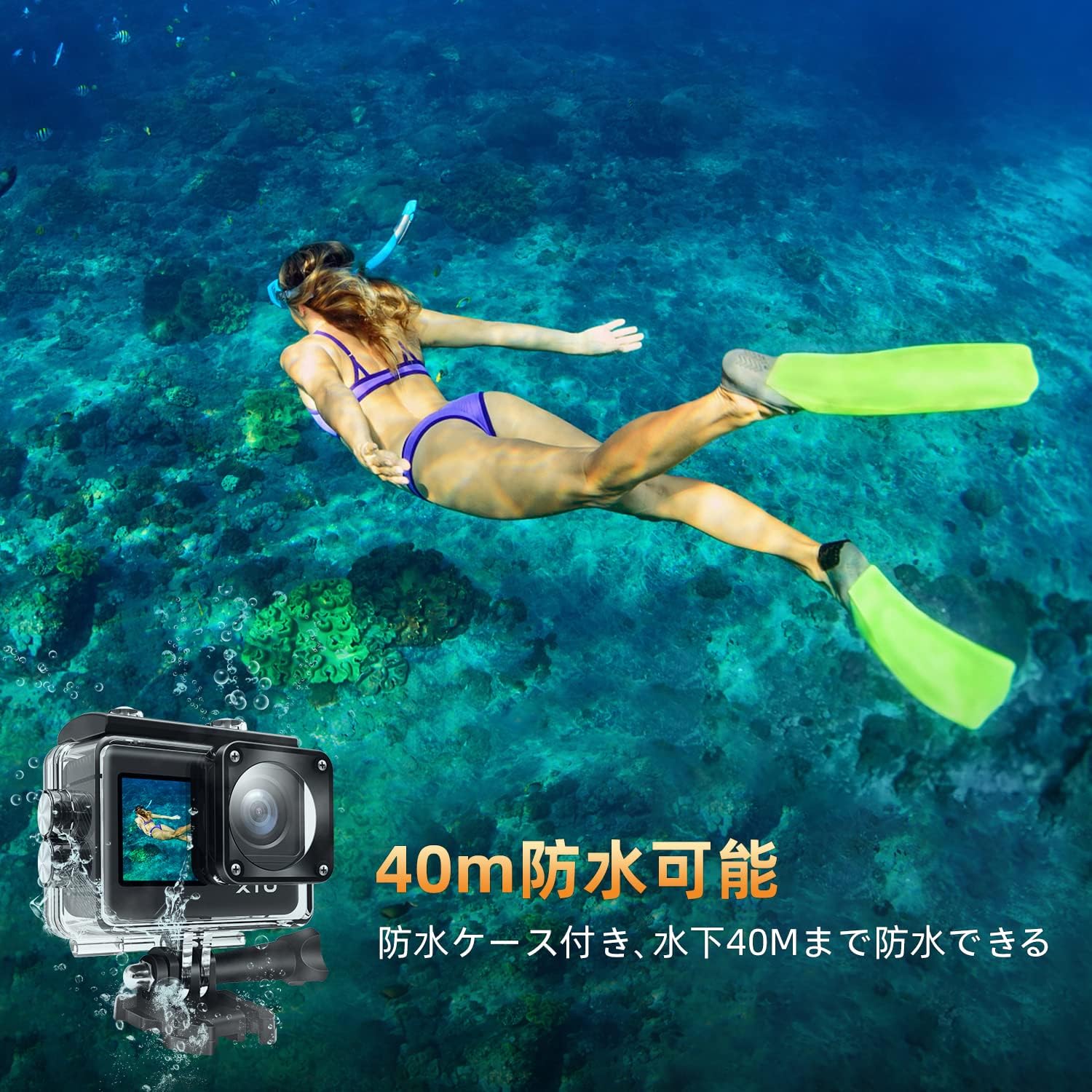
- 40M Waterproof (with case): Suitable for underwater activities up to 40 meters when used with the included waterproof case.
- Wireless Remote Control: Operate the camera remotely from up to 10 meters.
- Wi-Fi Connectivity & XTU GO App: Control, playback, and download content via the dedicated mobile application.
- Micro HDMI Output: Connect to larger displays for viewing your recordings.
- Compact Design: Portable and easy to carry for various adventures.
- Multiple Shooting Modes: Includes self-timer, burst mode, and more for diverse creative options.
2.2 Camera Components
Familiarize yourself with the camera's physical components.


3. Setup
3.1 Charging the Battery
Before first use, fully charge the camera battery. Connect the camera to a USB power source using the provided USB cable. The charging indicator light will show the charging status.
3.2 Inserting a MicroSD Card
The camera requires a MicroSD card (not included) for storing photos and videos. Use a Class 10 or UHS-I (U1) or higher MicroSD card, up to 128GB. Insert the card into the MicroSD card slot with the contacts facing the correct direction until it clicks into place.
Note: Format the MicroSD card in the camera before first use to ensure compatibility and optimal performance. Refer to the 'Operating Instructions' section for formatting steps.
3.3 Attaching Accessories
The XTU S2Pro comes with a variety of accessories for different mounting options. Attach the waterproof case for underwater use or other mounts for activities like biking, snowboarding, or helmet attachment. Ensure all attachments are securely fastened before use.
4. Operating Instructions
4.1 Power On/Off
- Power On: Press and hold the Power/Mode button for a few seconds.
- Power Off: Press and hold the Power/Mode button for a few seconds until the camera shuts down.
4.2 Switching Modes
Press the Power/Mode button repeatedly to cycle through different modes (e.g., Video, Photo, Playback, Settings).
4.3 Recording Video
- Switch to Video mode.
- Press the Shutter/OK button to start recording. The recording indicator will flash.
- Press the Shutter/OK button again to stop recording.

4.4 Taking Photos
- Switch to Photo mode.
- Press the Shutter/OK button to take a photo.
4.5 Using the Remote Control
The included wireless remote control allows for convenient operation. Ensure the remote is paired with the camera (refer to the camera's settings menu for pairing instructions). Use the remote to start/stop recording or take photos from a distance.

4.6 Wi-Fi Connectivity and XTU GO App
- Download the 'XTU GO' app from your smartphone's app store.
- Enable Wi-Fi on your camera via the settings menu.
- Connect your smartphone to the camera's Wi-Fi network (SSID and password displayed on the camera screen).
- Open the XTU GO app to control the camera, view live footage, play back recordings, and download files.

4.7 Gyroflow Stabilization
The XTU S2Pro supports Gyroflow for advanced post-stabilization. Record footage in Gyro data mode (if available in settings) and then use the Gyroflow application on your computer to apply stabilization and fine-tune effects.

5. Maintenance
5.1 Cleaning the Camera
- Use a soft, lint-free cloth to clean the camera body and lens.
- For stubborn dirt, slightly dampen the cloth with water. Do not use harsh chemicals.
- Ensure the camera is dry before closing any ports or using it in wet conditions.
5.2 Battery Care
- Store batteries in a cool, dry place.
- Avoid fully discharging the battery for extended periods.
- If not using the camera for a long time, charge the battery to about 50% before storage.
5.3 Waterproof Case Care
- After using the waterproof case in saltwater, rinse it thoroughly with fresh water and let it air dry.
- Regularly check the O-ring seal for any debris or damage. Clean and lubricate the O-ring as needed to maintain its waterproof integrity.
6. Troubleshooting
6.1 Camera Not Turning On
- Ensure the battery is fully charged.
- Try removing and reinserting the battery.
- If the issue persists, contact customer support.
6.2 Recording Issues (Freezing, Poor Quality)
- Ensure you are using a high-speed MicroSD card (Class 10 or UHS-I U1/U3).
- Format the MicroSD card in the camera.
- Check if the camera's firmware is up to date.
6.3 Wi-Fi Connection Problems
- Ensure Wi-Fi is enabled on both the camera and your smartphone.
- Verify that you are connecting to the correct camera Wi-Fi network and entering the correct password.
- Move closer to the camera to ensure a strong signal.
6.4 Image Stabilization Not Effective
- Ensure EIS (Electronic Image Stabilization) is enabled in the camera settings.
- For advanced stabilization, ensure you are recording in Gyro data mode and processing with the Gyroflow app.
7. Specifications
| Brand | XTU |
| Model | S2Pro |
| Video Resolution | Up to 5K/30FPS |
| Photo Resolution | 20MP |
| Image Stabilization | 6-Axis EIS, Gyroflow compatible |
| Lens Type | 170° Ultra-Wide-Angle, Fisheye |
| Waterproof Depth | 40M (with waterproof case) |
| Connectivity | Wi-Fi, Micro HDMI |
| Remote Control | Wireless (up to 10m) |
| Battery Capacity | 1250mAh (approx. 90 min recording at 5K/30FPS) |
| Storage | MicroSD card (Class 10 or UHS-I U1/U3, up to 128GB) |
8. Warranty and Support
8.1 Warranty Information
XTU products come with a standard manufacturer's warranty. Please refer to the warranty card included in your product packaging for specific terms and conditions. Keep your proof of purchase for warranty claims.
8.2 Customer Support
If you have any questions, concerns, or require technical assistance, please contact XTU customer support. Contact details can typically be found on the official XTU website or on the product packaging.
XTU is committed to providing value, excellent products, and service technology to create a more comfortable future for people and society. We continuously strive to meet customer needs with innovative spirit.


