
VETEK HDV01-8K
VETEK 8K Camcorder HDV01-8K Instruction Manual
Model: HDV01-8K
Introduction
This manual provides detailed instructions for the VETEK 8K Camcorder, a versatile digital video camera designed for enthusiasts and beginners. It supports high-resolution video recording up to 8K (7680x4320) at 15fps, 5K at 30fps, and 4K at 60fps, along with 48.0MP image capture. Key features include an 18X digital zoom, a 3.0-inch rotatable touch screen, IR night vision, WiFi connectivity, and webcam functionality. Please read this manual thoroughly to ensure proper operation and to maximize your recording experience.
What's in the Box
- 8K Video Camera
- 32G SD Card
- Lens Hood
- Stabilizer
- External Microphone
- Two-color Fill Light
- 2 Batteries
- Remote Control
- USB Data Cable
- English Manual
- Double Charger
- Charger

Figure 1: All components included with the VETEK 8K Camcorder.
Setup
Battery Installation
Insert the included Lithium Polymer batteries into the battery compartment, ensuring correct polarity. The camera requires two batteries for operation.
SD Card Preparation
Insert the 32GB SD card (or your own Class 10 or higher SD card up to 256GB) into the designated slot. For first-time use, it is recommended to format the SD card directly through the camera's menu to ensure compatibility and optimal performance.
Attaching Accessories
The camcorder features a hot shoe mount for attaching the external microphone and the two-color fill light. The foldable handheld stabilizer can be attached to the bottom of the camera for improved stability during recording.

Figure 2: VETEK 8K Camcorder with microphone, fill light, and stabilizer attached.

Figure 3: The external fill light offers white, white glow, and warm light modes.

Figure 4: The foldable handheld stabilizer provides enhanced grip and stability.
Operating Instructions
Power On/Off
To power on the camcorder, open the LCD screen. To power off, close the LCD screen or press and hold the Power button.
Basic Controls
Navigate through the camera's functions using the Mode, Menu, Up, Down, and OK buttons located on the side of the camcorder. The 3.0-inch touch screen also allows for intuitive navigation.
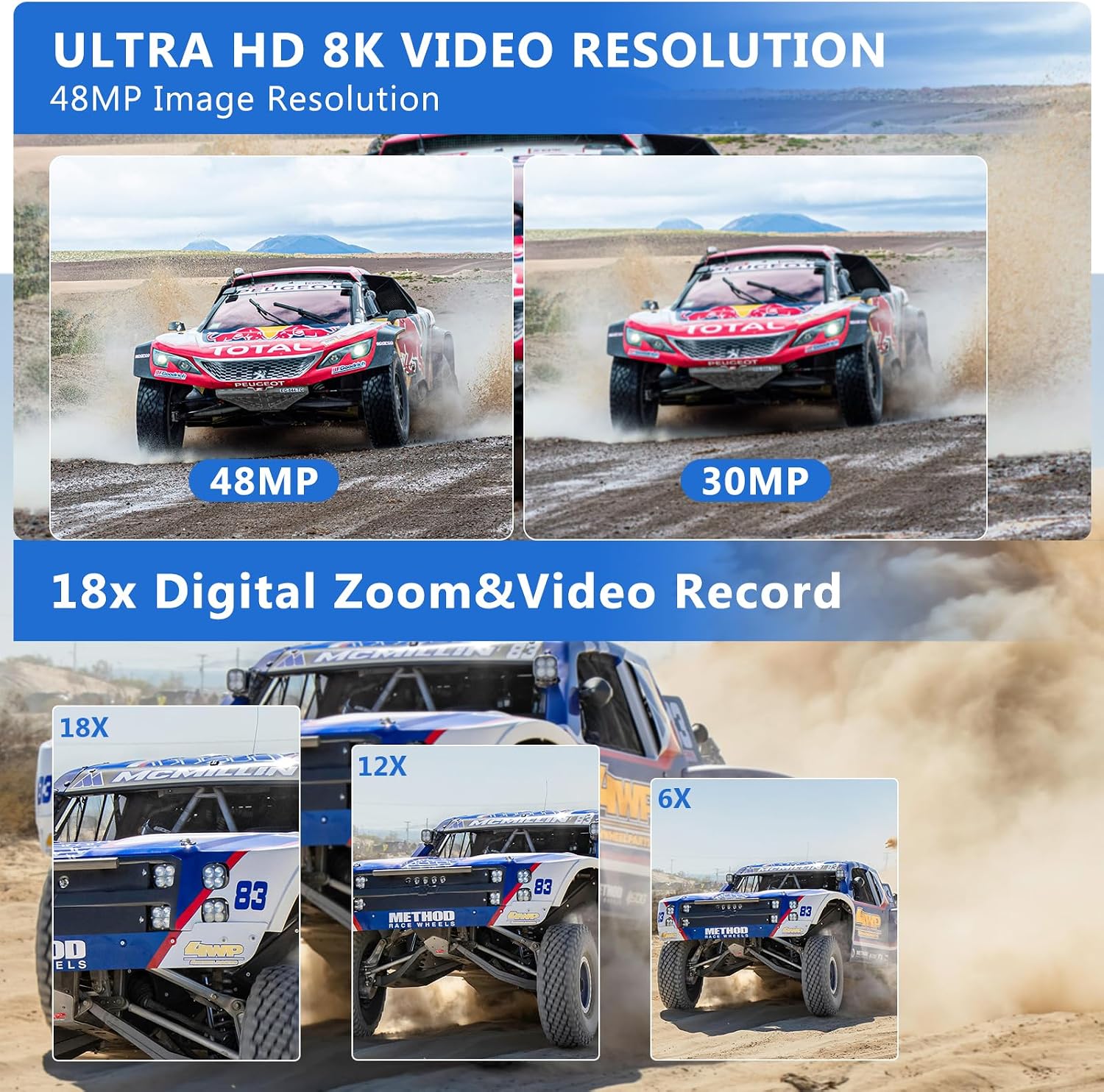
Figure 5: The VETEK 8K Camcorder supports 8K video and 48MP image resolution.
Video Recording
Press the Record button to start and stop video recording. The camcorder supports 8K (15fps), 5K (30fps), and 4K (60fps) video resolutions. Adjust video quality and other settings via the menu.
Video 1: A basic function introduction to the VETEK 8K camcorder, demonstrating various settings and features.
Video 2: A demonstration of the VETEK Vlog Camera, highlighting its digital video capabilities.
Figure 6: Visual comparison illustrating the clarity of 8K and 5K video resolutions.
Photo Capture
Switch to Photo Mode using the Mode button. Press the Shutter button to capture 48.0MP still images. The camera offers various photo settings and filters.
Figure 7: Image quality comparison between 48MP and 30MP settings.
Digital Zoom
Utilize the 18X digital zoom to bring distant subjects closer. The zoom function can be controlled via the camera's buttons or the remote control.

Figure 8: Demonstration of the 18X digital zoom capability.
IR Night Vision
Activate the IR Night Vision mode for clear black and white recordings in low-light or dark environments. This feature enhances visibility for capturing content where traditional lighting is insufficient.

Figure 9: The camcorder's IR Night Vision captures clear images in dark conditions.
Video 3: This video demonstrates the camcorder's night vision capabilities, showing how it captures clear footage in low-light environments.
WiFi Connectivity & App Control
Connect the camcorder to your smartphone or tablet via WiFi using the 'HelloCam' app. This allows for remote viewing, image capture, video shooting, and easy transfer and sharing of media files. Scan the QR code in the manual or on the camera screen to download the app.

Figure 10: Remote control and file sharing are enabled through WiFi connectivity.
Download the 'HelloCam' app: https://qr04.cn/B9lhOx
Webcam Function
Connect the camcorder to your computer using the USB cable and select 'PC CAM' mode to use it as a webcam for video calls and live streaming.
HDMI TV Output
Connect the camcorder to a TV using an HDMI cable (not included) to view your recorded videos and photos on a larger screen.
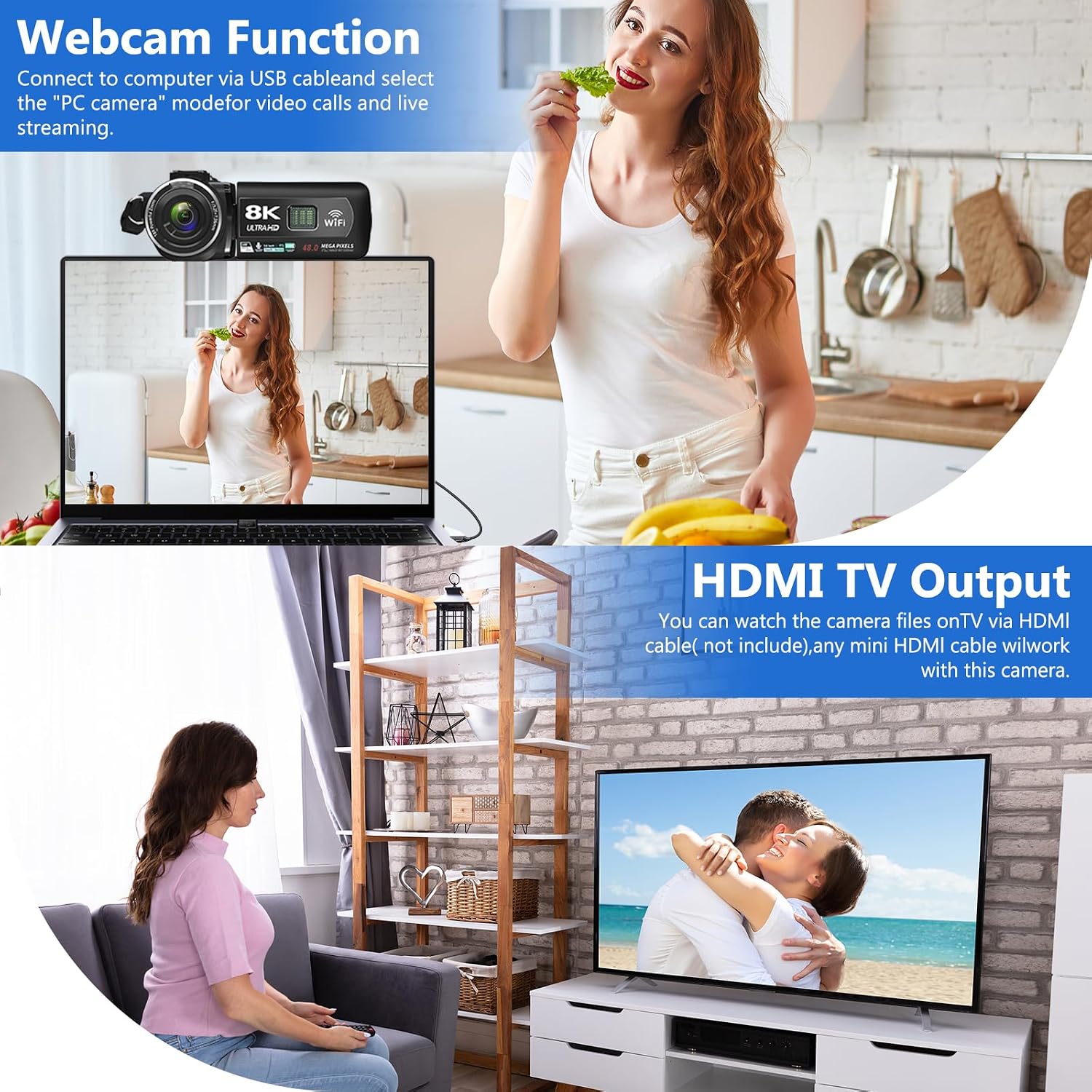
Figure 11: The camcorder can function as a webcam or connect to a TV via HDMI.
File Transfer to Computer
Connect the camera to your computer via the USB cable. Select 'Mass Storage Mode' on the camera to access and transfer your video and photo files directly to your computer.

Figure 12: Simple steps to transfer your recorded content to a computer.
Noise Reduction
The camcorder features a built-in noise reduction function. When recording video, activate this function to automatically minimize external noise, enhancing the clarity of your audio. The external microphone also aids in noise reduction.
Maintenance
- Keep the camera clean by wiping it with a soft, dry cloth.
- Avoid exposing the camera to extreme temperatures, humidity, or dust.
- Store the camera and accessories in the provided camera bag when not in use.
- Regularly format the SD card through the camera's menu to maintain optimal performance and prevent data corruption.
- Ensure batteries are fully charged before use and stored properly when not in use.
Troubleshooting
Important Tips
- Please carefully read the user manual before using the video camera.
- The camcorder is designed for amateurs, not professionals. Autofocus and optical zoom are not supported.
- This camera has a fixed focus. The shooting distance should be more than 4 meters for clear pictures or videos.
- After recording, check the video effect on a computer, as checking it on the camera reduces the resolution.
- Format the memory card through this camera for the first time use. Supports 4-128GB SD card Class 10 or higher.

Figure 13: Key tips for optimal camcorder usage.
Specifications
| Feature | Description |
|---|---|
| Brand | VETEK |
| Model Number | HDV01-8K |
| Video Capture Resolution | 8K (15fps), 5K (30fps), 4K (60fps) |
| Image Resolution | 48.0MP |
| Digital Zoom | 18X |
| Screen Size | 3.0-inch LCD Touch Screen (270-degree rotatable) |
| Connectivity Technology | USB, WiFi, HDMI |
| Special Features | Portable, IR Night Vision, Webcam Function, Noise Reduction, Pause Function, Time-lapse, Slow Motion, Continuous Shooting, Beauty Function, Image Stabilization |
| Item Weight | 9.9 ounces |
| Product Dimensions | 5.12 x 2.36 x 2.17 inches |
| Batteries | 2 Lithium Polymer batteries (included) |
| Flash Memory Type | SD (up to 256GB) |
Warranty and Support
VETEK is committed to providing cost-effective entry cameras and superior quality. All products are eligible for a free return within 30 days of purchase. For any concerns or assistance, please contact VETEK customer service via the email address provided in your product manual. We are dedicated to addressing your concerns and improving product quality based on customer feedback.

Figure 14: VETEK offers dedicated customer support.
Ask a question about this manual
Ask about setup, troubleshooting, compatibility, parts, safety, or missing instructions. Manuals+ will review the question and use this page’s manual context to help answer it.