
1. Introduction
This manual provides detailed instructions for the Lomiluskr Ergonomic Dual Mode Wireless Mouse (Model M4DM). This mouse offers both 2.4G wireless and Bluetooth connectivity, an ergonomic design, and adjustable DPI settings for versatile use across various devices.

Image 1.1: The Lomiluskr Ergonomic Dual Mode Wireless Mouse in blue, showcasing its design.
2. Package Contents
Ensure all items are present in the package:
- Lomiluskr Ergonomic Dual Mode Wireless Mouse (Model M4DM)
- USB Receiver (for 2.4G wireless connection)
- 1 AA Battery (pre-installed or included separately)
- User Manual (this document)
3. Product Features
- Dual-Mode Wireless Connectivity: Supports both 2.4G wireless (via USB receiver) and Bluetooth transmission for flexible device connection.
- Ergonomic Design: 3-D design conforms to natural hand positions, reducing wrist strain during extended use.
- PU Leather Cover: The palm rest area is covered with high-quality PU leather for enhanced comfort and a non-slip grip.
- Adjustable DPI: Three-level DPI settings (1200/1600/2400 DPI) allow adjustment of cursor movement speed. Default is 1600 DPI.
- Smart Power Saving: Automatically enters sleep mode after 3-5 minutes of inactivity to conserve battery power. Click any button to wake.
- Soundless Keys: Designed for quiet operation.
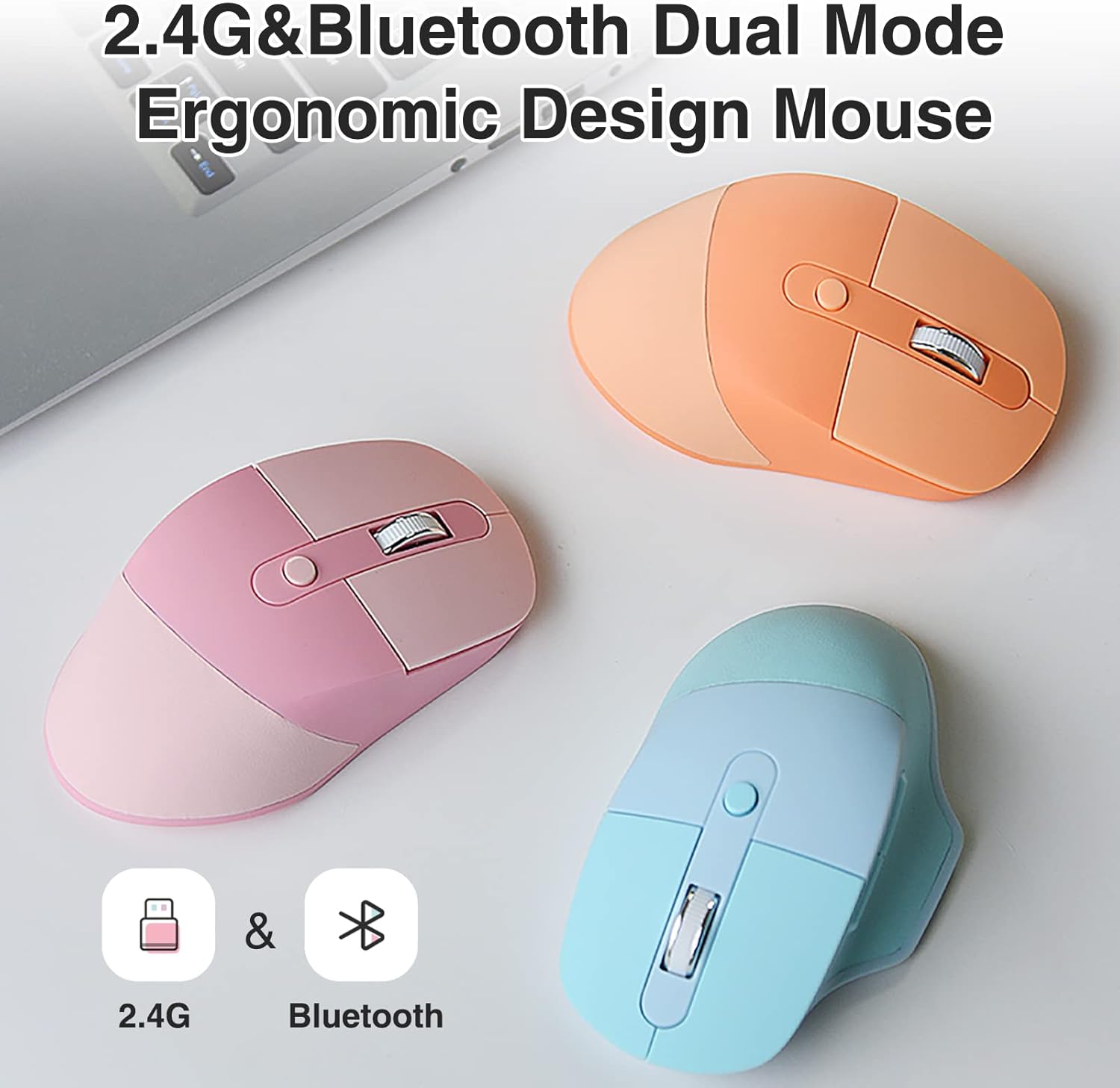
Image 3.1: Illustration of the mouse's dual-mode connectivity options.

Image 3.2: Close-up view highlighting the PU leather cover for comfort.
4. Product Layout
Familiarize yourself with the mouse buttons and their functions:
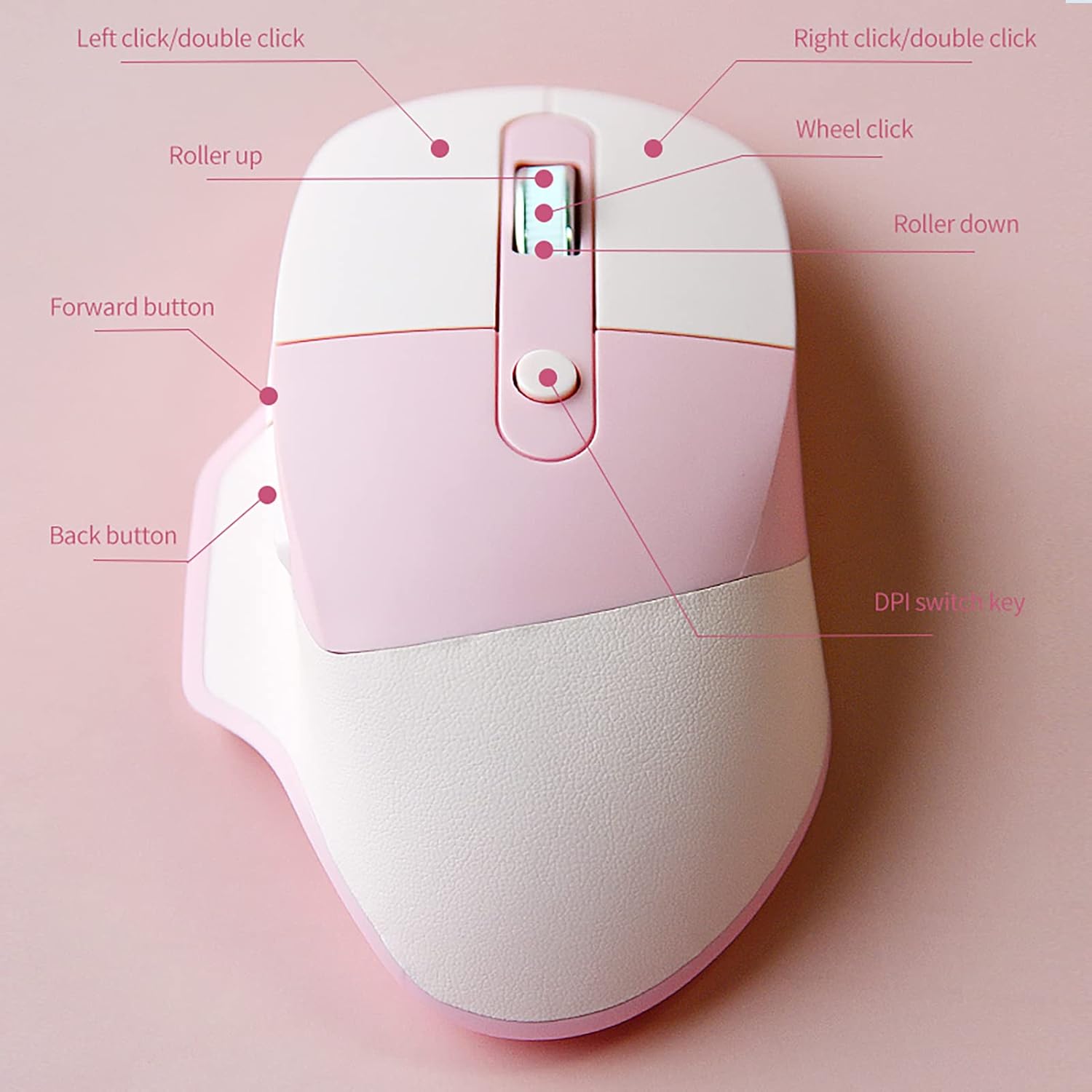
Image 4.1: Annotated diagram of the mouse buttons and their respective functions.
- Left Click Button: Primary selection and activation.
- Right Click Button: Accesses context menus.
- Scroll Wheel: Scrolls content vertically. Can also be clicked (Wheel Click).
- DPI Switch Key: Cycles through DPI settings (1200/1600/2400).
- Forward Button: Navigates forward in web browsers or file explorers.
- Back Button: Navigates backward in web browsers or file explorers.
5. Setup Instructions
5.1. Battery Installation
- Locate the battery compartment on the underside of the mouse.
- Open the battery compartment cover.
- Insert one AA battery, ensuring correct polarity (+/-).
- Close the battery compartment cover.

Image 5.1: View of the mouse's underside, indicating the battery slot and power switch.
5.2. Connecting via 2.4G Wireless (USB Receiver)
This mode is suitable for devices with a USB port, such as laptops and PCs.
- Locate the USB receiver, usually stored in a slot on the underside of the mouse.
- Plug the USB receiver into an available USB port on your computer.
- Turn on the mouse using the ON/OFF switch on the bottom.
- The mouse should automatically connect. If not, ensure the switch is in the "ON" position and try re-inserting the USB receiver.
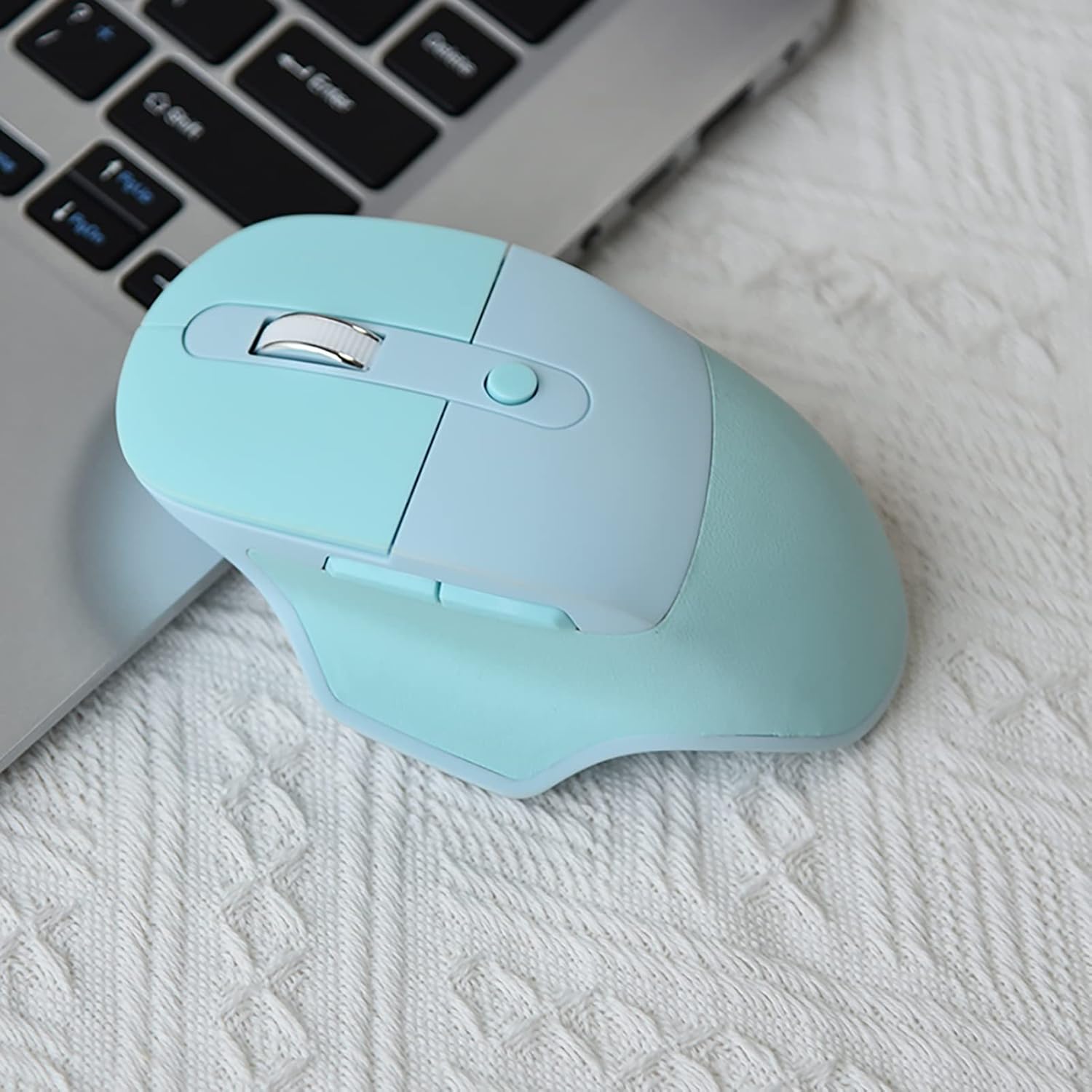
Image 5.2: The mouse in use, connected to a laptop via its 2.4G USB receiver.
5.3. Connecting via Bluetooth
This mode is suitable for devices like smartphones and tablets. Note that Bluetooth mode consumes more power than 2.4G mode.
- Turn on the mouse using the ON/OFF switch on the bottom.
- Press and hold the Bluetooth pairing button (usually located near the ON/OFF switch or sensor) until the indicator light starts blinking, indicating pairing mode.
- On your device (smartphone, tablet, etc.), go to Bluetooth settings and enable Bluetooth.
- Search for available devices. The mouse should appear as "Lomiluskr Mouse" or similar.
- Select the mouse to pair. The indicator light on the mouse will stop blinking and remain solid once connected.
6. Operating Instructions
6.1. Adjusting DPI Sensitivity
The mouse has three adjustable DPI levels: 1200, 1600, and 2400. DPI (Dots Per Inch) controls the cursor's movement speed. The default setting is 1600 DPI.
- To change the DPI, press the DPI switch key located behind the scroll wheel.
- Each press will cycle through the DPI settings. The cursor speed will change accordingly.
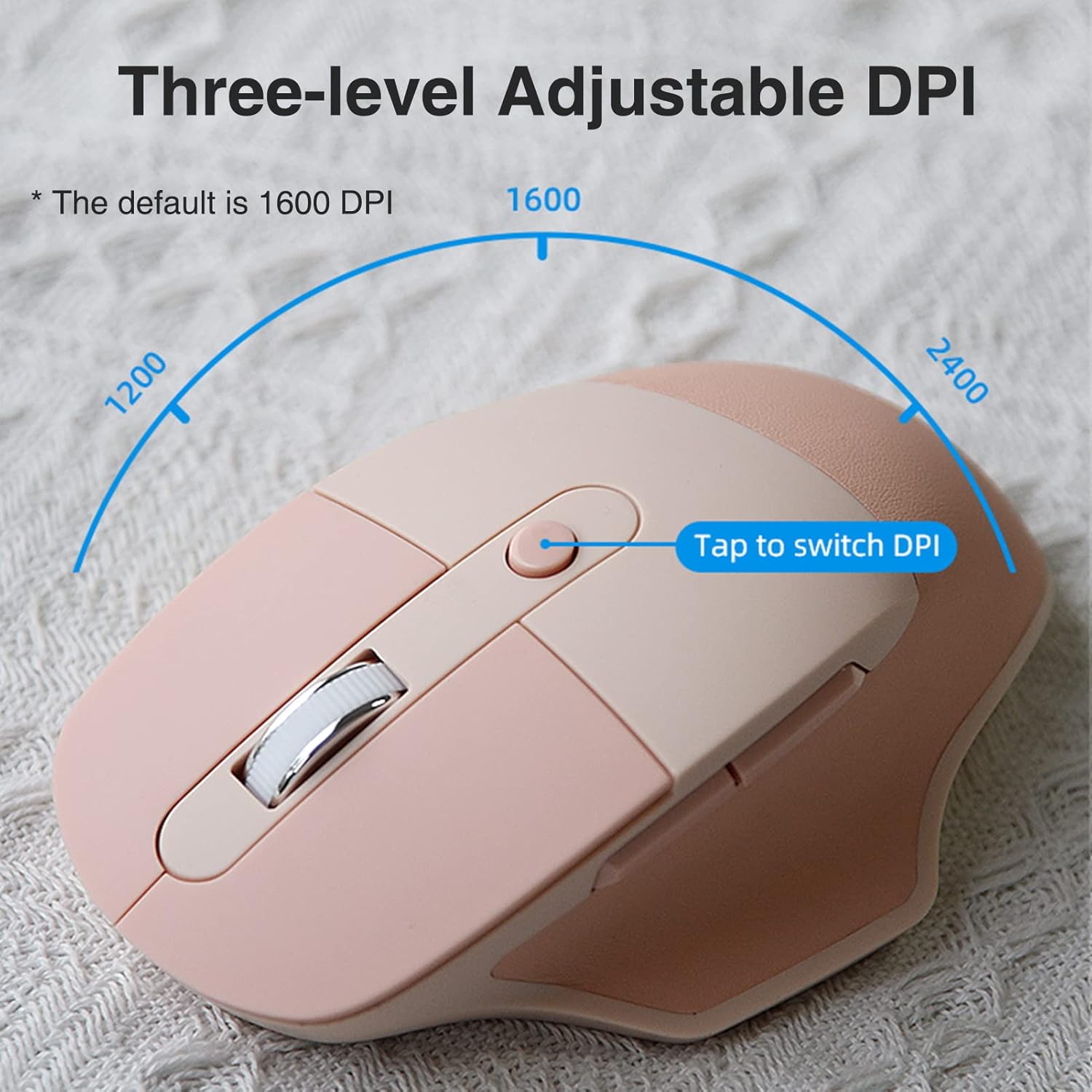
Image 6.1: Visual representation of DPI adjustment and the DPI switch button.
6.2. Smart Power Saving Mode
To conserve battery life, the mouse will automatically enter a sleep mode after 3-5 minutes of inactivity. To wake the mouse, simply click any button.
7. Maintenance
- Cleaning: Use a soft, dry cloth to clean the mouse. For stubborn dirt, a slightly damp cloth can be used, but ensure no moisture enters the device.
- Battery Replacement: Replace the AA battery when the mouse performance degrades or the low battery indicator (if present) illuminates.
- Storage: When not in use for extended periods, turn off the mouse to further conserve battery life. Store in a cool, dry place.
- USB Receiver: Store the USB receiver in its designated slot on the mouse when not in use to prevent loss.
8. Troubleshooting
| Problem | Possible Cause | Solution |
|---|---|---|
| Mouse not responding | Low battery; Mouse is off; USB receiver not connected (2.4G); Bluetooth not paired (Bluetooth) | Replace battery; Turn on mouse; Re-insert USB receiver; Re-pair Bluetooth connection. |
| Cursor movement is erratic or slow | Low DPI setting; Dirty sensor; Uneven surface; Interference | Increase DPI using the DPI switch; Clean the optical sensor; Use a mouse pad or smooth surface; Move closer to the receiver/device or reduce interference sources. |
| Cannot connect via Bluetooth | Mouse not in pairing mode; Bluetooth disabled on device; Device out of range | Ensure mouse is in pairing mode (blinking light); Enable Bluetooth on your device; Move mouse closer to the device. |
| Lag or delay in 2.4G mode | USB receiver interference; Distance from receiver | Try plugging the USB receiver into a different port; Reduce distance between mouse and receiver; Avoid placing receiver near other wireless devices. |
9. Specifications
| Model | M4DM |
| Brand | Lomiluskr |
| Dimensions (L x W x H) | 124 x 77 x 43 mm (4.88"L x 3.03"W) |
| Weight | 88g |
| Connectivity | 2.4G Wireless (USB Receiver), Bluetooth |
| Power Supply | 1 x AA Battery |
| DPI Settings | 1200 / 1600 (Default) / 2400 DPI |
| Movement Detection Technology | Optical |
| Button Quantity | 6 (Left, Right, Scroll Wheel Click, DPI Switch, Forward, Back) |
| Hand Orientation | Right |
| Compatible Devices | Laptop, Personal Computer, Smartphone, Tablet |
| Operating Systems | Android, Windows, iOS, macOS, Linux |
| Wireless Range | Up to 10 meters |
| Material | Plastic, PU Leather |
10. Warranty and Support
The Lomiluskr Ergonomic Dual Mode Wireless Mouse comes with a 1-Year Manufacturer Warranty.
For technical support, warranty claims, or further inquiries, please contact Lomiluskr customer service through the retailer where the product was purchased or visit the official Lomiluskr website.
Please retain your proof of purchase for warranty purposes.