
Introduction
Thank you for choosing the Lomiluskr Ergonomic Dual Mode Wireless Mouse. This manual provides detailed instructions for setting up, operating, and maintaining your new mouse. This device offers both 2.4G wireless and Bluetooth connectivity, an ergonomic design for comfortable use, adjustable DPI settings, and smart power-saving features.

Image: Lomiluskr Ergonomic Dual Mode Wireless Mouse in Milk Tea color.
Setup
1. Battery Installation
- Locate the battery compartment on the underside of the mouse.
- Open the battery compartment cover.
- Insert one AA battery, ensuring correct polarity (+/-). An AA battery is included with the mouse.
- Close the battery compartment cover securely.
2. Connecting the Mouse
The mouse supports two connection modes: 2.4G Wireless and Bluetooth.
2.1. 2.4G Wireless Connection (for Laptops, PCs with USB ports)
- Locate the USB receiver, usually stored in the battery compartment of the mouse.
- Plug the USB receiver into an available USB port on your computer.
- Turn on the mouse using the power switch on its underside.
- The mouse should connect automatically. No additional drivers are typically required.
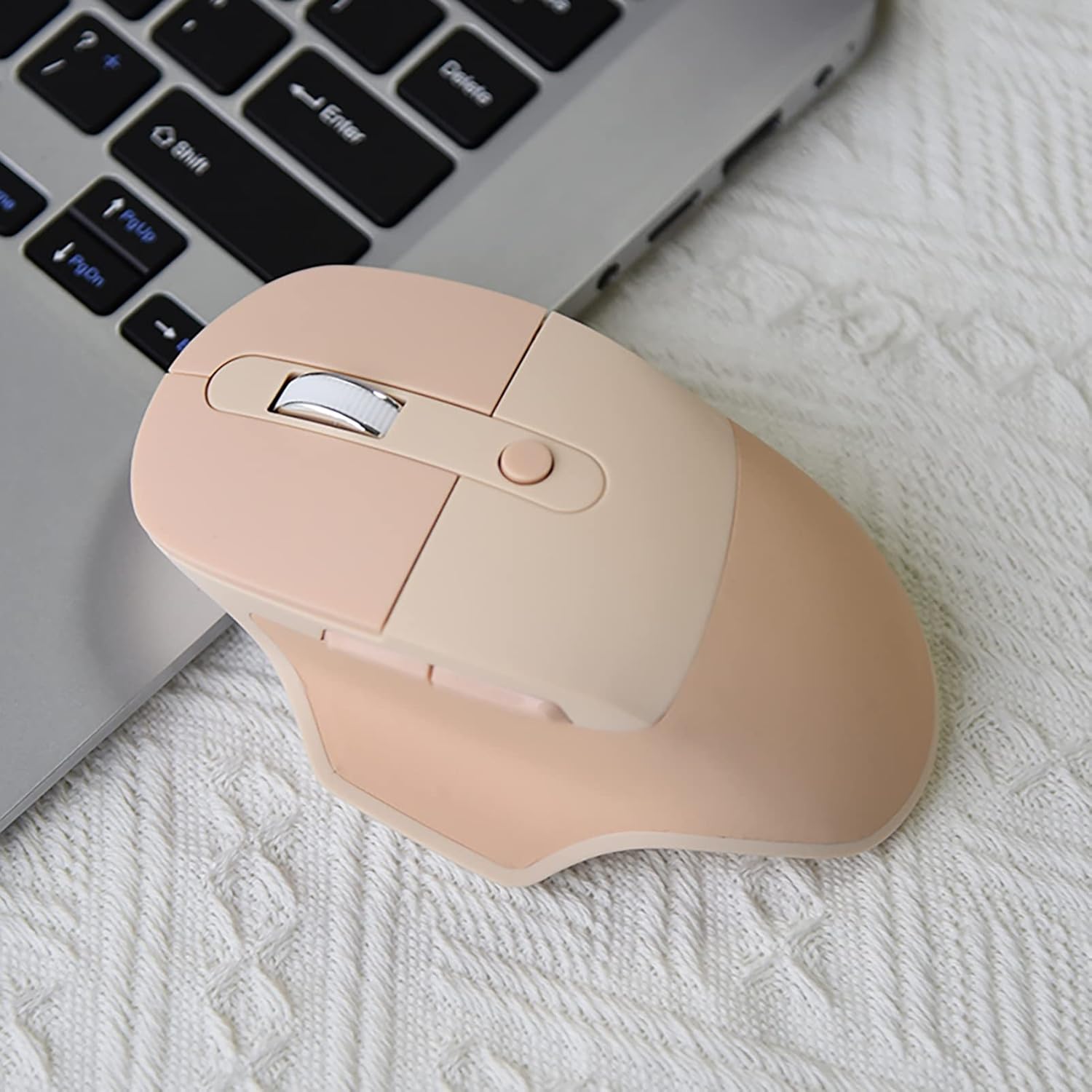
Image: Side view of the mouse, showing its ergonomic contour, suitable for 2.4G wireless connection.
2.2. Bluetooth Connection (for Smartphones, Tablets, or Bluetooth-enabled PCs)
- Ensure the mouse is powered on.
- Press and hold the Bluetooth pairing button located on the underside of the mouse for a few seconds until the indicator light starts blinking, indicating it's in pairing mode.
- On your device (smartphone, tablet, or PC), go to Bluetooth settings.
- Search for new devices and select "Lomiluskr Mouse" (or similar name) from the list.
- Confirm the pairing on your device. The indicator light on the mouse will stop blinking once connected.
Note: Bluetooth mode consumes more power than 2.4G mode.
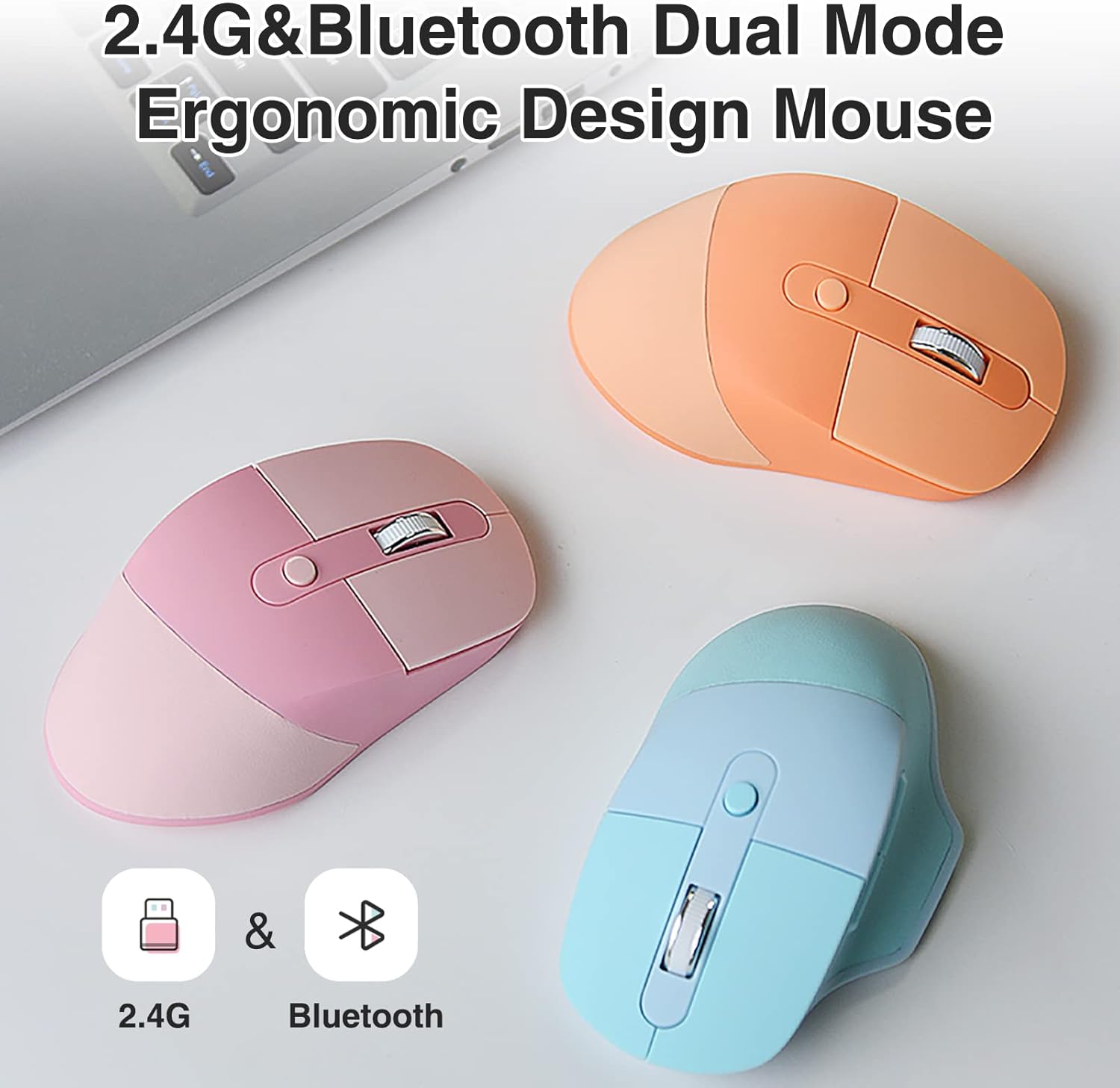
Image: The mouse supports both 2.4G and Bluetooth connectivity, shown with multiple color options.
Operating Instructions
1. Button Functions
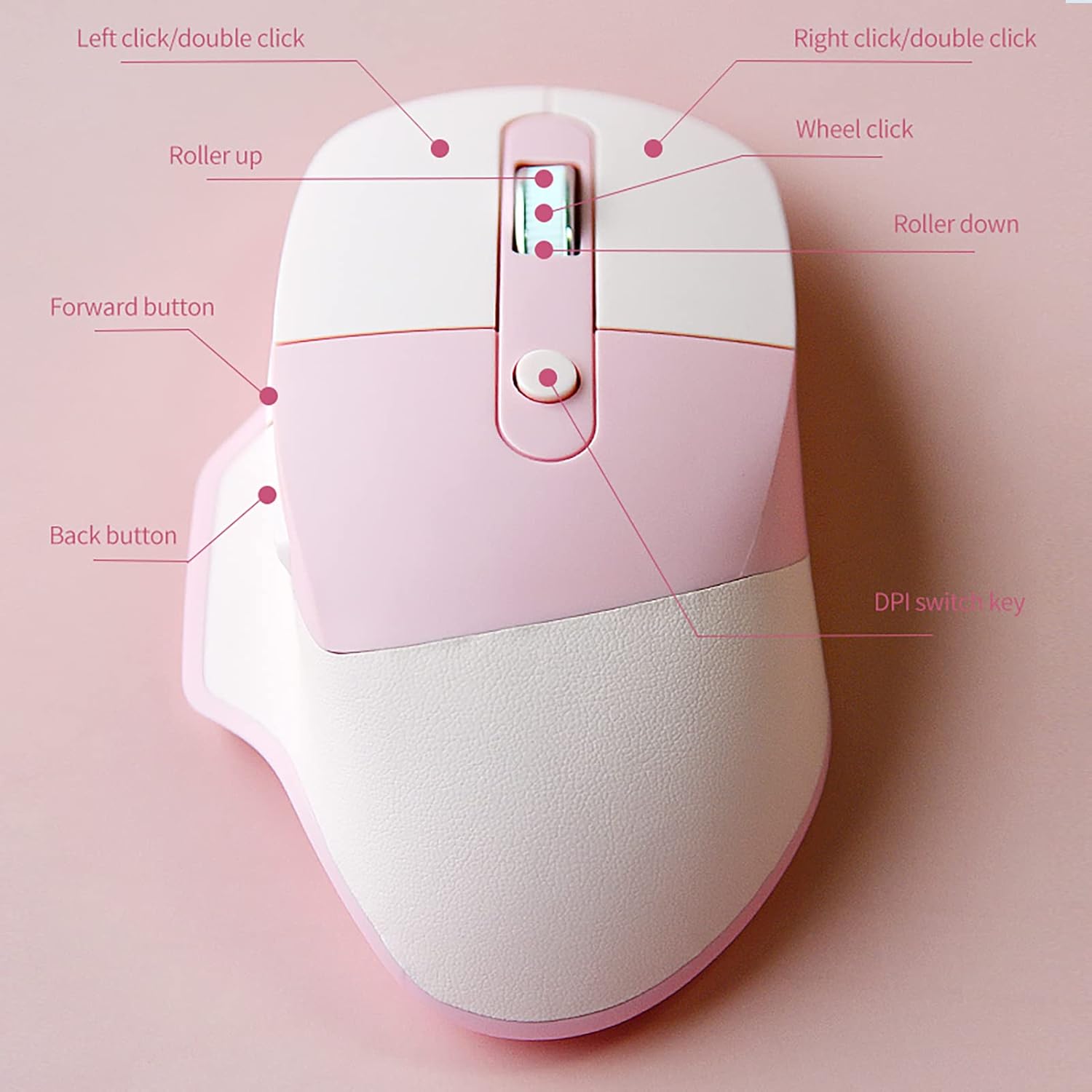
Image: Diagram illustrating the various buttons and their functions on the mouse.
- Left Click: Primary selection and interaction.
- Right Click: Opens contextual menus.
- Scroll Wheel: Scrolls content up or down.
- Wheel Click: Acts as a middle button, often used for opening links in new tabs or auto-scrolling.
- Forward Button: Navigates forward in web browsers or file explorers.
- Back Button: Navigates backward in web browsers or file explorers.
2. Adjusting DPI (Sensitivity)
The mouse features three adjustable DPI levels: 1200, 1600, and 2400. DPI (Dots Per Inch) determines the sensitivity of the mouse cursor. A higher DPI means the cursor moves further with less physical mouse movement.
- Locate the DPI button, positioned behind the scroll wheel on the top of the mouse.
- Press the DPI button to cycle through the available DPI settings (1200 → 1600 → 2400 → 1200).
- The default DPI setting is 1600.
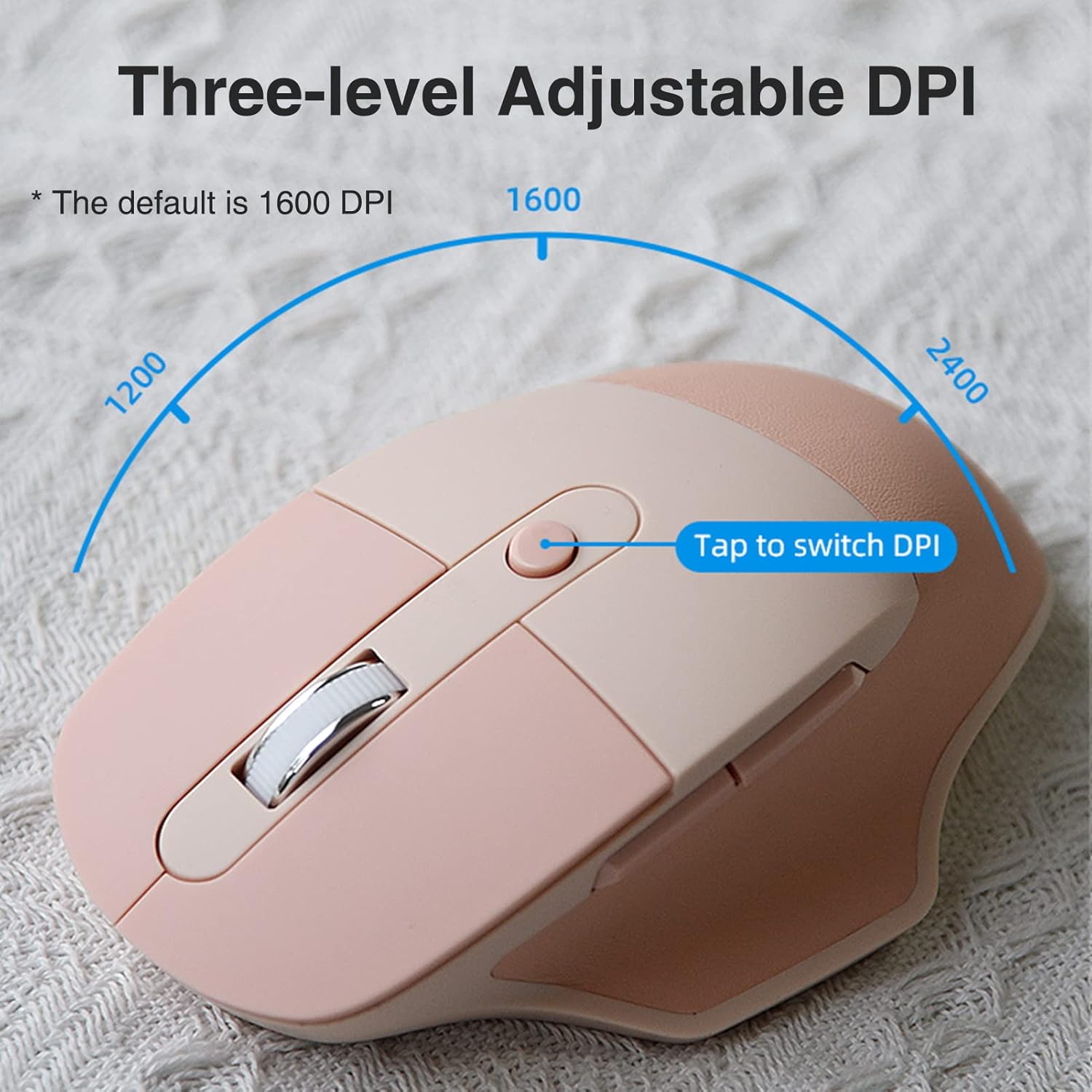
Image: Visual guide to adjusting the mouse's DPI settings.
3. Smart Power Saving Mode
To conserve battery life, the mouse will automatically enter a sleep mode after 3-5 minutes of inactivity. To wake the mouse, simply click any button.
Maintenance
1. Cleaning
- Wipe the mouse surface with a soft, damp cloth.
- Avoid using harsh chemicals or abrasive cleaners, as these can damage the PU cover and other components.
- Ensure no liquid enters the mouse's internal components.

Image: The mouse features a PU leather cover for comfort and grip, which should be cleaned gently.
2. Battery Replacement
When the mouse performance degrades or it fails to respond, it may be time to replace the AA battery. Follow the battery installation steps in the "Setup" section to replace the battery.
3. Storage
When not in use for extended periods, turn off the mouse to further conserve battery life. Store the USB receiver in its designated slot within the battery compartment to prevent loss.
Troubleshooting
| Problem | Solution |
|---|---|
| Mouse not responding or connecting. |
|
| Cursor lag or skipping (2.4G mode). |
|
| DPI setting not changing. |
|
| Mouse performs double-clicks unexpectedly. |
|
Specifications
| Feature | Detail |
|---|---|
| Model | B0BVC1PD15 |
| Dimensions | 124 x 77 x 43 mm (4.88 x 3.03 x 0.04 inches) |
| Weight | 88g (3.1 ounces) |
| Connectivity | 2.4G Wireless, Bluetooth |
| Power Supply | 1 x AA Battery (included) |
| DPI Settings | 1200 / 1600 (Default) / 2400 |
| Special Features | Ergonomic Design, PU Cover, Soundless Keys, Smart Power Saving |
| Movement Detection Technology | Optical |
Warranty and Support
For warranty information and technical support, please refer to the documentation included with your purchase or visit the official Lomiluskr website.