
1. Introduction
1.1 Product Overview
The NACON Meta Quest 2 A/C Adapter is designed to provide efficient and reliable power to your Meta Quest 2 VR headset. This manual contains important information regarding the safe and proper use of your adapter. Please read it thoroughly before use and retain it for future reference.

Figure 1: NACON Meta Quest 2 A/C Adapter retail packaging, showing the white charger and USB-C cable.
1.2 What's in the Box
- 1 x NACON A/C Adapter (Wall Charger)
- 1 x USB-C to USB-C Cable (1.20m)

Figure 2: Contents of the NACON Meta Quest 2 A/C Adapter package, including the white wall charger and USB-C cable.
2. Setup
- Unpack the Adapter: Carefully remove the A/C adapter and USB-C cable from their packaging.
- Connect the Cable: Insert one USB-C end of the charging cable into the USB-C port on the A/C adapter.
- Plug into Power: Insert the A/C adapter into a standard wall outlet. Ensure the outlet provides the correct voltage (100-240V, 50/60Hz).
- Connect to Device: Plug the other USB-C end of the cable into the charging port of your Meta Quest 2 headset.
The adapter is now ready to charge your device.
3. Operating Instructions
Once connected as described in the "Setup" section, the NACON Meta Quest 2 A/C Adapter will automatically begin charging your Meta Quest 2 headset. The charging indicator on your Meta Quest 2 headset will typically illuminate to confirm that charging is in progress.
- Ensure the adapter and cable are securely connected at all times during charging.
- Avoid disconnecting the adapter abruptly during an active charging cycle if possible.
- The adapter is designed for continuous use but should be unplugged from the wall outlet when not in use for extended periods.
4. Maintenance
- Cleaning: Disconnect the adapter from the power outlet and your device before cleaning. Use a soft, dry cloth to wipe the surface of the adapter and cable. Do not use liquid cleaners or abrasive materials.
- Storage: Store the adapter and cable in a cool, dry place away from direct sunlight and extreme temperatures.
- Cable Care: Avoid bending or twisting the cable excessively, especially near the connectors, to prevent damage.
5. Troubleshooting
| Problem | Possible Cause | Solution |
|---|---|---|
| Device not charging. | Loose connection, faulty outlet, damaged cable/adapter. |
|
| Slow charging. | Using a non-optimal power source, background processes on device. |
|
| Adapter feels warm. | Normal operation, excessive load. |
|
6. Specifications
| Feature | Detail |
|---|---|
| Model Number | 1244252 |
| Brand | NACON |
| Compatible Devices | Meta Quest 2 |
| Connector Type | USB Type C |
| Input Voltage | 100-240V, 50/60Hz |
| Output | 5V === 3.0A (15W) |
| Amperage | 3000 Milliamps (3A) |
| Total USB Ports | 1 (USB-C) |
| Cable Length | 1.20 meters (approx. 3.94 feet) |
| Product Dimensions | 3.94 x 1.97 x 0.5 inches (Adapter only) |
| Item Weight | 4.2 ounces |
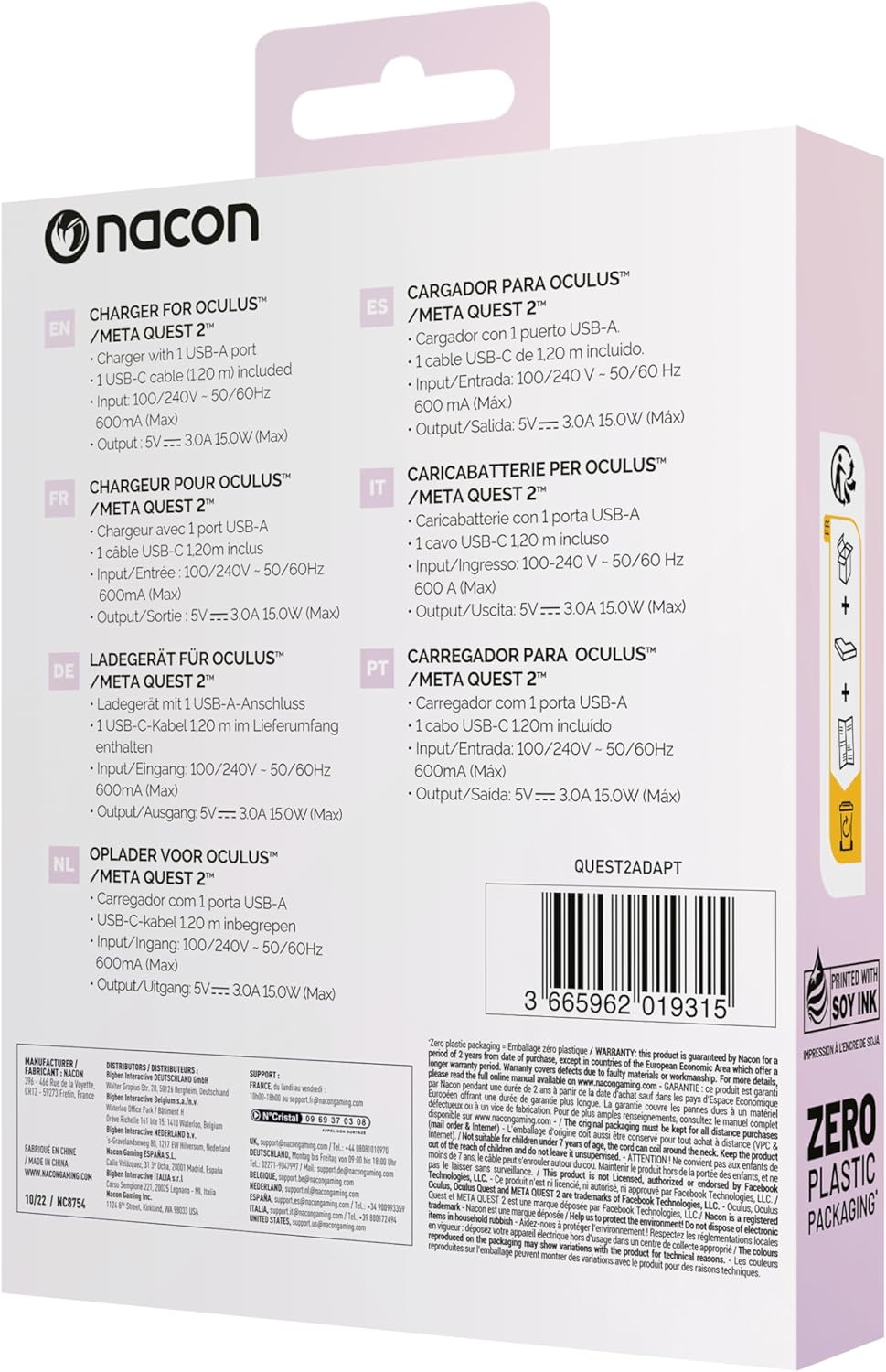
Figure 3: Back of the product packaging showing multilingual specifications, including input and output details.
7. Warranty and Support
NACON products are manufactured to the highest standards and are warranted against defects in materials and workmanship for a specified period from the date of purchase. Please refer to your local consumer protection laws for specific warranty details.
For technical support or warranty claims, please visit the official NACON website or contact your local retailer. Keep your proof of purchase for warranty service.
Online Support: www.nacongaming.com/en-GB/support