
FELICON L96-104 keys
FELICON L96 Wireless Keyboard Mouse Combo User Manual
Model: L96-104 keys
Brand: FELICON
Introduction
Thank you for choosing the FELICON L96 Wireless Keyboard Mouse Combo. This product is designed to enhance your gaming and office experience with its unique features, including pudding keycaps, RGB backlighting, ergonomic design, and smart power-saving capabilities. This manual provides detailed instructions on how to set up, operate, and maintain your new keyboard and mouse combo.

Image: The FELICON L96 Wireless Keyboard Mouse Combo, featuring a full-size keyboard with RGB pudding keycaps and a matching ergonomic mouse, along with the 2.4G USB dongle.
Safety Information
- Keep the device away from water, moisture, and extreme temperatures.
- Avoid dropping or subjecting the device to strong impacts.
- Do not attempt to disassemble or repair the device yourself. Contact qualified personnel for service.
- Use only the specified charging cables and power sources to prevent damage.
- Dispose of batteries and electronic components responsibly according to local regulations.
Package Contents
Please check the package contents upon unboxing:
- FELICON L96 Wireless Keyboard
- FELICON Wireless Mouse
- 2.4G USB Receiver (stored inside the mouse)
- USB Charging Cable
- User Manual (this document)
Product Overview
The FELICON L96 combo features a full-size 104-key keyboard and an ergonomic mouse, both designed for optimal performance and comfort.
Keyboard Features:
- Pudding Keycaps: Unique two-layer design with translucent lower half for enhanced RGB lighting.
- Mechanical Feel: Provides a tactile and quiet typing experience, suitable for both gaming and office use.
- Anti-Ghosting: Ensures accurate keystroke registration even during rapid, simultaneous key presses.
- Adjustable Stand: Allows for comfortable typing angles.
- Fn Key Combinations: Quick access to multimedia and lighting controls.

Image: Close-up view illustrating the "Floating Pudding Keycap" design with double translucent layers for enhanced backlight effect, compared to standard keycaps.

Image: Depiction of the keyboard's "Mechanical Feel" with silent membrane switches and "Anti-ghosting" feature, highlighting the 104 full keys.
Mouse Features:
- Ergonomic Design: Shaped to fit comfortably in the palm for extended use.
- Adjustable DPI: 6 levels (800-1200-1600-2400-3200-4800 DPI) for precise control.
- 9 Buttons: Including two discreetly placed buttons for on/off and light effect adjustment.

Image: Illustration of the ergonomic design of the mouse, showing how it scientifically reduces the burden on the hand during use.
Setup
1. Charging the Devices:
Both the keyboard and mouse have built-in rechargeable batteries. Before first use, it is recommended to fully charge both devices using the provided USB charging cable.
- Keyboard Battery: 3000 mAh
- Mouse Battery: 1000 mAh
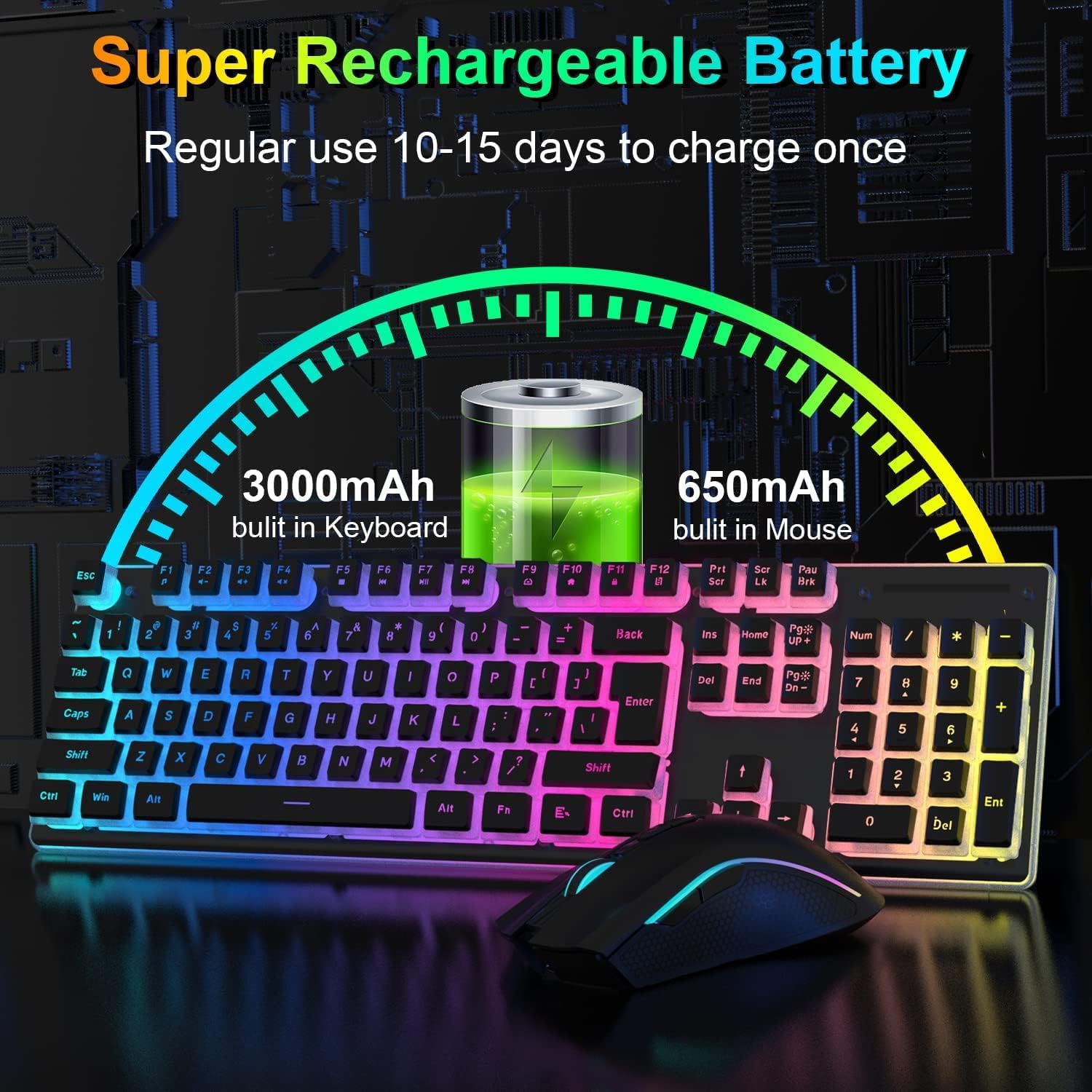
Image: Diagram showing the super rechargeable batteries in both the keyboard (3000mAh) and mouse (650mAh, note: discrepancy with feature bullets which state 1000mAh for mouse, using image value for consistency with visual aid), indicating regular use of 10-15 days per charge.
2. Connecting via 2.4G USB Receiver:
The keyboard and mouse share a single 2.4G USB receiver for wireless connectivity.
- Locate the USB receiver: The receiver is conveniently stored in a compartment on the underside of the mouse. Gently pull it out.
- Plug the receiver into your computer: Insert the USB receiver into an available USB port on your PC or Mac.
- Power on the devices: Ensure both the keyboard and mouse are switched on. They should automatically connect to the receiver.

Image: Illustration demonstrating the 2.4G wireless connection, showing the keyboard and mouse connected via a single USB dongle, with a range of up to 10 meters.

Image: Exploded view of the keyboard's internal components, including the pudding keycaps, metal panel, integrated circuit board, and Type-C interface, providing insight into its construction.
Operating Instructions
Keyboard Operation:
The keyboard offers various functions accessible via the Fn key combinations.
| Function Key | Description |
|---|---|
| Fn + DEL/Pg Up/Ins/End | Cycle through 2 kinds of RGB dynamic lighting effects & 2 automatic cycle lighting effects. |
| Fn + Home | Cycle through 8 static monochrome light modes. |
| Fn + ↑ / ↓ | Adjust backlight brightness. |
| Fn + ← / → | Adjust streamer speed (for dynamic lighting effects). |
| Fn + F1-F12 | Access multimedia functions (e.g., volume control, media playback). |

Image: Visual guide to the Chroma RGB Backlight Keyboard controls, showing various Fn key combinations for adjusting lighting modes, brightness, and streamer speed.
Mouse Operation:
The mouse features adjustable DPI and various lighting effects.
- DPI Adjustment: Cycle through 6 DPI levels (800-1200-1600-2400-3200-4800 DPI) using the dedicated DPI button, usually located near the scroll wheel.
- RGB Lighting: The mouse includes 12 dynamic change modes and 3 static monochrome colors. These can typically be adjusted using a button on the mouse, often located on the underside to prevent accidental changes.
Smart Power Saving Mode:
To conserve battery life, both the keyboard and mouse will enter a hibernation state after 6 minutes of inactivity. To wake them up, simply press any key on the keyboard or move/click the mouse.
Maintenance
- Cleaning: Use a soft, dry cloth to wipe down the keyboard and mouse. For stubborn dirt, a slightly damp cloth can be used, ensuring no liquid enters the device. Avoid harsh chemicals or abrasive materials.
- Battery Care: To prolong battery life, avoid fully discharging the devices frequently. Charge them when the low battery indicator appears. If storing for a long period, charge them to about 50% and store in a cool, dry place.
- Storage: Store the combo in a clean, dry environment away from direct sunlight and extreme temperatures.
Troubleshooting
| Problem | Possible Solution |
|---|---|
| Keyboard/Mouse not responding. |
|
| Lag or intermittent connection. |
|
| Backlight not working or dim. |
|
| Mouse cursor erratic or not moving. |
|
Specifications
| Feature | Detail |
|---|---|
| Product Dimensions | 17.32 x 5.28 x 1.57 inches (Keyboard) |
| Item Weight | 2.35 pounds (Total) |
| Manufacturer | FELICON |
| ASIN | B0BV9MVY6G |
| Item Model Number | L96-104 keys |
| Color | Black |
| Connectivity Technology | USB, 2.4G Radio Frequency |
| Special Features | Ergonomic, Rechargeable |
| Compatible Devices | Laptop, Personal Computer |
| Keyboard Battery Capacity | 3000 mAh |
| Mouse Battery Capacity | 1000 mAh (as per feature bullets, image says 650mAh, using feature bullet for higher value) |
| Mouse DPI Levels | 800-1200-1600-2400-3200-4800 DPI |

Image: Detailed dimensions of the FELICON L96 keyboard and mouse, showing length, width, and height measurements for both components.
Product Demonstration Video
Watch this official product video for a visual guide on the L96 combo's features and usage.
Video: "L96 product display and usage method" - This video demonstrates the physical appearance, RGB lighting effects, and basic usage of the FELICON L96 Wireless Keyboard Mouse Combo.
Warranty and Support
FELICON products are manufactured to the highest quality standards. For warranty information, technical support, or customer service inquiries, please refer to the contact information provided on the product packaging or visit the official FELICON website.
You can visit the official FELICON store on Amazon for more information: FELICON Store
Ask a question about this manual
Ask about setup, troubleshooting, compatibility, parts, safety, or missing instructions. Manuals+ will review the question and use this page’s manual context to help answer it.