
Introduction
Thank you for choosing KepStars 300 LED Smart Curtain Lights. This manual provides essential information for the safe and efficient operation of your new lighting system. Please read it thoroughly before installation and use, and retain it for future reference.
Important Safety Information
- Ensure the power source matches the product's voltage requirements (5V DC).
- Do not expose the USB plug or controller to water. The lights are designed for indoor/outdoor use, but the power components require protection.
- Avoid bending or twisting the wires excessively, as this may damage the internal circuitry.
- Keep out of reach of children and pets.
- Unplug the lights from the power source before cleaning or when not in use for extended periods.
- Do not attempt to repair or modify the product. Contact customer support for assistance.
What's in the Box
- LED Curtain Lights (9.8ft x 9.8ft, 300 LEDs)
- IR Remote Control
- User Guide (this manual)
- 10 Hooks for installation
Setup Instructions
- Unpack the Lights: Carefully remove the LED curtain lights from their packaging. Be gentle to avoid tangling the individual light strings.
- Identify the Main Cable: Locate the main horizontal cable from which the 10 vertical light strings descend.
- Hang the Lights: Use the provided hooks to hang the main horizontal cable in your desired location. Ensure the hooks are securely fastened to a stable surface. The vertical strings should hang freely.
- Connect Power: The lights are USB-powered. Connect the USB plug to a compatible 5V USB power source (e.g., USB charger, power bank, laptop USB port).

Image: The USB plug connected to various power sources like a wall adapter, power bank, and laptop.
- Check Connections: Ensure all individual light strings are securely connected to the main horizontal cable. Loose connections can prevent certain sections from lighting up.
Operating Instructions
Your KepStars LED Curtain Lights can be controlled via the included IR remote or the dedicated smart application.
1. Using the IR Remote Control
The IR remote allows for quick adjustments to color, brightness, and scene modes. Point the remote directly at the USB controller for optimal response.
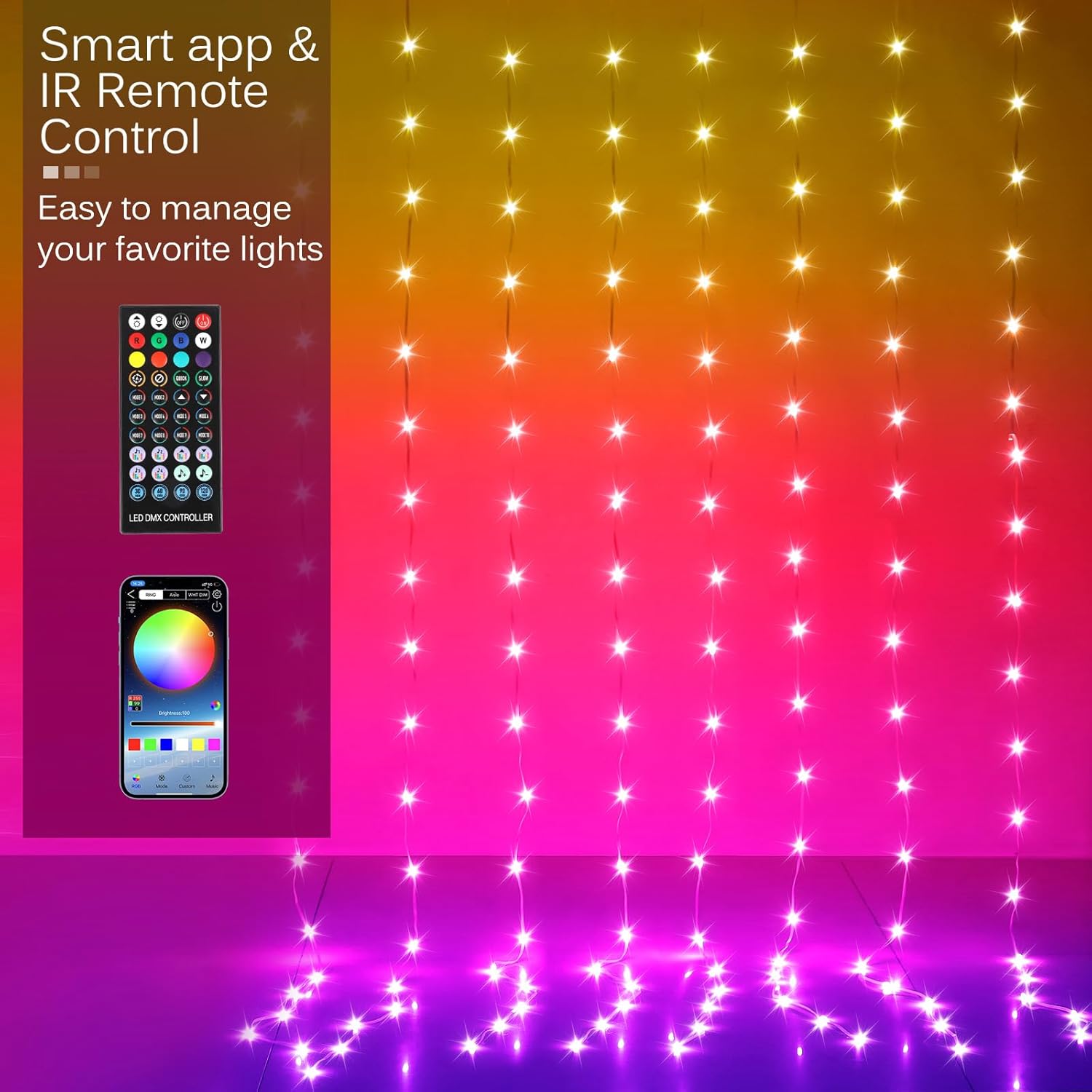
Image: The IR remote control and a smartphone displaying the control app interface.
- Power On/Off: Use the red power button.
- Color Selection: Choose from a variety of preset colors using the color buttons.
- Brightness Adjustment: Increase or decrease brightness using the dedicated buttons.
- Mode Selection: Cycle through various scene modes (e.g., blinking, twinkling, fading) using the mode buttons.
2. Using the Smart APP (Bluetooth Connection)
For advanced control and customization, download the "LED Bluetooth Symphony Controller" app (refer to the user guide for QR code or app store links). Ensure your phone's Bluetooth is enabled.
Video: Demonstration of the KepStars LED Curtain Lights being controlled via the smart app, showcasing various scene modes and color changes.
- App Connection: Open the app, and it will automatically search for nearby devices. Select your LED Curtain Lights to connect via Bluetooth.
- 200+ Scene Options: Explore over 200 preset scene modes to match any occasion or mood.

Image: A smartphone screen showing the app interface with various scene mode selections for the LED curtain lights.
- Customization: Adjust brightness, speed, and create custom color patterns.
- Music & Voice Sync: Activate the music or voice-activated mode to synchronize the lights with your favorite audio.
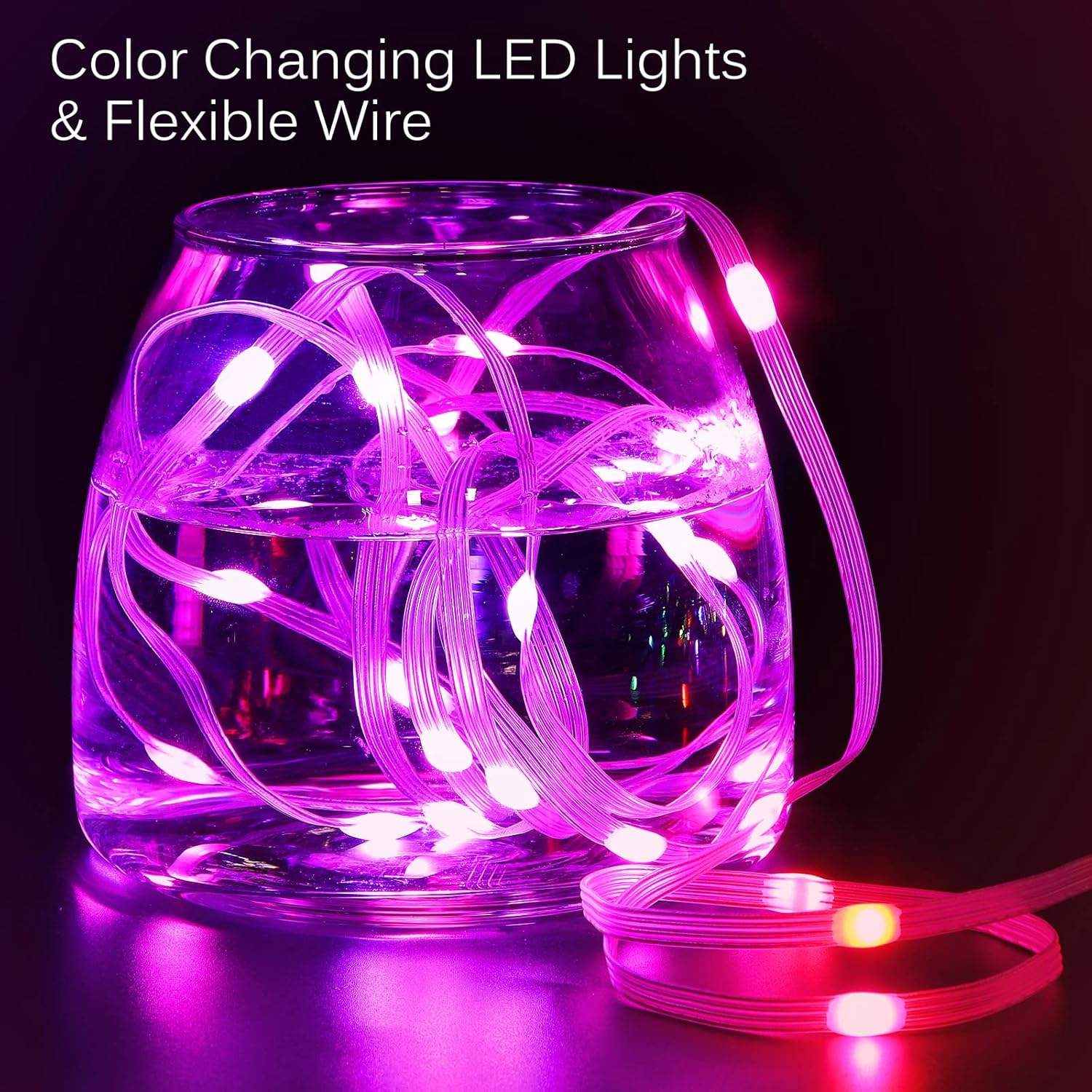
Image: Two people dancing in a room illuminated by KepStars LED Curtain Lights, demonstrating the music and voice sync feature.
Video: A short preview video demonstrating the music and voice sync feature of the KepStars LED Curtain Lights, showing lights changing to the beat of music.
Maintenance
- Cleaning: Gently wipe the lights with a soft, dry cloth. Do not use liquid cleaners or immerse the lights in water.
- Storage: When not in use, carefully coil the light strings and store them in a cool, dry place away from direct sunlight and moisture.
- Battery Replacement (IR Remote): The IR remote uses 1 CR2 battery (included). Replace the battery when the remote's range or responsiveness decreases.
Troubleshooting
| Problem | Possible Cause | Solution |
|---|---|---|
| Lights do not turn on. | No power, loose USB connection, faulty power source. | Ensure USB is securely plugged into a working 5V power source. Try a different USB port or adapter. |
| Some light strings are not lit. | Loose connection between individual strings and main cable. | Check and firmly re-connect all white connectors along the main cable. |
| IR Remote is unresponsive. | Remote battery low/dead, remote not aimed at USB controller, obstruction. | Replace the CR2 battery in the remote. Ensure direct line of sight to the USB controller. |
| Smart APP cannot connect to lights. | Bluetooth off, lights not powered, app issue. | Ensure phone Bluetooth is on. Power cycle the lights. Restart the app. |
| Lights are glitching or changing colors randomly. | Interference, loose wiring in the USB controller. | Try moving the lights away from other electronic devices. Check the USB controller for any visible damage or loose wires. Contact support if issue persists. |
Specifications
| Feature | Detail |
|---|---|
| Brand | KepStars |
| Model Number | KEPS-MC-300LED |
| Light Type | LED Curtain Lights |
| Dimensions | 9.8ft x 9.8ft |
| Number of LEDs | 300 |
| Color | Multicolor (RGB) |
| Special Features | Blinking, Color Changing (200+ Preset Scene Mode), Dimmable, Smart APP & Remote Controlled, Timer, Twinkling |
| Control Methods | Smart APP (Bluetooth), IR Remote, Button Control |
| Power Source | DC 5V (USB Powered) |
| Wattage | 5 Watts |
| Indoor/Outdoor Usage | Indoor and Outdoor |
| Material | Plastic - PVC |
| Item Weight | 0.34 Kilograms (approx. 12 ounces) |
| Remote Battery | 1 CR2 battery (included) |
Warranty and Support
For warranty information or technical support, please refer to the contact details provided with your purchase or visit the official KepStars website. Keep your purchase receipt as proof of purchase.