
1. Introduction
This manual provides detailed instructions for the setup, operation, and maintenance of your Targus Full-Size Sustainable EcoSmart Bluetooth Keyboard. Designed for efficiency and sustainability, this keyboard features energy harvesting solar technology, multi-device connectivity, and DefenseGuard antimicrobial protection.
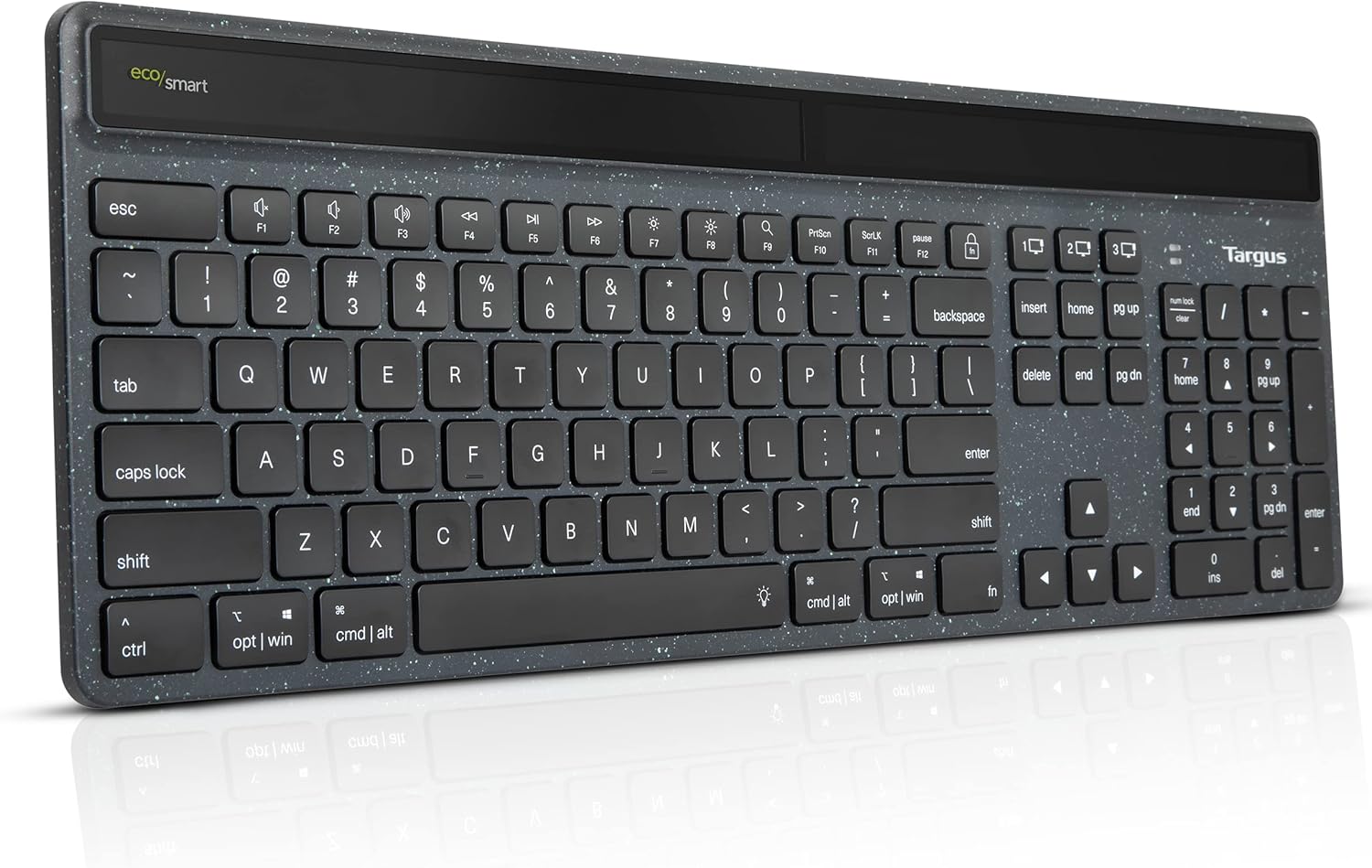
Image: The Targus Full-Size Sustainable EcoSmart Bluetooth Keyboard, showcasing its sleek design and full layout.
Video: An official overview of the Targus Sustainable Energy Harvesting EcoSmart Keyboard, highlighting its key features and benefits.
2. Package Contents
Please ensure all items are present in your package:
- Targus Full-Size Sustainable EcoSmart Bluetooth Keyboard
- USB-C Charging Cable
- Quick Start Guide (if included)
3. Setup
3.1 Initial Charging
Before first use, it is recommended to fully charge the keyboard. Connect the included USB-C cable to the keyboard's charging port and to a USB power source. The keyboard also features energy harvesting solar technology, optimizing charging in various light conditions, including indoor lighting.

Image: The keyboard highlighting its energy harvesting solar technology, designed to optimize charging in various light conditions.
3.2 Bluetooth Pairing
The keyboard utilizes ultra-low power Bluetooth BLE 5.0 wireless technology and can connect to up to three devices simultaneously.
- Turn on the keyboard using the On/Off switch located on the top edge.
- Press and hold one of the Bluetooth channel keys (1, 2, or 3) for 3-5 seconds until the corresponding LED indicator blinks rapidly, indicating pairing mode.
- On your device (computer, tablet, or smartphone), navigate to Bluetooth settings and select "Targus EcoSmart Keyboard" from the list of available devices.
- Follow any on-screen prompts to complete the pairing process. The LED indicator will stop blinking and remain solid for a few seconds, then turn off, indicating successful pairing.
- Repeat for up to two additional devices using the other Bluetooth channel keys.

Image: Detailed view of the keyboard showing callouts for multi-device connectivity, battery life indicator, backlit keys, and full-size layout.
4. Operating the Keyboard
4.1 Key Functions
The keyboard features a full 104-key layout, providing a complete typing experience.
4.2 Switching Between Devices
To switch between paired devices, simply press the corresponding Bluetooth channel key (1, 2, or 3) once. The keyboard will quickly connect to the selected device.
4.3 Backlight Adjustment
The keyboard comes with backlit keys offering three levels of adjustable brightness. Use the dedicated backlight key (often indicated by a sun icon) to cycle through the brightness levels or turn the backlight off.
4.4 Battery Life Indicator
A convenient battery life indicator is located on the keyboard to inform you when it's time to recharge. Refer to the indicator for current battery status.

Image: The keyboard displayed with logos of compatible operating systems, including Windows, macOS, iPadOS, iOS, Android, and Chrome OS.
5. Maintenance
5.1 Cleaning
The keyboard features DefenseGuard antimicrobial protection, which creates a cleaner touchpoint surface. To clean the keyboard, gently wipe the surface with a soft, damp cloth. Avoid using harsh chemicals or abrasive materials.
5.2 Charging Best Practices
To maximize battery life and efficiency, ensure the solar panel is exposed to light regularly. When not in use for extended periods, turn off the keyboard using the On/Off button to conserve power.
6. Troubleshooting
6.1 Keyboard Not Connecting
- Ensure the keyboard is turned on and fully charged.
- Verify Bluetooth is enabled on your device.
- Put the keyboard into pairing mode again (press and hold a channel key).
- Remove the keyboard from your device's Bluetooth list and attempt to re-pair.
- Try connecting to a different device to rule out device-specific issues.
6.2 Backlight Not Working
- Ensure the keyboard has sufficient charge. Low battery may disable the backlight.
- Press the backlight adjustment key multiple times to cycle through brightness levels.
6.3 Battery Not Charging
- Check the USB-C cable and power source for proper connection.
- Ensure the solar panel is exposed to adequate light.
- If using a wall adapter, ensure it is functioning correctly.
6.4 Keys Not Responding
- Check the keyboard's power and Bluetooth connection.
- Restart your connected device.
- If only specific keys are affected, contact customer support.
7. Specifications
| Feature | Detail |
|---|---|
| Model Name | AKB868US |
| Connectivity Technology | Bluetooth, Bluetooth® BLE 5.0 |
| Number of Keys | 104 |
| Battery Type | Rechargeable 1600 mAh Lithium-Polymer |
| Charging | USB-C, Energy Harvesting Solar Technology |
| Product Dimensions | 5.31 x 12.01 x 18.31 inches |
| Item Weight | 1.32 pounds |
| Material | Up to 85% GRS-certified post-consumer recycled plastic |
| Compatibility | Chrome OS, Windows, macOS, iPadOS, iOS, Android |
8. Warranty and Support
8.1 Limited Warranty
The Targus Full-Size Sustainable EcoSmart Bluetooth Keyboard comes with a limited 2-year warranty. This warranty covers defects in materials and workmanship under normal use. Please retain your proof of purchase for warranty claims.
8.2 Customer Support
For technical assistance, warranty inquiries, or additional support, please visit the official Targus website or contact their customer service department. Refer to the product packaging or the Targus website for the most current contact information.


