
IK Multimedia TONEX Pedal
IK Multimedia TONEX Pedal Instruction Manual
Model: TONEX Pedal
Brand: IK Multimedia
1. Introduction
The IK Multimedia TONEX Pedal is a stereo multi-effects guitar and bass pedal designed to bring ultra-realistic amp and pedal tones to your live performance or studio setup. Utilizing breakthrough AI Machine Modeling technology, it offers a vast library of authentic tone models, along with a comprehensive suite of built-in effects. This manual provides essential information for setting up, operating, maintaining, and troubleshooting your TONEX Pedal.
2. Safety Information
- Power Supply: Use only the provided 9V DC power supply. Ensure the correct voltage and polarity to prevent damage.
- Water and Moisture: Do not expose the unit to water, rain, or excessive moisture. Avoid operating in damp environments.
- Heat Sources: Keep the unit away from heat sources such as radiators, heat registers, stoves, or other apparatus that produce heat.
- Ventilation: Ensure proper ventilation. Do not block any ventilation openings.
- Cleaning: Clean only with a dry cloth. Do not use liquid cleaners or aerosol cleaners.
- Servicing: Refer all servicing to qualified service personnel. Do not attempt to service this product yourself.
3. Package Contents
- IK Multimedia TONEX Pedal
- 9V DC Power Supply
- USB Cable
- Registration Card/Software Download Instructions
4. Product Overview
The TONEX Pedal features a robust anodized aluminum chassis designed for durability. Its intuitive layout provides quick access to essential controls and versatile connectivity options.
4.1. Front Panel Controls
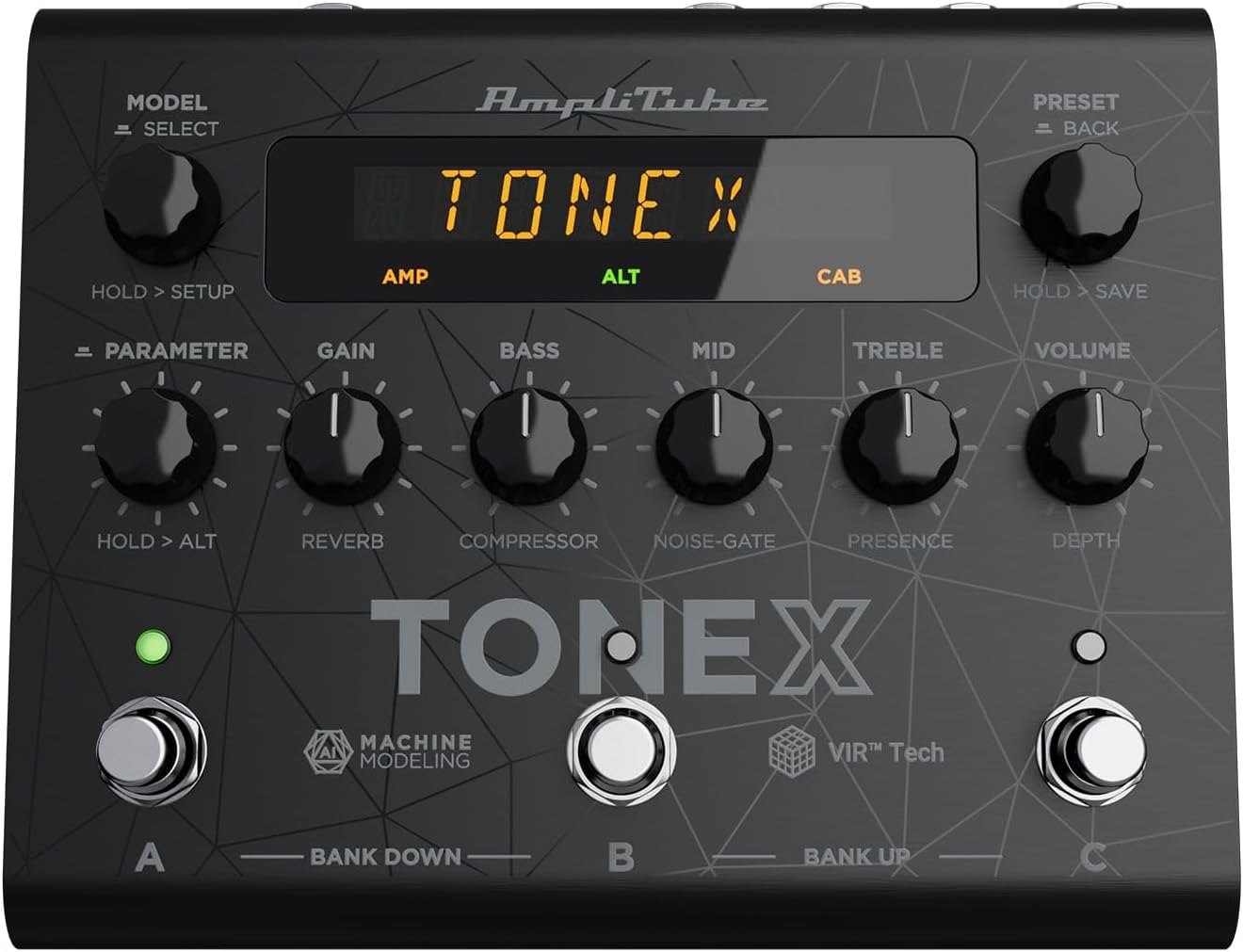
Figure 1: TONEX Pedal Front Panel
This image displays the top view of the TONEX Pedal, highlighting its compact design and the arrangement of knobs, footswitches, and the digital display. Key controls such as 'Model/Select', 'Preset/Back', 'Parameter', 'Gain', 'Bass', 'Mid', 'Treble', and 'Volume' are visible, along with the three footswitches labeled A, B, and C.
- MODEL / SELECT Knob: Used to select tone models and navigate menus. Press and hold for Setup menu.
- PRESET / BACK Knob: Used to select presets and go back in menus. Press and hold to save presets.
- PARAMETER Knob: Adjusts various parameters. Press and hold for alternative parameters.
- GAIN Knob: Controls the input gain of the tone model.
- BASS Knob: Adjusts the low-frequency response.
- MID Knob: Adjusts the mid-frequency response.
- TREBLE Knob: Adjusts the high-frequency response.
- VOLUME Knob: Controls the overall output volume.
- Footswitches A, B, C: Select presets within a bank. Also used for bank up/down (A+B, B+C) and bypass.
- Display: Shows current preset, parameter values, and menu options.
4.2. Rear Panel Connections

Figure 2: TONEX Pedal Rear Panel Connections
This image shows the rear panel of the TONEX Pedal, detailing its various input and output connections. Visible ports include the instrument input, left and right outputs (mono), headphone output, MIDI In/Out, external control input, USB port, and the 9V DC power input. This panel facilitates integration into various audio setups, from live rigs to studio environments.
- INPUT: 1/4" mono input for your guitar or bass.
- OUTPUT L/R (MONO): 1/4" stereo outputs for connecting to a PA system, power amp, or audio interface. Use the L output for mono operation.
- HEADPHONES: 1/4" stereo output for silent practice.
- MIDI IN/OUT: 5-pin DIN connectors for MIDI control and integration with other MIDI devices.
- EXT. CONTROL: 1/4" input for an external expression pedal or footswitch.
- USB: USB-B port for connecting to a computer (PC/Mac) for software control, preset management, and using the pedal as an audio interface.
- POWER 9V DC: Input for the included 9V DC power supply.
5. Setup
5.1. Initial Connections
- Connect your instrument to the INPUT jack on the rear panel.
- Connect the OUTPUT L (and R for stereo) to your amplifier, PA system, or audio interface.
- If desired, connect headphones to the HEADPHONES jack.
- Connect the included 9V DC power supply to the POWER 9V DC input and plug it into a power outlet. The pedal will power on automatically.
5.2. Software Installation
To unlock the full potential of your TONEX Pedal, including access to ToneNET and advanced editing features, install the TONEX Editor software on your computer.
- Visit the IK Multimedia website and register your product using the provided registration card.
- Download and install the TONEX Editor software for your operating system (Windows 10 or later, macOS 10.15 or later).
- Connect the TONEX Pedal to your computer via the USB port. The pedal can function as a 24-bit/44.1 kHz USB audio interface for studio recording.
- Follow the on-screen instructions in the software to update firmware and manage your tone models and presets.
6. Operating Instructions
6.1. Navigating Presets
The TONEX Pedal comes preloaded with 150 gig-ready presets, organized into 50 banks of three presets each.
- Selecting Presets: Rotate the PRESET / BACK knob to quickly scroll through and audition available presets.
- Using Footswitches: Tap footswitches A, B, or C to load different presets within the current bank.
- Changing Banks: Simultaneously press footswitches A and B to move down a bank, or B and C to move up a bank.
- Bypass Tone Model: Once a preset is loaded, tapping its corresponding footswitch a second time will bypass the tone model, allowing for a clean signal.
6.2. Adjusting Parameters
The TONEX Pedal offers five main and five alternative parameters on the front panel for tone shaping.
- Main Parameters: Directly adjust GAIN, BASS, MID, TREBLE, and VOLUME using their respective knobs.
- Alternative Parameters: Hold down the PARAMETER encoder to access alternative parameters: Reverb Level, Compressor Threshold, Noise Gate Threshold, Presence, and Depth. Rotate the corresponding knobs to adjust these.
- Additional Parameters: Press the PARAMETER encoder once to access further parameters for fine-tuning your sound.
6.3. Saving Presets
- Saving with Renaming/Relocation: Hold the PRESET / BACK encoder. You can then rotate the PRESET knob to edit characters for renaming, and rotate the MODEL knob to move the cursor or change the bank location. Press the PRESET knob again to confirm and save.
- Quick Save: To quickly save a preset with the same name in the same location, press the MODEL and PRESET encoders simultaneously. The display will show "SAVED".
6.4. Cab Emulation
If connecting to a standard guitar or bass amp with its own speaker cabinet, you may wish to turn off the TONEX Pedal's internal cab emulation to avoid redundant processing. This can be done via the Setup menu (hold MODEL / SELECT knob).
6.5. Official Product Video: TONEX Pedal Main Features
Video 1: An overview of the IK Multimedia TONEX Pedal's main features, including its controls, connectivity, and basic operation. This video demonstrates how to navigate presets, adjust parameters, and utilize the pedal's various functions for live and studio use.
7. Maintenance
- Cleaning: Regularly wipe the pedal with a soft, dry cloth to remove dust and grime. Avoid abrasive cleaners.
- Storage: Store the pedal in a cool, dry place when not in use. Protect it from extreme temperatures and humidity.
- Cable Management: Ensure cables are not kinked or strained to prevent damage to the connectors and ports.
8. Troubleshooting
- No Power: Ensure the 9V DC power supply is correctly connected to the pedal and a working power outlet.
- No Sound: Check all audio cable connections (instrument input, outputs to amp/PA, headphones). Verify volume levels on the pedal and connected devices. Ensure the tone model is not bypassed.
- Unexpected Behavior/Glitches: Try performing a factory reset (refer to the full online manual for specific steps). Ensure your firmware is up to date via the TONEX Editor software.
- Software Connectivity Issues: Ensure the USB cable is securely connected. Try a different USB port or cable. Restart both the pedal and your computer.
9. Specifications
| Feature | Specification |
|---|---|
| Model Number | TONEX Pedal |
| Dimensions (L x W x H) | 6.93 x 5.59 x 2.17 inches (approx. 17.6 x 14.2 x 5.5 cm) |
| Item Weight | 2.86 pounds (approx. 1.3 kg) |
| Color | Black |
| Power Source | 9V DC (Corded Electric) |
| Hardware Interface | USB |
| Signal Format | Digital |
| Operating System Compatibility | Windows® 10 or later, macOS® 10.15 or later (macOS® 11 Big Sur required for Modeler) |
| Frequency Response | 5 Hz - 24 kHz |
| Dynamic Range | 123 dB |
10. Warranty and Support
IK Multimedia products are covered by a limited warranty. For detailed warranty information, product registration, and technical support, please visit the official IK Multimedia website or contact their customer service. Keep your proof of purchase for warranty claims.
Website: www.ikmultimedia.com
Related documentsTONEX Pedal


Ask a question about this manual
Ask about setup, troubleshooting, compatibility, parts, safety, or missing instructions. Manuals+ will review the question and use this page’s manual context to help answer it.