
Newmight C422H
Newmight 4-in-1 USB C to Dual HDMI Adapter User Manual
Model: C422H
1. Product Overview
The Newmight 4-in-1 USB C to Dual HDMI Adapter is a versatile multiport hub designed to expand the connectivity of your USB-C enabled devices. It allows you to connect two external HDMI monitors, provide power delivery, and enable USB data transfer, significantly enhancing productivity and digital experience.

Figure 1: Newmight 4-in-1 USB C to Dual HDMI Adapter with various cables.
2. Key Features
- Dual HDMI Output: Extends your laptop's USB-C port to two HDMI ports, supporting up to 4K@30Hz for dual monitors. When using a single HDMI port, resolution can reach 4K@60Hz.
- 100W Power Delivery: Features a fast-charging port that supports up to 100W power delivery to quickly charge your laptop while using the adapter. (Requires a compatible charger).
- USB Data Transfer: Includes a USB-A port for connecting external devices such as mice, keyboards, or flash drives for efficient data transfer.
- Wide Compatibility: Compatible with a broad range of USB-C devices including MacBook Pro/Air, iPad Pro, iPhone 15 series, Chromebook, Dell, HP, and more.
- Compact and Portable Design: Lightweight and sleek design (3.94 x 1.3 x 0.47 inches, 1.6 ounces) for easy portability.

Figure 2: Diagram illustrating the 4 ports of the Newmight USB C Adapter: two HDMI ports, one charging port, and one USB port.
3. Setup Instructions
Before connecting the adapter, ensure your device's USB-C port supports video transmission (DisplayPort Alternate Mode). Some USB-C ports only support charging or data transfer.
- Connect the Adapter: Plug the USB-C connector of the Newmight adapter into an available USB-C port on your laptop, tablet, or smartphone.
- Connect HDMI Displays: Connect your HDMI cables from your external monitors to the HDMI ports on the Newmight adapter.

Figure 3: Example setup showing a laptop connected to two external monitors using the adapter.
- Connect Power (Optional): For power delivery, connect your laptop's USB-C charger to the PD (Power Delivery) port on the Newmight adapter. This allows your device to charge while using the adapter.

Figure 4: The adapter connected to a power source for 100W fast charging.
- Connect USB Devices (Optional): Plug any USB-A peripherals (e.g., mouse, keyboard, flash drive) into the USB-A port on the adapter.
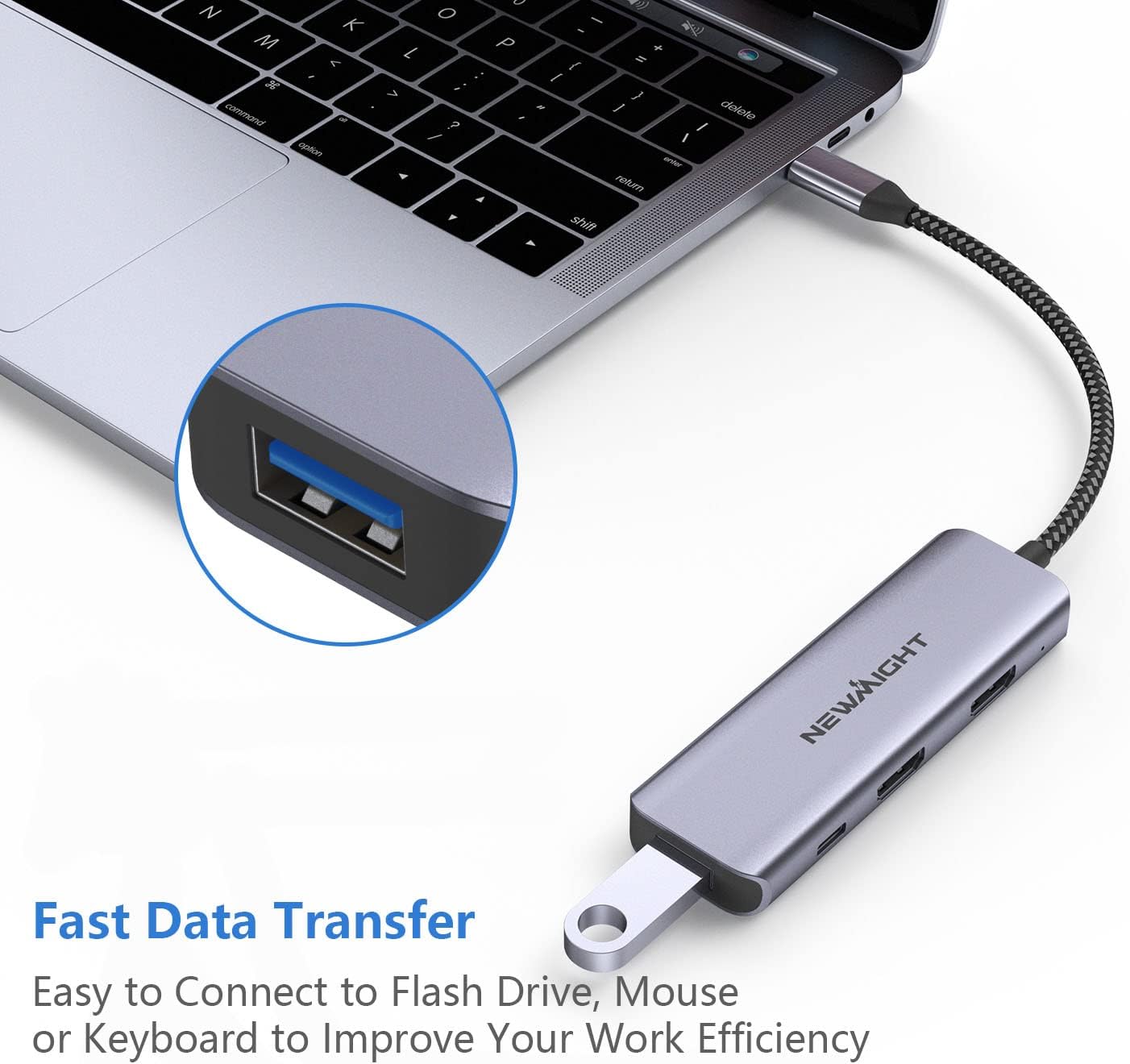
Figure 5: A USB flash drive connected to the adapter for fast data transfer.
4. Operating the Adapter
4.1 Display Modes
The Newmight adapter supports various display modes depending on your operating system.
Windows Display Modes:
- Mirror Mode: Displays the same content on all connected screens (laptop and external monitors).
- Extend Mode: Extends your desktop across multiple screens, allowing for different content on each display.
- MST Mode: (Multi-Stream Transport) Allows for independent display on each external monitor (A-B-C).

Figure 6: Visual representation of Mirror, Extend, and MST modes on Windows.
macOS Display Modes:
- Mirror Mode: Displays the same content on all connected screens (laptop and external monitors).
- Extend Mode: Extends your desktop across multiple screens. Note: Due to macOS limitations, when connecting two monitors, they can only display the same content (A-AA or A-BB). macOS does not support MST mode for independent displays (A-B-C).

Figure 7: Visual representation of Mirror and Extend modes on macOS, highlighting the MST limitation.
4.2 Resolution Output
- Dual HDMI: Supports 3840x2160@30Hz when both HDMI ports are in use.
- Single HDMI: Supports up to 3840x2160@60Hz when only one HDMI port is in use.
For optimal 4K or 60Hz output, ensure your laptop, monitor, and HDMI cables all support the desired resolution and refresh rate. The actual resolution depends on your device and video source capabilities.
5. Compatibility
This adapter is designed for wide compatibility with most USB-C enabled devices that support video output. Please verify your device's USB-C port functionality.
5.1 Supported Devices & Systems:
- MacBook Pro, MacBook Air
- iPad Pro, iPhone 15 Series
- Chromebook
- Dell, HP laptops with compatible USB-C ports
- Devices with Thunderbolt 3/4 (Full Function)
- Devices with USB-C ports supporting Data & Video Transfer
- Operating Systems: macOS, Windows, Linux, iOS 17+

Figure 8: Compatibility chart showing various host devices and operating systems.
5.2 Important Compatibility Notes:
- USB-C Port Functionality: Ensure your device's USB-C port supports video transmission. Ports that only support charging or data transfer will not work for video output.
- macOS MST Limitation: macOS devices do not support Multi-Stream Transport (MST) mode. When connecting two monitors to a macOS device, both external monitors will display the same content (Mirror or Extended, but not independent displays).
- Unsupported Devices (MHL Mode): This adapter does NOT support MHL mode phones/tablets, including but not limited to: LG Google Nexus 5X/6P, LG Stylist/LG G6, LG V30, Google Pixel, Pixel2, ZTE/ZTE max pro Phone, Oneplus 2/3/3T/5T, Moto Z force, Dell Inspiron series tablet, Asus Zenpad S8 64GB, Nintendo Switch.

Figure 9: Guide to check if your laptop's USB-C port supports charging, data, or video transfer.
6. Technical Specifications
| Feature | Specification |
|---|---|
| Product Dimensions | 3.94 x 1.3 x 0.47 inches |
| Item Weight | 1.6 ounces |
| Model Number | C422H |
| Hardware Interface | HDMI, USB 2.0 Type A, USB 3.1 Type C |
| Special Features | Fast Charging, Lightweight, Plug and Play, Portable |
| Compatible Devices | Hard Disk Drive, Keyboards, Laptops, Monitors, Mouse |
| Color | Grey |
| Manufacturer | Newmight |
7. Troubleshooting
- No Display Output:
- Ensure your device's USB-C port supports video output (DisplayPort Alternate Mode).
- Check all cable connections (USB-C to adapter, HDMI from adapter to monitor) are secure.
- Verify that your monitors are set to the correct HDMI input source.
- Try restarting your laptop/device.
- Monitors Displaying Same Content on macOS:
- This is a limitation of macOS. macOS does not support MST (Multi-Stream Transport) mode, meaning two external monitors connected via this adapter will mirror each other or extend from the primary display as one combined extended screen, but cannot display three independent screens (laptop + two external).
- Unstable Connection/Flickering Display:
- Ensure all connections are firm and not loose.
- Try using different HDMI cables.
- Reduce the display resolution if experiencing frequent disconnections, especially with older monitors or longer cables.
- Ensure your laptop is receiving sufficient power, especially if using power delivery through the adapter.
- Phone/Tablet Not Working:
- Confirm your phone/tablet's USB-C port supports video output. Many older or budget phones/tablets do not support this feature (e.g., MHL mode devices listed in compatibility).
- Charging Issues:
- Ensure you are using a compatible USB-C Power Delivery charger with sufficient wattage (e.g., 100W for optimal performance).
- Check the charging cable for damage.
8. Care and Maintenance
- Keep the adapter away from liquids and extreme temperatures.
- Avoid dropping or subjecting the adapter to strong impacts.
- Clean the adapter with a soft, dry cloth. Do not use harsh chemicals or abrasive materials.
- When not in use, store the adapter in a cool, dry place to prevent damage.
9. Warranty and Support
Newmight offers a 12-month warranty for this product, along with lifetime technical support. For any inquiries, issues, or assistance, please contact Newmight customer service. Our friendly pre-sales and after-sales service team is available within 24 hours to help resolve any problems you may encounter.
For additional information, you may refer to the official User Manual PDF: Download User Manual (PDF)
Related documentsC422H


Ask a question about this manual
Ask about setup, troubleshooting, compatibility, parts, safety, or missing instructions. Manuals+ will review the question and use this page’s manual context to help answer it.