1. Introduction
This manual provides comprehensive instructions for the installation, operation, and maintenance of your YCHOW-TECH RGB 8 Gang Switch Panel. This advanced control system is designed for trucks, SUVs, off-road vehicles, and marine applications, offering centralized control over various auxiliary accessories.
The switch panel features 8 customizable buttons with vibrant RGB backlighting, three dynamic lighting modes, and convenient Bluetooth app control for personalized setup and operation. It is built with robust protection features and an IP65 waterproof rating to ensure reliable performance in demanding environments.

Image 1.1: The YCHOW-TECH RGB 8 Gang Switch Panel, demonstrating its integration with a smartphone application for comprehensive control.
2. Setup and Installation
The YCHOW-TECH RGB 8 Gang Switch Panel is designed for easy installation, including all necessary components for a plug-and-play setup.
2.1 Package Contents
- 8-Button Accessory Switch Controller
- Circuit Box (with built-in solid state relay and circuit breaker)
- Dust & Waterproof Covers
- 60pcs Stickers for button labeling
- Two Types of Mounting Brackets
- Plug and Play Wiring Harness (with 10ft extension cable)
2.2 Installation Steps
- Mount the Switch Panel: Choose a suitable location within your vehicle's cabin for the switch panel. Utilize one of the two provided mounting brackets to securely affix the panel.
- Install the Control Box: Select a dry, secure location for the main circuit control box, typically in the engine bay or a protected compartment. Ensure it is easily accessible for wiring.
- Connect Wiring Harness: Connect the plug-and-play wiring harness from the switch panel to the control box. The 10ft extension cable provides flexibility for routing.
- Power Connections: Connect the control box to your vehicle's 12-24V DC power supply. Ensure proper polarity (positive ACC wire, positive battery wire, negative battery wire).
- Connect Accessories: Utilize the 8 output ports on the control box to connect your auxiliary accessories (e.g., lights, horn, winches). Each port is protected by an ATO style fuse.
- Apply Stickers: Use the provided 60pcs stickers to label your switch buttons according to the connected accessories.

Image 2.1: Detailed view of the Universal Control Box, highlighting terminals, fuses, indicators, IGBT, and output ports.

Image 2.2: Product dimensions and the two types of mounting brackets included for versatile installation.
3. Operation
3.1 Bluetooth App Control
The YCHOW-TECH Switch Panel offers seamless control via a dedicated mobile application, allowing for extensive customization and management of your accessories.
- Full Control: Manage all 8 customizable buttons directly from your smartphone.
- Customization: Choose from default icons or create your own. Rename buttons and their functions to personalize your setup.
- Lighting Control: Turn lights on/off, swap panel colors, and adjust brightness.
- Device Grouping: Manage device groups for simultaneous control of multiple accessories.
- Icon Library: Customize up to 200 icons for clear identification of functions.
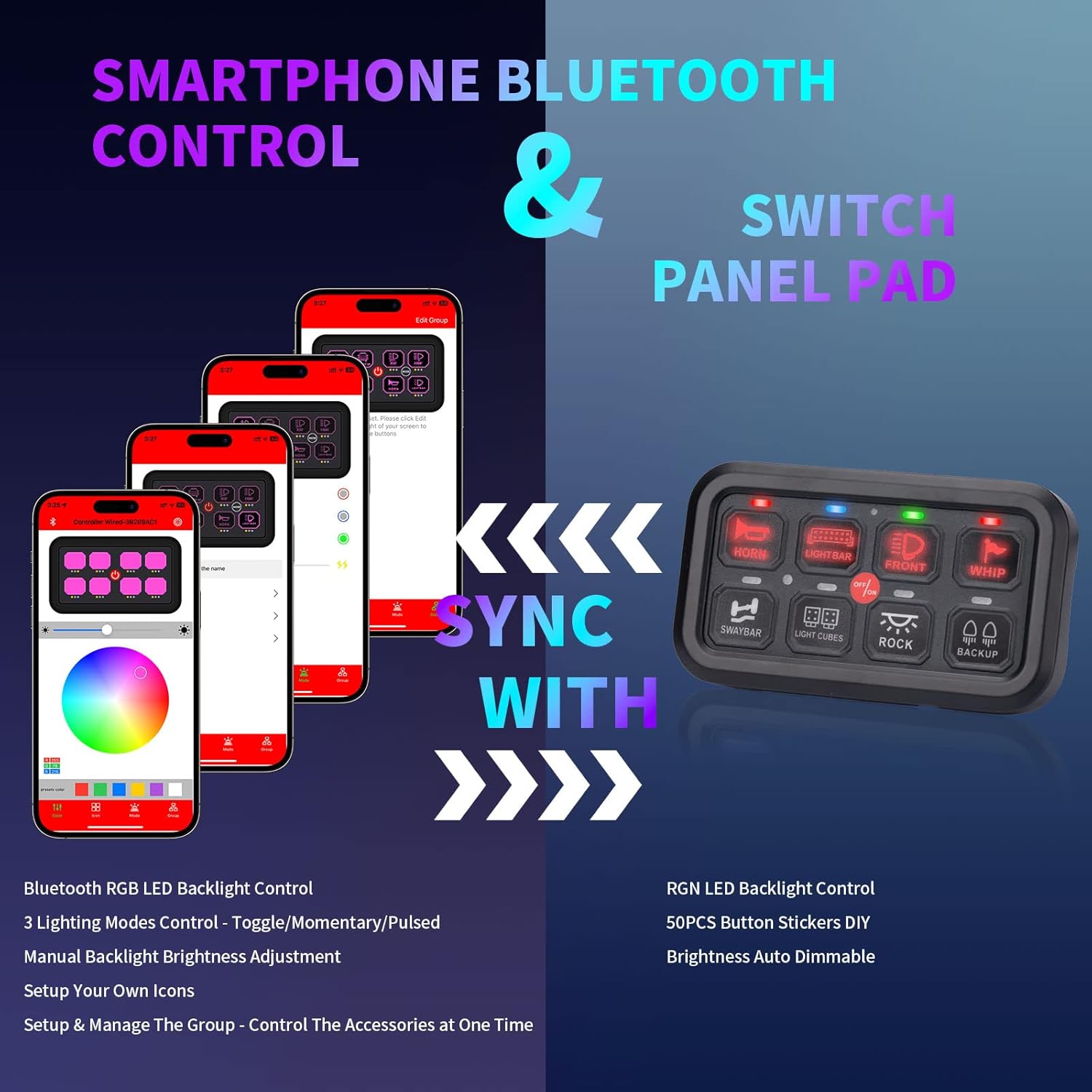
Image 3.1: The smartphone application interface demonstrating its synchronization capabilities with the switch panel for comprehensive control.
3.2 Lighting Modes and Customization
The switch panel features advanced lighting options for enhanced visibility and aesthetic appeal.
- RGB Backlight: Enjoy an infinite variety of RGB colors for the button backlighting, allowing you to match your vehicle's interior or personal preference.
- Auto Dimming: The panel automatically adjusts the backlight brightness based on ambient light conditions, ensuring optimal visibility day or night. Manual brightness adjustment is also available via the app.
- Three Lighting Modes: Each switch can be configured for one of three operational modes:
- Toggle: Provides constant light output when activated.
- Momentary: Activates the accessory only while the button is pressed (ignition power).
- Pulsed: Engages a strobe or flashing mode for the connected accessory.
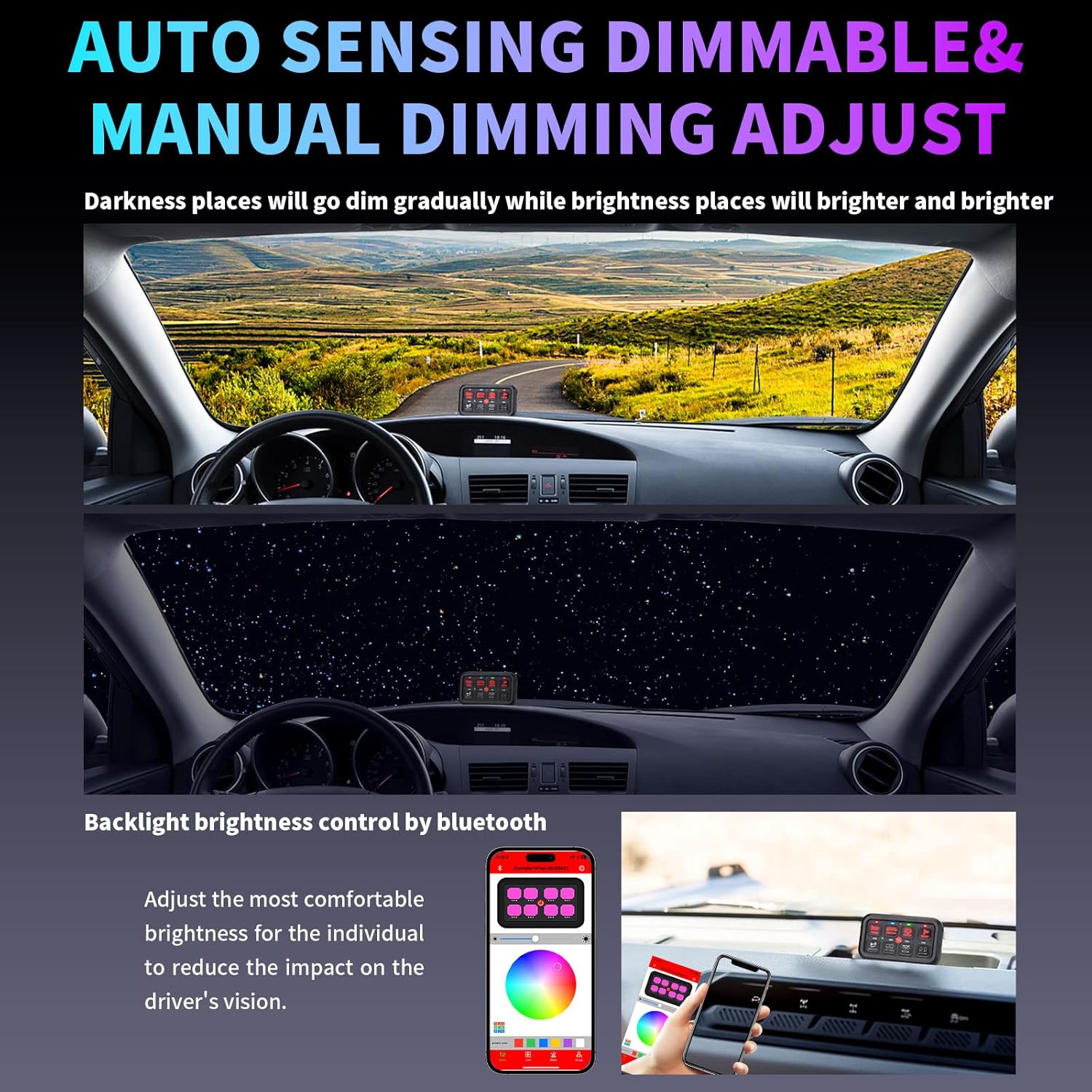
Image 3.2: Visual representation of the auto-sensing dimmable function, showing how the backlight adjusts to different light conditions.

Image 3.3: The multi-function auxiliary switch panel, detailing the three distinct lighting modes available for customization.
4. Maintenance
To ensure the longevity and optimal performance of your YCHOW-TECH RGB 8 Gang Switch Panel, follow these simple maintenance guidelines:
- Cleaning: Regularly wipe the switch panel and control box with a soft, damp cloth to remove dust and dirt. Avoid using harsh chemicals or abrasive cleaners.
- Waterproof Protection: The unit has an IP65 waterproof rating, meaning it is protected against dust ingress and low-pressure water jets. While robust, avoid submerging the unit or exposing it to high-pressure water sprays. Ensure dust and waterproof covers are properly seated.
- Connections: Periodically check all wiring connections to ensure they are secure and free from corrosion.
- Fuse Inspection: In case of an accessory malfunction, inspect the ATO style fuses within the control box. Replace blown fuses with new ones of the same amperage rating.
5. Troubleshooting
This section addresses common issues you might encounter with your YCHOW-TECH RGB 8 Gang Switch Panel. The system is equipped with several built-in protections to ensure safe operation:
- Reverse Polarity Protection
- Over-Voltage Protection
- Over-Current Protection
- Overheat Protection
5.1 Common Issues and Solutions
- Panel Not Powering On:
- Check the main power connection to the control box.
- Verify that the vehicle's battery voltage is within the operating range (12-24V DC).
- Inspect the main circuit breaker in the control box for tripping.
- Accessory Not Functioning:
- Ensure the specific switch for the accessory is activated.
- Check the fuse for that specific output port in the control box. Replace if blown.
- Verify the accessory's wiring connection to the control box.
- Confirm the accessory itself is in working order.
- Bluetooth Connection Issues:
- Ensure Bluetooth is enabled on your mobile device.
- Restart the mobile application.
- Ensure the switch panel is powered on.
- Try pairing the device again through the app settings.
- Backlight Not Changing Color/Dimming:
- Verify that the auto-dimming feature is enabled or disabled as desired in the app.
- Ensure the app is properly connected and communicating with the panel.
If issues persist after following these steps, please contact YCHOW-TECH customer support for further assistance.
6. Technical Specifications
| Feature | Specification |
|---|---|
| Operating Voltage | DC 12-24V |
| Max Current | 60A |
| Rated Voltage (12V) | 20A |
| Rated Voltage (24V) | 10A |
| Max Rated Power (12V) | 720W |
| Max Rated Power (24V) | 1200W |
| Working Temperature | -40℃ to +105℃ |
| Waterproof Rating | IP65 |
| Product Dimensions | 1 x 1 x 1 inches |
| Item Weight | 4.24 pounds |
| Circuit Type | 8-way |
| Operation Mode | ON-OFF-ON |
| Connector Type | Auxiliary |
| Control Method | Touch |
| Connectivity Protocol | Bluetooth |
| Number of Positions | 3 |
| Model Number | SP-RGB |
| UPC | 700721644476 |
7. Warranty and Support
For information regarding product warranty, returns, or technical support, please refer to the purchase documentation or contact YCHOW-TECH customer service directly. Contact details can typically be found on the manufacturer's official website or through your point of purchase.


