
1. Introduction
This manual provides comprehensive instructions for the HOOMOON Upgrade Unicorn Kids Camera (Model X11). Designed for children aged 3-12, this 1080P HD digital camera offers a range of features including photo capture, video recording, selfie mode, and built-in games. Please read this manual thoroughly to ensure proper use and to maximize your child's enjoyment of the product.
2. What's in the Box
Upon opening the package, please verify that all the following items are included:
- 1x Kids Camera with Unicorn Cartoon Protective Case
- 1x Exquisite Packing Box
- 1x USB Charging Cable
- 1x 32GB Memory Card (pre-installed in the card slot)
- 1x Hanging Lanyard
- 1x User Manual

Image: The HOOMOON Unicorn Kids Camera in pink, showing both front and back views, along with a 32GB SD card icon, indicating included accessories.
3. Product Features
The HOOMOON Unicorn Kids Camera is equipped with multiple functions to enhance your child's creative experience:
- Dual-Camera Configuration: Features both front and rear lenses for easy selfie-taking and capturing moments from different perspectives.
- 1080P HD Video Recording: Allows children to record high-definition videos of their adventures.
- 32GB Memory Card Included: Provides ample storage for up to 5,000 pictures, ensuring continuous fun without worrying about memory limits.
- Multi-Functions: Includes photo capture, real-time video recording, time-lapse capture, music player, and three built-in puzzle games.
- Cute Unicorn Protective Case: Made from soft silicone, this anti-drop design protects the camera from accidental falls, making it durable for active children.
- Portable Design: Comes with a durable lanyard, allowing children to wear the camera around their neck for easy outdoor use.
- Rechargeable Battery: Built-in large capacity lithium battery supports 2-3 hours of continuous use after a full charge.
- Creative Options: Features 28 funny frames and 6 filters to decorate photos, encouraging imagination and creativity.

Image: An illustration highlighting the camera's multi-functional capabilities, including playing games, music playback, selfie mode, and HD dual lenses, with children engaging in these activities.
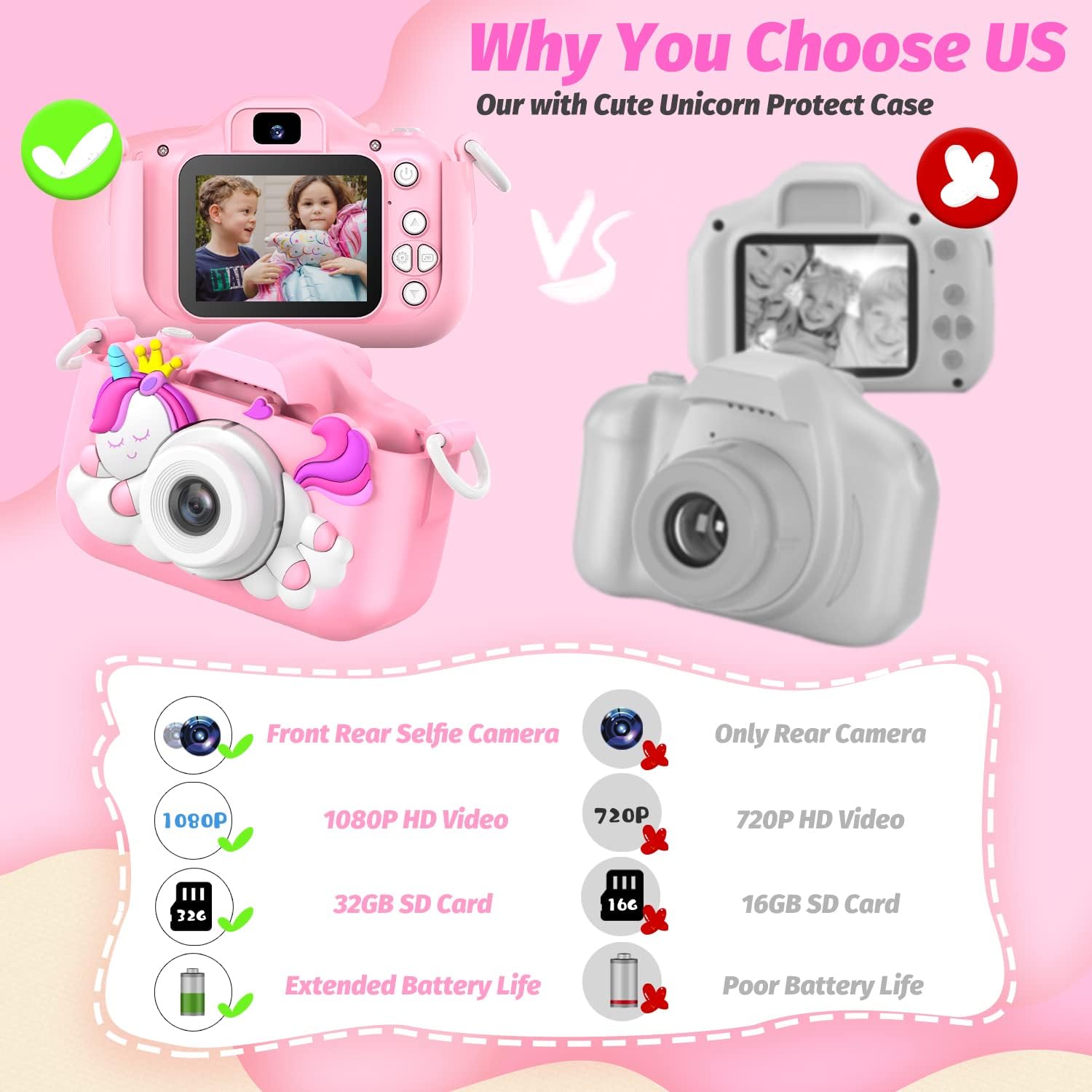
Image: A visual comparison demonstrating the superior features of the HOOMOON camera, such as front and rear selfie cameras, 1080P HD video, 32GB SD card, and extended battery life, compared to a generic camera.
4. Setup Guide
4.1 Initial Charging
- Locate the USB charging cable provided in the box.
- Connect the small end of the USB cable to the camera's USB port (refer to the diagram below).
- Connect the larger end of the USB cable to a standard USB power adapter (not included) or a computer's USB port.
- Allow the camera to charge fully before first use. The charging indicator light will typically change or turn off when charging is complete.
4.2 Inserting/Checking the SD Card
The 32GB memory card is pre-installed. If you need to check or re-insert it:
- Locate the SD card slot on the side of the camera (refer to the diagram below).
- Gently push the SD card until it clicks into place. Ensure it is inserted correctly with the metal contacts facing down (or as indicated by the slot).
- To remove, push the card in again until it springs out slightly, then pull it out.

Image: A detailed diagram illustrating the product's button functions and port locations, including the HD camera, photo/video button, power, microphone, UP/Menu/Mode/Down buttons, 2.0-inch display, speaker, USB port, and SD card slot.
5. Operating Instructions
5.1 Power On/Off
- To Power On: Press and hold the Power button for a few seconds until the screen lights up.
- To Power Off: Press and hold the Power button again until the screen turns off.
5.2 Taking Photos
- Ensure the camera is in Photo mode. If not, press the 'Mode' button to cycle through modes until the photo icon is displayed.
- Aim the camera at your subject.
- Press the 'Photo/Video' button to capture an image.
- To switch between front and rear cameras for selfies, use the designated button or menu option (refer to the camera's display for icons).

Image: The HOOMOON Kids Camera highlighting its front and rear lenses, enabling both standard photography and selfie capture.
5.3 Recording Videos
- Press the 'Mode' button to switch to Video mode (look for the video camera icon).
- Press the 'Photo/Video' button once to start recording. A timer or recording indicator will appear on the screen.
- Press the 'Photo/Video' button again to stop recording.

Image: The camera screen displaying a video of two children, illustrating its HD video recording capability.
5.4 Using Photo Frames and Filters
- In Photo mode, press the 'Up' or 'Down' buttons to browse through the available frames and filters.
- Select your desired frame or filter, then press the 'Photo/Video' button to capture the image with the effect applied.

Image: A collage of different funny photo frames available on the camera, demonstrating creative options for children.
5.5 Playing Games
- Press the 'Mode' button to navigate to the Games menu.
- Use the 'Up' and 'Down' buttons to select a game.
- Press the 'Photo/Video' button or 'Menu' button to start the selected game.

Image: The camera screen showcasing three built-in puzzle games, providing entertainment for children.
5.6 Transferring Files to a Computer
- Connect the camera to a computer using the USB charging cable.
- The camera should appear as a removable disk or device on your computer.
- Open the camera's folder to access and transfer photos and videos.
6. Maintenance
6.1 Cleaning the Camera
- Use a soft, dry cloth to wipe the camera body.
- For the lens, use a specialized lens cleaning cloth to avoid scratches.
- Do not use liquid cleaners or abrasive materials.
6.2 Storage
- Store the camera in a cool, dry place away from direct sunlight and extreme temperatures.
- Ensure the camera is turned off when not in use for extended periods.
7. Troubleshooting
If you encounter any issues with your HOOMOON Unicorn Kids Camera, please refer to the following table:
| Problem | Possible Cause | Solution |
|---|---|---|
| Camera does not turn on | Low battery or completely discharged. | Connect the camera to a power source using the USB cable and charge for at least 30 minutes. |
| Screen freezes or becomes unresponsive | Software glitch or temporary error. | Locate the small reset hole (usually on the right side of the screen) and gently press it with a thin object like a paperclip. This will restart the camera. |
| Memory card cannot be read | SD card improperly inserted or corrupted. | Unplug the memory card and reinsert it firmly until it clicks. If the issue persists, try formatting the card (this will erase all data) or using a different SD card. |
| Poor image/video quality | Insufficient lighting, dirty lens, or incorrect settings. | Ensure adequate lighting. Clean the camera lens with a soft cloth. Check if any filters are applied that might affect quality. |
| Camera not recognized by computer | Faulty USB cable or connection issue. | Try a different USB port on your computer or a different USB cable. Ensure the camera is powered on when connected. |
8. Specifications
| Feature | Detail |
|---|---|
| Brand | HOOMOON |
| Model Name | X11 |
| Color | Pink |
| Photo Sensor Resolution | 8 MP Effective Still Resolution |
| Video Resolution | 1080p (1920x1080 Display Resolution Maximum) |
| Screen Size | 2 inches |
| Display Type | LCD |
| Memory Storage Capacity | 32 GB (SD Card included) |
| Battery Type | Lithium Polymer (1 required, included) |
| Connectivity Technology | USB |
| Image Stabilization | Digital |
| Special Feature | Time-lapse |
| Age Range Description | Kid |
| Item Dimensions (D x W x H) | 1.96"D x 3.34"W x 2.36"H |
| Water Resistance Level | Not Water Resistant |
9. Warranty and Support
9.1 Warranty Information
This product comes with No Warranty as per manufacturer specifications. Please refer to your retailer's return policy for details on returns or exchanges.
9.2 Customer Support
For any questions, concerns, or issues not covered in this manual, please contact HOOMOON customer service. We are committed to providing satisfactory solutions as soon as possible.
Additionally, protection plans are available for purchase separately:
- 2-Year Protection Plan
- 3-Year Protection Plan
- Complete Protect (monthly plan covering eligible purchases)