
iRobot J655020
iRobot Roomba j6+ Robot Vacuum User Manual
Model: J655020
Introduction
The iRobot Roomba j6+ Self-Emptying Robot Vacuum is designed to provide a reliable and intelligent cleaning experience. Featuring 10x Power-Lifting Suction and PrecisionVision Navigation, it identifies and avoids obstacles like pet waste and cords. The Clean Base Automatic Dirt Disposal allows the robot to empty its bin for up to 60 days, offering hands-free convenience. With iRobot OS, the Roomba j6+ learns your home and cleaning preferences, offering personalized suggestions and smart mapping capabilities. It is compatible with voice assistants like Alexa and Google Home for easy control.
Setup Guide
Follow these steps to set up your Roomba j6+ for the first time:
- Unboxing and Initial Inspection: Carefully remove all components from the packaging. Ensure the robot's bumper moves freely and there are no obstructions.
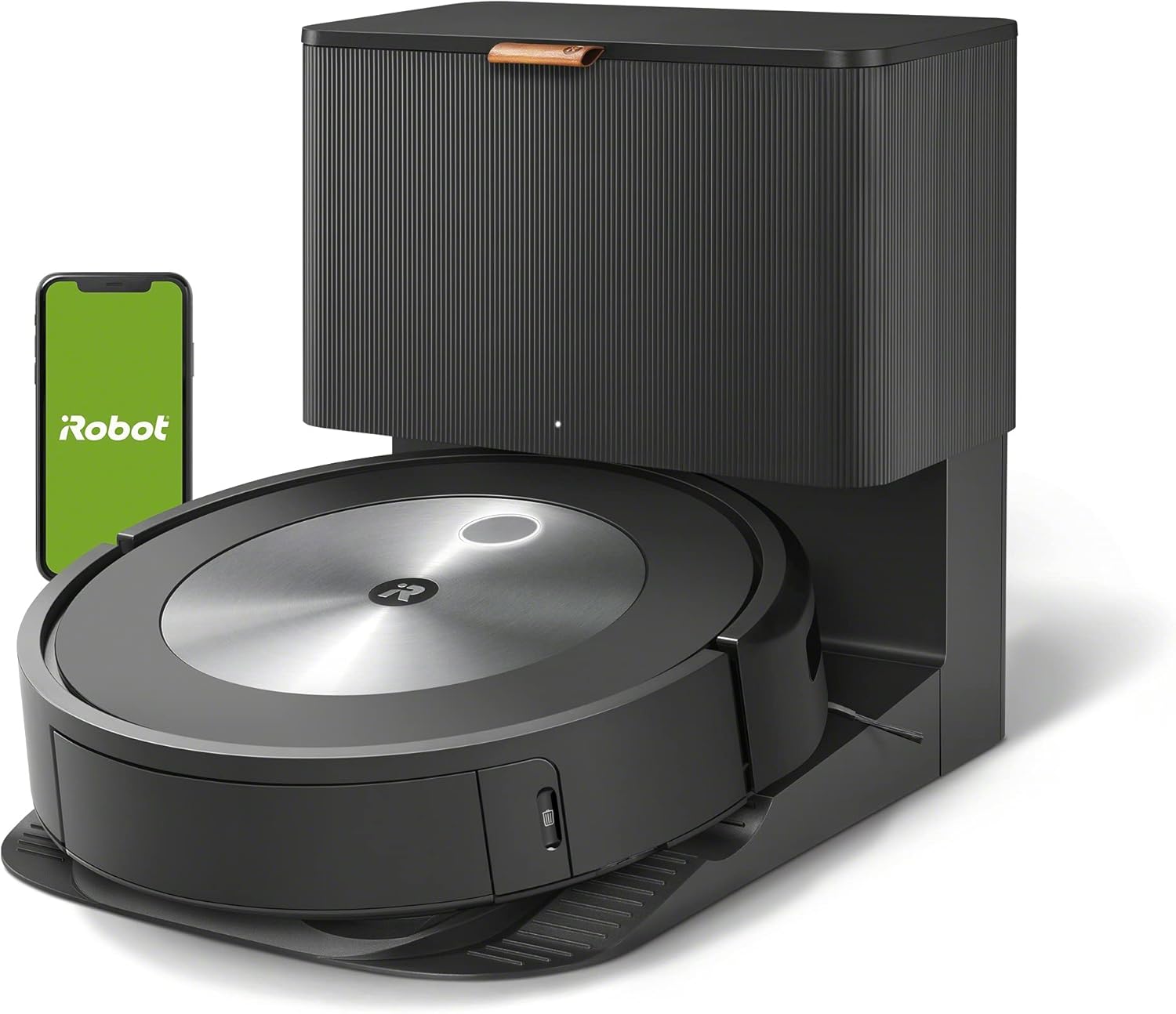
Image: The iRobot Roomba j6+ robot vacuum docked with its Clean Base Automatic Dirt Disposal unit. A smartphone displaying the iRobot app is visible in the background.
- Install Side Brush (if necessary): Some models may require you to install the side brush. Use a flat-head screwdriver to secure it.

Image: The underside of the Roomba j6+ robot vacuum, showing the green multi-surface rubber brushes and the side sweeping brush. This view is important for maintenance and initial setup.
- Check Dust Bin and Filter: Press the dust bin release button to remove the bin. Ensure the filter is properly installed.
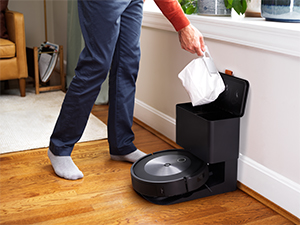
Image: A person's hand removing the dust bin from the side of the Roomba j6+ robot vacuum. This illustrates the simple process of emptying the robot's internal bin.
- Place the Clean Base: Position the Clean Base in an open area with at least 1 foot of clear space on either side and 4 feet in front. Plug it into a power outlet.
Video: A detailed unboxing and setup guide for the iRobot Roomba j6+ Robot Vacuum. The video demonstrates how to prepare the robot and its Clean Base for first-time use, including connecting to the smartphone app and initial mapping procedures. This video is created by a seller and is relevant for setup.
- Dock the Roomba: Place the Roomba onto the Clean Base. It will automatically turn on and begin charging.
Video: A short clip demonstrating the iRobot Roomba j6+ docking itself and the Clean Base self-emptying its bin. This video is created by a customer and shows the self-emptying feature, which is part of the setup and daily use.
- Download the iRobot Home App: Search for "iRobot Home" in your app store and download it. Follow the in-app instructions to connect your Roomba to Wi-Fi and complete the setup.

Image: A smartphone screen displaying the iRobot Home app interface, highlighting the smart mapping and scheduling features. This image illustrates the app's role in controlling the Roomba.
Operating Instructions
Your Roomba j6+ is designed for intelligent and autonomous cleaning. Here's how to operate it:
- Start a Cleaning Job:
- From the Robot: Press the CLEAN button on the robot.
- From the App: Open the iRobot Home app, select your Roomba j6+, and tap "New Job" or "Clean Everywhere." You can also select specific rooms or zones to clean using the Smart Map.
- Voice Command: If connected to Alexa or Google Home, simply say, "Alexa, tell Roomba to start cleaning."

Image: The Roomba j6+ robot vacuum cleaning under a dining room table, demonstrating its ability to navigate around furniture. The iRobot OS interface is overlaid, showing a map and a "Vacuum Messes in the Moment" prompt.
- Smart Mapping: The Roomba j6+ will learn your home's layout over several cleaning runs. This creates a Smart Map in the app, allowing you to define rooms, cleaning zones, and keep-out zones.
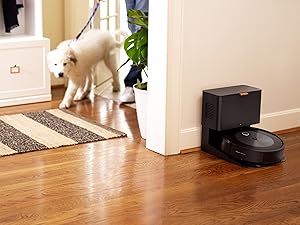
Image: The Roomba j6+ robot vacuum approaching and avoiding a charging cord on a hardwood floor. An overlay shows the PrecisionVision Navigation identifying the cord and suggesting options to avoid it in the future.
- Obstacle Avoidance: The Roomba j6+ uses PrecisionVision Navigation to identify and avoid common obstacles like pet waste and charging cords. If it encounters an unknown obstacle, it may send a photo to your app for review.

Image: The Roomba j6+ robot vacuum navigating around simulated pet waste on a hardwood floor, with arrows indicating its path of avoidance. The "P.O.O.P. (Pet Owner Official Promise)" logo is visible, highlighting its guarantee to avoid pet waste.
- Self-Emptying: The Roomba j6+ will automatically return to its Clean Base to empty its dust bin when full, or after completing a cleaning job. The Clean Base can hold up to 60 days of debris.
Video: A customer review showcasing the Roomba j6+ navigating around furniture and self-emptying. The video highlights its ability to avoid obstacles and the convenience of the self-emptying feature. This video is created by a customer and is relevant for operating instructions.
Maintenance
Regular maintenance ensures your Roomba j6+ operates efficiently. The iRobot Home app will notify you when parts need attention.
- Emptying the Clean Base Bag: The Clean Base bag holds up to 60 days of debris. The app will notify you when it's full.

Image: A person replacing the disposable bag inside the Clean Base Automatic Dirt Disposal unit. This illustrates the simple process of maintaining the self-emptying feature.
- Cleaning the Brushes: Periodically remove and clean the multi-surface rubber brushes and the side sweeping brush to remove tangled hair and debris.
Video: A detailed review of the iRobot Roomba j6+ robot vacuum, focusing on its features and maintenance. The video demonstrates how to clean and replace the brushes and filter, highlighting the ease of maintenance. This video is created by a seller and is relevant for maintenance instructions.
- Cleaning the Filter: The high-efficiency filter should be cleaned regularly and replaced as indicated by the app.
- Cleaning the Wheels: Check the wheels for any debris that might impede movement.
Troubleshooting
If your Roomba j6+ encounters an issue, consult the iRobot Home app for specific error messages and solutions. Common issues include:
- Robot Stuck: Check for tangled cords, small objects, or uneven surfaces. Clear any obstructions and reposition the robot.
- Poor Cleaning Performance: Clean the brushes, filter, and dust bin. Ensure the Clean Base bag is not full.
- Navigation Issues: Ensure adequate lighting in the cleaning area. Clear any new obstacles or rearrange furniture that might confuse the robot's mapping.
- Connectivity Problems: Verify your Wi-Fi connection and ensure the robot is within range of your router. Restart the robot and the app if necessary.
Specifications
| Feature | Detail |
|---|---|
| Brand | iRobot |
| Model Name | J655020 |
| Special Features | Identifies and Avoids Pet Waste & Cords, Smart Mapping, Ideal for Pet Hair, Wi-Fi Connected, Compatible with Alexa, Self-Emptying |
| Color | Graphite |
| Product Dimensions | 13.4"L x 13.3"W x 3.4"H |
| Included Components | Rubber Brushes |
| Battery Life | 60 days (Clean Base capacity) |
| Power Source | Battery Powered |
| Item Weight | 18.72 pounds |
Warranty and Support
For detailed warranty information and support, please refer to the official iRobot website or contact iRobot customer service. You can also find the User Manual (PDF) here.
iRobot offers a P.O.O.P. (Pet Owner Official Promise) guarantee: if your Roomba j6+ fails to avoid pet waste, iRobot will replace it for free. Additional terms and conditions apply.
Please note: iRobot does not certify the quality or authenticity of products purchased from non-authorized resellers on Amazon, and will only cover warranty claims, provide service or offer replacements for products purchased from authorized sellers.
Related documentsJ655020


Ask a question about this manual
Ask about setup, troubleshooting, compatibility, parts, safety, or missing instructions. Manuals+ will review the question and use this page’s manual context to help answer it.