
OMOTON WK005
OMOTON Wireless Keyboard WK005 User Manual
Model: WK005
1. Introduction
Thank you for choosing the OMOTON Wireless Keyboard. This 2.4G silent, full-size ergonomic keyboard is designed for optimal productivity and comfort, featuring a numeric keypad and media hotkeys. It is compatible with Windows 11/10/8/7/Vista/XP systems. This manual provides detailed instructions for setup, operation, maintenance, and troubleshooting to ensure you get the most out of your new keyboard.
2. Safety Information
- Keep the keyboard away from liquids and excessive moisture to prevent damage.
- Avoid exposing the keyboard to extreme temperatures (hot or cold) or direct sunlight.
- Do not attempt to disassemble or repair the keyboard yourself. Refer to qualified service personnel.
- Dispose of batteries according to local regulations. Do not mix old and new batteries.
3. Package Contents
Please check the package contents upon unboxing:
- 1 x OMOTON Wireless Keyboard
- 1 x USB Receiver
4. Setup
4.1 Installing Batteries
The keyboard requires 2 AAA batteries (not included). Locate the battery compartment on the underside of the keyboard. Open the cover, insert the batteries with the correct polarity, and close the cover securely.

Figure 4.1: The USB receiver is conveniently stored in the recess of the keyboard battery compartment. Open the battery cover to access it.
4.2 Connecting the Keyboard
This keyboard utilizes 2.4GHz wireless technology for a stable and reliable connection. Follow these steps to connect:
- Retrieve the USB receiver from the keyboard's battery compartment.
- Plug the USB receiver into an available USB port on your computer, PC, notebook, or laptop.
- Turn on the keyboard using the ON/OFF switch located on the top right side of the keyboard.
- The keyboard is plug-and-play; no driver installation is required. It should automatically connect to your device. The connection distance is up to 33 feet (10m).

Figure 4.2: The OMOTON wireless keyboard offers a seamless plug-and-play experience with its 2.4G wireless connection, ensuring no delays in input.
5. Operating the Keyboard
5.1 General Use
The OMOTON Wireless Keyboard features a QWERTY 110-key layout, including a full numeric keypad for efficient data entry. Its ultra-slim design and ergonomic 8-degree typing angle enhance overall typing comfort and reduce strain on hands and wrists.

Figure 5.1: The OMOTON Wireless Keyboard features a full 110-key layout, including a numeric keypad, designed for comprehensive task completion.

Figure 5.2: The keyboard's dimensions are 44.27 cm (17.43 in) in length, 13.69 cm (5.39 in) in width, and 2.13 cm (0.84 in) in height, highlighting its full-size and ultra-slim design.
5.2 Media Hotkeys and Fn Lock
The keyboard is equipped with 12 media hotkeys for quick access to functions like volume adjustment, playback control, and common office shortcuts (copy, paste, cut). With the Fn lock feature, you can directly use these media keys without needing to press the Fn key simultaneously with F1-F12.
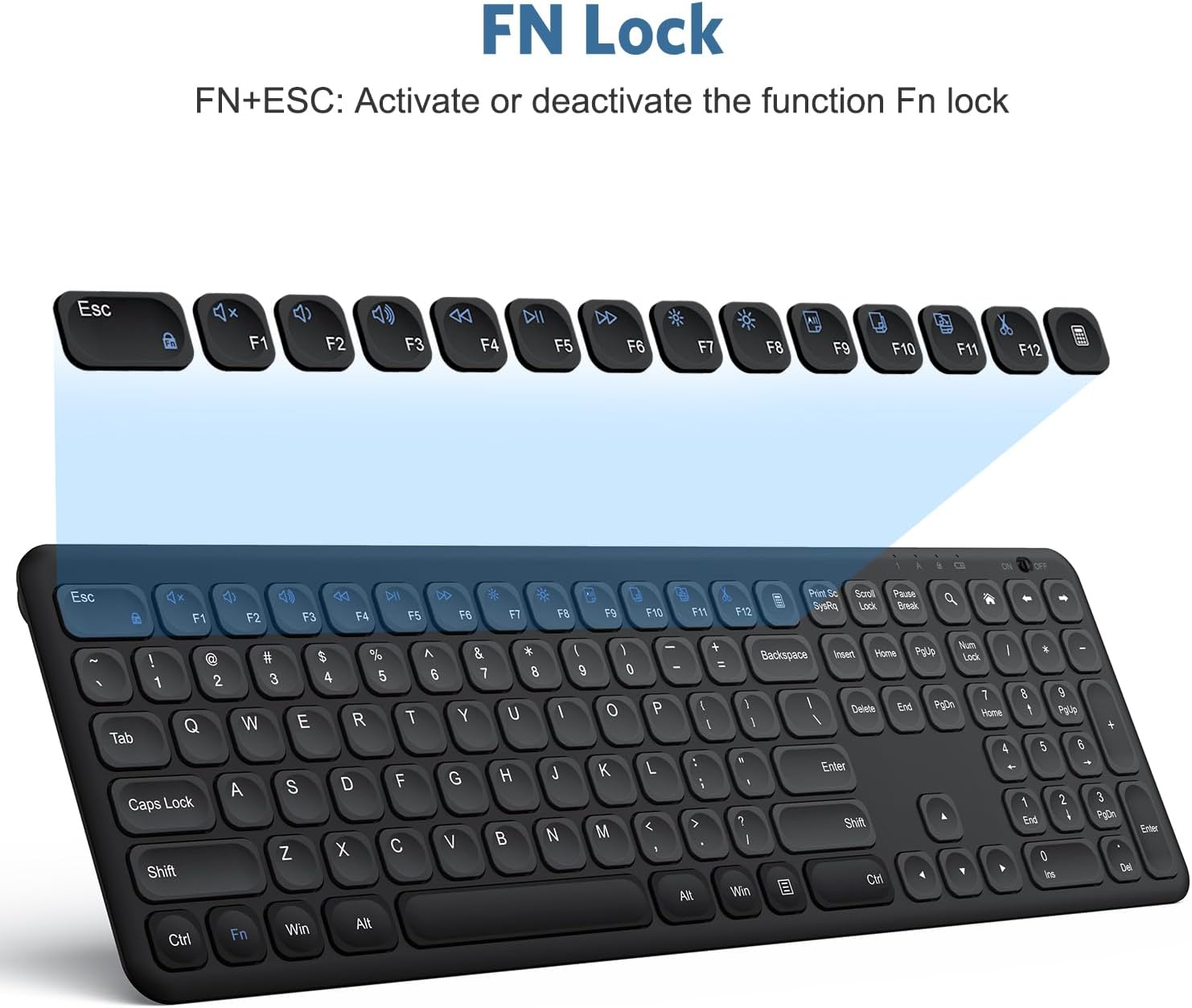
Figure 5.3: The Fn Lock feature allows direct access to 12 media keys for functions such as volume control, media playback, and office shortcuts, eliminating the need for Fn+F1-F12 combinations.
5.3 Silent Typing Experience
The keyboard features a scissor foot switch structure design and round ball square keycaps, providing a smooth, comfortable, and quiet typing experience, ideal for office environments.

Figure 5.4: The scissor switch structure design and concave keycaps contribute to a smooth, comfortable, and quiet typing experience.

Figure 5.5: The concave keycaps are specifically designed to conform to the shape of your fingertips, enhancing typing comfort.
5.4 Automatic Power Saving Function
To conserve battery life, the wireless keyboard automatically enters hibernation mode after 30 minutes of non-operation. To wake the keyboard, simply press any key.
6. Maintenance
- Clean the keyboard regularly with a soft, dry cloth. For stubborn dirt, a slightly damp cloth can be used, ensuring no liquid enters the keyboard.
- Avoid using harsh chemicals or abrasive cleaners.
- Store the keyboard in a cool, dry place when not in use for extended periods.
7. Troubleshooting
7.1 Keyboard Not Responding
- Check Power: Ensure the keyboard's ON/OFF switch is in the 'ON' position.
- Battery Check: Replace the AAA batteries if they are low or depleted.
- USB Receiver: Ensure the USB receiver is securely plugged into a working USB port on your computer. Try a different USB port if necessary.
- Distance: Make sure the keyboard is within the 33-foot (10m) operating range of the USB receiver.
- Re-pairing: If the connection is lost, try unplugging and re-plugging the USB receiver. The keyboard should automatically re-establish connection.
7.2 Keys Not Functioning Correctly
- Clean Keys: Check for any debris or foreign objects under the keys that might be obstructing their movement.
- Software Issues: Restart your computer to rule out any software-related glitches.
7.3 Keyboard Enters Sleep Mode Too Quickly
- The keyboard is designed to enter hibernation mode after 30 minutes of inactivity to save power. This is normal behavior. Simply press any key to wake it up.
8. Specifications
| Feature | Detail |
|---|---|
| Brand | OMOTON |
| Model | WK005 |
| Connectivity Technology | 2.4G USB Wireless |
| Compatible Devices | Windows 11/10/8/7/Vista/XP, PC, Computer, Notebook, Laptop |
| Keyboard Description | Multimedia, Full-Size, Ergonomic |
| Number of Keys | 110 |
| Special Features | Round Key, Ergonomic, 2.4G Wireless, Silent, Numeric Keypad, Media Hotkeys |
| Color | Black |
| Product Dimensions | 17.32 x 5.35 x 0.83 inches (44.27 x 13.69 x 2.13 cm) |
| Item Weight | 1.57 pounds |
| Manufacturer | OMOTON |
| Country of Origin | China |
| First Available Date | February 3, 2023 |
9. Official Product Video
Watch the official product video for a visual overview of the OMOTON Wireless Keyboard's features and benefits.
Video 9.1: An official product video showcasing the OMOTON Wireless Keyboard, highlighting its full-size design, ergonomic features, scissor switch keys, and plug-and-play wireless connectivity.
10. Warranty and Support
OMOTON products are designed for reliability and performance. For specific warranty information, please refer to the warranty card included with your purchase or visit the official OMOTON website. For technical support or further assistance, please contact OMOTON customer service through their official channels.
Online Support: Visit the OMOTON official website for FAQs, drivers, and support contact information.
Related documentsWK005


Ask a question about this manual
Ask about setup, troubleshooting, compatibility, parts, safety, or missing instructions. Manuals+ will review the question and use this page’s manual context to help answer it.