
Portronics POR-1808
Portronics Toad Ergo Vertical Advanced Wireless Ergonomic Mouse User Manual
Model: POR-1808
Product Overview
The Portronics Toad Ergo Vertical Advanced Wireless Ergonomic Mouse is designed to provide a comfortable and natural hand posture, reducing strain during extended use. Its vertical design supports the wrist and palm, making it suitable for long work hours. This mouse features a 2.4 GHz wireless connection, adjustable DPI settings, and a multi-button layout for enhanced productivity.

Figure 1: Portronics Toad Ergo Vertical Advanced Wireless Ergonomic Mouse (Black)
Key Features
- Ergonomic Vertical Design: Reduces strain on palms and wrists by promoting a natural handshake grip.
- Adjustable DPI (up to 3200): Customize cursor speed for precision, suitable for various tasks from casual use to professional work.
- 6D Buttons: Includes Left, Right, Scroll Wheel, DPI adjustment, and two side buttons for forward/backward navigation.
- 2.4 GHz Wireless Connectivity: Ensures stable, fast, and reliable wireless connection via a nano USB dongle.
- Power Saving Design: Automatically hibernates when not in use to conserve battery life.
- Wide Compatibility: Compatible with Windows and Mac operating systems.

Figure 2: Comparison of Ergonomic Vertical Mouse vs. Traditional Mouse posture.

Figure 3: The 57-degree vertical ergonomic design supports natural hand posture.
Setup Guide
1. Battery Installation
- Locate the battery compartment on the underside of the mouse.
- Open the battery compartment cover.
- Insert two AAA batteries (not included) into the compartment, ensuring correct polarity (+/-).
- Close the battery compartment cover securely.
2. Connecting the Wireless Receiver
- Locate the 2.4 GHz nano USB dongle, typically stored in a small compartment at the bottom of the mouse.
- Remove the USB dongle from its storage slot.
- Plug the USB dongle into an available USB port on your computer (Laptop or Personal Computer).
- The mouse should automatically connect to your computer. No additional drivers are typically required for Windows 10, Windows 8, or Mac operating systems.

Figure 4: Connecting the 2.4 GHz wireless USB dongle to a laptop.
Operating Instructions
Button Functions
The Portronics Toad Ergo mouse features 6 buttons for versatile control:
- Left Button: Standard left-click function.
- Right Button: Standard right-click function.
- Scroll Wheel: For vertical scrolling. Can also be pressed for middle-click functionality.
- DPI Button: Adjusts the cursor sensitivity (DPI).
- Forward Button (Side): Navigates forward in web browsers or file explorers.
- Backward Button (Side): Navigates backward in web browsers or file explorers.

Figure 5: Labeled diagram of the mouse buttons.
Adjusting DPI (Cursor Speed)
Press the DPI button located near the scroll wheel to cycle through the available DPI settings. The mouse supports adjustable DPI up to 3200, with common settings including 1200, 1600, 2400, and 3200 DPI. Select the sensitivity that best suits your task and preference.
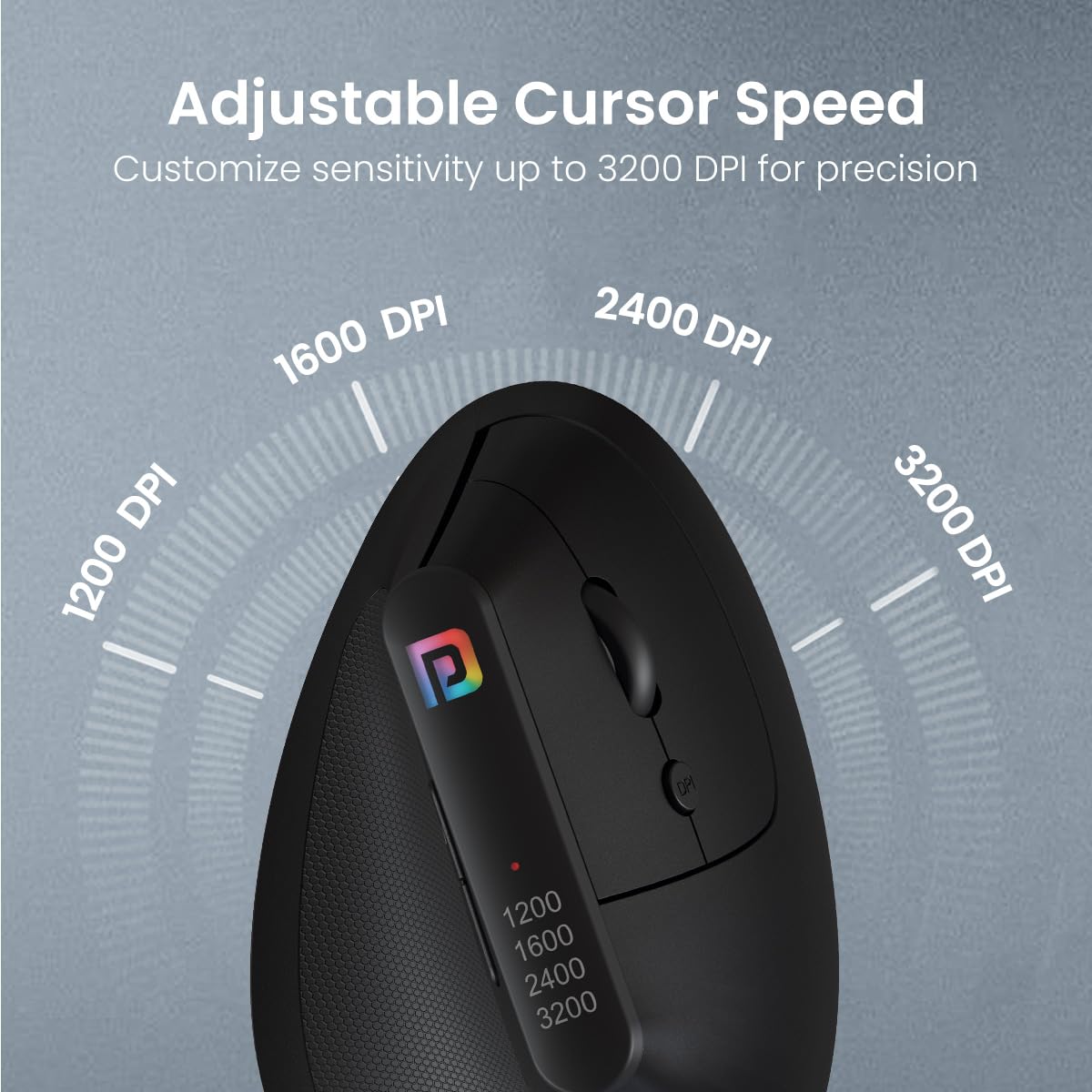
Figure 6: Visual representation of DPI adjustment levels.
Power Saving Mode
The mouse is equipped with an intelligent power-saving feature. If the mouse is not used for a period, it will automatically enter hibernation mode to conserve battery power. To wake the mouse, simply move it or click any button.
Maintenance
Cleaning
To maintain optimal performance and appearance, regularly clean your mouse. Use a soft, dry cloth to wipe the surface. For stubborn dirt, a slightly damp cloth with mild soap can be used, ensuring no liquid enters the internal components. Avoid using harsh chemicals or abrasive cleaners.
Battery Replacement
When the mouse's performance degrades or it stops responding, it may be time to replace the batteries. Follow the battery installation steps outlined in the "Setup Guide" section to replace the two AAA batteries.
Troubleshooting
| Problem | Possible Cause | Solution |
|---|---|---|
| Mouse not responding/connecting. | Low or dead batteries; USB dongle not properly connected; interference. | Replace batteries. Ensure USB dongle is fully inserted into a working USB port. Try a different USB port. Move the mouse closer to the dongle. |
| Cursor movement is erratic or jumps. | Dirty optical sensor; unsuitable surface; low battery. | Clean the optical sensor on the underside of the mouse. Use a mouse pad or a smooth, non-reflective surface. Replace batteries. |
| Buttons or scroll wheel not working. | Software issue; physical damage; low battery. | Restart your computer. Check for physical obstructions. Replace batteries. If the issue persists, contact customer support. |
| Mouse enters sleep mode too quickly. | Normal power-saving function. | This is by design to conserve battery. Simply move the mouse or click a button to wake it. |
Specifications
| Feature | Detail |
|---|---|
| Brand | Portronics |
| Model Name | Toad Ergo |
| Model Number | POR-1808 |
| Connectivity Technology | 2.4 GHz Wireless (USB Dongle) |
| Movement Detection | Optical |
| Adjustable DPI | Up to 3200 (e.g., 1200, 1600, 2400, 3200) |
| Number of Buttons | 6 (Left, Right, Scroll, DPI, Forward, Backward) |
| Power Source | Battery Powered (2 x AAA batteries, not included) |
| Estimated Battery Life | 12 Months |
| Product Dimensions (LxWxH) | 10 x 8 x 5 cm |
| Item Weight | 140 g |
| Material | ABS Plastic |
| Hand Orientation | Ambidextrous |
| Compatible Operating Systems | Windows 10, Windows 8, Mac OS |
Warranty and Support
For warranty information, technical support, or any product-related inquiries, please contact Portronics customer service.
- Manufacturer: Portronics Digital Pvt Ltd
- Address: FLOOR-1st and 2nd, B-76, Wazirpur Industrial area, Wazirpur, New Delhi, Delhi, 110052, India
- Contact Number: 9555-245-245
- For more information, visit the official Portronics Store on Amazon.
Related documentsPOR-1808


Ask a question about this manual
Ask about setup, troubleshooting, compatibility, parts, safety, or missing instructions. Manuals+ will review the question and use this page’s manual context to help answer it.