
EIZO CS2400S-LE
EIZO ColorEdge CS2400S User Manual
Model: CS2400S-LE
1. Introduction and Overview
The EIZO ColorEdge CS2400S is a high-performance 24.1-inch color management LCD monitor designed for professionals in digital photography, illustration, and graphic design. It offers exceptional color accuracy and advanced features to ensure precise visual representation.
Key features of the ColorEdge CS2400S include:
- Wide color gamut covering 99% of Adobe RGB.
- USB Type-C connectivity for video display, USB signal transmission, and up to 70W power delivery to connected notebooks.
- Smooth gradation display and reduced brightness/chromaticity unevenness through digital uniformity correction.
- Compatibility with ColorNavigator 7 color management software.
- Support for Quick Color Match tool for easy photo print color matching.
- Designed for use in Japan with AC100V, 50/60Hz input voltage.

Figure 1.1: The EIZO ColorEdge CS2400S monitor, showcasing its display capabilities including 24.1-inch WUXGA resolution, Adobe RGB, and USB Type-C connectivity.
2. Setup
2.1 Unpacking and Contents
Carefully remove the monitor and all accessories from the packaging. Ensure all components are present before proceeding with setup.
2.2 Connecting the Monitor
The ColorEdge CS2400S offers versatile connectivity options, including USB Type-C, DisplayPort, and HDMI. For optimal performance and convenience, USB Type-C is recommended for compatible devices.

Figure 2.1: Diagram illustrating USB Type-C connection. This single cable handles video display, USB signal transmission, and power delivery (up to 70W) to a connected notebook PC.
To connect your notebook PC using a single USB Type-C cable:
- Connect one end of the USB Type-C cable to the USB Type-C port on the monitor.
- Connect the other end of the USB Type-C cable to a compatible USB Type-C port on your notebook PC.
- Connect the monitor's power cable to an AC outlet (AC100V, 50/60Hz).
This connection method allows for video output, USB data transfer, and charging of your notebook PC simultaneously, reducing cable clutter.

Figure 2.2: A clean desk setup showing the EIZO ColorEdge CS2400S monitor connected to a MacBook Pro with a single USB Type-C cable, simplifying the workspace.
2.3 Adjusting the Stand
The monitor stand allows for height, tilt, swivel, and pivot adjustments to achieve an ergonomic viewing position. Gently adjust the monitor to your preferred angle and height.
3. Operating the Monitor
3.1 Power On/Off
Press the power button located on the front bezel of the monitor to turn it on or off.
3.2 Color Management and Calibration
The ColorEdge CS2400S is designed for precise color reproduction. It covers 99% of the Adobe RGB color space, ensuring accurate display of a wide range of colors, crucial for professional creative work.

Figure 3.1: Color gamut comparison showing the EIZO CS2400S's wide color coverage, including 99% of Adobe RGB, for faithful color reproduction.
For consistent and accurate color, it is recommended to regularly calibrate your monitor using the dedicated ColorNavigator 7 software. This software allows for precise adjustment of brightness, white point, and gamma settings.
3.3 Smooth Gradation and Uniformity
Each ColorEdge CS2400S monitor is adjusted at the factory to ensure smooth gradation and minimize brightness and chromaticity unevenness across the screen. This is achieved through a digital uniformity correction circuit.

Figure 3.2: Comparison of grayscale display, demonstrating how the ColorEdge monitor achieves smooth gradations and reduces unevenness compared to typical monitors, thanks to its correction circuit.
3.4 Quick Color Match
The monitor supports the free "Quick Color Match" software, which simplifies the process of matching colors between your monitor and photo prints. This tool helps ensure that what you see on screen closely matches your printed output.
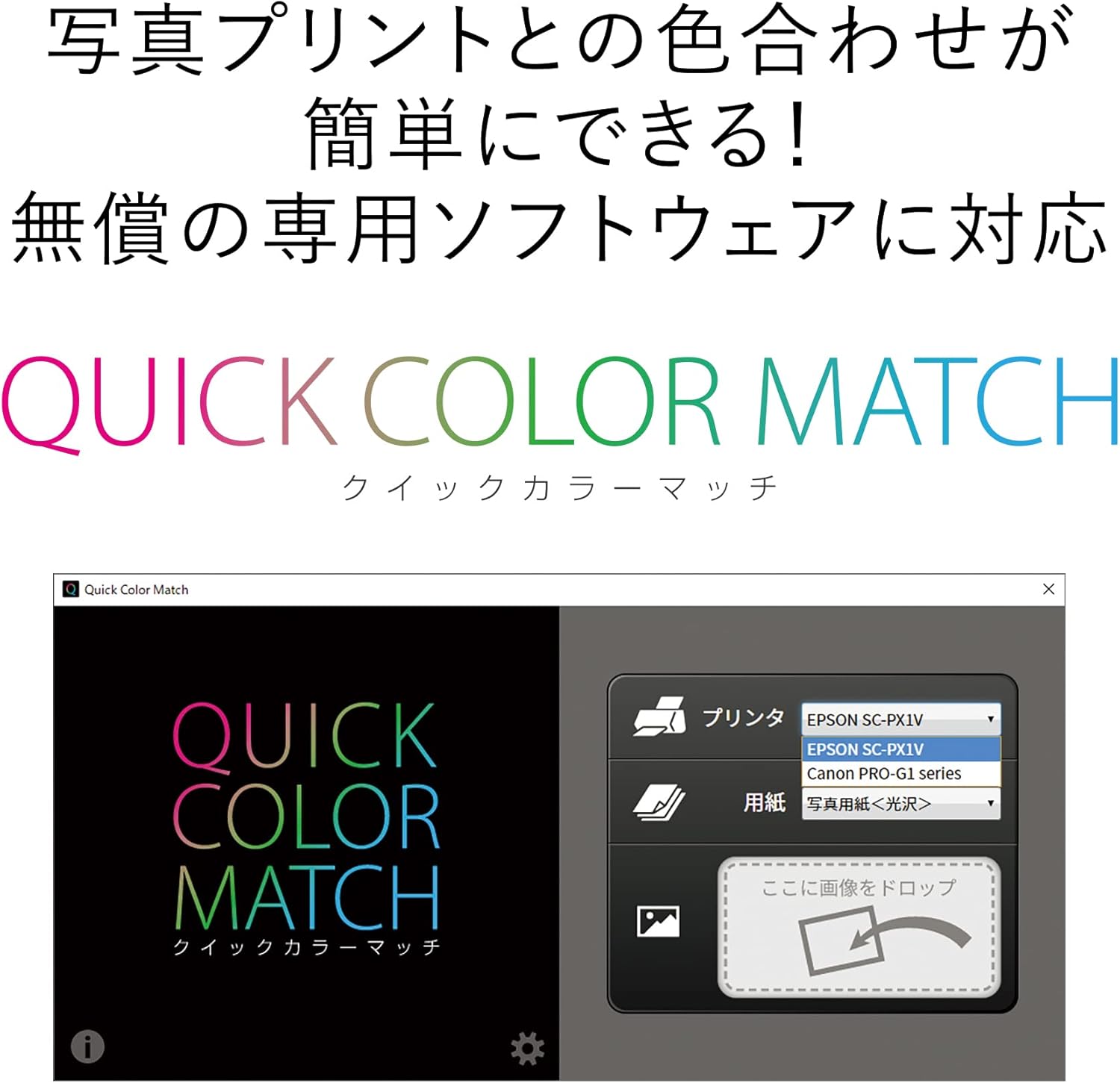
Figure 3.3: Screenshot of the Quick Color Match software interface, designed to simplify color matching for photo printing.
4. Maintenance
4.1 Cleaning the Monitor
To clean the monitor screen, gently wipe it with a soft, lint-free cloth. For stubborn marks, slightly dampen the cloth with water or a mild, non-abrasive screen cleaner. Avoid using alcohol, benzene, or strong chemical cleaners.
4.2 General Care
Keep the monitor in a well-ventilated area, away from direct sunlight, excessive heat, or moisture. Do not block the ventilation openings. Avoid placing heavy objects on the monitor or its cables.
5. Troubleshooting
If you encounter issues with your EIZO ColorEdge CS2400S monitor, please refer to the following common troubleshooting steps:
- No Power: Ensure the power cable is securely connected to both the monitor and a working electrical outlet. Check if the power indicator light is on.
- No Image: Verify that the video cable (USB Type-C, DisplayPort, or HDMI) is correctly connected to both the monitor and your computer. Ensure the correct input source is selected on the monitor. Try restarting your computer.
- Flickering or Distorted Image: Check the video cable for damage or loose connections. Ensure your graphics card drivers are up to date. Try adjusting the display resolution and refresh rate on your computer.
- Color Inaccuracy: Perform a monitor calibration using ColorNavigator 7 software. Ensure your operating system's color profile settings are correct.
- USB Type-C Power Delivery Issues: Confirm your notebook PC supports power delivery via USB Type-C. Check that the USB Type-C cable is fully inserted and functional.
If the problem persists after attempting these steps, please contact EIZO customer support for further assistance.
6. Specifications
| Feature | Specification |
|---|---|
| Brand | EIZO |
| Model Number | CS2400S-LE |
| Screen Size | 24.1 inches |
| Resolution | 1920 x 1200 (WUXGA) |
| Aspect Ratio | 16:10 |
| Panel Type | IPS (implied by color management features) |
| Color Gamut | 99% Adobe RGB coverage |
| Input Voltage | AC100V, 50/60Hz (Japan only) |
| Connectivity | USB Type-C (70W power delivery), DisplayPort, HDMI, 4x USB ports |
| Product Dimensions (W x H x D) | 55.4 x 55.1 x 24.5 cm (with stand) |
| Product Weight | 8.2 kg |
| Surface Description | Non-glare |
7. Warranty and Support
7.1 Product Warranty
The EIZO ColorEdge CS2400S monitor comes with a 5-year warranty. This warranty is valid only in Japan. Additionally, a 6-month warranty for zero bright pixels is provided from the date of purchase.

Figure 7.1: Visual representation of the 5-year warranty and the zero bright pixel warranty offered by EIZO.

Figure 7.2: Important notice regarding the product's input voltage (AC100V, 50/60Hz) and warranty validity, which are exclusively for use in Japan.
7.2 Customer Support
For technical support, warranty claims, or any inquiries regarding your EIZO ColorEdge CS2400S monitor, please contact EIZO customer service in Japan. Refer to the official EIZO website or the documentation included with your product for contact details.
Please note that this product is intended for use only in Japan, and the warranty is valid exclusively within Japan.
Related documentsCS2400S-LE


Ask a question about this manual
Ask about setup, troubleshooting, compatibility, parts, safety, or missing instructions. Manuals+ will review the question and use this page’s manual context to help answer it.