
GEOID CC400
GEOID CC400 GPS Bike Computer User Manual
Model: CC400
Introduction
The GEOID CC400 is a versatile GPS bike computer designed for cyclists seeking accurate data tracking and convenient features. It functions as a speedometer, odometer, and MTB tracker, providing essential cycling metrics. With its wireless Bluetooth and ANT+ connectivity, waterproof design, and automatic backlight display, the CC400 offers a reliable and user-friendly experience for various cycling conditions.
Key Features
- ANT+ & Bluetooth Dual Protocol: Supports connection with speed sensors, cadence sensors, and heart rate monitors using both ANT+ and Bluetooth protocols.
- High-Performance FSTN Display: Features a 1.9-inch screen for improved viewing angle, contrast, and response speed.
- Comprehensive Data & Settings: Offers 29 optional data items across 9 categories and 25 configuration options, including a lap counting function (may require unlock).
- "Infinite Screen" Design: Customizable data pages with up to 10 pages, 5 data items per page, and 9 data options per item.
- Customized "C-Button": Configurable button for functions like "Backlighting On/Off" and "Lap Counting" via the OnelapFit App.
- Auto Backlight & Time Calibration: Automatically adjusts backlight based on sunrise/sunset and calibrates time via Bluetooth and GPS.
- IPX6 Waterproof: Designed to withstand daily water exposure, suitable for light rainy conditions.
- Long Battery Life: Up to 20 hours of battery life, with support for charging during use.
- Automatic Data Distribution: Easily export and share FIT files via the OnelapFit App, with automatic synchronization to STRAVA and TrainingPeaks accounts.
- Four Positioning System: Supports GPS, BeiDou, Galileo, and Glonass global navigation systems for accurate tracking.
Setup Guide
1. Initial Charging
Before first use, fully charge the GEOID CC400 using the provided charging cable. Connect the cable to the device's charging port and a standard USB power source. The device will indicate charging status on its display.

Image: Front view of the GEOID CC400 GPS Bike Computer, showing its display and buttons.
2. Mounting the Device
Attach the CC400 to your bicycle's handlebar using the included handlebar mount. Ensure the mount is securely fastened and the device clicks firmly into place to prevent dislodging during rides.
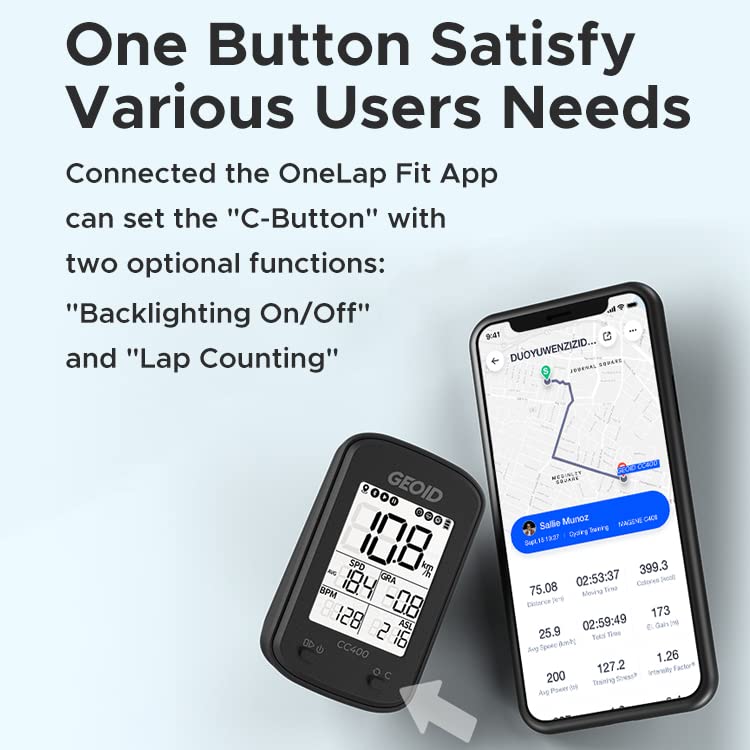
Image: The GEOID CC400 mounted on a bicycle handlebar, demonstrating its placement during use.
3. Powering On/Off
To power on the device, press and hold the left button for several seconds until the display illuminates and a beep is heard. To power off, repeat the same process.
4. Connecting to OnelapFit App
Download the OnelapFit App from your smartphone's app store. Open the app and follow the instructions to pair your GEOID CC400 via Bluetooth. This connection is essential for data synchronization, customization, and firmware updates.

Image: A smartphone screen displaying the OnelapFit app's data export interface, showing options for Strava and TrainingPeaks.
5. GPS Signal Acquisition
For accurate speed and distance readings, ensure the device acquires a GPS signal. This is best done outdoors in an open area. The GPS symbol on the display will become steady once a signal is locked. If it remains intermittent, the device may not provide accurate GPS-based data.
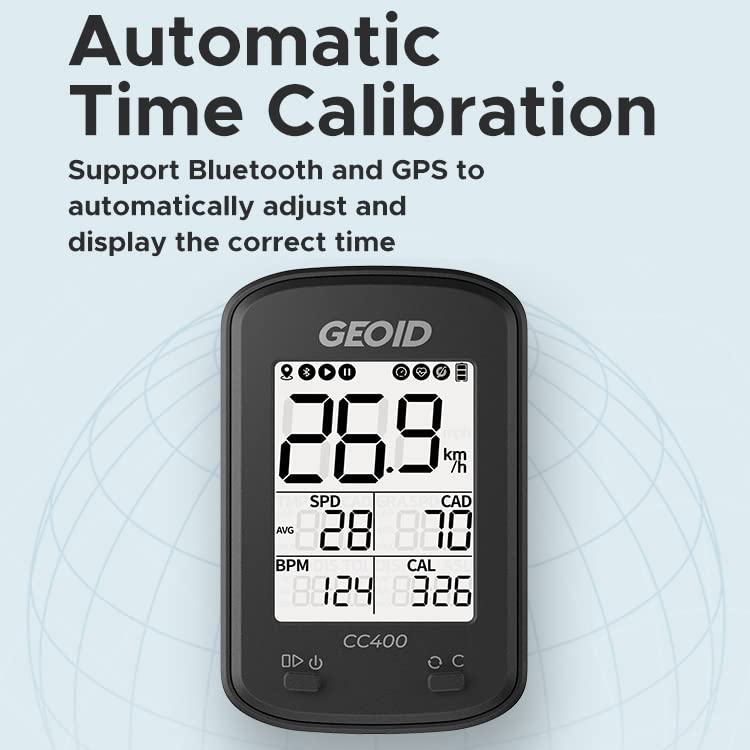
Image: The GEOID CC400 displaying its screen with GPS signal indicators, illustrating the device's ability to connect to multiple satellite systems.
Operating Instructions
1. Navigating Data Pages
The CC400 allows for customization of up to 10 data pages. Use the right button (C-Button) to cycle through different data displays during your ride. Each page can show up to 5 data items, chosen from 9 available options.
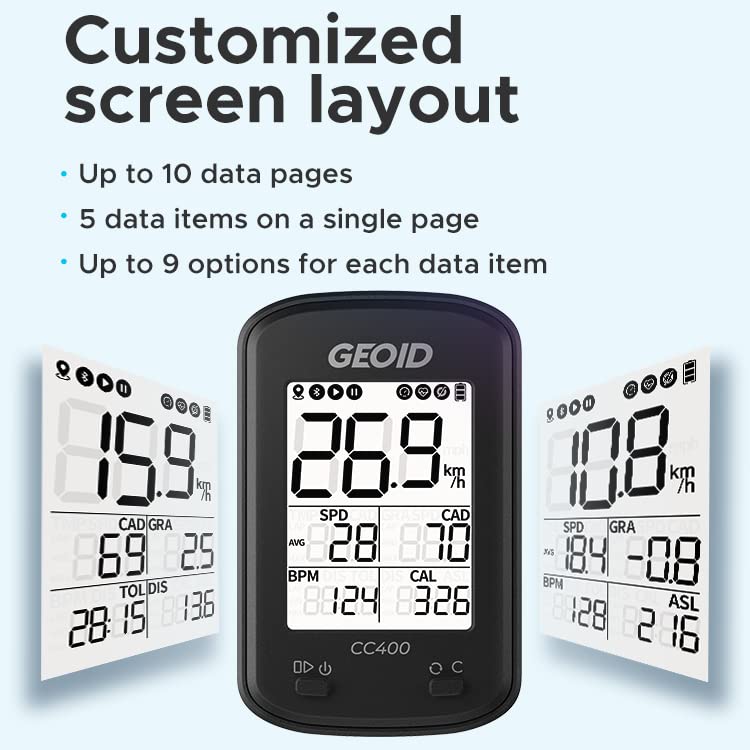
Image: Three different screen layouts on the GEOID CC400, demonstrating the customizable display options for various data points.
2. Customizing the C-Button
Through the OnelapFit App, you can assign two optional functions to the C-Button: "Backlighting On/Off" and "Lap Counting". Refer to the app's settings for configuration.

Image: The GEOID CC400 next to a smartphone displaying the OnelapFit app, illustrating how the C-Button functions can be customized.
3. Automatic Backlight
The device automatically calculates sunrise and sunset times based on GPS data and turns on the backlight at night for improved visibility. This feature ensures readability in low-light conditions without manual intervention.

Image: The GEOID CC400 display with an illuminated backlight, indicating the automatic backlight feature for night use.
4. Time Calibration
The CC400 supports automatic time calibration using both Bluetooth and GPS, ensuring the displayed time is always accurate.
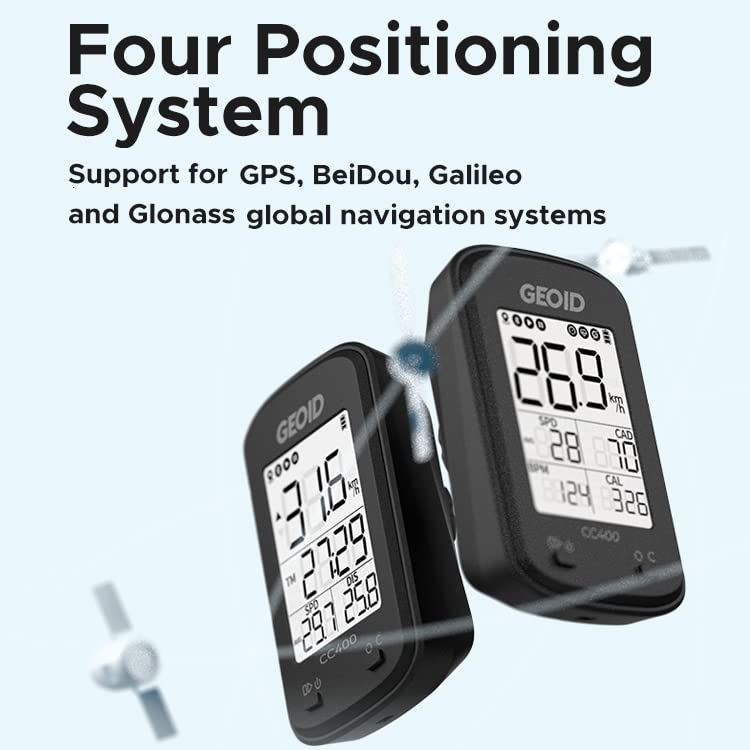
Image: The GEOID CC400 display, highlighting the automatic time calibration feature, ensuring accurate time display.
5. Data Synchronization
After your ride, open the OnelapFit App on your smartphone. The device will automatically synchronize your activity data. From the app, you can export FIT files and automatically distribute them to linked STRAVA and TrainingPeaks accounts.
Maintenance
- Cleaning: Wipe the device with a soft, damp cloth. Avoid using harsh chemicals or abrasive materials. If used in rainy conditions, clean the device thoroughly after use.
- Water Resistance: The CC400 is IPX6 waterproof, meaning it can withstand strong jets of water. However, it is not designed for submersion. Avoid prolonged exposure to heavy rain or direct water spray from high-pressure sources.
- Storage: Store the device in a cool, dry place away from direct sunlight and extreme temperatures.
- Battery Care: To prolong battery life, avoid fully discharging the device frequently. Charge it regularly, especially if storing for extended periods.

Image: The GEOID CC400 with water droplets on its screen, demonstrating its IPX6 waterproof capability.
Troubleshooting
- Device not powering on:
- Ensure the device is fully charged. Press and hold the left button for several seconds until it powers on. If it still doesn't turn on, try charging it for a longer period.
- No GPS signal/inaccurate readings:
- Ensure you are in an open outdoor area with a clear view of the sky. The GPS symbol should be steady, not blinking. If issues persist, try restarting the device. For greater precision or in areas with poor GPS signal, consider connecting an external speed sensor.
- Cannot connect to OnelapFit App:
- Ensure Bluetooth is enabled on your smartphone and the CC400. Make sure the app is updated to the latest version. Try restarting both the device and your phone. If pairing fails, try unpairing and re-pairing the device in the app's settings.
- Data not synchronizing to Strava/TrainingPeaks:
- Verify that your Strava and TrainingPeaks accounts are correctly linked within the OnelapFit App. Ensure you have an active internet connection on your smartphone when attempting to synchronize data.
Specifications
| Attribute | Detail |
|---|---|
| Brand | GEOID |
| Model Number | CC400 |
| Color | Black |
| Screen Size | 1.9 Inches |
| Display Type | LCD (FSTN) |
| Connectivity Technology | ANT+, Bluetooth |
| Sensor Type Supported | Speed Sensor, Cadence Sensor, Heart Rate Monitor |
| Battery Cell Composition | Lithium Polymer |
| Battery Life | Up to 20 hours |
| International Protection Rating | IPX6 (Waterproof) |
| Mounting Type | Handlebar Mount |
| Human Interface Input | Buttons |
| GPS Systems | GPS, BeiDou, Galileo, Glonass |
| Item Weight | 120 g |
| Included Components | Charging Cable |
Warranty and Support
GEOID provides a 12-month quality assurance service for the CC400 GPS Bike Computer. For any questions or assistance during use, please contact GEOID customer support. They aim to respond within 24 hours.
For further support and resources, visit the official GEOID website or refer to the OnelapFit App for detailed guides and FAQs.
Manufacturer: GEOID
Contact Information: info@geoidsports.com
Related documentsCC400


Ask a question about this manual
Ask about setup, troubleshooting, compatibility, parts, safety, or missing instructions. Manuals+ will review the question and use this page’s manual context to help answer it.