
1. Introduction
The AUTOOL SVB302 Borescope Camera is a versatile inspection tool designed for examining hard-to-reach areas. It features a 210° two-way articulating probe, 6 LED lights for illumination, and connects to your Android or iOS smartphone for real-time viewing and recording. This manual provides essential information for the safe and effective use of your borescope camera.

Image 1.1: The AUTOOL SVB302 Borescope Camera with its carrying case and included accessories.
2. What's in the Box
Please check the package contents upon receipt to ensure all items are present:
- AUTOOL SVB302 Borescope Camera Unit (with integrated probe and phone holder)
- USB Charging Cable
- User Manual
- Carrying Case
3. Safety Information
Read all safety warnings and instructions before using this product to prevent electric shock, fire, or serious injury.
- Do not use the borescope in environments with flammable or explosive gases.
- Keep the device away from water and other liquids, except for the waterproof probe.
- Do not attempt to disassemble or modify the device. Repairs should only be performed by authorized personnel.
- Ensure the device is fully charged before use to avoid interruptions during inspection.
- The probe features a high-temperature alarm function. If the probe reaches extreme temperatures, the video signal will automatically cut off to protect the probe. Allow the probe to cool before resuming operation.
- Avoid direct eye exposure to the LED lights.
4. Setup Guide
4.1 Charging the Device
Before first use, fully charge the borescope camera. Connect the provided USB charging cable to the device's USB interface and to a standard 5V USB power adapter (not included). The charging indicator will show the charging status. A full charge typically takes 2-3 hours and provides 2-3 hours of operating time.

Image 4.1: The borescope camera being charged, indicating a 2000mAh battery capacity.
4.2 App Installation
The AUTOOL SVB302 requires a dedicated application for operation. Scan the QR code located on the device or refer to the manual for direct download links for Android and iOS devices.
- Locate the QR code on the borescope unit.
- Use your smartphone's camera or a QR code scanner app to scan the code.
- Follow the on-screen prompts to download and install the application.
- Grant necessary permissions to the app for full functionality.

Image 4.2: App installation process, showing the QR code on the device and the app download interface on a smartphone.
4.3 Connecting to Your Smartphone
The borescope connects to your smartphone via USB 2.0. The integrated phone holder accommodates smartphones with screen sizes between 3.5 and 6.3 inches (adjustable range 5.5-10.5 cm / 2.1-4.1 inches).
- Securely place your smartphone into the adjustable phone holder on the borescope unit.
- Connect the borescope to your smartphone using the appropriate USB cable (USB-C, Micro USB, or Lightning adapter may be required depending on your phone model, not all adapters are included).
- Open the installed borescope application on your smartphone. The app should automatically detect the device and display the live video feed.

Image 4.3: The borescope connected to a smartphone, illustrating the adjustable phone holder and compatibility with Android and iOS devices.
5. Operating Instructions
5.1 Powering On/Off
Press and hold the power button on the borescope handle to turn the device on or off. The LED indicator will illuminate when the device is powered on.
5.2 Articulating the Probe
The SVB302 features a 210° dual-directional articulating probe, allowing precise navigation in confined spaces. Use the rotation wheel on the handle to bend the probe tip up to 210° in two directions. This flexibility is crucial for inspecting engines, exhaust systems, and other complex structures.

Image 5.1: Illustration of the 210° dual-directional articulation capability of the probe, highlighting its flexibility and key dimensions.
5.3 Adjusting LED Illumination
The probe tip is equipped with 6 high-intensity LED lights. Use the light control button on the handle to cycle through three adjustable brightness levels (Level 1, Level 2, Level 3) or turn the lights off. Adjust the brightness according to the inspection environment for optimal visibility.

Image 5.2: Visual representation of the three adjustable brightness levels for the 6 LED lights on the borescope probe.
5.4 Capturing Photos and Videos
Once connected to the app, you can capture high-definition images and videos. The camera provides a 1280×720 resolution for clear visuals.
- Photo Capture: Press the photo button on the borescope handle or tap the corresponding icon in the app to take a still image.
- Video Recording: Press the video button on the borescope handle or tap the corresponding icon in the app to start/stop video recording.
- All captured media will be saved directly to your smartphone's storage via the app.

Image 5.3: The borescope interface on a smartphone, demonstrating the ability to capture photos and videos with the HD camera.
5.5 High-Temperature Protection
The borescope probe is equipped with a smart protection system. In environments with extreme high temperatures (e.g., exhaust systems), the device will automatically cut off the video signal to prevent damage to the probe. A warning may appear on the screen. Allow the probe to cool down before resuming operation.
5.6 Multilingual Settings
The application supports multiple languages. You can change the language settings within the app interface. Supported languages include English, French, Spanish, German, Italian, Japanese, and Chinese.

Image 5.4: Visual display of the seven languages supported by the borescope application.
6. Maintenance
6.1 Cleaning the Probe
The 1-meter flexible metal hose and probe tip are IP67 waterproof and dustproof. After use in dirty or wet environments, clean the probe with a damp cloth or rinse it gently with water. Ensure the probe is dry before storage. Do not immerse the main handle unit in water.
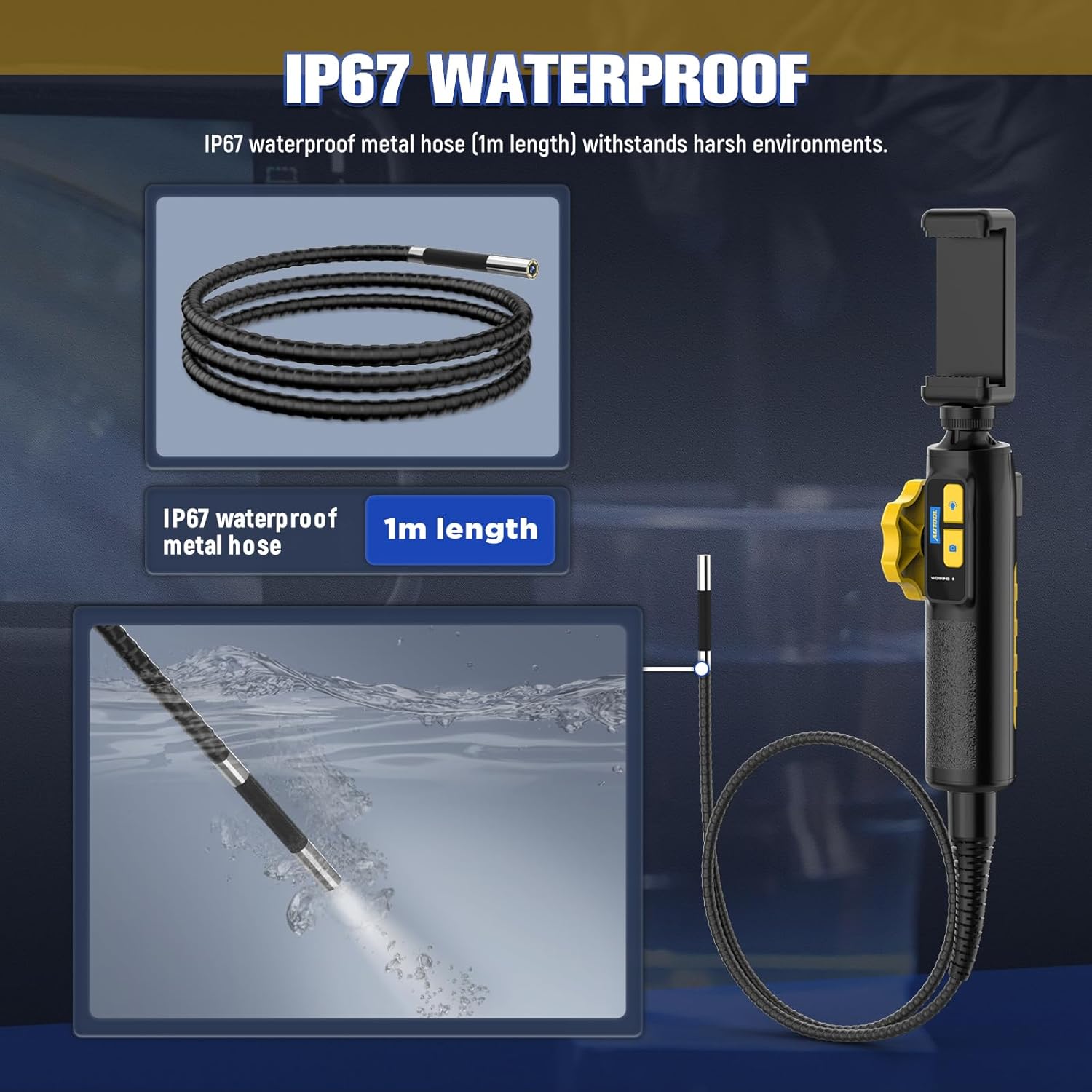
Image 6.1: Illustration of the IP67 waterproof rating of the borescope's metal hose, indicating its resistance to water and dust.
6.2 Battery Care
To prolong battery life, avoid fully discharging the battery frequently. Charge the device regularly, even if not in use for extended periods. Store the device in a cool, dry place.
6.3 Storage
When not in use, store the borescope camera and its accessories in the provided carrying case to protect it from dust, moisture, and physical damage.
7. Troubleshooting
| Problem | Possible Cause | Solution |
|---|---|---|
| No image on smartphone screen. | Device not powered on; App not open; Loose USB connection; Insufficient battery. | Ensure device is powered on; Open the app; Reconnect USB cable; Charge the device. |
| Image is blurry or dark. | Insufficient LED brightness; Dirty camera lens; Incorrect focal distance. | Adjust LED brightness; Clean the camera lens; Ensure object is within 30-100mm depth of field. |
| Probe articulation not working. | Mechanism obstruction; Device malfunction. | Check for any physical obstructions; If issue persists, contact customer support. |
| High-temperature warning / Video signal cut off. | Probe operating in excessively hot environment. | Remove probe from hot area and allow it to cool down before resuming use. |
8. Specifications
Technical specifications for the AUTOOL SVB302 Borescope Camera:
| Feature | Detail |
|---|---|
| Model | SVB302 |
| Camera Diameter | 6.45 mm (0.25 inch) |
| Cable Length | 1 meter (3 feet) |
| Resolution | 1280×720 (HD) |
| Depth of Field | 30-100 mm (1.18-3.94 inches) |
| Angle of View | 70° |
| Articulating Angle | Max. 210° (Two-way) |
| Bending Radius | 35 mm (1.38 inches) |
| LED Lights | 6 high-intensity LEDs with 3-level adjustable brightness |
| Waterproof Level | IP67 (probe only) |
| Battery | 2000mAh Lithium Polymer (included) |
| Operating Time | 2-3 hours |
| Charging Time | Approx. 2-3 hours |
| USB Interface | USB 2.0 |
| Operating Environment | -10°C to 80°C |
| Humidity | 15-90% |
| High Temperature Protection | Intelligent protection, automatic shutdown |

Image 8.1: A visual summary of the AUTOOL SVB302 Borescope Camera's technical specifications.
9. Warranty and Support
The AUTOOL SVB302 Borescope Camera comes with a Three Years Warranty from the date of purchase. This warranty covers manufacturing defects and material faults under normal use.
9.1 Warranty Coverage
- During the warranty period, AUTOOL will provide a replacement or solution for any quality problems.
- The warranty does not cover damage caused by misuse, unauthorized modification, accident, or neglect.
9.2 Technical Support
AUTOOL provides lifetime technical support for the SVB302 borescope. If you encounter any issues or have questions regarding the product, please contact AUTOOL customer service. Our support team aims to respond within 24 hours.
For support, please visit the official AUTOOL website or refer to the contact information provided in your product packaging.


