
Product Overview
The Volcora Retail and Restaurant POS Terminal Machine is a robust point-of-sale solution designed for small businesses. It operates on Android 11 OS and features a 15.6-inch capacitive touchscreen, providing a user-friendly interface for various business applications.

Figure 1: Front view of the Volcora POS Terminal, showing the 15.6-inch touchscreen display and a user interacting with the interface. The terminal features a sleek white design with a sturdy base.
This terminal is equipped with a Rockchip RK3566 High-Performance CPU, 2GB of memory, and 16GB of internal storage. It supports a wide range of connectivity options including Wi-Fi, Bluetooth, Audio, USB 2.0, USB 3.0, and Ethernet ports, making it versatile for different business environments.

Figure 2: The terminal's screen showing the Android operating system interface with various applications. Key specifications like Android 11, Rockchip RK3566 CPU, 2GB RAM, 16GB ROM, and 1366x768 resolution are highlighted.
Its compact and sleek design ensures minimal counter space usage, while the heavy-duty metal base provides stability. The 15.6-inch capacitive LCD touchscreen offers a 1366x768 high-resolution display, designed for clarity and ease of use, with a lifespan exceeding 15,000 hours.

Figure 3: A composite image illustrating the wide 15.6-inch LCD touch screen, the sleek curved machine body, and the sturdy metal base that ensures stability for the POS terminal.
Setup Instructions
Follow these steps to set up your Volcora POS Terminal:
- Unboxing: Carefully remove all components from the packaging. Ensure you have the Volcora 15.6" Single Screen Android 11 POS Terminal, Power Adapter, Registration Card, and User Manual.
- Placement: Place the terminal on a stable, flat surface, ensuring adequate ventilation around the unit.
- Power Connection: Connect the provided Power Adapter to the DC 12V input port on the back of the terminal. Plug the other end of the power adapter into a standard electrical outlet.
- Peripheral Connections: Connect any necessary peripherals such as barcode scanners, receipt printers, or cash drawers to the available USB ports (6x USB), Serial port, or RJ11 port as required by your POS setup.
- Network Connection:
- Wi-Fi: The terminal is Wi-Fi capable. Once powered on, you can connect to your wireless network through the Android settings.
- Ethernet: For a wired connection, plug an Ethernet cable into the Ethernet port on the back of the terminal.
- Initial Boot-up: Press the power button (usually located on the side or back of the unit) to turn on the terminal. The system will boot up to the Android 11 OS.

Figure 4: The rear panel of the Volcora POS Terminal, illustrating the location of the Serial port, DC 12V input, Audio input, USB ports (6x), RJ11 port, and Ethernet port. The terminal is also Wi-Fi capable.
Operating Instructions
The Volcora POS Terminal operates like a standard Android tablet, providing a familiar and intuitive user experience.
Basic Operation
- Touchscreen Navigation: Use your fingers to tap, swipe, and pinch on the 15.6-inch capacitive touchscreen to navigate the Android interface and applications.
- Google Play Store: The terminal comes with the Google Play Store pre-installed. You can download and install a wide range of POS applications (e.g., Volcora POS, Square, Shopify) and other business-related software directly from the store.
- Application Management: Install, update, and uninstall applications through the Google Play Store or Android settings.
- Connectivity: Ensure stable Wi-Fi or Ethernet connection for online operations. Bluetooth can be used to connect compatible wireless peripherals.
Software Compatibility
The Android 11 OS provides broad compatibility with various point-of-sale software. Before installing, verify the software's system requirements and compatibility with Android 11.
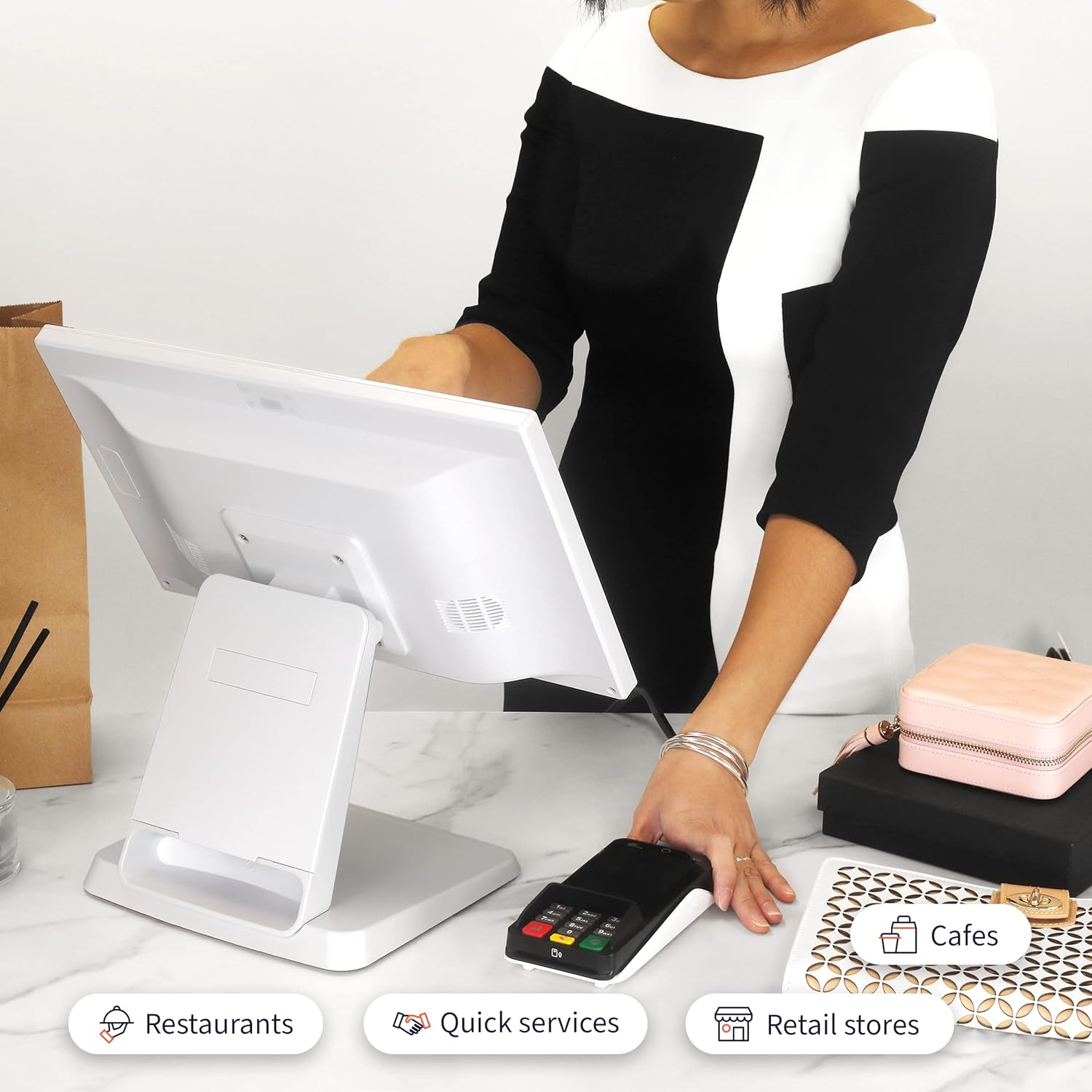
Figure 5: The Volcora POS Terminal integrated into different business environments, demonstrating its versatility for restaurants, quick service establishments, and retail stores.
Maintenance
Proper maintenance ensures the longevity and optimal performance of your Volcora POS Terminal.
- Cleaning: Regularly wipe the screen and exterior surfaces with a soft, lint-free cloth. For stubborn marks, use a screen cleaner specifically designed for electronic displays. Avoid abrasive cleaners or solvents.
- Dust Management: Keep the terminal free from dust accumulation, especially around ventilation areas, to prevent overheating. Use compressed air to gently clear dust from ports if necessary.
- Liquid Exposure: While the screen is splash-proof, avoid direct exposure to large amounts of liquid. In case of spills, immediately power off the device and wipe it dry.
- Software Updates: Periodically check for Android system updates and application updates through the Google Play Store to ensure security and performance.
- Environmental Conditions: Operate the terminal within recommended temperature and humidity ranges to prevent damage. Avoid extreme heat, cold, or direct sunlight.
Troubleshooting
This section provides solutions to common issues you might encounter with your Volcora POS Terminal. If the problem persists, please contact customer support.
- Terminal Does Not Power On:
- Ensure the power adapter is securely connected to both the terminal and a working electrical outlet.
- Verify the power outlet is functional by plugging in another device.
- Touchscreen Unresponsive:
- Restart the terminal.
- Ensure the screen is clean and free of debris or liquids.
- No Network Connection (Wi-Fi/Ethernet):
- For Wi-Fi, check if Wi-Fi is enabled in settings and if you are connected to the correct network with the correct password.
- For Ethernet, ensure the cable is properly connected to both the terminal and the router/modem. Check router status.
- Restart the terminal and your network equipment (router/modem).
- Applications Crashing or Not Installing:
- Ensure sufficient storage space is available on the device.
- Clear the cache and data for the problematic app or Google Play Store from Android settings.
- Check for system updates as some issues might be resolved with a firmware update (as noted in customer feedback regarding Shopify).
- Peripheral Devices Not Recognized:
- Ensure the peripheral is properly connected to the correct port.
- Check if the peripheral requires specific drivers or software to be installed on the Android OS.
- Test the peripheral with another device if possible to rule out a device malfunction.
Specifications
Detailed technical specifications for the Volcora Retail and Restaurant POS Terminal Machine (Model: 530006).

Figure 6: A visual representation of the Volcora POS Terminal's dimensions, indicating a 15.6-inch screen size and an approximate weight of 8.5 lbs.
| Feature | Detail |
|---|---|
| Brand | Volcora |
| Model Number | 530006 |
| Operating System | Android 11 |
| CPU | Rockchip RK3566 High-Performance CPU |
| Memory (RAM) | 2GB |
| Storage (ROM) | 16GB |
| Display Size | 15.6 inches |
| Display Type | Capacitive LCD Touchscreen |
| Resolution | 1366x768 |
| Connectivity | Wi-Fi, Bluetooth, Ethernet, USB 2.0, USB 3.0, Audio Input, Serial Port, RJ11 |
| Product Dimensions | 16"D x 4"W x 16"H |
| Item Weight | 10.18 pounds |
| Color | White |
| Material | Metal (Base) |
| Special Feature | Anti-Theft (implied by base design) |
| UPC | 810041567642 |
Warranty and Support
Volcora is committed to providing reliable products and excellent customer service.
Limited Lifetime Warranty
All Volcora products, including this POS Terminal, come with a limited lifetime warranty. This warranty covers manufacturing defects and ensures peace of mind regarding the product's quality and durability. For specific terms and conditions of the warranty, please refer to the registration card included in the box or contact Volcora customer service.
Customer Support
Should you require any assistance with setup, operation, troubleshooting, or warranty claims, Volcora's US-based Customer Service team is available to help. They are dedicated to providing support, especially for users who may not be tech-savvy.
For support, please visit the official Volcora website or refer to the contact information provided in your product packaging.

