
Introduction
This manual provides detailed instructions for the installation, operation, and maintenance of your Aruba AP-504 Dual Band 802.11ax Wireless Access Point. The AP-504 is designed to deliver high-performance wireless connectivity in various indoor environments, supporting the latest Wi-Fi 6 (802.11ax) standard, dual-band operation (2.4 GHz and 5 GHz), MIMO technology, and Bluetooth 5.
Please read this manual thoroughly before attempting to install or operate the device to ensure proper functionality and safety.
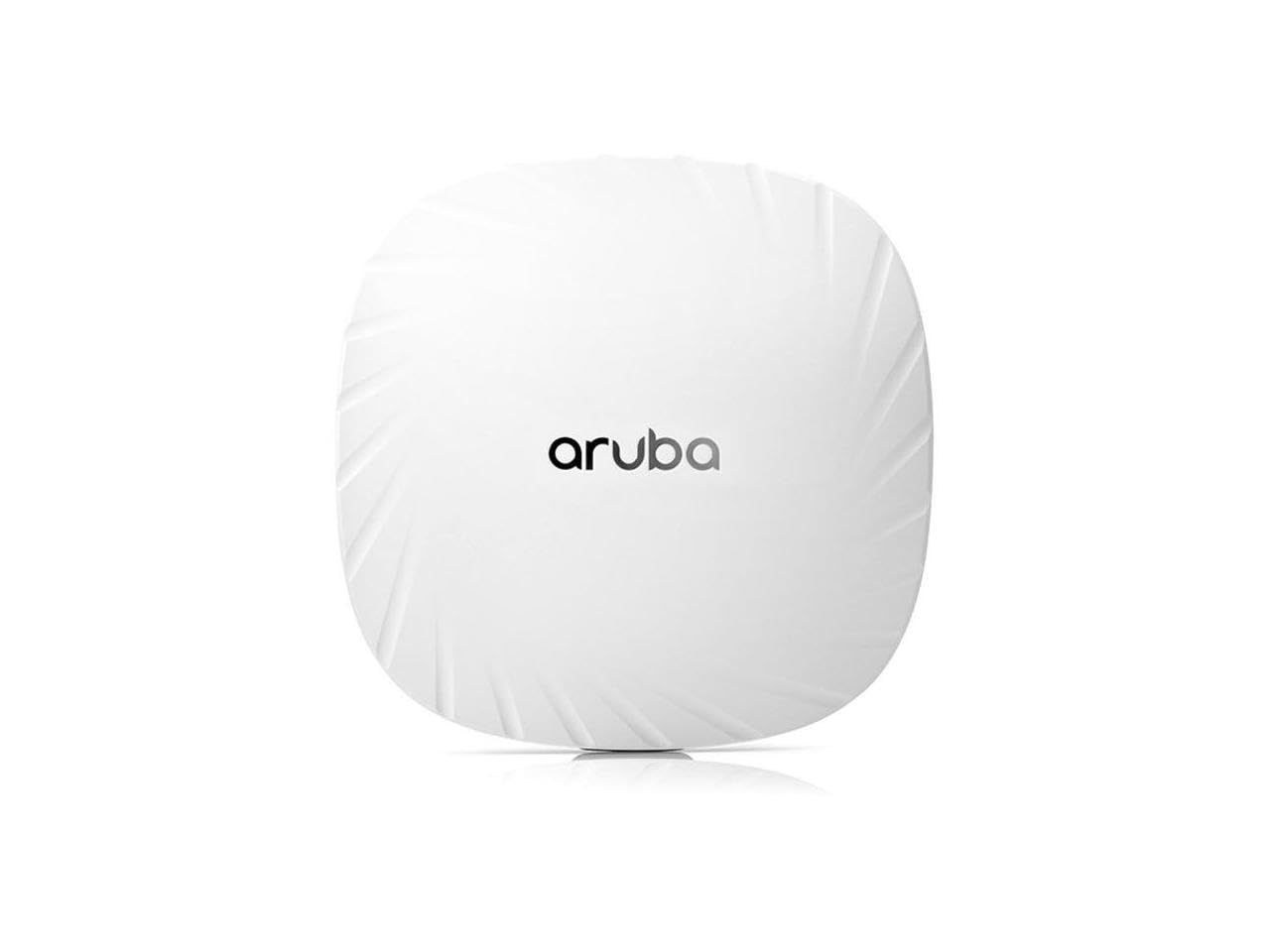
Figure 1: Front view of the Aruba AP-504 Wireless Access Point, showing its compact design suitable for indoor mounting.
Setup
1. Unpacking
Carefully remove all components from the packaging. Verify that all items listed in the packing slip are present. Retain the packaging for future transport or storage.
2. Mounting the Access Point
The Aruba AP-504 is designed for indoor deployment and can be mounted on a ceiling or wall. Ensure the mounting location provides optimal signal coverage and is free from obstructions.
- Select Location: Choose a central location for best Wi-Fi coverage.
- Secure Bracket: Attach the appropriate mounting bracket (sold separately or included with specific kits) to the desired surface using suitable screws and anchors.
- Attach AP: Align the AP-504 with the mounting bracket and twist it clockwise until it locks securely into place.
3. Connecting Power
The AP-504 can be powered using Power over Ethernet (PoE) or an optional external power adapter.
- PoE (Recommended): Connect an Ethernet cable from a PoE-enabled switch or PoE injector to the RJ-45 network port on the AP-504.
- External Power Adapter (Optional): If not using PoE, connect a compatible 12V DC power adapter (not included) to the DC power jack on the AP-504 and plug it into a power outlet.
4. Network Connection
Connect an Ethernet cable from your network infrastructure (e.g., router or switch) to the Gigabit Ethernet (RJ-45) port on the AP-504. This connection provides both data and, if using PoE, power to the device.
Operating
1. Initial Configuration
After connecting power and network, the AP-504 will boot up. The LED indicators will show its status. For initial configuration, the AP-504 typically obtains an IP address via DHCP. You can access the management interface via a web browser.
- Discover IP Address: Use a network scanning tool or check your DHCP server to find the IP address assigned to the AP-504.
- Access Web Interface: Open a web browser and enter the AP's IP address.
- Login: Enter the default username and password (refer to the quick start guide or manufacturer's documentation for default credentials).
- Configure Settings: Follow the on-screen wizard to set up Wi-Fi networks (SSIDs), security protocols (WPA2/WPA3), and other network parameters.
2. Basic Operation
Once configured, the AP-504 will broadcast your Wi-Fi networks on both 2.4 GHz and 5 GHz bands. Client devices can connect to these networks using the configured passwords.
- Dual-Band Connectivity: The AP-504 supports simultaneous operation on both 2.4 GHz and 5 GHz frequencies, allowing for flexible client connections.
- MIMO Technology: Utilizes Multiple-Input, Multiple-Output technology to enhance wireless performance and range.
- Bluetooth 5: Integrated Bluetooth 5 for location services and IoT applications.
Maintenance
1. Firmware Updates
Regularly check for and install firmware updates from the manufacturer's website. Firmware updates often include security patches, bug fixes, and performance enhancements.
- Download Firmware: Obtain the latest firmware file from the official HP/Aruba support portal.
- Access Management Interface: Log in to the AP-504's web interface.
- Upload and Install: Navigate to the firmware update section, upload the downloaded file, and follow the prompts to initiate the update. Do not power off the device during this process.
2. Cleaning
Keep the access point clean to ensure proper ventilation and operation. Use a soft, dry cloth to wipe the exterior. Do not use liquid cleaners or aerosols directly on the device.
Troubleshooting
This section provides solutions to common issues you might encounter with your Aruba AP-504.
| Issue | Possible Cause | Solution |
|---|---|---|
| AP does not power on | No power, faulty cable, or power source issue. | Verify PoE connection or external power adapter. Check power outlet. Try a different Ethernet cable or power adapter. |
| No network connectivity | Ethernet cable not connected, incorrect network settings, or DHCP issue. | Ensure Ethernet cable is securely connected. Check network configuration in the AP's web interface. Verify DHCP server operation. |
| Poor Wi-Fi performance | Interference, improper placement, or outdated firmware. | Relocate the AP to minimize interference. Ensure optimal mounting. Update firmware to the latest version. Adjust channel settings. |
| Cannot access web interface | Incorrect IP address, network issue, or firewall. | Verify the AP's IP address. Ensure your computer is on the same network segment. Temporarily disable client firewall. |
Specifications
Key technical specifications for the Aruba AP-504 Wireless Access Point:
- Model: AP-504
- Brand: Aruba (an HP Enterprise company)
- Wireless Standards: 802.11ax (Wi-Fi 6)
- Frequency Bands: 2.4 GHz, 5 GHz (Dual Band)
- Maximum Data Rate: Up to 1.49 Gbit/s
- Antenna: External (MIMO Technology)
- Ethernet Ports: 1 x Gigabit Ethernet (RJ-45)
- Bluetooth: Bluetooth 5
- Mounting: Indoor (Ceiling/Wall)
- Compliance: TAA Compliant
- Manufacturer: Hewlett Packard
Warranty and Support
The Aruba AP-504 Wireless Access Point is manufactured by Hewlett Packard. For specific warranty information, including terms and conditions, please refer to the warranty card included with your product or visit the official HP/Aruba support website.
For technical support, documentation, and software downloads, please visit the official Aruba support portal:
https://www.arubanetworks.com/support/
Always ensure you are using official support channels for assistance.


