
1. Introduction
The Acer Predator Aethon 303 is a high-performance wired mechanical gaming keyboard designed for durability and precision. It features Kailh Blue mechanical switches, customizable RGB illumination, and advanced anti-ghosting technology to ensure responsive and accurate input during intense gaming sessions. This manual provides detailed instructions for setting up, operating, maintaining, and troubleshooting your keyboard.
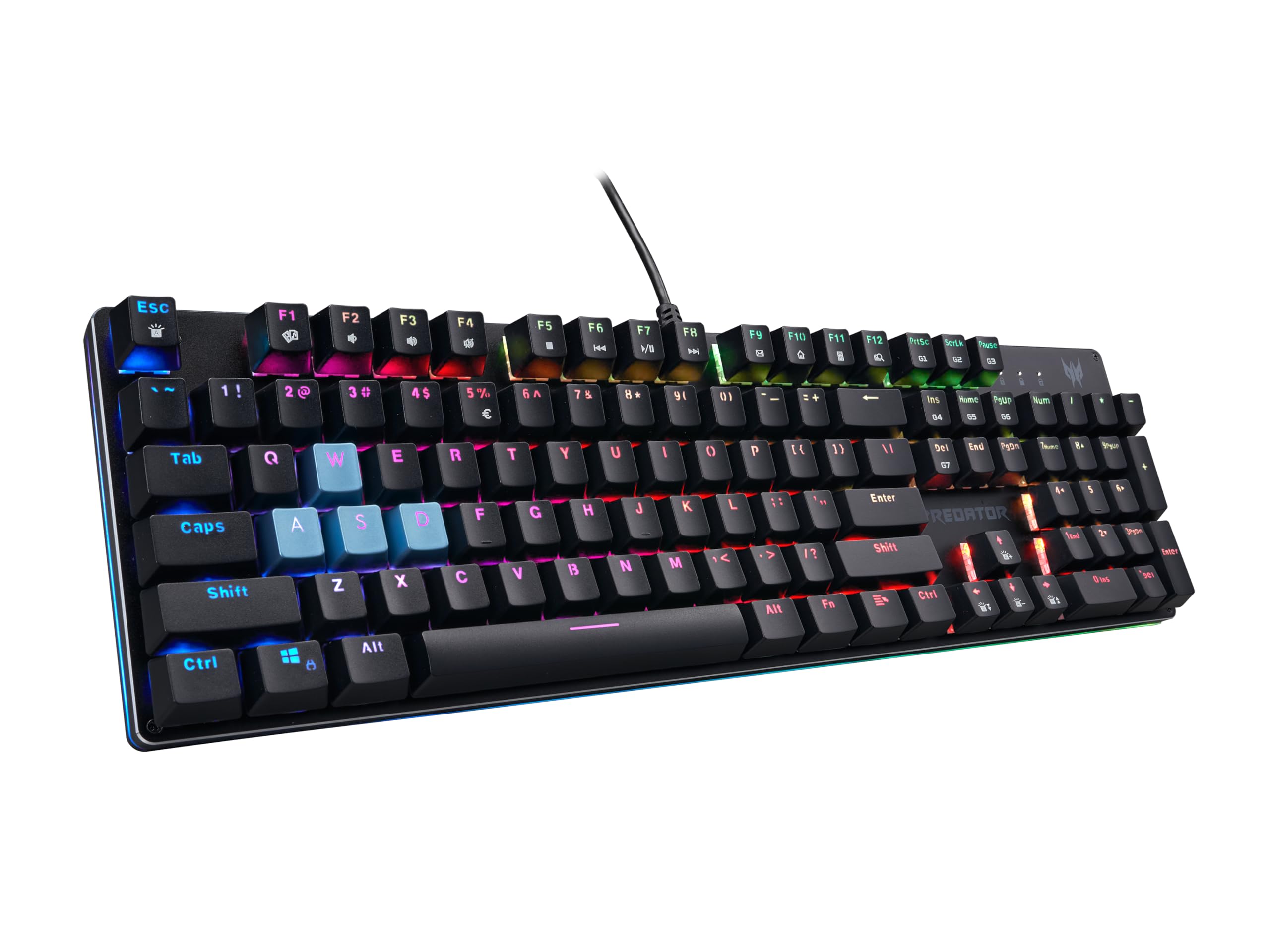
Figure 1: Acer Predator Aethon 303 Wired Gaming Keyboard. This image displays the full layout of the keyboard with its RGB lighting active.
2. Setup
Follow these steps to connect and prepare your Acer Predator Aethon 303 keyboard for use:
- Unpack the Keyboard: Carefully remove the keyboard and any accessories (such as the Quick Start Guide and Warranty Booklet) from the packaging.
- Connect to Computer: Plug the USB-A connector of the keyboard's braided cable into an available USB port on your computer. The keyboard is plug-and-play, and your operating system (Windows 7, 8, 8.1, 10, or 11) should automatically detect and install the necessary drivers.
- Initial Power-On: Upon successful connection, the keyboard's RGB lighting will illuminate, indicating it is powered on and ready for use.
Video 1: Overview of the Acer Predator Aethon 303 keyboard's features, including its RGB lighting effects and overall performance.
3. Operation
The Predator Aethon 303 keyboard offers various features to enhance your gaming and typing experience.
3.1. Kailh Blue Mechanical Switches
The keyboard is equipped with Kailh Blue mechanical switches, known for their tactile bump and audible click, providing distinct feedback with each keystroke. These switches are designed for a lifespan of over 50 million actuations, ensuring long-term reliability.

Figure 2: Close-up view of the Kailh Blue mechanical switches, emphasizing their design and durability.
3.2. RGB Illumination and Effects
The keyboard features RGB illuminated keys and three sidelight effects. You can customize the lighting with 12 different backlight effects, 5 pre-set gaming lighting modes, and 7 levels of backlit brightness and move speed.
- Changing Backlight Effects: Use the Fn key in combination with specific function keys (e.g., Fn + F9 to Fn + F12 or dedicated lighting keys) to cycle through different lighting modes. Refer to the Quick Start Guide for exact key combinations.
- Adjusting Brightness/Speed: Use Fn + arrow keys (up/down for brightness, left/right for speed) to adjust the lighting intensity and animation speed.

Figure 3: The keyboard showcasing its per-key RGB lighting and the integrated lightbar, illustrating the customizable illumination.
3.3. Anti-Ghosting and N-Key Rollover
The keyboard supports 100% anti-ghosting with N-Key Rollover (NKRO), meaning every key press is registered accurately, even when multiple keys are pressed simultaneously. This is crucial for fast-paced gaming where complex key combinations are common.

Figure 4: A user's hand on the keyboard, demonstrating the precision and responsiveness provided by 100% anti-ghosting.
3.4. Programmable Keys
The keyboard includes programmable keys (G-keys) that can be assigned custom macros or functions to streamline your workflow or enhance your gaming performance. Refer to the official Acer Predator software (if available for your region/model) for detailed programming instructions.
4. Maintenance
Proper maintenance ensures the longevity and optimal performance of your keyboard.
4.1. Cleaning the Keyboard
- General Cleaning: Use a soft, lint-free cloth slightly dampened with water or a mild cleaning solution to wipe down the keycaps and keyboard surface. Avoid excessive moisture.
- Dust Removal: Use compressed air to remove dust and debris from between the keycaps.
- Deep Cleaning: For thorough cleaning, keycaps can be carefully removed using a keycap puller (if included or purchased separately). Clean the switches and keycaps individually before reattaching.
Video 2: Demonstration of keycap removal and replacement on a mechanical keyboard, useful for cleaning and customization.
4.2. Keycap Replacement
If you wish to replace specific keycaps (e.g., the blue WASD keys provided), use a keycap puller to gently remove the existing keycap. Align the new keycap with the switch stem and press down firmly until it clicks into place. Ensure the keycap is properly seated to avoid damage.

Figure 5: Top-down view of the Acer Predator Aethon 303 keyboard, showing the standard keycap layout.
5. Troubleshooting
If you encounter issues with your keyboard, try the following solutions:
- Keyboard Not Responding:
- Ensure the USB cable is securely connected to both the keyboard and the computer.
- Try plugging the keyboard into a different USB port.
- Restart your computer.
- Check if the keyboard is disabled in your operating system's device manager.
- RGB Lighting Not Working/Incorrect:
- Verify that the keyboard is properly connected and receiving power.
- Cycle through lighting effects using the Fn key combinations (refer to Section 3.2).
- Ensure no conflicting software is running that might override the keyboard's lighting controls.
- Keys Not Registering / Ghosting:
- Clean the affected keys and switches (refer to Section 4.1).
- The keyboard features 100% anti-ghosting; if you experience issues, ensure your operating system and any gaming software are up to date.
6. Specifications
| Feature | Detail |
|---|---|
| Brand | acer |
| Model Number | NKW201 (GP.KBD11.048) |
| Switch Type | Kailh Blue Mechanical Switches |
| Keys | Standard 104 Keys including Media Keys |
| Backlighting | RGB Illuminated Keyboard (12 effects, 5 pre-set gaming modes, 3 sidelight effects) |
| Brightness Levels | 7 levels of backlit brightness and move speed |
| Anti-Ghosting | 100% Anti-Ghosting (N-Key Rollover) |
| Programmability | Yes, with Key Lock |
| Durability | Over 50M Actuations |
| Connectivity | Wired, USB-A (Black Braided Cable, 5.25 feet length) |
| Compatible OS | Windows 7, 8, 8.1, 10 & 11 |
| Material | Plastic (with aluminum casing design) |
| Item Weight | 1.94 Pounds |
7. Warranty and Support
The Acer Predator Aethon 303 Wired Gaming Keyboard comes with a 1-year parts and labor limited warranty from the date of purchase. Please retain your proof of purchase for warranty claims.
For technical support, warranty service, or additional product information, please visit the official Acer support website or contact their customer service. Contact details can typically be found in the Warranty Booklet included with your product or on the Acer website.
What's in the Box:
- Keyboard
- Warranty Booklet
- Quick Start Guide


