
Introduction
This manual provides essential information for setting up, operating, maintaining, and troubleshooting your VIVO T1x smartphone. Please read this guide thoroughly to ensure optimal performance and longevity of your device. The VIVO T1x features a 16.71 cm (6.58 inch) FHD in-cell display, a 50 MP main camera, and a 5000 mAh battery.
What's in the Box
Verify that all items are present in the package:
- VIVO T1x Smartphone
- Adapter
- USB Cable
- SIM Tray Ejector
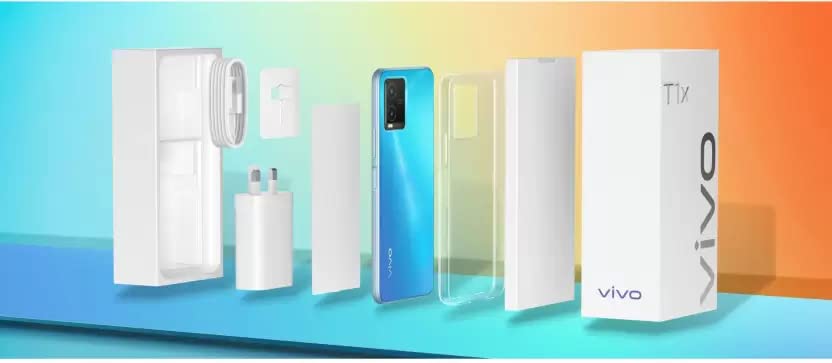
Image: All components included in the VIVO T1x retail packaging.
Setup
1. SIM Card Installation
- Locate the SIM card tray on the side of your VIVO T1x.
- Insert the SIM tray ejector tool into the small hole next to the tray and press gently until the tray pops out.
- Place your Nano-SIM card(s) and/or microSD card into the tray with the gold contacts facing down, ensuring they are correctly aligned.
- Carefully reinsert the tray into the phone until it clicks into place.
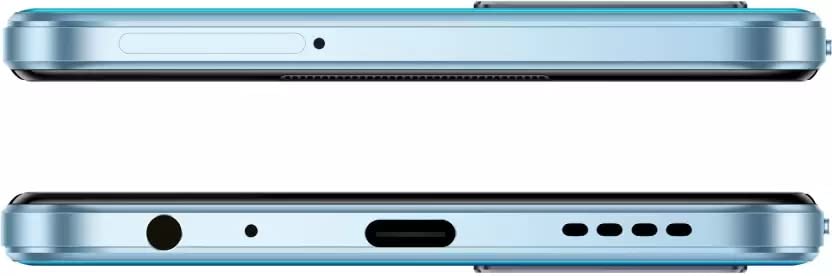
Image: Top and bottom edges of the VIVO T1x, highlighting the SIM tray location.
2. Initial Power On and Setup
- Press and hold the Power button (located on the right side) until the VIVO logo appears.
- Follow the on-screen instructions to select your language, connect to a Wi-Fi network, and set up your Google account.
- Configure security features such as face recognition or a screen lock (PIN, pattern, or password).
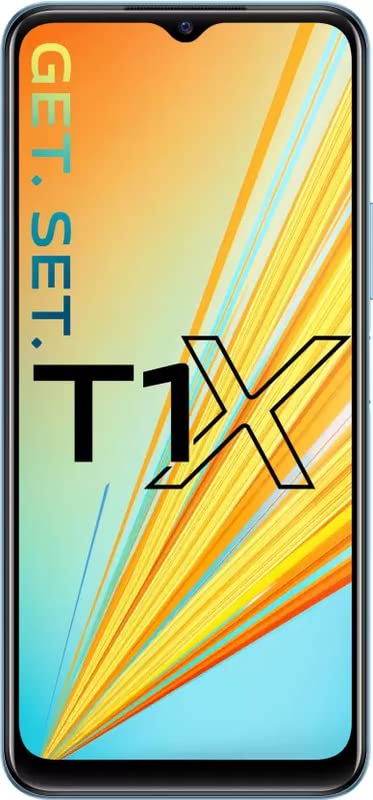
Image: Front view of the VIVO T1x smartphone during initial setup.
Operating Instructions
Basic Navigation
- Touchscreen Gestures: Tap to select, swipe to scroll, pinch to zoom.
- Home Screen: Access apps, widgets, and notifications.
- Notification Panel: Swipe down from the top of the screen to view notifications and quick settings.
Camera Usage
The VIVO T1x is equipped with a 50 MP main camera and an 8 MP front camera.
- Open the Camera app from your home screen.
- Tap the shutter button to take a photo.
- Swipe left or right to switch between modes (Photo, Video, Portrait, Night, etc.).
- Tap the camera icon to switch between front and rear cameras.
Battery Management
The device features a 5000 mAh battery for extended use.
- To charge, connect the USB cable to the phone's USB Type-C port and the adapter to a power outlet.
- Monitor battery usage in Settings > Battery.
- Enable Battery Saver mode to extend battery life when needed.
Connectivity
- Wi-Fi: Go to Settings > Network & internet > Wi-Fi to connect to available networks.
- Bluetooth: Go to Settings > Connected devices > Bluetooth to pair with other devices.
- Mobile Data: Ensure your SIM card is active and mobile data is enabled in quick settings or Settings > Network & internet > Mobile network.
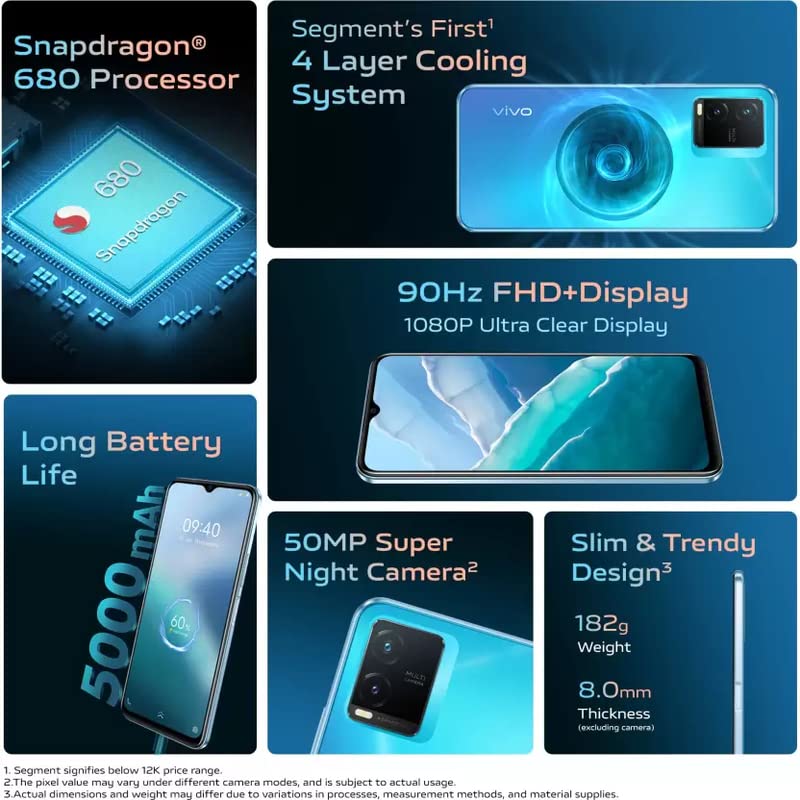
Image: Overview of VIVO T1x key features and specifications.
Maintenance
- Software Updates: Regularly check for and install system updates to ensure optimal performance and security. Go to Settings > System > System update.
- Cleaning: Use a soft, lint-free cloth to clean the screen and body of the phone. Avoid harsh chemicals.
- Storage Management: Periodically clear unnecessary files and apps to free up storage space. Go to Settings > Storage.
- Battery Care: Avoid extreme temperatures. Do not let the battery completely drain frequently.
- Water Resistance: The VIVO T1x is water resistant. However, avoid intentional submersion or exposure to high-pressure water.
Troubleshooting
- Phone Not Turning On: Ensure the battery is charged. Connect the charger and wait a few minutes before attempting to power on again.
- Apps Crashing/Freezing: Close the app and reopen it. If the issue persists, clear the app's cache (Settings > Apps > [App Name] > Storage & cache > Clear cache).
- Poor Network Signal: Check if your SIM card is properly inserted. Try restarting the phone. Ensure you are in an area with network coverage.
- Battery Draining Quickly: Reduce screen brightness, close background apps, and disable unnecessary features like GPS or Bluetooth when not in use. Check battery usage in settings to identify power-hungry apps.
- Touchscreen Unresponsive: Restart the device. If the issue continues, perform a factory reset (backup your data first).
Specifications
| Feature | Specification |
|---|---|
| Brand | vivo |
| Model | T1x |
| Operating System | Android 12.0 |
| RAM Memory | 4 GB |
| Internal Storage | 64 GB |
| CPU Model | Snapdragon |
| Display Type | AMOLED |
| Screen Size | 16.71 Centimetres (6.58 inches) |
| Resolution | 1080p (1920 x 1080) |
| Rear Camera | 50 MP (Main) + 2 MP |
| Front Camera | 8 MP |
| Battery Capacity | 5000 Milliamp Hours (Lithium-Ion) |
| SIM Card Slot Count | Dual SIM |
| Connector Type | USB Type C |
| Biometric Security | Face Recognition |
| Water Resistance Level | Water Resistant |
| Material | Plastic |
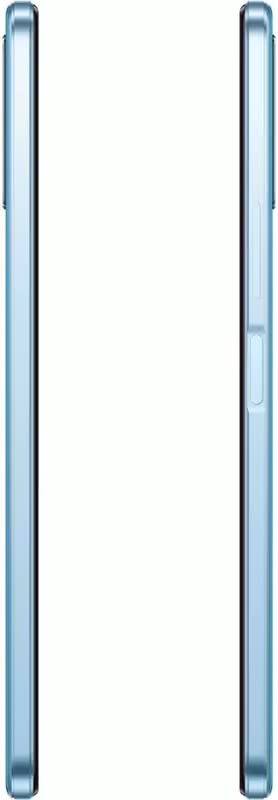
Image: Side profile of the VIVO T1x smartphone.
Warranty Information
Your VIVO T1x smartphone comes with a standard manufacturer's warranty. Please refer to the warranty card included in your product packaging for specific terms, conditions, and duration of coverage. Keep your proof of purchase for any warranty claims.
Support
For further assistance, technical support, or service inquiries, please visit the official vivo support website or contact their customer service. You can find contact details and FAQs on the vivo official website.
Online Support: www.vivo.com/in/support


