
1. Introduction and Overview
The Ducky One 3 series incorporates Ducky's QUACK Mechanics design philosophy, focusing on aesthetics, hot-swap functionality, sound dampening, and stabilizers. This keyboard is engineered to provide optimal acoustics through its silicone plate dampener and EVA foam case dampener. The Ducky One 3 Aura 65% Mechanical Keyboard features hot-swappable switches, allowing for easy customization and maintenance.
Key features include:
- Ducky's QUACK Mechanics design philosophy for enhanced performance.
- Dual-layer hot-swappable PCB with exclusive Kailh yellow hot-swap sockets.
- Dual-layer high-grade silicone and EVA foam sound dampeners for improved acoustics.
- Thick PBT Double Shot AC-style keycaps with translucent sides and opaque tops for durability and RGB visibility.
- Per-key programmable RGB lighting.
- 3-level adjustable feet for ergonomic comfort.
- Detachable braided USB-C cable for convenience and portability.
- Improved PCB design, V2 stabilizers, and a remapped macro layout.
- N-key rollover for accurate and simultaneous key presses.
For a visual overview of the Ducky One 3 series features, please watch the official video below:
Official Ducky One 3 Series Overview Video. This video highlights the key features and design philosophy of the Ducky One 3 mechanical keyboards, including the QUACK Mechanics, hot-swappable PCB, and various form factors.
2. What's in the Box
Upon unboxing your Ducky One 3 Aura 65% Mechanical Keyboard, you should find the following items:
- Ducky One 3 Aura 65% Mechanical Keyboard
- USB-C Cable

Image: Top-down view of the Ducky One 3 Aura 65% Mechanical Keyboard. This shows the compact layout and the Aura White keycaps.
3. Setup Guide
3.1 Connecting the Keyboard
- Locate the USB-C port on the back of your Ducky One 3 Aura keyboard.
- Connect one end of the provided USB-C cable to the keyboard.
- Connect the other end of the USB-C cable to an available USB port on your computer.
- The keyboard should be automatically recognized by your operating system. No additional drivers are typically required for basic functionality.
3.2 Adjusting Keyboard Feet
The Ducky One 3 Aura features 3-level adjustable feet to customize your typing angle.
- Flip the keyboard over to access the feet on the underside.
- Adjust the two sets of feet to your preferred height and angle.

Image: Side view of the Ducky One 3 Aura keyboard, illustrating the adjustable feet in an extended position.
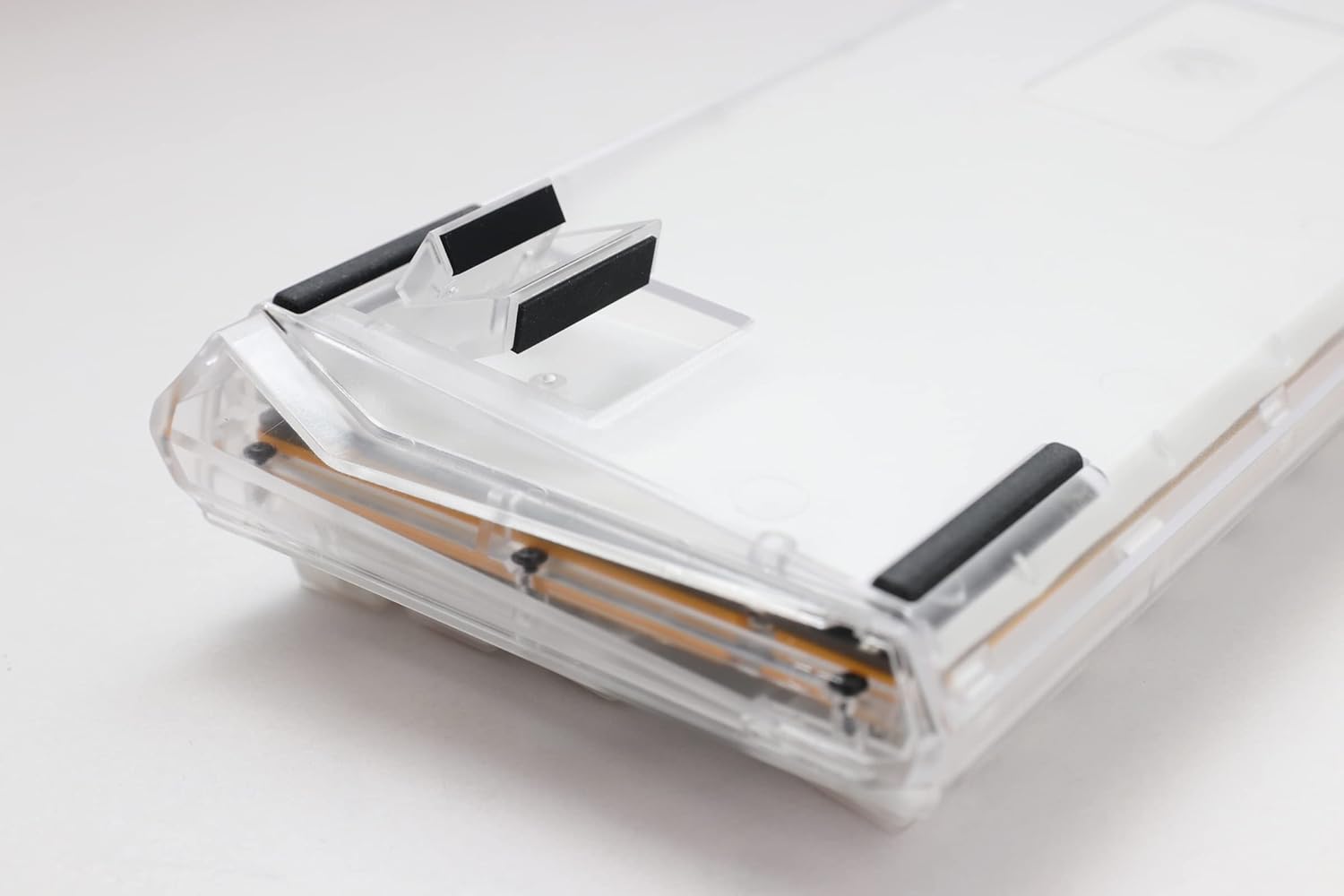
Image: Bottom view of the Ducky One 3 Aura keyboard, highlighting the design of the adjustable feet.
4. Operating Instructions
4.1 Basic Typing and Function Keys
The Ducky One 3 Aura 65% keyboard provides a compact layout. Many standard functions are accessed via the Fn key in combination with other keys. Refer to the keycap legends for specific Fn combinations for media control, volume, and other functions.
4.2 RGB Lighting Control
The keyboard features per-key programmable RGB lighting. You can cycle through various lighting modes, adjust brightness, and change colors using specific Fn key combinations. Consult the official Ducky software or the keyboard's dedicated manual for detailed instructions on advanced RGB customization and macro programming.
4.3 Macro Programming
The Ducky One 3 Aura supports an improved macro layout, allowing users to program custom key sequences. Detailed instructions for macro recording and assignment are available in the comprehensive Ducky One 3 user manual, typically found on the manufacturer's website.
4.4 N-Key Rollover
The keyboard supports N-key rollover (NKRO), which ensures that every key press is registered, regardless of how many keys are pressed simultaneously. This feature is particularly beneficial for fast typists and gamers.
5. Maintenance
5.1 Cleaning the Keyboard
- Disconnect the keyboard from your computer before cleaning.
- Use a soft, lint-free cloth slightly dampened with water or a mild cleaning solution to wipe down the keycaps and case.
- For dust and debris between keycaps, use compressed air.
- Avoid using harsh chemicals or abrasive materials, as these can damage the keyboard's finish and keycap legends.
5.2 Keycap Removal and Replacement
The Ducky One 3 Aura features durable PBT Doubleshot keycaps. To remove keycaps:
- Use a keycap puller (not included with this specific model, but generally recommended) to gently pull keycaps straight up.
- To replace, align the keycap with the switch stem and press down firmly until it clicks into place.
5.3 Switch Removal and Replacement (Hot-Swappable)
This keyboard is hot-swappable, allowing you to change switches without soldering. It uses Kailh Yellow Sockets, compatible with most 3-pin and 5-pin MX-style mechanical switches.
- Use a switch puller (not included) to carefully grip the tabs on the top and bottom of the switch.
- Gently rock and pull the switch straight up to remove it from the PCB.
- To install a new switch, ensure the pins on the bottom of the switch are straight. Align the switch with the socket on the PCB and press down firmly until it seats correctly. Do not force the switch if it doesn't go in easily, as this can bend the pins.
6. Troubleshooting
6.1 Keyboard Not Responding
- Ensure the USB-C cable is securely connected to both the keyboard and the computer.
- Try connecting the keyboard to a different USB port on your computer.
- Test the keyboard on another computer to determine if the issue is with the keyboard or the computer.
- If using a USB hub, try connecting directly to the computer.
6.2 RGB Lighting Issues
- Check the keyboard's manual or Ducky's website for specific key combinations to control RGB lighting modes and brightness.
- Ensure no software conflicts are interfering with the RGB settings.
- Perform a factory reset if necessary (refer to the full manual for instructions).
6.3 Specific Keys Not Working
- If a specific key is not registering, carefully remove the keycap and then the switch.
- Inspect the switch pins for any bends or damage. Straighten bent pins gently with tweezers if possible.
- Reinsert the switch firmly. If the issue persists, try replacing the switch with a known working one from a less frequently used key.
7. Specifications
| Brand | Ducky |
| Model Number | DKON2167ST-CUSPDAWWWWC1 |
| Product Dimensions | 13.39 x 4.33 x 1.57 inches |
| Item Weight | 2.35 pounds |
| Manufacturer | Ducky |
| Compatible Devices | PC |
| Connectivity Technology | USB-C |
| Keyboard Description | Mechanical |
| Recommended Uses | Business, Education, Everyday Use, Gaming |
| Special Feature | Backlit |
| Color (Switches) | Cherry MX Blue |
| Keyboard Backlighting | RGB |
| Style | 65% White |
| Material | Polybutylene Terephthalate (PBT) |
8. Warranty and Support
For warranty information, please refer to the documentation included with your product or visit the official Ducky website. Ducky provides customer support for product inquiries, technical assistance, and warranty claims.
You can typically find support resources, FAQs, and contact information on the Ducky official website: www.duckychannel.com.tw


