
1. Introduction
This user manual provides essential information for setting up, operating, and maintaining your Intel NUC 12 Enthusiast NUC12SNKi72 Barebone System. The Intel NUC 12 Enthusiast is a compact yet powerful mini PC designed for both creative tasks and gaming, featuring a 12th Gen Intel Core i7 processor and Intel Arc discrete graphics. Its innovative performance hybrid architecture, support for AV1 codec, and AI-enhanced XeSS technology deliver immersive graphics and lightning-fast connectivity in a slim form factor.
2. What's in the Box
Upon opening the package, please verify that all the following components are included:
- Intel NUC 12 Enthusiast Kit - NUC12SNKi72 Barebone System
- US Power Cord
Note: As a barebone system, memory (RAM), storage (SSD/HDD), and an operating system are not included and must be purchased separately.
3. Product Overview
The Intel NUC 12 Enthusiast NUC12SNKi72 is designed for high performance in a small footprint. Below are images illustrating the various aspects of the unit and its connectivity options.
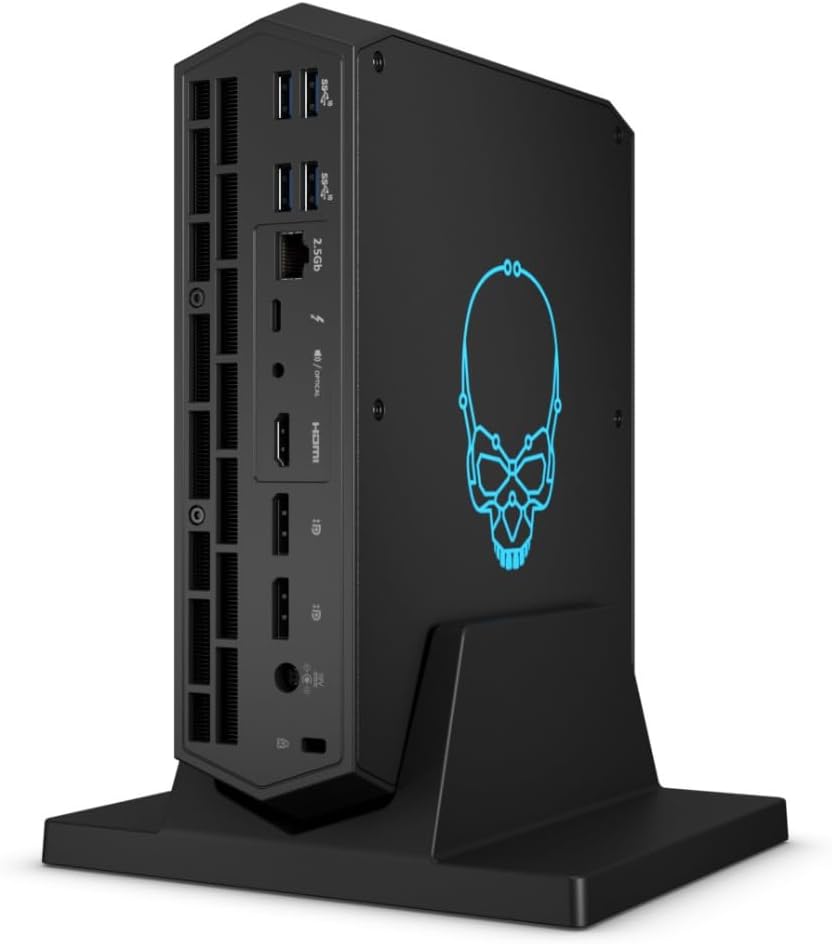
Figure 3.1: Front-side view of the Intel NUC 12 Enthusiast, showcasing its compact design and the illuminated skull logo.
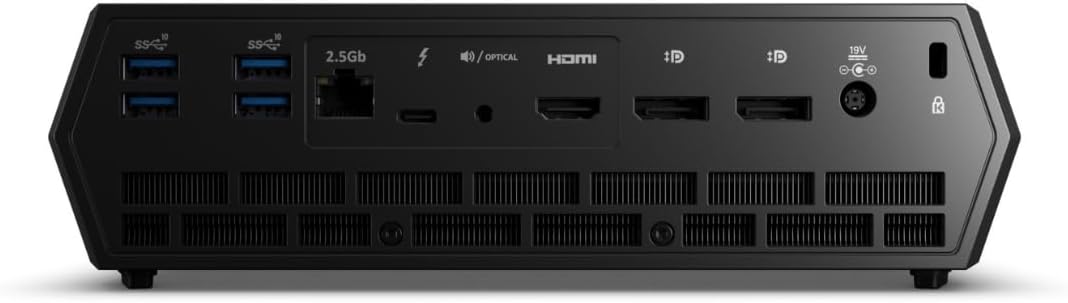
Figure 3.2: Front panel of the Intel NUC 12 Enthusiast, featuring a USB-A port, a USB-C (Thunderbolt) port, an SD card reader, and the power button.

Figure 3.3: Side view of the Intel NUC 12 Enthusiast, highlighting multiple USB-A ports, a 2.5 Gigabit Ethernet port, Thunderbolt ports, HDMI, and DisplayPort connections.

Figure 3.4: Rear panel of the Intel NUC 12 Enthusiast, showing additional USB ports, display outputs, and the power input.
Key Features:
- Processor: 12th Gen Intel Core i7-12700H Tetradeca-core (14 Core)
- Graphics: Intel Arc A770M discrete graphics with 16 GB GDDR6 memory
- Memory: DDR4 SDRAM compatible slots (user-installable)
- Storage: Supports SSD with Serial ATA-600 interface (user-installable)
- Networking: 2.5 Gigabit Ethernet and Intel Killer Wi-Fi 6E AX1690i (802.11ax)
- Connectivity: Up to 10 USB peripherals supported, including multiple USB 3.2 Gen 2 and Thunderbolt 4 ports.
- Display Outputs: Multiple display outputs including HDMI and DisplayPort.
4. Setup Guide
The Intel NUC 12 Enthusiast is a barebone system, requiring the installation of memory (RAM), storage, and an operating system before first use.

Figure 4.1: Internal view of the Intel NUC 12 Enthusiast, showing the motherboard, cooling solution, and slots for RAM and storage.
4.1. Installing Memory (RAM)
- Ensure the NUC is powered off and disconnected from all power sources.
- Carefully open the NUC chassis according to the instructions provided in the quick start guide (not included in this manual).
- Locate the DDR4 SDRAM compatible slots on the motherboard. There are 2 memory slots available.
- Align the notch on the memory module with the key in the slot.
- Insert the module firmly into the slot at a 45-degree angle, then push down until the clips on both sides snap into place.
4.2. Installing Storage (SSD/HDD)
- With the chassis still open, locate the storage drive bay(s) or M.2 slot(s). The system supports SSDs with a Serial ATA-600 interface.
- For M.2 SSDs, insert the drive into the slot and secure it with the provided screw.
- For 2.5-inch drives, place the drive into the bay and connect the SATA data and power cables. Secure the drive with screws if necessary.
- Close the NUC chassis securely.
4.3. Connecting Peripherals
- Connect your monitor(s) to the HDMI or DisplayPort outputs. The system supports up to 3840x2160 resolution.
- Plug in your keyboard and mouse into any available USB ports. The NUC supports up to 10 USB peripherals.
- For wired internet, connect an Ethernet cable to the 2.5 Gigabit Ethernet port.
- Connect the US Power Cord to the NUC and then to a power outlet.
4.4. Operating System Installation
Once memory and storage are installed, power on the NUC. You will need to install an operating system (e.g., Windows 11 x64, Linux) from a bootable USB drive or disc. Follow the on-screen prompts for your chosen operating system. Ensure to install all necessary drivers for optimal performance, which can typically be found on the Intel support website.
5. Operating Instructions
5.1. Powering On/Off
- To Power On: Press the power button located on the front panel.
- To Power Off: Use the shutdown option within your operating system. For a forced shutdown, press and hold the power button for 5-7 seconds.
5.2. Network Connectivity
- Wired Connection: Connect an Ethernet cable to the 2.5 Gigabit Ethernet port. Your operating system should automatically detect the connection.
- Wireless Connection: The NUC supports Wi-Fi 6E (802.11ax). Access your operating system's network settings to connect to a Wi-Fi network.
5.3. Using USB and Thunderbolt Ports
The Intel NUC 12 Enthusiast is equipped with multiple USB 2.0, USB 3.2 Gen 2, and Thunderbolt 4 ports. These can be used to connect a wide range of peripherals such as external hard drives, USB flash drives, printers, and more. Thunderbolt 4 ports offer high-speed data transfer and display capabilities.
6. Maintenance
6.1. Cleaning
- Regularly clean the exterior of the NUC with a soft, dry, lint-free cloth.
- Use compressed air to clear dust from the ventilation grilles and fan openings to ensure proper airflow and cooling. Do this periodically, especially if the system is in a dusty environment.
- Ensure the NUC is powered off and unplugged before cleaning.
6.2. Software Updates
Keep your operating system, drivers (especially graphics and chipset drivers), and BIOS/firmware updated to ensure optimal performance, stability, and security. Visit the official Intel support website for the latest drivers and updates for your NUC12SNKi72 model.
7. Troubleshooting
If you encounter issues with your Intel NUC, refer to the following common troubleshooting steps:
- No Power:
- Ensure the power cord is securely connected to both the NUC and a working power outlet.
- Verify the power outlet is functional by plugging in another device.
- Try a different power cord if available.
- No Display Output:
- Check that the monitor is powered on and the video cable (HDMI/DisplayPort) is securely connected to both the NUC and the monitor.
- Try a different video cable or monitor if possible.
- Ensure the correct input source is selected on your monitor.
- If you recently installed RAM or storage, ensure they are seated correctly.
- Network Connectivity Issues:
- For wired connections, check the Ethernet cable and router/modem status.
- For wireless connections, ensure Wi-Fi is enabled in your operating system and you are connected to the correct network with the correct password.
- Restart your router/modem and the NUC.
- Update network drivers from the Intel support website.
- System Performance Issues:
- Ensure all drivers, especially graphics drivers, are up to date.
- Check for sufficient free storage space.
- Monitor system temperatures to ensure it's not overheating. Ensure proper ventilation.
- Run a virus/malware scan.
For more detailed troubleshooting or persistent issues, please refer to the Intel support website or contact their customer service.
8. Specifications
| Feature | Detail |
|---|---|
| Brand | Intel |
| Series | NUC 12 Enthusiast |
| Model Number | NUC12SNKi72 |
| Processor | Intel Core i7-12700H (4.7 GHz, 14 Cores) |
| Graphics Coprocessor | Intel Arc A770M |
| Graphics Card RAM Size | 16 GB |
| Memory Type (User Installable) | DDR4 SDRAM |
| Memory Slots Available | 2 |
| Hard Drive Interface (User Installable) | Serial ATA-600 (SSD) |
| Wireless Type | 802.11ax (Wi-Fi 6E) |
| Ethernet | 2.5 Gigabit Ethernet |
| Number of USB Ports | Up to 10 (including USB 2.0, USB 3.2 Gen 2, Thunderbolt 4) |
| Max Screen Resolution | 3840x2160 |
| Operating System (Not Included) | Windows 11 x64 (Compatible) |
| Item Weight | 11.73 pounds |
| Product Dimensions (LxWxH) | 23 x 15 x 13 inches |
| Color | Black |
9. Warranty and Support
Intel products are covered by a manufacturer's warranty. For specific warranty terms, conditions, and duration, please refer to the warranty card included with your product or visit the official Intel support website.
For technical support, driver downloads, product registration, and additional resources, please visit the official Intel support website: www.intel.com/support.


