
1. Introduction
Thank you for choosing the MSI Strike 600 Mechanical Keyboard. This manual provides essential information for setting up, operating, and maintaining your new keyboard. The MSI Strike 600 is a full-sized mechanical keyboard designed for optimal performance and user comfort, featuring durable Kailh Midnight Pro Silent Tactile switches and customizable RGB lighting.
Key Features:
- Ultra-Durable Mechanical Switches: Equipped with Kailh Midnight Pro Silent Tactile switches, offering a lifespan of 70+ million keystrokes with a smooth tactile actuation.
- Ergonomic Keycaps: Full-sized layout with a floating keycap design and an aircraft-grade aluminum alloy top cover for enhanced comfort and durability.
- Per-Key RGB Mystic Light: Customize lighting effects for each key using MSI Center software, with dedicated on-the-fly hotkeys.
- Ultimate Silent Keyboard: Features sound-dampening technology and a multi-layered chassis with foam gaskets for quiet operation.
- Smart Design: Includes a premium 1.8m USB 2.0 braided cable with a gold-plated connector and an anti-slip base for stability.
2. Safety Information
Please read the following safety precautions carefully before using your MSI Strike 600 Mechanical Keyboard to ensure safe and optimal performance.
- Keep the device away from liquids, humidity, and extreme temperatures.
- Do not attempt to disassemble or modify the keyboard. This may void the warranty and pose a safety risk.
- Use only the provided USB cable for connection.
- Avoid dropping or subjecting the keyboard to strong impacts.
- Clean the keyboard with a soft, dry cloth. Do not use harsh chemicals or abrasive materials.
- If the device malfunctions, disconnect it immediately and contact MSI support.
3. Package Contents
Verify that all items are present in your package:
- MSI Strike 600 Mechanical Keyboard
- USB Cable (attached)
- User Manual (this document)

Figure 3.1: MSI Strike 600 keyboard alongside its retail packaging. The image shows the full-sized keyboard with RGB lighting and the white box indicating the model name.
4. Product Overview
Familiarize yourself with the layout and key features of your MSI Strike 600 Mechanical Keyboard.
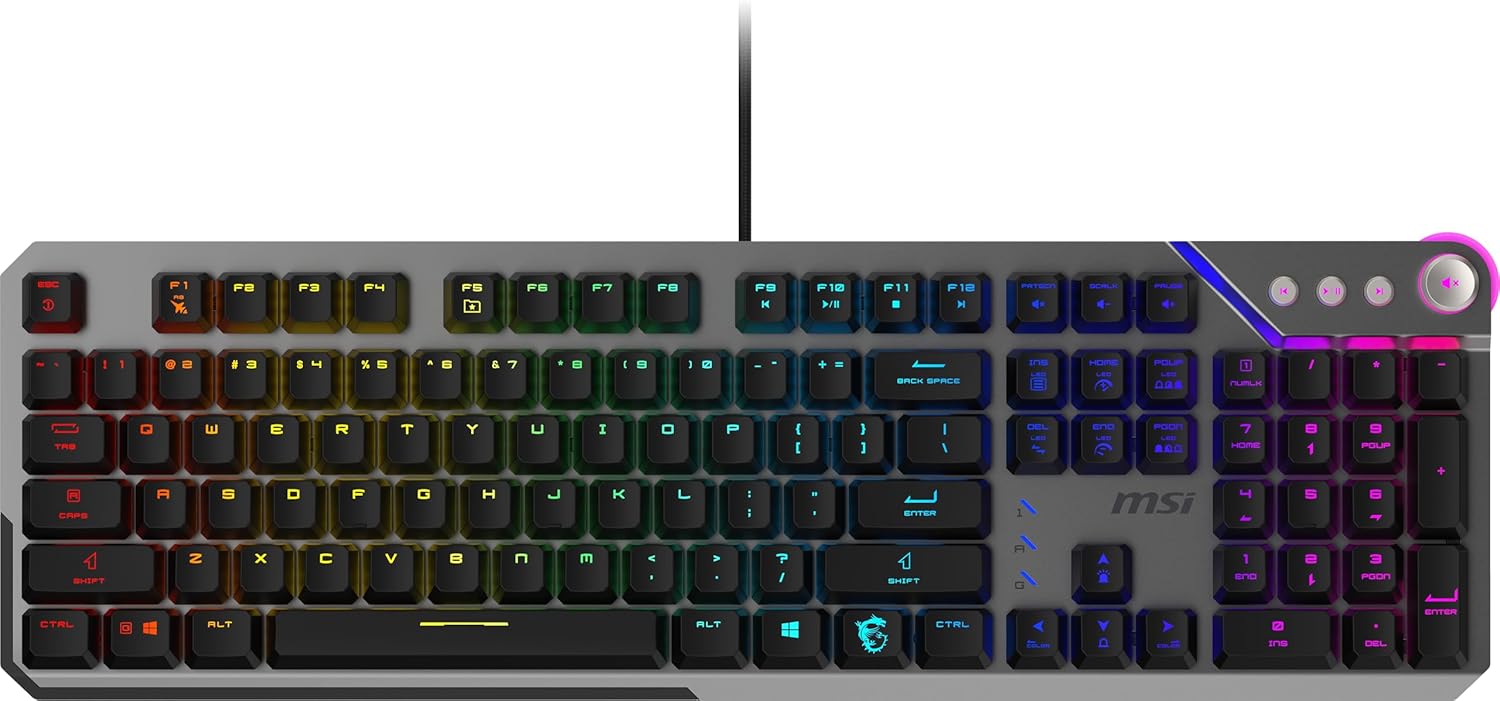
Figure 4.1: Top-down view of the MSI Strike 600 keyboard, showcasing its full layout with illuminated RGB keys. Note the dedicated media keys and volume wheel on the top right.
Keyboard Layout and Special Keys:
- Full-Sized Layout: Standard 104/105-key layout including a numeric keypad.
- Kailh Midnight Pro Silent Tactile Switches: Each key features a silent tactile switch for a quiet yet responsive typing experience.
- Dedicated Media Keys: Located on the top right, these keys allow for quick control of media playback.
- Smart Dual Touch Volume Control Wheel: A dedicated wheel for precise volume adjustments.
- MSI Afterburner Key: A dedicated key for quick access to MSI Afterburner software (if installed).
- Function (Fn) Key: Used in combination with F-keys for additional functions (e.g., lighting control, multimedia).
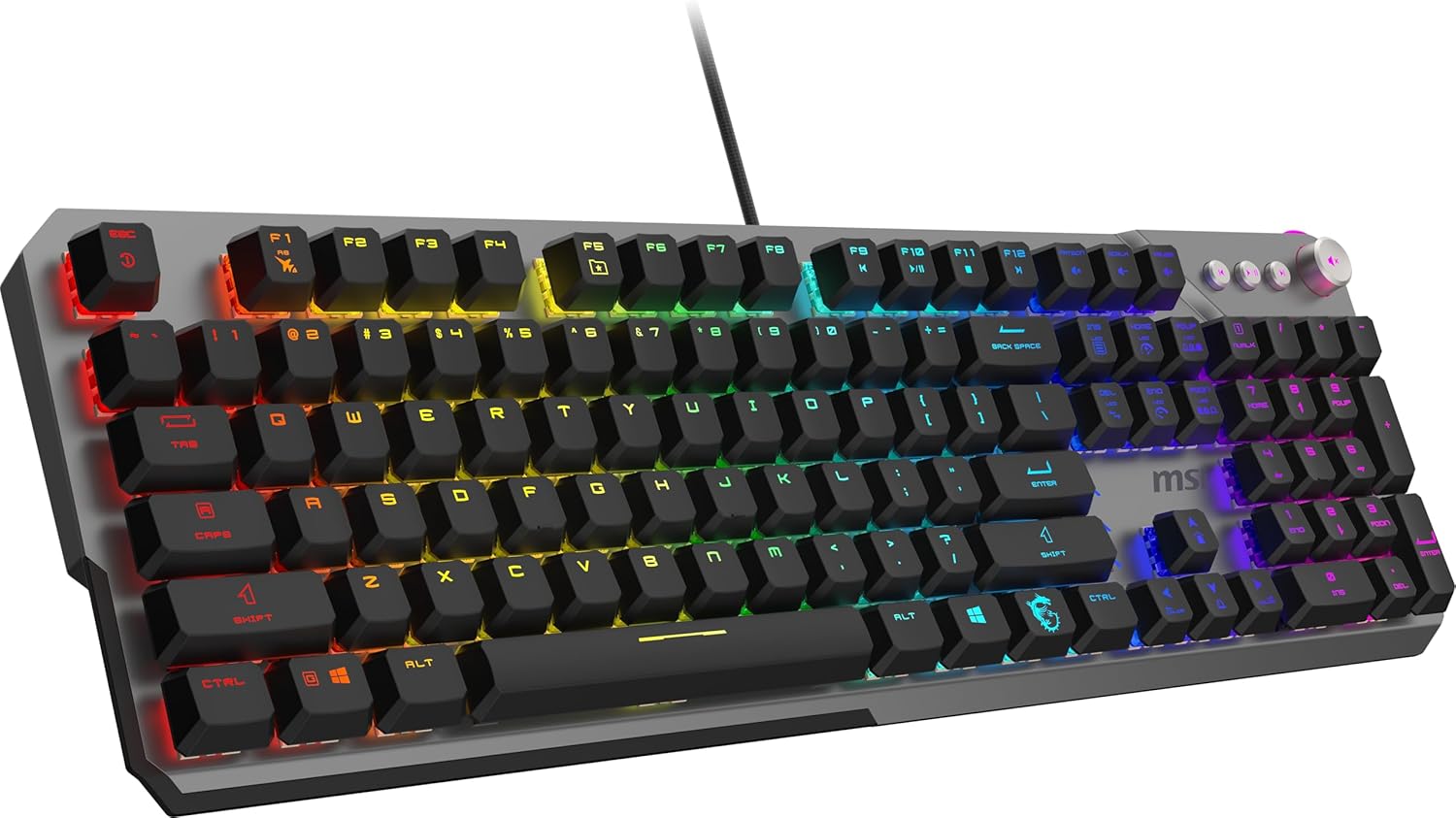
Figure 4.2: Angled view of the MSI Strike 600, highlighting the vibrant per-key RGB lighting and the sleek aircraft-grade aluminum alloy top cover.

Figure 4.3: Side profile of the MSI Strike 600, illustrating the floating keycap design and the adjustable feet at the rear for ergonomic tilt.
5. Setup
5.1 Connecting the Keyboard
- Unpack the MSI Strike 600 Mechanical Keyboard from its packaging.
- Locate an available USB 2.0 port on your computer.
- Plug the USB connector of the keyboard's braided cable into the USB port on your computer.
- The keyboard is plug-and-play and should be automatically recognized by your operating system.

Figure 5.1: Top view of the MSI Strike 600 keyboard, showing the integrated USB cable extending from the top edge, ready for connection.
5.2 Installing MSI Center Software (Optional but Recommended)
For full customization of RGB lighting and other advanced features, it is recommended to install the MSI Center software.
- Visit the official MSI website (www.msi.com).
- Navigate to the support section for the MSI Strike 600 keyboard.
- Download and install the latest version of MSI Center.
- Follow the on-screen instructions to complete the installation.
- Once installed, launch MSI Center to access lighting customization (Mystic Light) and other settings.
6. Operating Instructions
6.1 Basic Keyboard Usage
The MSI Strike 600 functions as a standard full-sized keyboard for typing and general computer use. The Kailh Midnight Pro Silent Tactile switches provide a quiet and comfortable typing experience, ideal for both gaming and productivity.
6.2 RGB Mystic Light Customization
The keyboard features per-key RGB lighting, allowing for extensive customization.
- Using MSI Center: Launch the MSI Center software. Navigate to the Mystic Light section to customize individual key colors, lighting effects, and brightness. You can save multiple profiles for different applications or games.
- On-the-Fly Hotkeys: The keyboard includes dedicated hotkeys for quick lighting adjustments without software. Refer to the keyboard's function key legends for specific combinations (e.g., Fn + F-keys) to change lighting modes, brightness, or speed.

Figure 6.1: Another angled view of the MSI Strike 600, emphasizing the dynamic per-key RGB lighting capabilities across the entire keyboard.
6.3 Media Controls and Volume Wheel
The dedicated media keys and volume wheel provide convenient control over your audio and media playback.
- Media Keys: Use the dedicated buttons for Play/Pause, Stop, Previous Track, and Next Track.
- Volume Wheel: Rotate the wheel to increase or decrease volume. The dual-touch functionality allows for precise adjustments.
7. Maintenance
7.1 Cleaning the Keyboard
Regular cleaning helps maintain the performance and appearance of your keyboard.
- Disconnect the keyboard from your computer before cleaning.
- Use a can of compressed air to blow away dust and debris from between the keycaps.
- Wipe the surface of the keycaps and the keyboard frame with a soft, lint-free cloth slightly dampened with water or a mild, non-abrasive cleaning solution.
- Do not spray cleaning solution directly onto the keyboard.
- Ensure the keyboard is completely dry before reconnecting it to your computer.
7.2 Storage
When not in use for extended periods, store the keyboard in a cool, dry place, away from direct sunlight and extreme temperatures.
8. Troubleshooting
If you encounter issues with your MSI Strike 600 Mechanical Keyboard, refer to the following common problems and solutions.
| Problem | Possible Cause | Solution |
|---|---|---|
| Keyboard not responding. | Loose USB connection, faulty USB port, driver issue. |
|
| RGB lighting not working or incorrect. | MSI Center software issue, hotkey conflict, software settings. |
|
| Keys are sticky or unresponsive. | Debris under keycaps, switch malfunction. |
|
If the problem persists after trying these solutions, please contact MSI customer support for further assistance.
9. Specifications
Detailed technical specifications for the MSI Strike 600 Mechanical Keyboard.

Figure 9.1: Top-down view of the MSI Strike 600 keyboard with key dimensions indicated, showing its length of 441mm (17.36") and width of 138mm (5.43"). The side profile also shows a height of 38mm (1.49").
| Feature | Description |
|---|---|
| Brand | MSI |
| Model | Strike 600 |
| Switch Type | Kailh Midnight Pro Silent Tactile |
| Keycap Type | Ergonomic, Floating Design |
| Top Cover Material | Aircraft-grade Aluminum Alloy |
| Lighting | Per-Key RGB Mystic Light |
| Connectivity | USB 2.0 (1.8m braided cable, gold-plated connector) |
| Layout | Full-Sized |
| Special Features | Dedicated Hotkeys, Smart Dual Touch Volume Control Wheel, MSI Afterburner Key, Sound-Dampening Tech, Multi-layered Chassis with Foam Gaskets, Anti-slip Base |
| Color | Black |
| Dimensions (L x W x H) | Approx. 441 x 138 x 38 mm (17.36 x 5.43 x 1.49 inches) |
| Weight | Approx. 2.99 pounds (1.36 kg) |
| Compatible Devices | PC |
| Recommended Uses | Gaming, Programming, Typing Practice |
10. Warranty & Support
10.1 Limited Warranty
MSI provides a limited warranty for the MSI Strike 600 Mechanical Keyboard against defects in materials and workmanship under normal use. The specific terms and duration of the warranty may vary by region and purchase date. Please retain your proof of purchase for warranty claims.
For detailed warranty information, please visit the official MSI website or refer to the warranty card included with your product (if applicable).
10.2 Customer Support
If you require technical assistance or have questions regarding your MSI Strike 600 Mechanical Keyboard, please contact MSI customer support through the following channels:
- MSI Official Website: Visit www.msi.com/support for FAQs, driver downloads, and contact information.
- Online Support Form: Submit a support ticket through the MSI website.
- Telephone Support: Check the MSI website for regional contact numbers.
When contacting support, please have your product model (MSI Strike 600) and serial number (if available) ready.


