
Introduction
This manual provides essential instructions for setting up, operating, and maintaining your SKYMEE Owl Robot Pet Camera Treat Dispenser, Model AIC20. This interactive device allows you to monitor, interact with, and reward your pets remotely using a smartphone application.
Safety Information
- Ensure the device is placed on a stable, flat surface to prevent tipping.
- Keep the device away from water or excessive moisture.
- Use only the provided power adapter.
- Do not allow pets to chew on the power cord.
- This device is designed for indoor use only.
Package Contents
Verify that all items are present in the package:
- SKYMEE Owl Robot (Model AIC20)
- Charging Cable
- User Manual (this document)
- Lid (for treat compartment)
Product Overview
Familiarize yourself with the main components of your Owl Robot.

Figure 1: Product Exterior. This image displays the front view of the Owl Robot, highlighting key features such as the Full HD 1080P Camera, Microphone, Speaker, Thermal Sensing Point, Touch Mode indicator, and Feeding Mouth. The wheels are visible on either side.
- Full HD 1080P Camera: Provides clear video feed with 4x zoom and night vision.
- Microphone: Enables two-way audio communication.
- Speaker: Allows you to speak to your pets.
- Feeding Mouth: Dispenses treats.
- Wheels: For mobility and remote driving.
- Treat Compartment: Located under the lid, for storing pet treats.
Setup
1. Charging the Device
Before first use, fully charge the Owl Robot using the provided charging cable. The device uses a Type-C charging port.
2. App Installation and Connection
- Download the official SKYMEE app from your smartphone's app store (available for iOS and Android).
- Register for an account or log in.
- Follow the in-app instructions to add your Owl Robot device.
- Ensure your home Wi-Fi network is 2.4Ghz, as the device is not compatible with 5Ghz Wi-Fi.
- For remote control functionality, the device must be connected to your home 2.4Ghz Wi-Fi.
- For use without a network (AP mode), the device can connect directly to your phone's hotspot.

Figure 2: Outdoor Mode. This image illustrates the Owl Robot connecting to a device hotspot for operation in AP mode, allowing use without a home Wi-Fi network.
3. Loading Treats
Open the lid of the treat compartment and fill it with your pet's favorite treats. The device supports treats with a size range of 4mm-16mm.
Video 1: SKYMEE Owl Robot Overview. This video provides a general overview of the SKYMEE Owl Robot, demonstrating its features and functionality, including treat dispensing.
Operating Instructions
1. Remote Control and Driving
Use the app's control lever to manually drive the Owl Robot around your home. This allows you to track your pets and engage them in interactive games.
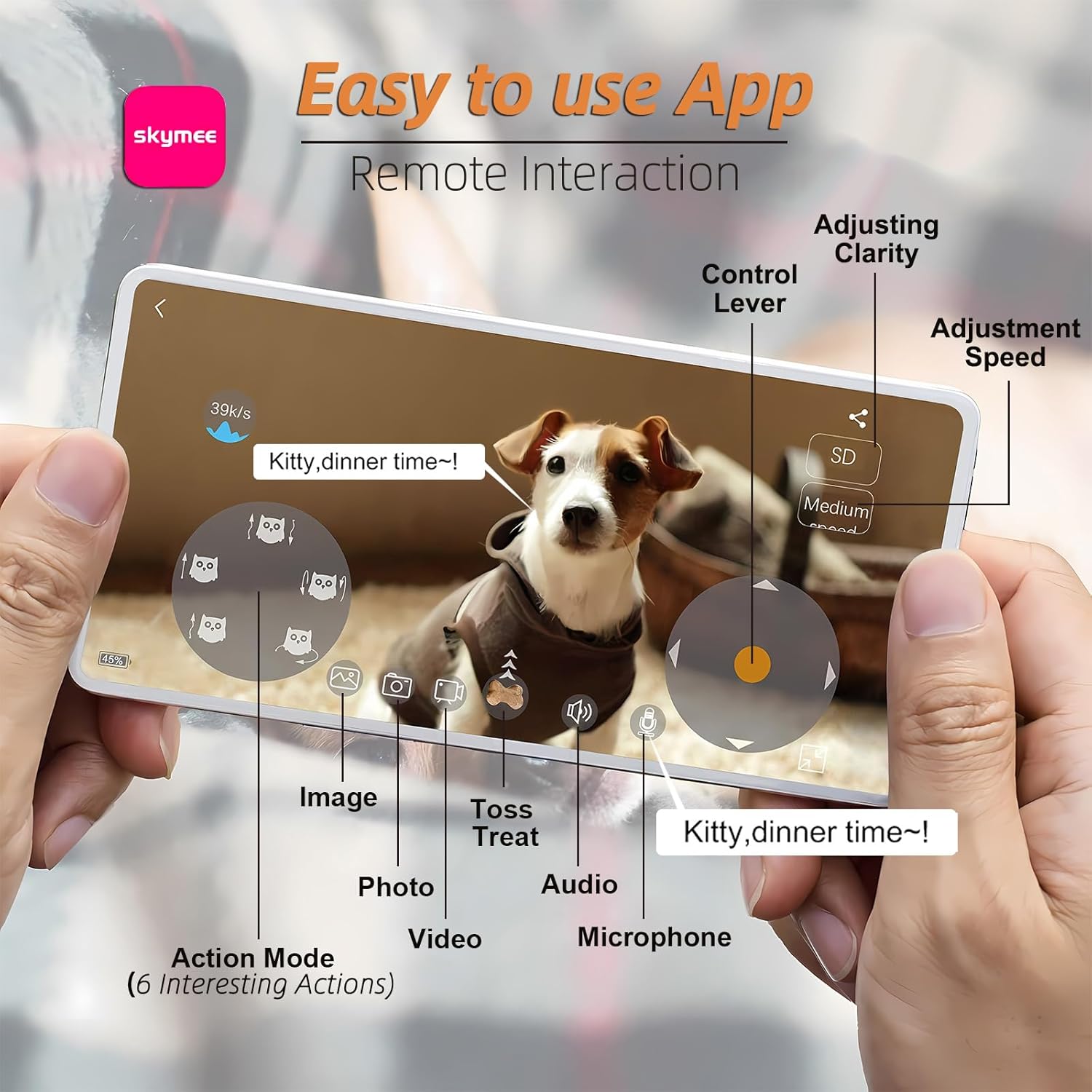
Figure 3: Easy-to-Use App. This image shows the mobile application interface with controls for adjusting clarity, speed, taking photos/videos, using two-way audio, and selecting action modes.
2. Camera Features
- 1080p Full HD: View your pets clearly with high-definition video.
- 4x Zoom: Zoom in to see more details.
- Night Vision: The camera features 8 infrared lights for clear viewing in low-light conditions. This can be set to automatic or manual control via the app.
- Photo and Video Recording: Capture high-quality images and videos directly from the app and save them to your phone or share on social media.

Figure 4: Night Vision. This image demonstrates the night vision capability of the Owl Robot's camera, providing a clear view in dark environments.
3. Treat Tossing & Two-Way Audio
- Treat Tossing: Remotely dispense treats to reward or engage your pets. You can make the robot move and leave a snack trail.
- Two-Way Audio: Speak to your pets and hear their responses through the built-in microphone and speaker.
4. Smart Interaction & PIR Detection
- Smart Interaction: The robot can automatically trigger multiple action modes through infrared sensing to interact with your pet.
- PIR Detection: The Owl Robot will automatically react when touched and detects pet behavior.
- TF Recording: Video can be recorded automatically after installing a TF card (not included), allowing 24/7 monitoring.

Figure 5: Interactive Play. This image illustrates the Owl Robot engaging with dogs through both game interaction and treat feeding functionalities.
5. Multi-User and Sharing
One app account can support up to 8 people to watch online simultaneously. Photos and videos can be shared to social media platforms.
Maintenance
- Cleaning: Regularly clean the treat compartment and the exterior of the device to prevent buildup.
- Battery Life: The device is designed for approximately 8 hours of daily use. It offers 8-10 hours in drive mode, 15+ days in interactive mode, and 50 days in sleep mode on a single charge.
Troubleshooting
- Connection Issues: Ensure your device is connected to a 2.4Ghz Wi-Fi network. If issues persist, try restarting both your router and the Owl Robot.
- Treat Dispensing Problems: Check that treats are within the recommended size (4mm-16mm) and that the compartment is not overfilled or jammed.
- Pet Interaction: Some pets may be initially wary. Encourage interaction with treats and gentle voice commands through the two-way audio.
Specifications
| Feature | Detail |
|---|---|
| Model Name | AIC20 |
| Video Capture Resolution | 1080p |
| Connectivity Technology | Wireless (2.4Ghz Wi-Fi) |
| Control Method | App |
| Item Dimensions (L x W x H) | 9.1 x 5.5 x 5.5 inches |
| Item Weight | 2.16 pounds |
| Material | Plastic |
| Special Feature | Lightweight, Portable, Night Vision, Two-way Audio, Treat Dispenser |
Warranty and Support
For warranty information and technical support, please refer to the official SKYMEE website or contact customer service through the mobile application.

