
1. Introduction
This manual provides essential information for the safe and effective use of your JUPIO PowerBOX 500 portable power station. Please read this manual thoroughly before operating the device and retain it for future reference. Proper use ensures optimal performance and longevity of your PowerBOX 500.
2. Product Overview
The JUPIO PowerBOX 500 is a compact and powerful portable energy storage solution, designed to provide reliable power for various devices. It features multiple output ports, including AC, DC, and USB, making it suitable for charging and powering electronics, small appliances, and more. With a capacity of 288Wh and a 500W AC output, it is ideal for outdoor activities, emergency backup, and mobile work.
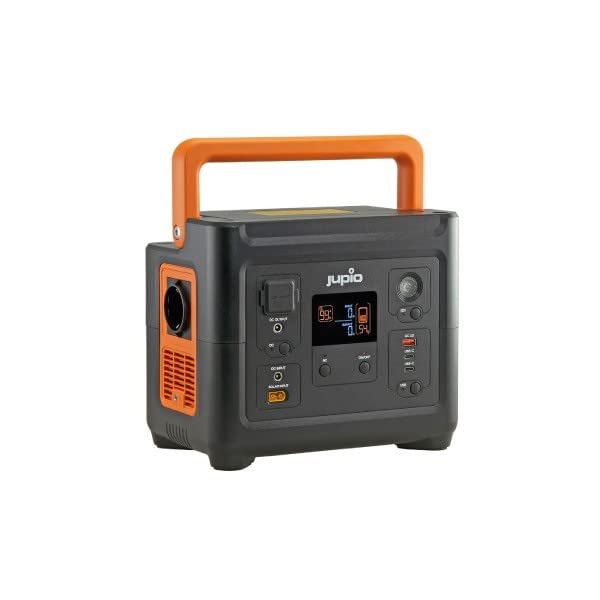
Figure 1: The JUPIO PowerBOX 500 portable power station. This image displays the front and side view of the device, highlighting its orange carrying handle, AC outlet, DC input, USB ports (USB-A and USB-C), and the digital display panel showing battery status and output information.
3. Specifications
| Feature | Detail |
|---|---|
| Model | PowerBOX 500 |
| Capacity | 288Wh |
| AC Input | 220-240V |
| XT60/Solar Input | 12-28V / 90W |
| AC Output | 500W / 220-240V |
| Car / DC5521 Output | 13.6V / 8A max |
| USB Ports | 1 x USB-A, 2 x USB-C |
| Weight | 5.1 kg |
| Warranty | 3 Years |
4. Setup
- Unpacking: Carefully remove the PowerBOX 500 from its packaging. Verify that all components are present and undamaged.
- Initial Charge: Before first use, fully charge the PowerBOX 500. Connect the provided AC adapter to the AC input port and plug it into a wall outlet. The display will indicate charging status.
- Familiarization: Take time to identify all ports, buttons, and the display screen. Refer to the "Product Overview" section for a visual guide.
5. Operating Instructions
5.1 Powering On/Off
- To turn on the PowerBOX 500, press and hold the main power button for approximately 3 seconds. The display will illuminate.
- To turn off the device, press and hold the main power button again for 3 seconds.
5.2 Using AC Output
- Press the AC output button to activate the 230V AC outlets. The AC indicator on the display will light up.
- Plug your AC-powered devices (up to 500W total) into the AC outlets.
- After use, press the AC output button again to turn off the AC outlets and conserve power.
5.3 Using DC and USB Outputs
- Press the DC output button to activate the DC5521 and car charger ports.
- Plug your 12V DC devices into the respective ports.
- The USB-A and USB-C ports are typically active when the main unit is on. Connect your USB-powered devices for charging.
- Press the DC output button again to turn off DC outputs.
5.4 Charging the PowerBOX 500
- AC Charging: Connect the AC adapter to the AC input port and a wall outlet.
- Solar Charging: Connect a compatible solar panel (12-28V / 90W max) to the XT60/Solar input port. Ensure the solar panel is placed in direct sunlight for optimal charging.
- Car Charging: Use a compatible car charger cable (not always included, check accessories) to connect to your vehicle's 12V outlet and the PowerBOX's DC input.
6. Maintenance
- Cleaning: Use a soft, dry cloth to clean the exterior of the PowerBOX 500. Do not use abrasive cleaners or solvents.
- Storage: Store the device in a cool, dry place, away from direct sunlight and extreme temperatures. For long-term storage, it is recommended to charge the unit to 50-80% every 3-6 months to maintain battery health.
- Battery Care: Avoid fully discharging the battery frequently. Recharge the unit promptly when the battery level is low.
7. Troubleshooting
| Problem | Possible Cause | Solution |
|---|---|---|
| Device not turning on | Battery is fully discharged; Power button not pressed long enough. | Charge the unit; Press and hold the power button for 3 seconds. |
| AC output not working | AC output not activated; Device connected exceeds 500W; Overload protection triggered. | Press the AC output button; Ensure total wattage is below 500W; Disconnect devices, restart unit. |
| Slow charging | Using a low-power charger; Solar panel not in direct sunlight or partially shaded. | Use the original AC adapter; Reposition solar panel for maximum sun exposure. |
If the problem persists, please contact customer support.
8. Warranty and Support
The JUPIO PowerBOX 500 comes with a 3-year warranty from the date of purchase. This warranty covers manufacturing defects and ensures reliable operation under normal use conditions.
For warranty claims, technical support, or any inquiries, please contact your retailer or JUPIO customer service. Please have your proof of purchase and product model number ready when contacting support.
Contact information for support is typically found on the product packaging or the official JUPIO website.

