
1. Introduction
The MAONO GamerWave DGM20 is a versatile USB condenser microphone designed for gaming, streaming, podcasting, and online communication. It features one-key noise cancellation, stunning RGB lighting, one-click mute with LED indicator, mic gain control, and zero-latency monitoring to enhance your audio experience.
2. Package Contents
Please check the box for the following items:
- USB Gaming Microphone x1
- Stand x1
- Pop Filter x1
- Shock Mount x1
- USB-C to USB-A/USB-C 2-in-1 Cable x1
- User Manual x1
- Arm Stand Adapter x1

Image: MAONO GamerWave DGM20 microphone and its included accessories.
3. Setup
The MAONO GamerWave DGM20 microphone is designed for plug-and-play convenience. No additional drivers or software are required for basic functionality.
3.1 Connecting the Microphone
- Attach the microphone to the included stand or an arm stand using the provided adapter. Ensure the pop filter is positioned correctly in front of the microphone.
- Connect the USB-C end of the 2-in-1 cable to the microphone.
- Connect the USB-A or USB-C end of the cable to your computer, laptop, Mac, or Android phone.
- The microphone will be automatically recognized by your device.
Note: This microphone is not compatible with XBOX consoles.
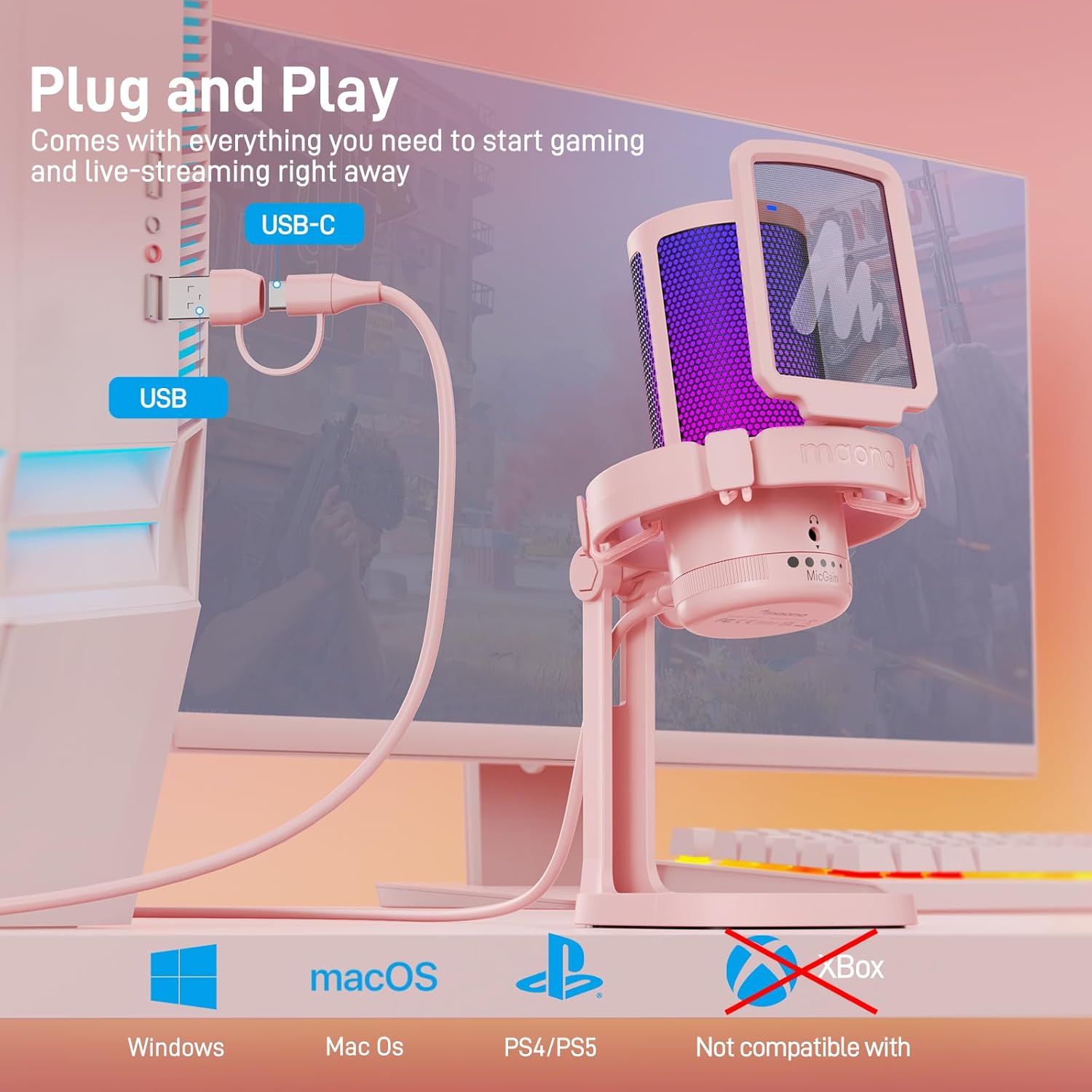
Image: The MAONO GamerWave DGM20 microphone connected to a computer, illustrating its plug-and-play setup.

Image: The MAONO GamerWave DGM20 microphone connected to various devices, including a PC and laptop, highlighting its broad compatibility.
4. Operating Instructions
4.1 One-Key Noise Cancellation
The microphone features a one-key noise cancellation function to suppress background noise, ensuring clear voice pickup. Long press the dedicated button on the microphone to activate or deactivate this feature. A blue LED light indicates that noise cancellation is active.

Image: The MAONO GamerWave DGM20 microphone with its one-key noise cancellation feature, showing the difference in audio clarity before and after activation.
Video: A short demonstration of the MAONO GamerWave DGM20 microphone's noise cancellation feature.
4.2 Stunning RGB Lighting
The microphone features customizable RGB lighting with various modes including static solid colors, breathing light, and dynamic multicolor gradients. Tap the light button on the microphone to cycle through the modes. Long press the button to turn off the RGB lights.

Image: The MAONO GamerWave DGM20 microphone showcasing its controllable RGB lighting with static, breathing, and gradient modes.
Video: A demonstration of the MAONO GamerWave DGM20 USB RGB gaming microphone's lighting effects.
4.3 One-Click Mute with LED Indicator
Instantly mute or unmute the microphone with a single tap on the mute button. A green LED light indicates the microphone is active, while a red light signifies it is muted.
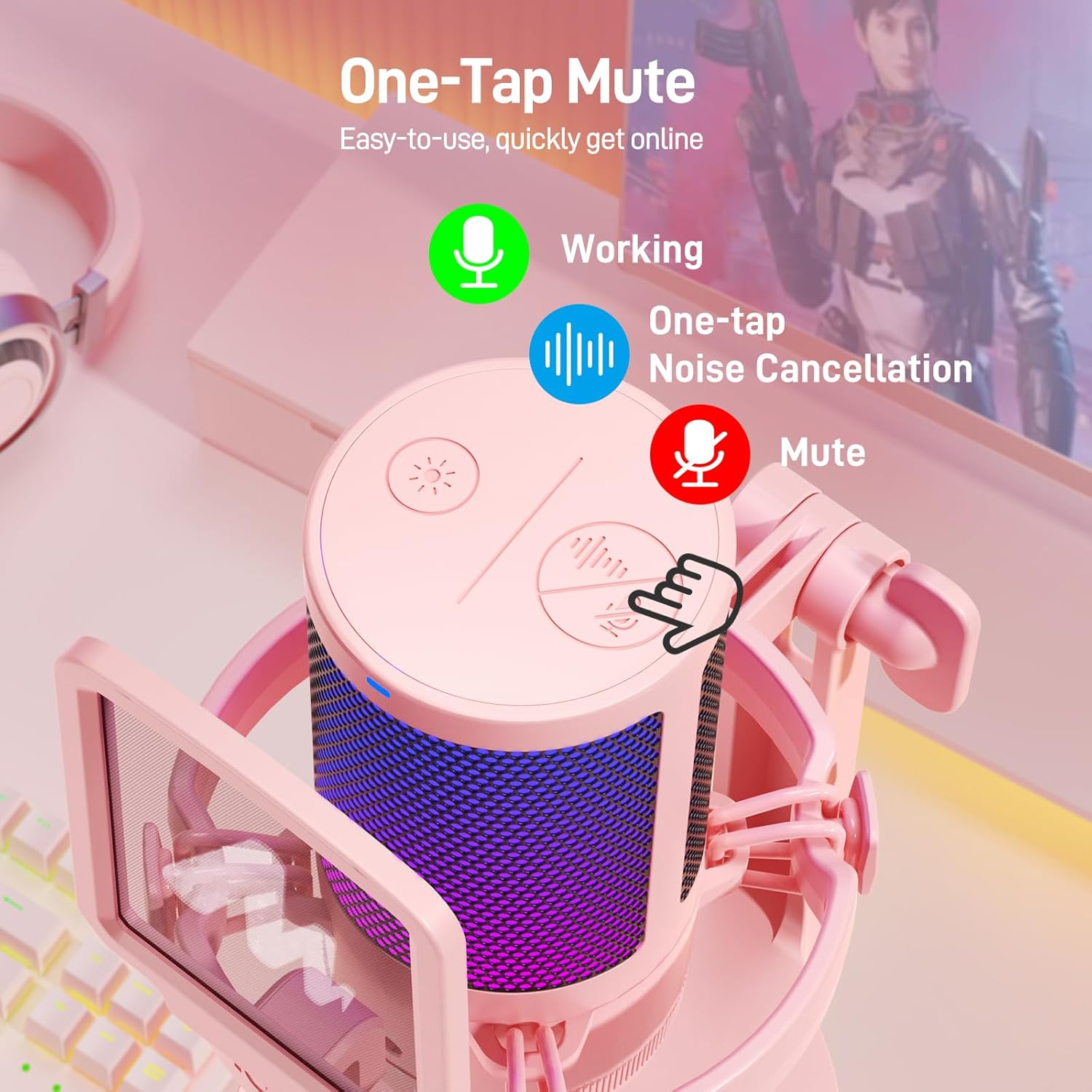
Image: The MAONO GamerWave DGM20 microphone showing the one-tap mute function and its corresponding LED indicator (green for active, red for muted).
4.4 Mic Gain Control and Monitoring
Adjust the microphone's sensitivity using the gain control knob located at the bottom. Turn the knob to increase or decrease the gain to suit your environment and desired audio level. For real-time audio monitoring without latency, plug your headphones into the 3.5mm jack on the microphone.
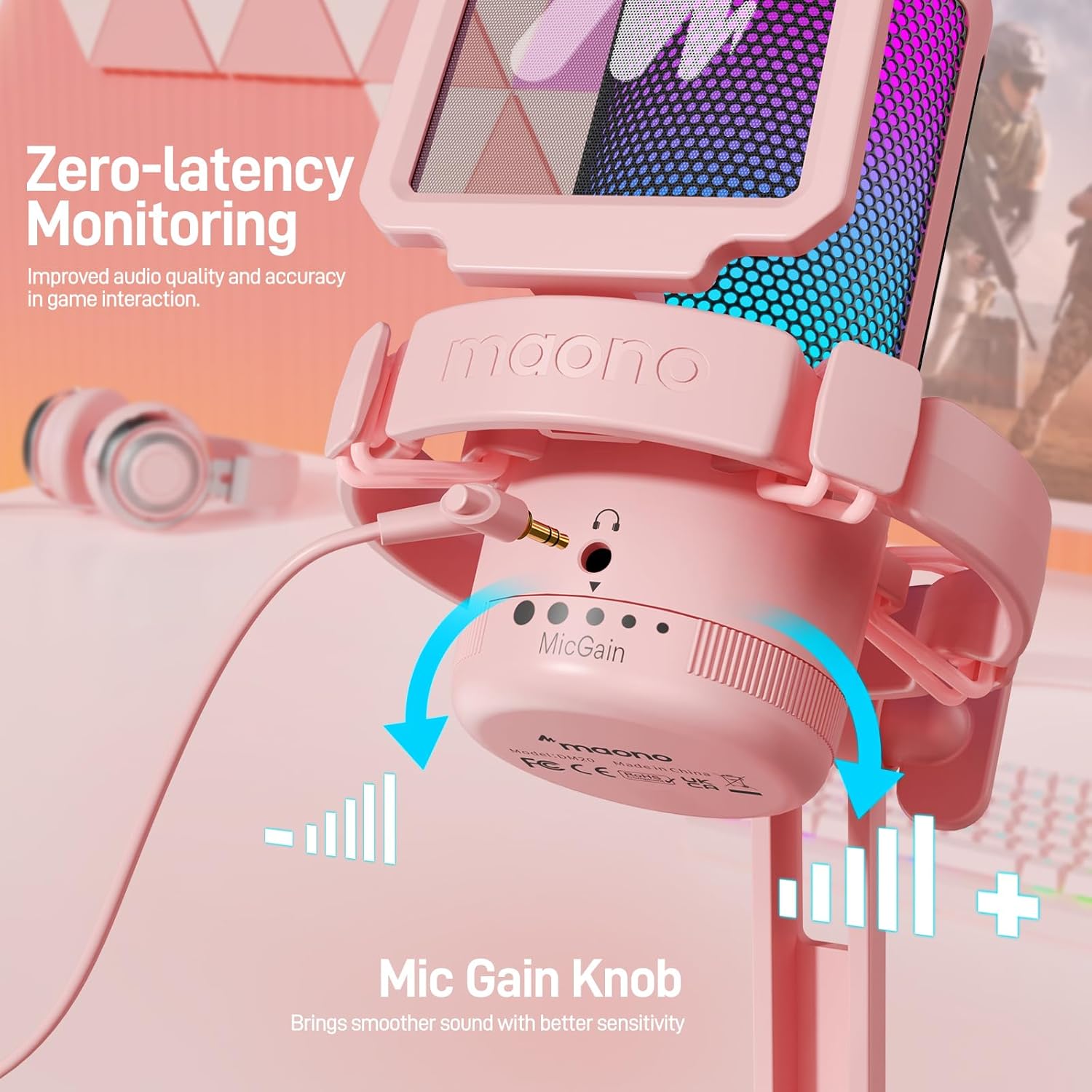
Image: The MAONO GamerWave DGM20 microphone highlighting the mic gain control knob and the 3.5mm jack for zero-latency monitoring.
4.5 Polar Pattern
The GamerWave DGM20 features a cardioid polar pattern, which means it primarily picks up sound from directly in front of the microphone. This design helps to isolate your voice and minimize unwanted background noise, making it ideal for single-speaker applications like streaming and podcasting.
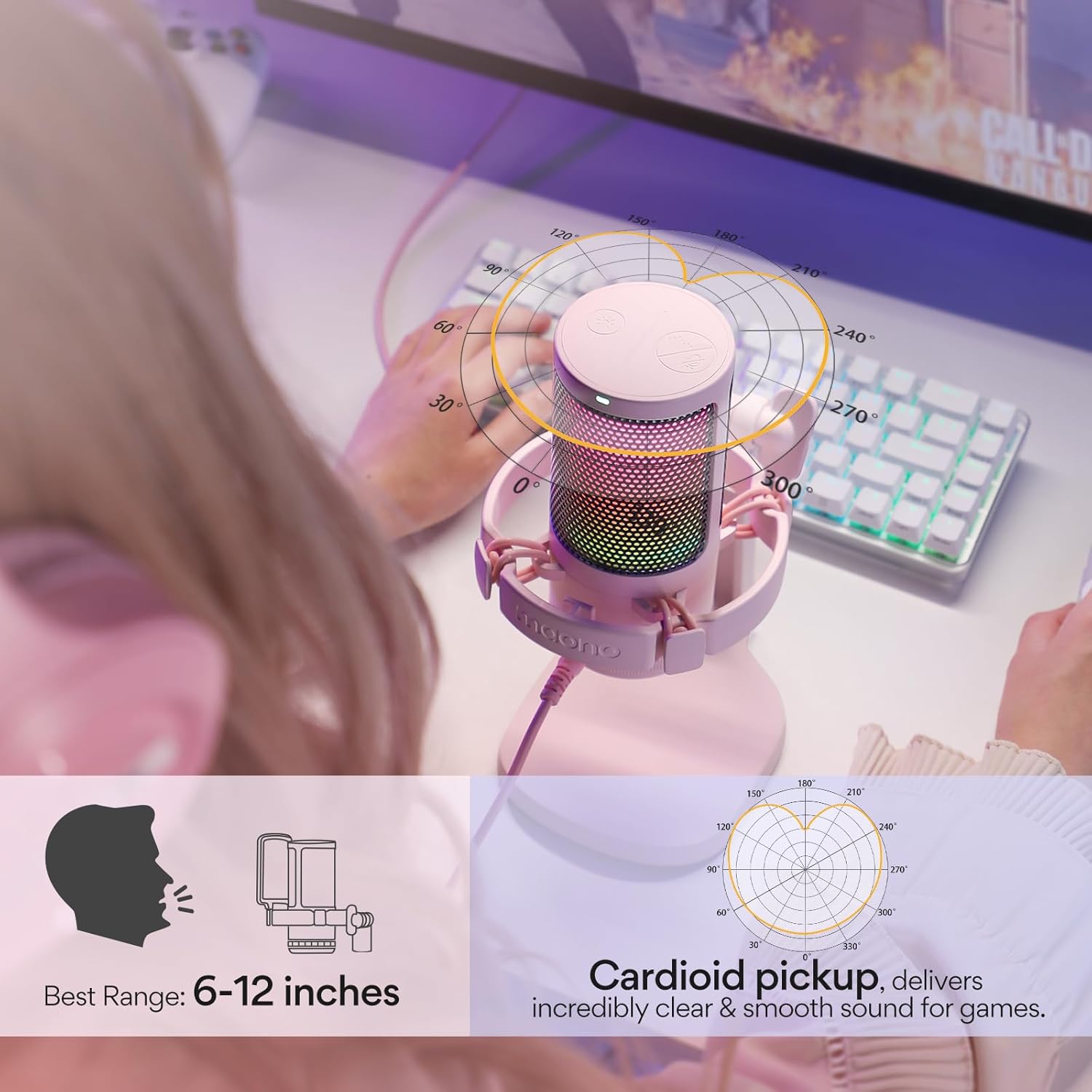
Image: The MAONO GamerWave DGM20 microphone with a diagram illustrating its cardioid pickup pattern, focusing on sound from the front.
5. Compatibility
The MAONO GamerWave DGM20 is compatible with a wide range of devices:
- Computers (PC, Laptop, Desktop)
- Mac OS devices
- PlayStation 4 (PS4)
- PlayStation 5 (PS5)
- Android Phones
Note: This microphone is not compatible with XBOX consoles.
6. Maintenance
To ensure the longevity and optimal performance of your MAONO GamerWave DGM20 microphone, follow these maintenance guidelines:
- Cleaning: Use a soft, dry cloth to wipe the microphone's exterior. Avoid using liquid cleaners or solvents, as they may damage the finish or internal components.
- Storage: When not in use, store the microphone in a clean, dry place away from extreme temperatures, humidity, and direct sunlight.
- Handling: Handle the microphone with care. Avoid dropping it or subjecting it to strong impacts, which can affect its performance.
- Cable Care: Do not bend or crimp the USB cable excessively. Store it neatly to prevent damage.
7. Troubleshooting
If you encounter issues with your MAONO GamerWave DGM20 microphone, try the following troubleshooting steps:
- No Sound/Microphone Not Detected:
- Ensure the USB cable is securely connected to both the microphone and your device.
- Try connecting the microphone to a different USB port on your device.
- Verify that the microphone is selected as the input device in your operating system's sound settings and any recording software you are using.
- Restart your computer or device.
- Poor Sound Quality/Distortion:
- Adjust the mic gain knob to an appropriate level. Too high gain can cause distortion, while too low can result in faint audio.
- Ensure you are speaking directly into the front of the microphone (where the MAONO logo is visible) due to its cardioid polar pattern.
- Activate the one-key noise cancellation feature if background noise is an issue.
- Check for any obstructions between your mouth and the microphone.
- RGB Lights Not Working:
- Tap the RGB light button on the microphone to cycle through modes.
- Ensure the microphone is properly powered via the USB connection.
- Monitoring Audio Issues:
- Ensure your headphones are securely plugged into the 3.5mm jack on the microphone.
- Check your headphone volume.
8. Specifications
| Feature | Detail |
|---|---|
| Microphone Form Factor | Handheld |
| Dimensions (L x W x H) | 3.94 x 3.54 x 7.09 inches |
| Item Weight | 15.5 ounces |
| Power Source | Corded Electric |
| Material | Metal, Plastic |
| Signal-to-Noise Ratio | 73 |
| Hardware Platform | Computer, PC, Laptop, Desktop, Mac OS, PS4, PS5 |
| Number of Channels | 1 |
| Model Name | GamerWave DGM20 Gaming Mic |
| Connectivity Technology | USB |
| Connector Type | USB, USB Type-C |
| Special Features | Controllable RGB Lights, One-key Noise Cancellation, One-tap Mute, Mic Gain Control, Zero Latency Monitoring, Plug and Play |
| Color | Pink |
| Polar Pattern | Unidirectional (Cardioid) |
9. Warranty and Support
For warranty information and technical support, please visit the official MAONO website or contact MAONO customer service. You can also visit the MAONO Store on Amazon for more product details and support resources.


