
uniarch UHO-S2E
Uniarch UHO-S2E Smart Pan and Tilt Camera User Manual
Model: UHO-S2E
1. Introduction
The Uniarch UHO-S2E is a 2MP indoor Pan and Tilt (PT) camera designed for comprehensive home surveillance. It offers real-time two-way audio communication, high-definition night vision, and advanced detection features including motion detection, auto tracking, audio detection, and human body detection. Its flexible pan and tilt design allows for a 360° horizontal rotation range, ensuring extensive coverage of your indoor space. This camera integrates seamlessly with the Uniarch APP and EZCloud, providing convenient remote monitoring capabilities from anywhere at any time.
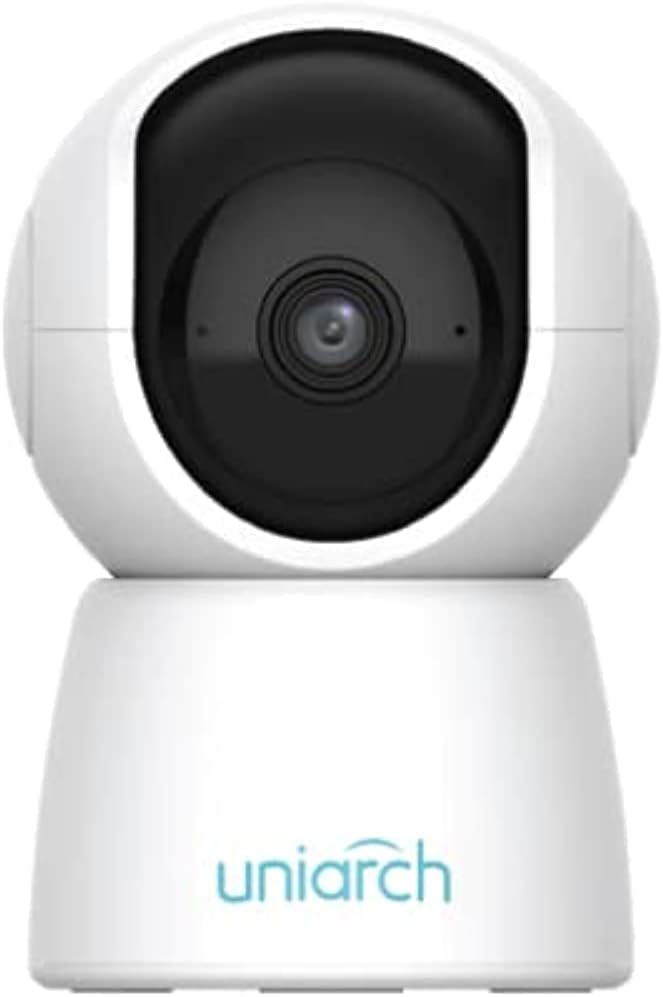
Figure 1.1: Front view of the Uniarch UHO-S2E Smart Pan and Tilt Camera, showcasing its compact and modern design.
Key Features:
- 2MP Resolution & IR Night Vision: Provides clear, high-definition video day and night.
- 360° Pan Range: Offers extensive coverage with its pan and tilt capabilities for 24-hour monitoring.
- Two-Way Audio: Enables real-time communication through the camera.
- Multiple Detection Ways: Includes motion, audio, and human body detection for enhanced security alerts.
- Easy and Convenient to Use: Designed for straightforward setup and operation via the Uniarch APP.
2. Safety Information
Please read this manual carefully before operating the device and retain it for future reference. Observe all safety warnings and precautions to ensure proper and safe operation.
- Use only the power adapter supplied with the camera.
- Do not expose the camera to water or moisture. This device is designed for indoor use only.
- Avoid placing the camera in direct sunlight or near heat sources.
- Ensure the camera is installed on a stable surface to prevent falling.
- Do not attempt to disassemble or modify the camera. Refer all servicing to qualified personnel.
- Keep the camera and its accessories out of reach of children.
3. Physical Components and Ports
Familiarize yourself with the various components and connection ports of your Uniarch UHO-S2E camera.
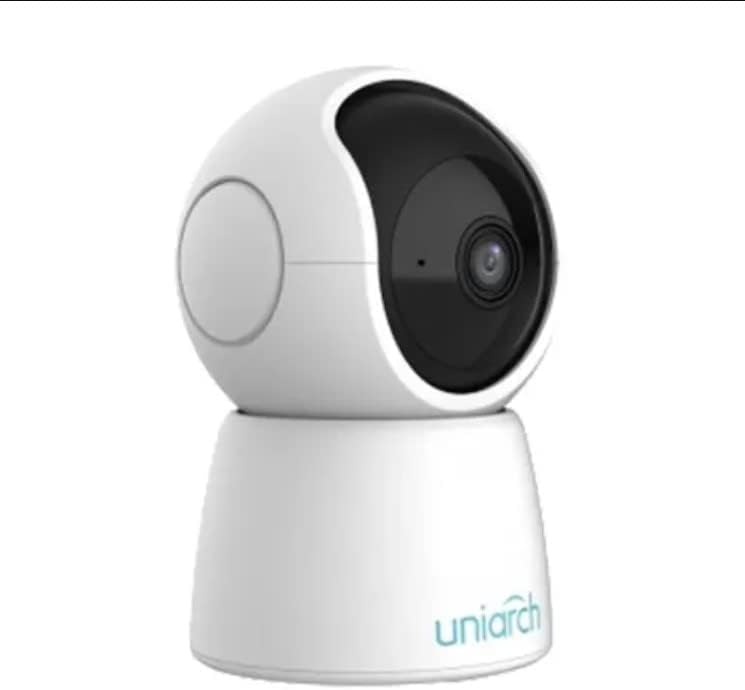
Figure 3.1: Angled view of the Uniarch UHO-S2E camera, showing its pan and tilt head and base.
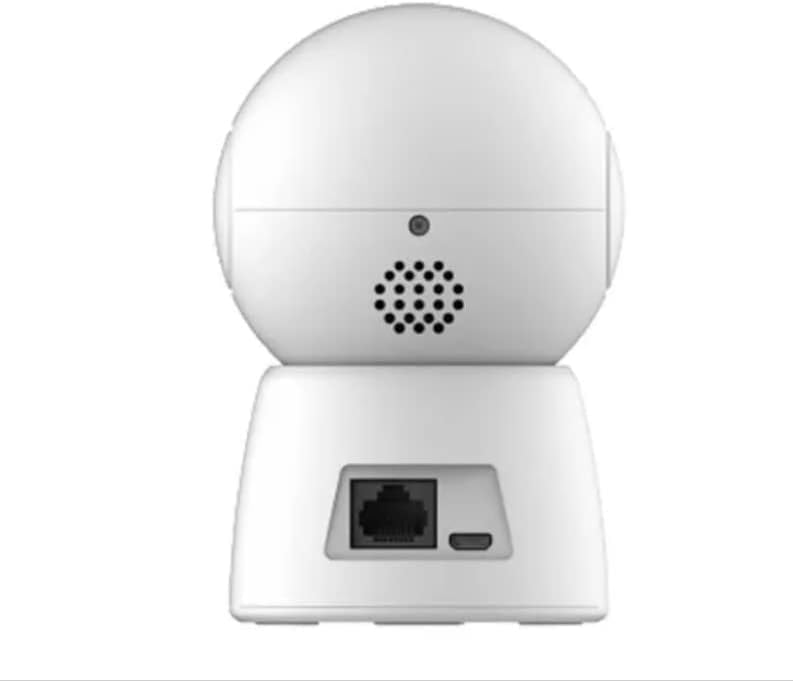
Figure 3.2: Rear view of the Uniarch UHO-S2E camera, highlighting the Ethernet port and Micro USB power input.
Port Descriptions:
- Micro USB Port: For connecting the power adapter.
- Ethernet Port: For wired network connection (optional, Wi-Fi is also supported).
- Reset Button: Typically a small pinhole button to restore factory settings.
- Microphone: For audio input during two-way communication.
- Speaker: For audio output during two-way communication.
4. Setup Guide
Follow these steps to set up your Uniarch UHO-S2E camera.
4.1 Powering On the Camera
- Connect the provided power adapter to the Micro USB port on the back of the camera.
- Plug the power adapter into a standard electrical outlet.
- The camera will power on and initiate its self-test sequence. Wait for the indicator light to show a stable status (refer to the camera's LED indicator guide for specific light patterns).
4.2 Installing the Uniarch App
The Uniarch App is essential for controlling and monitoring your camera.
- Download the "Uniarch" app from the App Store (iOS) or Google Play Store (Android). You can search for "Uniarch" or scan a QR code if provided in the camera's packaging.
- Install the app on your smartphone or tablet.
- Open the Uniarch app and register for a new account if you don't have one, or log in with your existing credentials.
4.3 Adding the Camera to the App
There are typically two methods to add your camera: Wi-Fi connection or wired connection.
Wi-Fi Connection (Recommended):
- In the Uniarch app, tap the "+" icon to add a new device.
- Select "Camera" or "Wireless Camera" from the device type options.
- Follow the on-screen instructions to connect the camera to your Wi-Fi network. This usually involves selecting your Wi-Fi network, entering the password, and then scanning a QR code generated by the app with the camera's lens.
- Once connected, name your camera and complete the setup process.
Wired Connection (Optional):
- Connect an Ethernet cable from your router to the Ethernet port on the back of the camera.
- In the Uniarch app, tap the "+" icon to add a new device.
- Select "Camera" or "Wired Camera" and follow the instructions to search for and add the camera on your local network.
- Once detected, name your camera and complete the setup process.
5. Operating Instructions
This section covers the basic operation of your Uniarch UHO-S2E camera through the Uniarch App.
5.1 Live View and Pan/Tilt Control
- Open the Uniarch app and select your camera from the device list to access the live view.
- On the live view screen, you will find controls for pan (horizontal rotation) and tilt (vertical rotation). Drag your finger across the screen or use the directional arrows to adjust the camera's viewing angle. The camera supports a 360° pan range.
5.2 Two-Way Audio
- While in live view, tap the microphone icon to enable two-way audio.
- Press and hold the microphone button to speak through the camera's speaker. Release to listen.
5.3 Motion Detection and Alerts
- Navigate to the camera settings within the Uniarch app.
- Locate the "Detection Settings" or "Alarm Settings" section.
- Enable motion detection, human body detection, and/or audio detection as desired.
- Configure sensitivity levels and detection zones if available.
- Ensure push notifications are enabled in the app and your phone's settings to receive alerts.
5.4 Auto Tracking
- In the camera settings, find the "Auto Tracking" option.
- Enable auto tracking to allow the camera to automatically follow detected motion within its field of view.
5.5 Night Vision
- The camera automatically switches to IR night vision in low-light conditions.
- You can typically configure night vision mode (Auto, On, Off) in the camera settings if manual control is desired.
6. Maintenance
Proper maintenance ensures the longevity and optimal performance of your camera.
6.1 Cleaning the Camera
- Before cleaning, disconnect the camera from the power source.
- Use a soft, dry cloth to wipe the camera body.
- For the lens, use a lens cleaning cloth specifically designed for optical surfaces. Do not use abrasive cleaners or solvents.
6.2 Firmware Updates
- Regularly check for firmware updates through the Uniarch app.
- Firmware updates can improve performance, add new features, and enhance security.
- Ensure the camera remains powered on and connected to the internet during a firmware update.
7. Troubleshooting
This section addresses common issues you might encounter with your Uniarch UHO-S2E camera.
| Problem | Possible Cause | Solution |
|---|---|---|
| Camera is offline/cannot connect. | No power, Wi-Fi signal too weak, incorrect Wi-Fi password, router issues. |
|
| Poor video quality. | Insufficient lighting, dirty lens, weak network bandwidth. |
|
| Two-way audio not working. | Microphone/speaker muted in app, network issues, hardware fault. |
|
| Motion alerts not received. | Detection disabled, notification settings incorrect, app not running in background. |
|
8. Specifications
| Feature | Detail |
|---|---|
| Model Name | Uniarch UHO S2E |
| Item Model Number | UHO-S2E |
| Brand | uniarch |
| Product Dimensions | 8 x 6 x 10 cm; 9.07 g |
| Recommended Uses | Audio Monitor |
| Connectivity Technology | Wireless |
| Special Features | Night Vision, Motion Sensor |
| Indoor/Outdoor Use | Indoor |
| Compatible Devices | Tablet, Smartphone |
| Power Source | Corded Electric |
| Connectivity Protocol | Wi-Fi |
| Controller Type | Android |
| Manufacturer | Uniarch |
| Date First Available | 18 January 2023 |
9. Support and Warranty
For technical support, warranty information, or further assistance, please refer to the official Uniarch website or contact their customer service. Details can typically be found on the product packaging or the Uniarch official website.
Note: Specific warranty terms and conditions may vary by region and retailer. Please retain your proof of purchase for warranty claims.
Related documentsUHO-S2E


Ask a question about this manual
Ask about setup, troubleshooting, compatibility, parts, safety, or missing instructions. Manuals+ will review the question and use this page’s manual context to help answer it.