
1. Introduction
The TP-Link EAP655-Wall is an AX3000 Wall Plate Wi-Fi 6 Access Point designed to provide high-speed wireless connectivity in various environments such as offices, hotels, and residential units. It integrates seamlessly into the Omada Software Defined Networking (SDN) platform, offering centralized management and advanced features.
Key features include:
- Ultra-fast Wi-Fi 6 speeds up to 2976 Mbps (2402 Mbps on 5GHz, 574 Mbps on 2.4GHz).
- Dedicated Wi-Fi network capability for individual rooms or zones.
- Four Gigabit Ethernet ports, including one PoE uplink and one PoE passthrough downlink port.
- Integration with Omada SDN for centralized cloud management.
- Support for advanced wireless technologies like Seamless Roaming, Band Steering, Load Balancing, Airtime Fairness, and Beamforming.
2. Package Contents
Verify that your package contains the following items:
- AX3000 Wall Plate WiFi 6 Access Point EAP655-Wall
- Installation Guide
- Mounting Kits
3. Setup and Installation
This section guides you through the physical installation and initial setup of your EAP655-Wall access point.
3.1 Device Overview
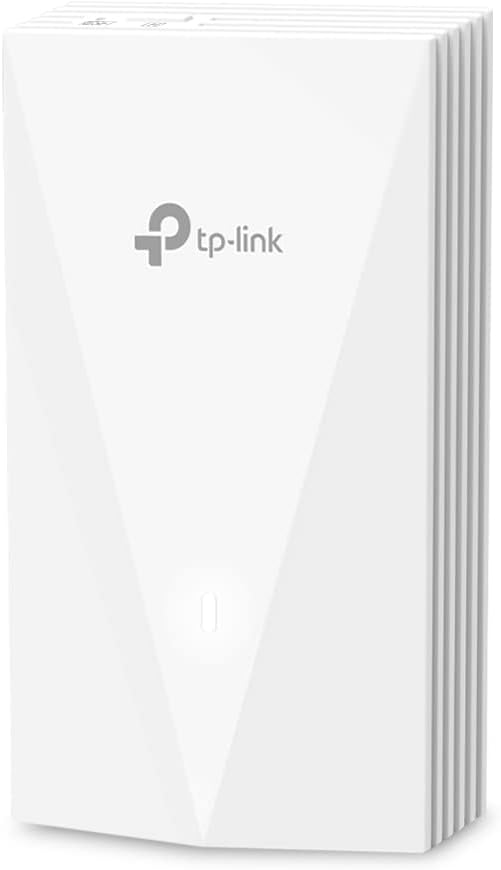
Figure 1: Front view of the EAP655-Wall Access Point, showing its sleek white design and TP-Link logo.

Figure 2: Back view of the EAP655-Wall Access Point, highlighting the Ethernet port labeled ETH0 (PoE IN) for power and data.

Figure 3: Side view of the EAP655-Wall Access Point showing the PoE Input and three Downlink Ethernet ports, one of which supports PoE Output.
3.2 Physical Installation
The EAP655-Wall is designed for in-wall installation, typically replacing an existing wall plate. It requires an in-wall box or low voltage bracket for proper mounting.
- Prepare the Wall Box: Ensure you have a standard in-wall electrical box or a low-voltage mounting bracket available.
- Connect Ethernet Cable: Connect an Ethernet cable from your network switch (which must provide 802.3af/at PoE) to the ETH0 (PoE IN) port on the back of the EAP655-Wall. This cable provides both power and data to the access point.
- Mount the Device: Secure the EAP655-Wall to the wall box using the provided mounting screws.
- Connect Downlink Devices: If needed, connect wired devices (e.g., IP phones, computers) to the three downlink Gigabit Ethernet ports (ETH1, ETH2, ETH3). Note that ETH3 supports PoE passthrough, allowing it to power another PoE-compatible device if the EAP655-Wall is powered by an 802.3at PoE+ input.
Note: This unit does not come with a PoE injector. A compatible PoE switch or injector (802.3af/at) is required for operation.
3.3 Initial Configuration
The EAP655-Wall can be managed via the Omada SDN platform or in standalone mode.
- Omada SDN Controller: For centralized management of multiple Omada devices, connect the EAP655-Wall to a network with an Omada Hardware Controller, Omada Software Controller, or Omada Cloud-Based Controller. The controller will automatically detect and allow you to adopt and configure the access point.
- Omada App: For standalone setup or basic management, download the Omada app on your mobile device. Connect to the EAP655-Wall's default Wi-Fi network (SSID and password usually found on a label on the device or in the quick start guide) and follow the in-app instructions.
Important: By default, PoE passthrough on the downlink port may be disabled. Enable it through the Omada controller or app if you intend to power a device via ETH3.
4. Operating the Access Point
Once installed and configured, the EAP655-Wall provides high-performance Wi-Fi 6 connectivity.
4.1 Wi-Fi Connectivity
The access point supports dual-band Wi-Fi 6 (802.11ax) with speeds up to 2976 Mbps. This includes 2402 Mbps on the 5 GHz band and 574 Mbps on the 2.4 GHz band.

Figure 4: Illustration of the AX3000 dual-band Wi-Fi 6 speeds, indicating 2x 1201 Mbps on 5GHz and 2x 287 Mbps on 2.4GHz.
It is designed to provide a dedicated Wi-Fi network in each room, ensuring optimal performance for connected devices.
4.2 Omada SDN Integration
The Omada SDN platform allows for centralized management of your network. Features include:
- Centralized Management: Manage all your Omada devices (access points, switches, gateways) from a single interface.
- Cloud Access: Access and manage your network remotely from anywhere, anytime, using the Omada cloud portal or app.
- Seamless Roaming: Devices automatically switch to the access point with the strongest signal as you move, ensuring uninterrupted connectivity (requires Omada SDN controllers).
- Band Steering: Automatically pushes dual-band clients to the faster 5 GHz band.
- Load Balancing: Distributes client connections across multiple access points to optimize network performance.
- Airtime Fairness: Ensures that slower devices do not monopolize airtime, improving overall network efficiency.
- Beamforming: Focuses Wi-Fi signals towards connected devices for stronger, more reliable connections.
5. Maintenance
Regular maintenance helps ensure the optimal performance and longevity of your EAP655-Wall access point.
- Firmware Updates: Periodically check the TP-Link website or your Omada controller for firmware updates. Keeping the firmware up-to-date ensures you have the latest features, security patches, and performance improvements.
- Cleaning: Gently clean the exterior of the device with a soft, dry cloth. Avoid using liquid cleaners or aerosols.
- Environmental Conditions: Ensure the device is operating within its recommended temperature and humidity ranges to prevent overheating or damage.
6. Troubleshooting
If you encounter issues with your EAP655-Wall, refer to the following common troubleshooting steps:
- No Power/No Indicator Lights:
- Ensure the Ethernet cable is securely connected to the ETH0 (PoE IN) port.
- Verify that your PoE source (switch or injector) is functioning correctly and providing 802.3af/at compliant power.
- No Wi-Fi Signal:
- Check if the device is properly adopted and configured in your Omada controller or via the Omada app.
- Ensure the Wi-Fi radio is enabled and broadcasting the correct SSIDs.
- Verify that the device has an active network connection to your router/gateway.
- Slow Wi-Fi Speeds:
- Confirm that your client devices support Wi-Fi 6 (802.11ax) for optimal performance.
- Check for potential interference from other wireless devices or networks.
- Ensure the access point is placed optimally and not obstructed by dense materials.
- Verify that your uplink connection to the network is not a bottleneck.
- PoE Passthrough Not Working:
- Ensure the EAP655-Wall is powered by an 802.3at PoE+ source.
- Verify that PoE passthrough is enabled for the downlink port (ETH3) in the Omada controller or app settings.
- Confirm the connected device is PoE-compatible and requires less than 15W of power.
- Device Not Detected by Omada Controller:
- Ensure the EAP655-Wall is on the same network segment or can reach the Omada controller.
- Check firewall settings on the controller or network that might block communication.
- Perform a factory reset on the EAP655-Wall and try adoption again.
For more detailed troubleshooting or persistent issues, please contact TP-Link support.
7. Specifications
| Feature | Detail |
|---|---|
| Model Name | EAP655-Wall |
| Wireless Standard | 802.11ax (Wi-Fi 6) |
| Frequency Band Class | Dual-Band (2.4 GHz & 5 GHz) |
| Max Wireless Speed | AX3000 (2402 Mbps on 5 GHz, 574 Mbps on 2.4 GHz) |
| Ethernet Ports | 1x Gigabit Uplink (802.3af/at PoE IN), 3x Gigabit Downlink (1x PoE Passthrough) |
| PoE Passthrough | Yes (requires 802.3at PoE+ input for EAP655-Wall) |
| Dimensions | 5.63 x 3.39 x 1.68 inches |
| Item Weight | 10.2 ounces |
| Manufacturer | TP-Link |
| Compatible Devices | Personal Computer and other Wi-Fi enabled devices |
| Recommended Use | Business, Hospitality, Dormitory, Apartment, Villa |
8. Warranty Information
The TP-Link EAP655-Wall is backed by an industry-leading 5-year warranty.
This warranty covers defects in materials and workmanship under normal use. Please retain your proof of purchase for warranty claims.
9. Technical Support
For technical assistance, product inquiries, or warranty support, please contact TP-Link customer service:
- Phone: (866) 225-8139
- Web Support: myproducts.tp-link.com/us
- Email: support.USA@tp-link.com
Technical support is available Monday to Friday, 6 AM to 6 PM PST.


