
Introduction
This manual provides essential information for setting up, operating, maintaining, and troubleshooting your Acer SB272 27-inch Full HD (1920x1080P) IPS ZeroFrame Home & Office Monitor. Please read this manual thoroughly before using your monitor to ensure proper functionality and to maximize your viewing experience.
The Acer SB272 series monitor features a sleek, ultra-thin design with a frameless bezel, making it ideal for multi-monitor setups. It incorporates AMD FreeSync technology for smooth visuals, a rapid 1ms Visual Response Boost (VRB) for sharp moving images, and a 100Hz refresh rate. Connectivity options include HDMI and VGA ports. The monitor also includes Acer VisionCare technology designed to reduce eye strain during prolonged use.
Setup
1. Unpacking and Package Contents
Carefully remove all components from the packaging. Ensure all items listed below are present:
- Acer SB272 Monitor
- Monitor Stand (Base and Neck)
- Power Cord
- HDMI Cable
2. Stand Assembly
- Attach the monitor neck to the base. Secure it with the provided screw, if applicable.
- Align the assembled stand with the mounting points on the back of the monitor.
- Gently push the monitor onto the stand until it clicks into place, or secure with screws as per the stand design.

The Acer SB272 monitor fully assembled with its stand, ready for connection.
3. Connecting Cables
Connect the necessary cables to your monitor and computer:
- Power Cable: Connect one end of the power cord to the monitor's power input and the other end to a power outlet.
- HDMI Cable: Connect one end of the HDMI cable to the HDMI port on your monitor and the other end to the HDMI port on your computer.
- VGA Cable (Optional): If using a VGA connection, connect one end of the VGA cable to the VGA port on your monitor and the other end to the VGA port on your computer.

Rear view of the Acer SB272 monitor highlighting the HDMI and VGA input ports, along with the VESA wall mount compatibility.
4. Initial Power On
Press the power button on the monitor. The monitor should automatically detect the input signal from your computer. If not, you may need to manually select the input source using the On-Screen Display (OSD) menu.
Operation
1. On-Screen Display (OSD) Navigation
The OSD menu allows you to adjust various monitor settings. Use the buttons located on the bottom right side of the monitor to navigate the menu:
- Power Button: Turns the monitor on/off.
- Menu Button: Opens the OSD menu.
- Navigation Buttons: Used to move through menu options and adjust values.
- Select Button: Confirms selections.
2. Adjusting Display Settings
Within the OSD menu, you can customize settings such as:
- Brightness/Contrast: Adjust for optimal visibility.
- Color Settings: Fine-tune color temperature, gamma, and individual RGB levels.
- Input Source: Manually select between HDMI and VGA inputs.
- Picture Mode: Choose from preset modes (e.g., Standard, Graphics, Movie, User).
3. Ergonomic Tilt Adjustment
The monitor stand allows for tilt adjustment from -5° to 15°. Gently hold the top and bottom edges of the monitor and tilt it to your desired viewing angle for maximum comfort.

The Acer SB272 monitor demonstrating its tilt adjustment capability for ergonomic viewing.
4. Key Features
- Full HD (1920x1080) Resolution: Experience sharp details and accurate colors for all your content. The monitor provides true-to-life imagery for an enhanced viewing experience.

Visual comparison illustrating the clarity of FHD 1080p resolution compared to 720p.
- AMD FreeSync Technology: This technology synchronizes the monitor's refresh rate with your graphics card's frame rate, eliminating screen tearing and stuttering for a smoother visual experience, especially during fast-paced action.

Demonstration of AMD FreeSync technology reducing screen tearing for a seamless viewing experience.
- 100Hz Refresh Rate: A higher refresh rate means the screen updates more frequently, resulting in smoother motion and reduced eye fatigue. This monitor provides a flicker-free visual experience.

Illustration of the benefits of a 100Hz refresh rate for smoother motion compared to 60Hz.
- 1ms Visual Response Boost (VRB): This feature ensures clear, blur-free images even during fast-moving scenes by reducing smearing and ghosting. It's particularly beneficial for gaming and action-packed videos.

Demonstration of 1ms VRB (Visual Response Boost) technology minimizing motion blur.
- IPS (In-Plane Switching) Panel: Provides wide viewing angles of up to 178° and vivid, consistent colors from various perspectives. This ensures color accuracy and image integrity regardless of your viewing position.
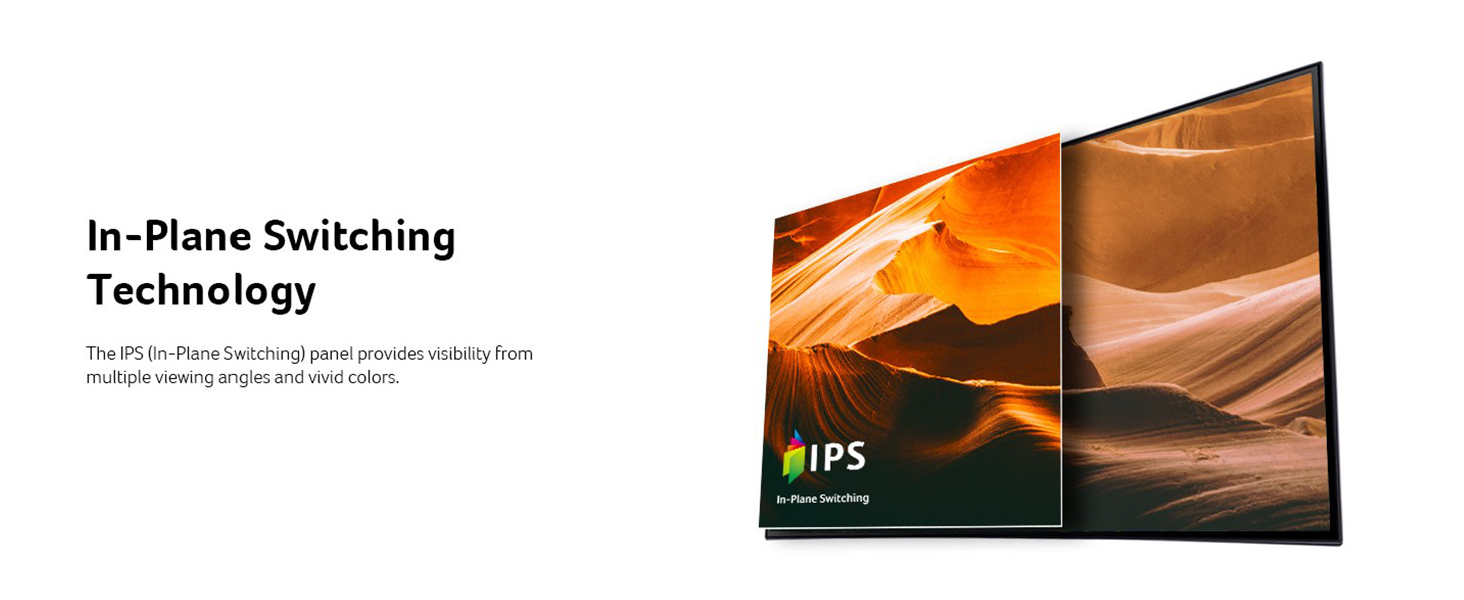
Visual representation of IPS technology offering wide viewing angles and vibrant colors.
- Acer VisionCare™: This suite of technologies is designed to reduce eye strain during extended viewing periods. It includes features like BlueLightShield, Flicker-less, Low Dimming, and ComfyView to enhance viewing comfort.

A user experiencing reduced eye strain thanks to Acer VisionCare™ technology during work.
Maintenance
Proper care and maintenance will extend the life of your monitor.
1. Cleaning the Screen
- Turn off the monitor and unplug the power cord.
- Use a soft, lint-free cloth lightly dampened with water or a specialized screen cleaner.
- Wipe the screen gently in one direction from top to bottom. Avoid applying excessive pressure.
- Never spray liquid directly onto the screen.
2. Cleaning the Monitor Body
- Turn off the monitor and unplug the power cord.
- Use a soft, dry cloth to wipe the monitor casing and stand.
- For stubborn dirt, a lightly dampened cloth with mild detergent can be used, followed by a dry cloth.
- Avoid using abrasive cleaners or solvents, as they can damage the finish.
Troubleshooting
If you encounter issues with your monitor, refer to the following common problems and solutions:
1. No Power
- Ensure the power cord is securely connected to both the monitor and a working power outlet.
- Check if the power outlet is functional by plugging in another device.
- Verify the monitor's power button is pressed.
2. No Signal
- Confirm that the video cable (HDMI or VGA) is securely connected to both the monitor and your computer.
- Ensure your computer is powered on and not in sleep mode.
- Use the OSD menu to manually select the correct input source (HDMI or VGA).
- Try a different video cable or port on your computer, if available.
3. Image Flickering or Tearing
- Ensure AMD FreeSync is enabled in your graphics card settings (if your graphics card supports it).
- Check your computer's display settings to ensure the refresh rate is set to 100Hz.
- Update your graphics card drivers to the latest version.
4. Poor Image Quality
- Adjust brightness, contrast, and color settings via the OSD menu.
- Ensure your computer's display resolution is set to 1920 x 1080 pixels.
- Check the video cable for damage or loose connections.
Specifications
| Feature | Specification |
|---|---|
| Brand | acer |
| Model Number | SB272 Ebi |
| Screen Size | 27 Inches |
| Resolution | FHD 1080p (1920 x 1080 Pixels) |
| Aspect Ratio | 16:9 |
| Display Type | LED IPS |
| Refresh Rate | 100 Hz |
| Response Time | 1 Milliseconds (VRB) |
| Brightness | 250 Nit |
| Contrast Ratio | 100,000,000:1 |
| Viewing Angle | 170 Degrees |
| Connectivity Technology | HDMI, VGA |
| Adaptive Sync | FreeSync |
| Mounting Type | Wall Mount (VESA 75 x 75mm Compliant) |
| Item Dimensions (D x W x H) | 8.82"D x 24.17"W x 17.79"H |
| Item Weight | 3.92 Kilograms |
| Power Consumption | 30 Watts |
Warranty & Support
Warranty Information
This Acer SB272 monitor comes with a 3-year manufacturer warranty covering both parts and labor. Please retain your proof of purchase for warranty claims.
Customer Support
For technical assistance, warranty service, or additional product information, please visit the official Acer support website or contact Acer customer service directly. Refer to your product packaging or the Acer website for the most current contact details and support resources.


