
ZTE P618F08
ZTE Axon 40 SE User Manual
Model: P618F08
1. Introduction
This manual provides comprehensive instructions for the safe and efficient use of your ZTE Axon 40 SE smartphone. Please read this manual thoroughly before operating your device to ensure optimal performance and longevity.
Key Features:
- Operating System: Android 12
- Display: 6.67-inch FHD+ AMOLED Punch-hole Display
- Camera System: Triple Rear Camera (50Mpx main + 5Mpx + 2Mpx), 8Mpx Front Camera
- Memory & Storage: Up to 6 GB RAM, 128 GB Internal Memory
- Battery: 4,500 mAh with 22.5W Fast Charging
- Connectivity: 4.5G Unlocked, Bluetooth, USB, Wi-Fi

Figure 1.1: Front and back view of the ZTE Axon 40 SE smartphone, showcasing its sleek design and camera module.
2. Setup
2.1 Inserting the SIM Card
- Locate the SIM card tray on the side of the device.
- Insert the provided SIM ejector tool into the small hole next to the tray.
- Gently push until the tray pops out.
- Place your Nano-SIM card(s) and/or microSD card into the tray with the gold contacts facing down.
- Carefully push the tray back into the slot until it is flush with the device.

Figure 2.1: Side profile of the ZTE Axon 40 SE, highlighting the SIM card tray location.
2.2 Powering On/Off
- To Power On: Press and hold the Power button (located on the right side) until the ZTE logo appears.
- To Power Off: Press and hold the Power button, then select "Power off" from the options on the screen.
- To Restart: Press and hold the Power button, then select "Restart" from the options.
2.3 Initial Configuration
Upon first power-on, follow the on-screen prompts to set up your device. This includes selecting your language, connecting to Wi-Fi, setting up your Google account, and configuring security features.
2.4 Charging the Device
Connect the USB Type-C cable to the charging port at the bottom of the phone and the other end to the provided 22.5W fast charger. The battery icon on the screen will indicate charging status.

Figure 2.2: Illustration of the ZTE Axon 40 SE's 4500mAh battery and fast charging capability.
3. Operating Your Device
3.1 Basic Navigation
- Touchscreen Gestures: Tap, swipe, pinch-to-zoom are standard gestures for interacting with the display.
- Volume Buttons: Located on the right side, control media volume and ringtone volume.
- Home Screen: Swipe left or right to navigate between home screens. Swipe down from the top for notifications and quick settings.

Figure 3.1: Front view of the ZTE Axon 40 SE, showing the display and punch-hole camera.
3.2 Camera Usage
The ZTE Axon 40 SE features a versatile triple camera system on the rear and an 8Mpx front camera for selfies and video calls.
- Open the Camera app from your home screen or app drawer.
- Select your desired mode (Photo, Video, Portrait, etc.).
- Tap the shutter button to capture photos or start/stop video recording.
- Use the zoom controls on the screen to adjust magnification.
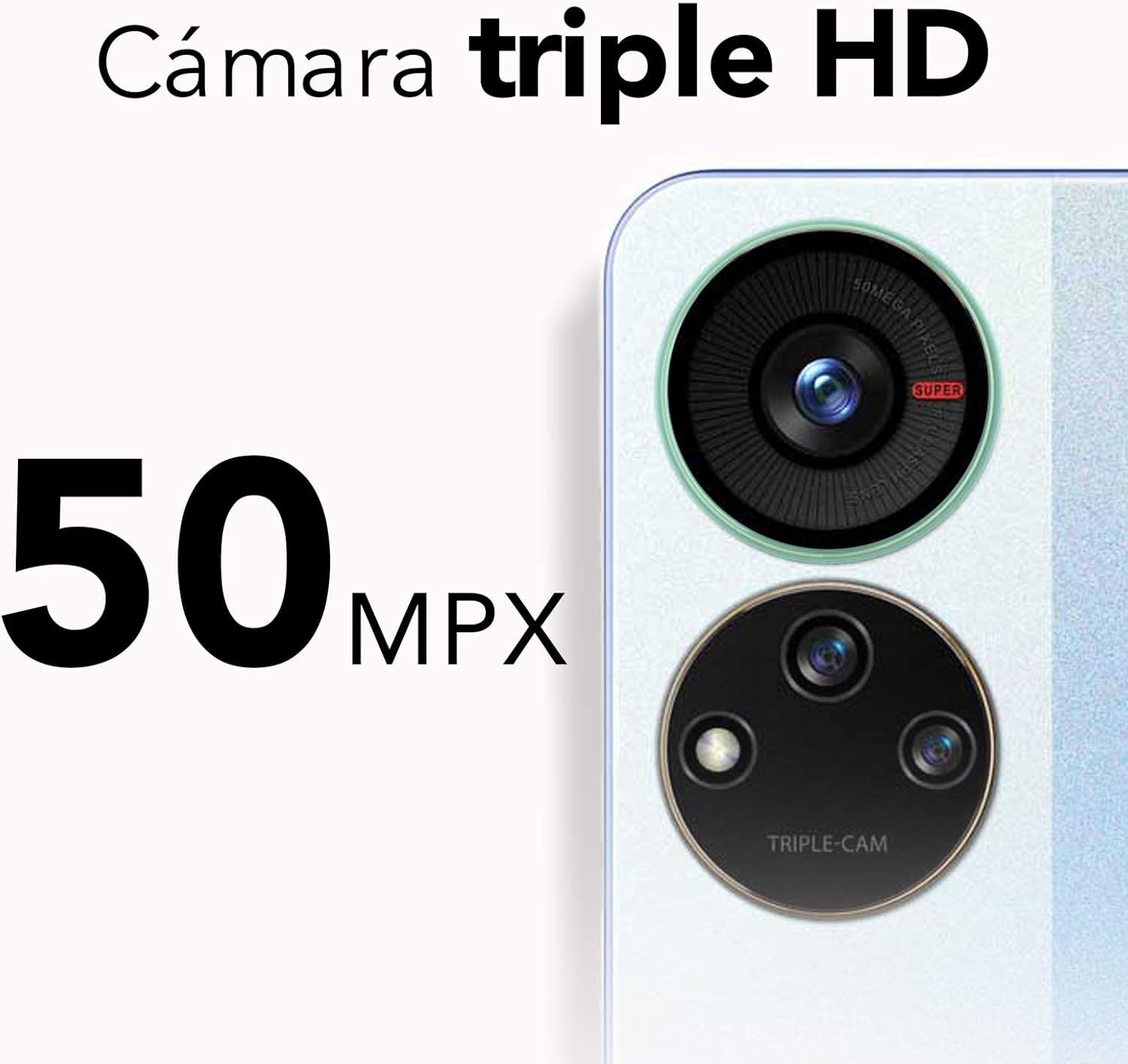
Figure 3.2: Close-up of the ZTE Axon 40 SE's 50Mpx triple camera system.
3.3 Connectivity
- Wi-Fi: Go to Settings > Network & internet > Wi-Fi to connect to available networks.
- Bluetooth: Go to Settings > Connected devices > Connection preferences > Bluetooth to pair with other Bluetooth devices.
- Mobile Data (4.5G): Ensure your SIM card is active and mobile data is enabled in Settings > Network & internet > Mobile network.
4. Maintenance
4.1 Cleaning Your Device
To clean your ZTE Axon 40 SE, use a soft, lint-free cloth. Avoid using abrasive cleaners, solvents, or aerosol sprays directly on the device. For stubborn smudges, slightly dampen the cloth with water or a screen cleaner designed for electronics.
4.2 Software Updates
Regularly check for software updates to ensure your device has the latest features, security patches, and performance improvements. Go to Settings > System > System update to check for and install updates.
4.3 Storage Management
To optimize performance, periodically manage your device's storage. Delete unnecessary files, clear app caches, and consider moving large media files to cloud storage or an external microSD card (if applicable). Go to Settings > Storage to view storage usage and free up space.

Figure 4.1: Illustration of the ZTE Axon 40 SE's dynamic RAM feature, allowing up to 6GB RAM.
5. Troubleshooting
| Problem | Possible Solution |
|---|---|
| Device not turning on | Ensure the battery is charged. Press and hold the Power button for at least 10 seconds to force a restart. |
| Apps crashing or freezing | Clear the app's cache (Settings > Apps > [App Name] > Storage & cache > Clear cache). Restart the device. Update the app. |
| Poor network signal | Check if mobile data is enabled. Restart the device. Try re-inserting the SIM card. Contact your service provider. |
| Battery drains quickly | Reduce screen brightness. Close unused apps. Disable Wi-Fi/Bluetooth when not in use. Check battery usage in Settings > Battery. |
6. Specifications
| Feature | Detail |
|---|---|
| Model Name | ZTE Axon 40 SE |
| Model Number | P618F08 |
| Operating System | Android 12.0 |
| Display Size | 6.67 inches |
| Display Resolution | 1080 x 2400 pixels (FHD+) |
| RAM | 6 GB (Dynamic RAM) |
| Internal Storage | 128 GB |
| Rear Camera | 50Mpx + 5Mpx + 2Mpx Triple Camera |
| Front Camera | 8Mpx |
| Battery Capacity | 4500 mAh |
| Charging | 22.5W Fast Charging |
| Cellular Technology | 4.5G |
| Connectivity | Bluetooth, USB, Wi-Fi |
| Dimensions | 16 x 8 x 0.1 cm (6.3 x 3.15 x 0.04 inches) |
| Weight | 143 g (5.04 ounces) |

Figure 6.1: Visual representation of the ZTE Axon 40 SE's 6.67-inch AMOLED display.
7. Warranty and Support
7.1 Warranty Information
Your ZTE Axon 40 SE comes with a standard manufacturer's warranty. Please refer to the warranty card included in your product packaging for specific terms, conditions, and duration. Keep your proof of purchase for warranty claims.
7.2 Customer Support
For technical assistance, troubleshooting beyond this manual, or warranty service, please contact ZTE customer support. You can find contact information on the official ZTE website or in your product documentation.
Online Resources: Visit the official ZTE website for FAQs, software downloads, and additional support resources.
Related documentsP618F08


Ask a question about this manual
Ask about setup, troubleshooting, compatibility, parts, safety, or missing instructions. Manuals+ will review the question and use this page’s manual context to help answer it.